
Table of Contents
- What PIC Does
- How PIC Calculates Emissions
- Default and Customized Products
- Add Your Own Supplier Data
- Navigate PIC
- Add Your First Products
- Product Distribution Settings
- Fill in the Product Distribution Dialog
- How the Percentages Change Impact Calculations
- Next Steps
What PIC Does
The Product Impact Calculator (PIC) calculates the greenhouse gas emissions of your products in kgCO2e. PIC covers five Scope 3 categories from the GHG Protocol that relate to purchased goods:
- Category 1: Purchased Goods and Services (materials, components, final assembly, packaging)
- Category 4: Upstream Transportation and Distribution (transport from final assembly facility to your distribution center)
- Category 9: Downstream Transportation and Distribution (transport from distribution centers to stores or customers, plus running distribution centers and stores)
- Category 11: Use of Sold Products (product care such as washing while customers use the product)
- Category 12: End-of-Life Treatment of Sold Products (landfill, incineration, recycling)
How PIC Calculates Emissions
PIC calculates emissions in two steps:
- Footprint per unit: PIC calculates emissions across ten lifecycle stages for one product unit. These stages include materials, components, final assembly, packaging, upstream transportation, downstream transportation, distribution, retail, use of sold products, and end of life.
- Purchase order quantity: PIC multiplies the per-unit footprint by the quantity on each purchase order.
The result is product footprint multiplied by purchase order quantity equals emissions of that purchase order.
Your account's total equals the sum of all product totals, which equals the sum of all purchase order totals.
A product without purchase orders contributes zero emissions. If purchase orders are missing, your full footprint does not display on the dashboard.
Each purchase order calculates independently and keeps its result until you recalculate. This means two purchase orders of the same product can show different results when they come from different factories or were created at different times.
Default and Customized Products
PIC includes 270 product categories. When you provide only a product category, PIC fills in default values for weight, materials, components, packaging, and final assembly.
Full defaults: 101 categories have complete default models in Apparel & Accessories, Footwear, and Sports & Outdoor. You can create a product in these categories with just a name and category.
Partial defaults: For the remaining categories, you enter the product weight and materials yourself. PIC applies the category group's default values for packaging, transport, and use.
You can customize any default product by changing weight, materials, net use, components, and packaging. A product only remains in default status when all values match the category's default model.
The default libraries include:
- 53 materials
- 30 components
- 30 packaging items based on Higg MSI 3.11
Add Your Own Supplier Data
The more primary data you add, the more accurately your results reflect your real supply chain:
Final assembly facility (Tier 1):
- Link the Higg FEM of the factory that made the product to each purchase order
- Its reported emissions replace the default final assembly value
Tier 2 and Tier 3 facilities:
- In the Material Library, link facilities such as mills and spinners to the production stages of a material
- PIC uses each facility's most recent eligible FEM data for that stage
Custom materials:
- Build your own materials in the Material Library
- Custom materials you created in Higg MSI also work in PIC
Higg Product Module footprints:
- Sync products you built in the Higg Product Module
- Their footprint comes from the Product Module as is
- You cannot link them to a final assembly FEM
Navigate PIC
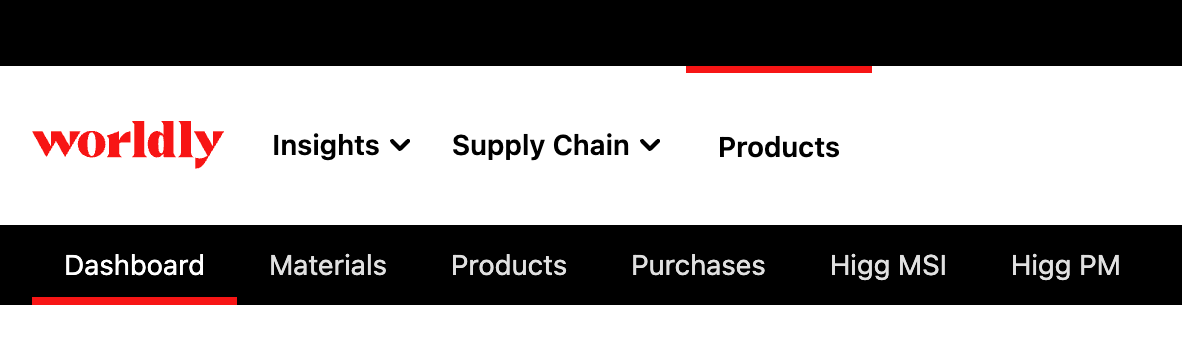
To open PIC, select Products in the top navigation. These tabs appear:
Dashboard:
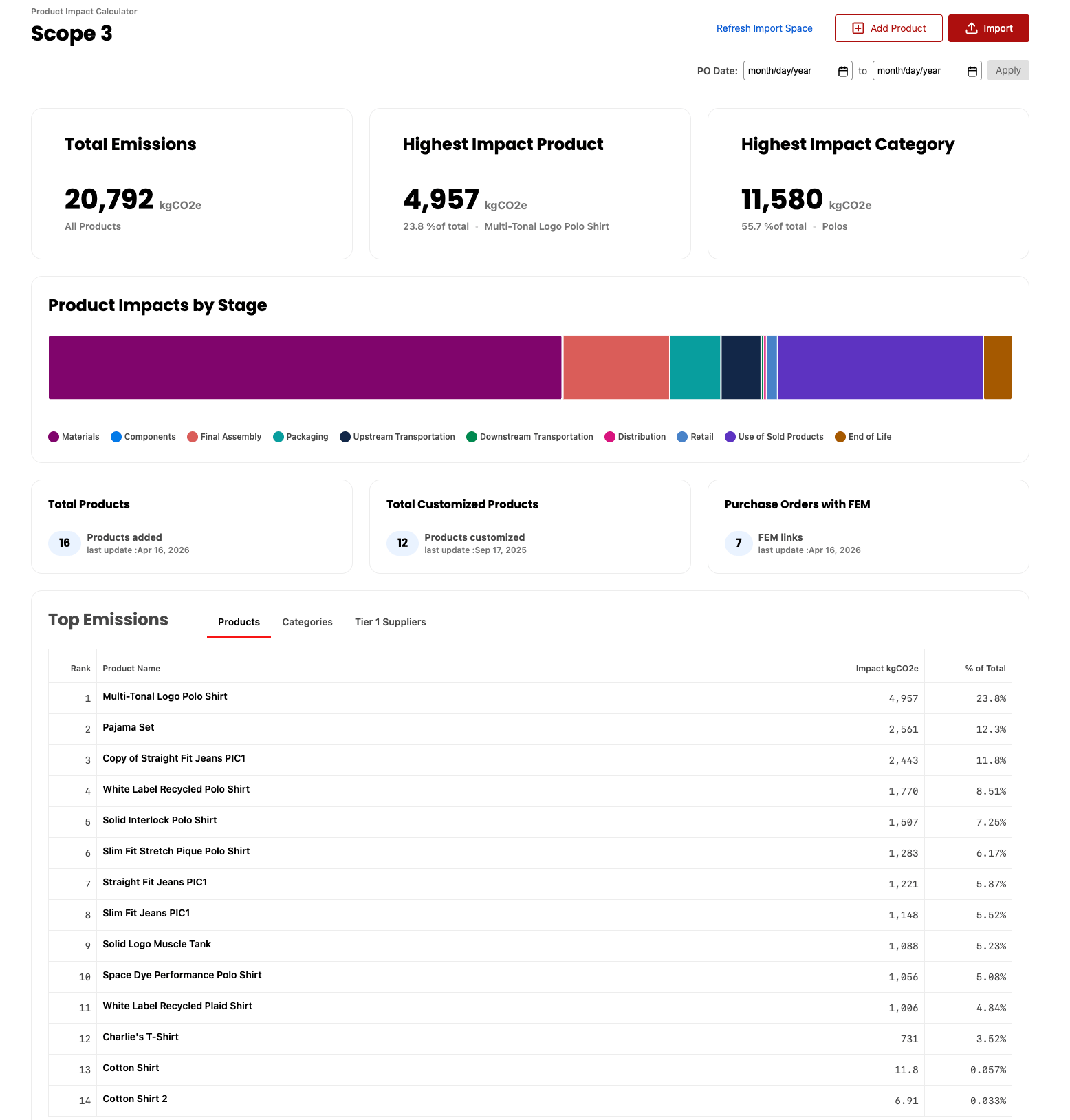
- See your total emissions, top products, categories, and suppliers
Materials:
- Your Material Library
- Create custom materials, link Tier 2 and Tier 3 facilities, download material data
- This tab appears when the Material Library is enabled for your account
Products:
- Your product list
- Add, edit, import, remove, and recalculate products
Purchases:
- All purchase orders for all products
- Edit, delete, recalculate, and download the Purchase Order Impacts CSV
Higg MSI:
- Opens the Higg Materials Sustainability Index
Higg PM:
- Opens the Higg Product Module
Add Your First Products
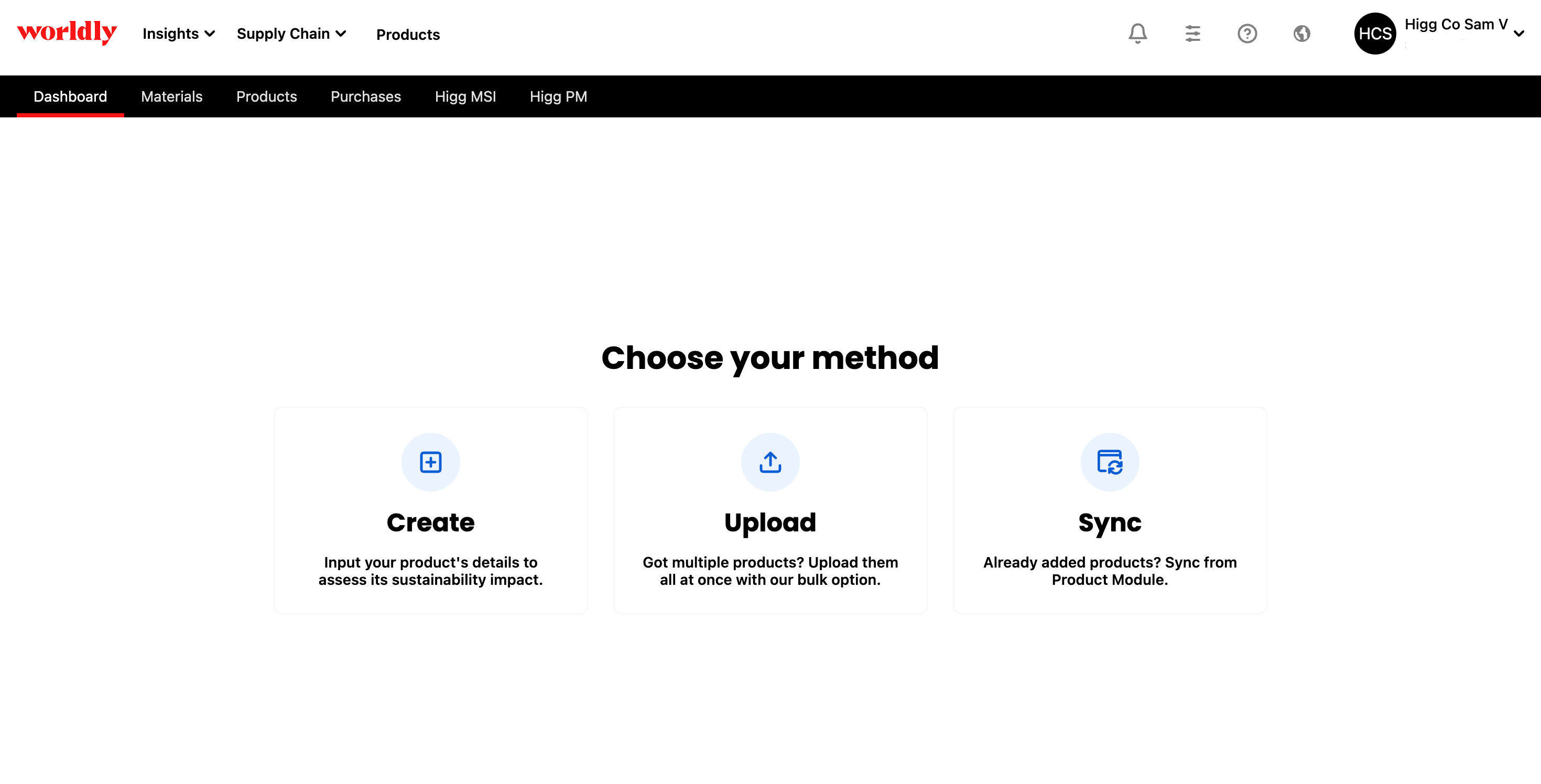
When your account has no products, the Dashboard shows Choose your method. This page offers three ways to add products:
Create:
- Input your product details to assess its sustainability impact
- Best for one product or a handful entered by hand
Upload:
- Upload multiple products at once with the bulk upload option
- Best for many products at once
Sync:
- Sync products you already added to the Higg Product Module
- This option appears only if your account has access to the Higg Product Module
Before you add products, the Product Distribution dialog may open. It sets your account's transport and distribution ownership percentages. See the Product Distribution Settings section below.
Product Distribution Settings
The Product Distribution settings are five percentages that tell PIC what share of your transport, distribution centers, and stores you do not own. Your account owner, admin, or editor sets these once when first using PIC.
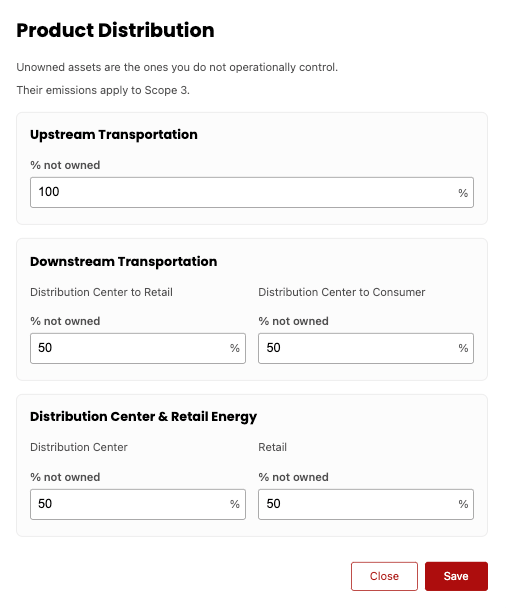
The dialog explains: "Unowned assets are the ones you do not operationally control. Their emissions apply to Scope 3." Emissions from transport, warehouses, and stores you control belong in your own Scope 1 and 2 reporting. PIC only counts the unowned share.
The settings belong to your entire account, not to one product. They apply to every product and purchase order your account calculates, whether you add products with the form, the import, or another method.
Fields and defaults:
- Upstream Transportation: % not owned (default 100%) – Share of transport from final assembly to your distribution centers done by carriers you do not control
- Downstream Transportation: Distribution Center to Retail (default 50%) – Share of transport from your distribution centers to retail stores that you do not control
- Downstream Transportation: Distribution Center to Consumer (default 50%) – Share of transport from your distribution centers directly to consumers that you do not control
- Distribution Center & Retail Energy: Distribution Center (default 50%) – Share of distribution center energy in warehouses you do not control
- Distribution Center & Retail Energy: Retail (default 50%) – Share of store energy in stores you do not control
Each value must be a number from 0 to 100. Use 100 when you own none of those assets, and 0 when you control all of them.
Fill in the Product Distribution Dialog
The dialog opens on the Dashboard the first time you access it, if nobody in your account has saved it yet.
- Go to Products > Dashboard. The dialog opens on top of the Choose your method page.
- Read the default value in each "% not owned" box.
- Change any value that does not match your business. Enter a number from 0 to 100.
- Select Save. The dialog closes.
If a value is invalid, a message appears under its box and Save stays unavailable. Close closes the dialog without saving. It opens again the next time you access the Dashboard as long as your account has no products.
Once your account has a product, the dialog no longer opens. If nobody saved it, your account keeps the default values.
After you save, there is no page in PIC to view or change the values. Contact Worldly support to view or change saved values.
How the Percentages Change Impact Calculations
Each purchase order is calculated per unit, then multiplied by its quantity. The percentages scale four stages of the per-unit impact:
Upstream Transportation:
- Worldly's default transport impact for moving the product from final assembly to the distribution center, multiplied by the Upstream Transportation percentage
- At the default 100%, the full transport impact counts
Downstream Transportation:
- The product's weight plus its packaging weight, multiplied by a default transport emission factor
- This is done once with the Distribution Center to Retail percentage and once with the Distribution Center to Consumer percentage, and the two results are added
- With the defaults of 50% and 50%, one full transport trip counts
- Setting both to 100% doubles it
Distribution:
- A default amount of distribution center electricity and natural gas per unit, multiplied by the Distribution Center percentage
Retail:
- A default amount of store energy per unit
- The Retail percentage scales the electricity used to run stores
- Store natural gas is calculated separately and is not changed by this percentage
A percentage of 0 sets the matching part of the stage to zero. For example, with Distribution Center at 0, the Distribution stage of every product is 0.
Products synced from the Higg Product Module do not use these percentages. Their transport, distribution, and retail values come from the Higg Product Module.
Next Steps
To get started with PIC, choose your method on the Dashboard and add your first products. You can add them one at a time or in bulk. Once you add purchase orders, your emissions appear on the Dashboard.