
Learn how to use the Product Impact Calculator (PIC) with this detailed guidance. If you do not yet have PIC please reach out to bd@worldly.io or your Worldly Account Manager for pricing and purchasing.
Table of Contents
- Navigation
- Add a Single Product
- Editing a Product
- Import from other Worldly tools
- FEM Outlier Exclusion
Navigation
-
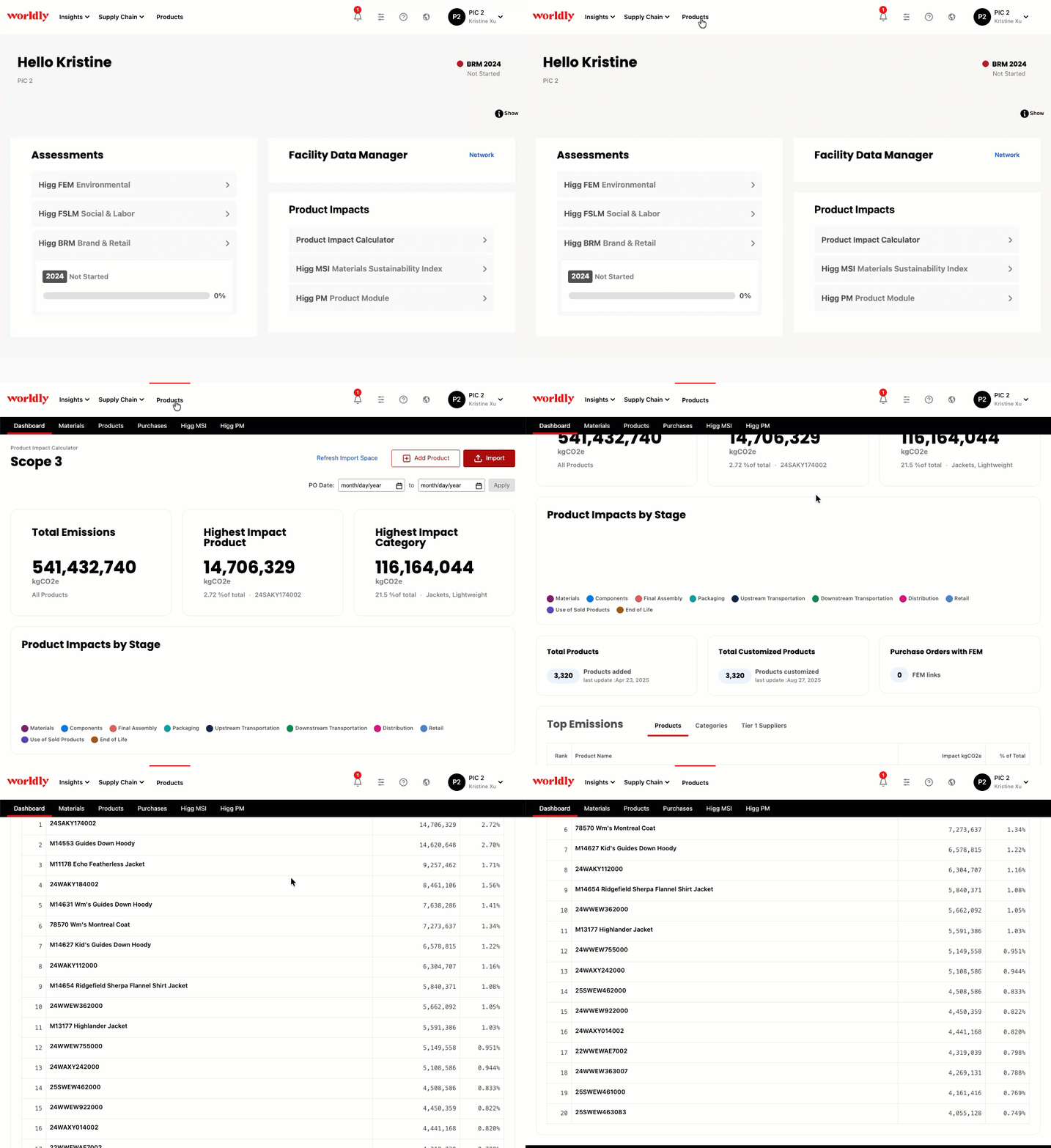
Select Products from the top navigation bar
- This leads you to the Dashboard, a page that consolidates carbon emission data through clear visualizations and analysis tools.
-
After clicking Next, this is where you enter unowned assets that are not operationally controlled by your organization. Any of the percentages inputted into these fields will be applied to the organization’s overall scope 3 emissions.
Expand to show screenshot
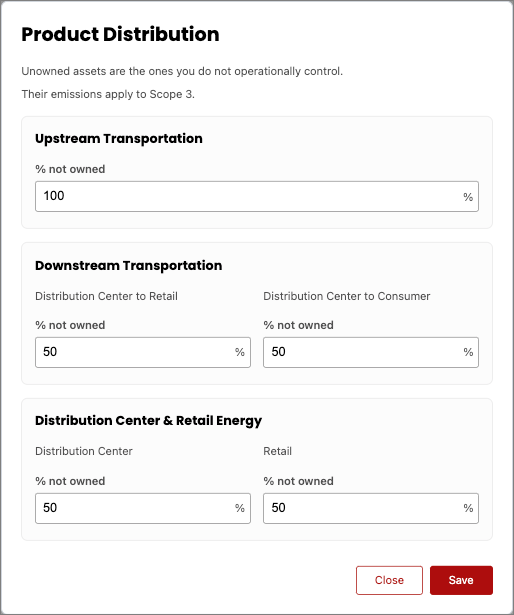
- These product distribution percentages are related to Upstream Transportation, Downstream Transportation, and Distribution Center & Retail Energy.
- To input percentages on this window:
- Estimate the percentage of assets they own under each category and subtract from 100%.
- Enter this value into each respective field.
Add a Single Product
Adding a single product can be useful if you want to quickly model individual products and build a carbon inventory for identifying carbon emission hotspots.
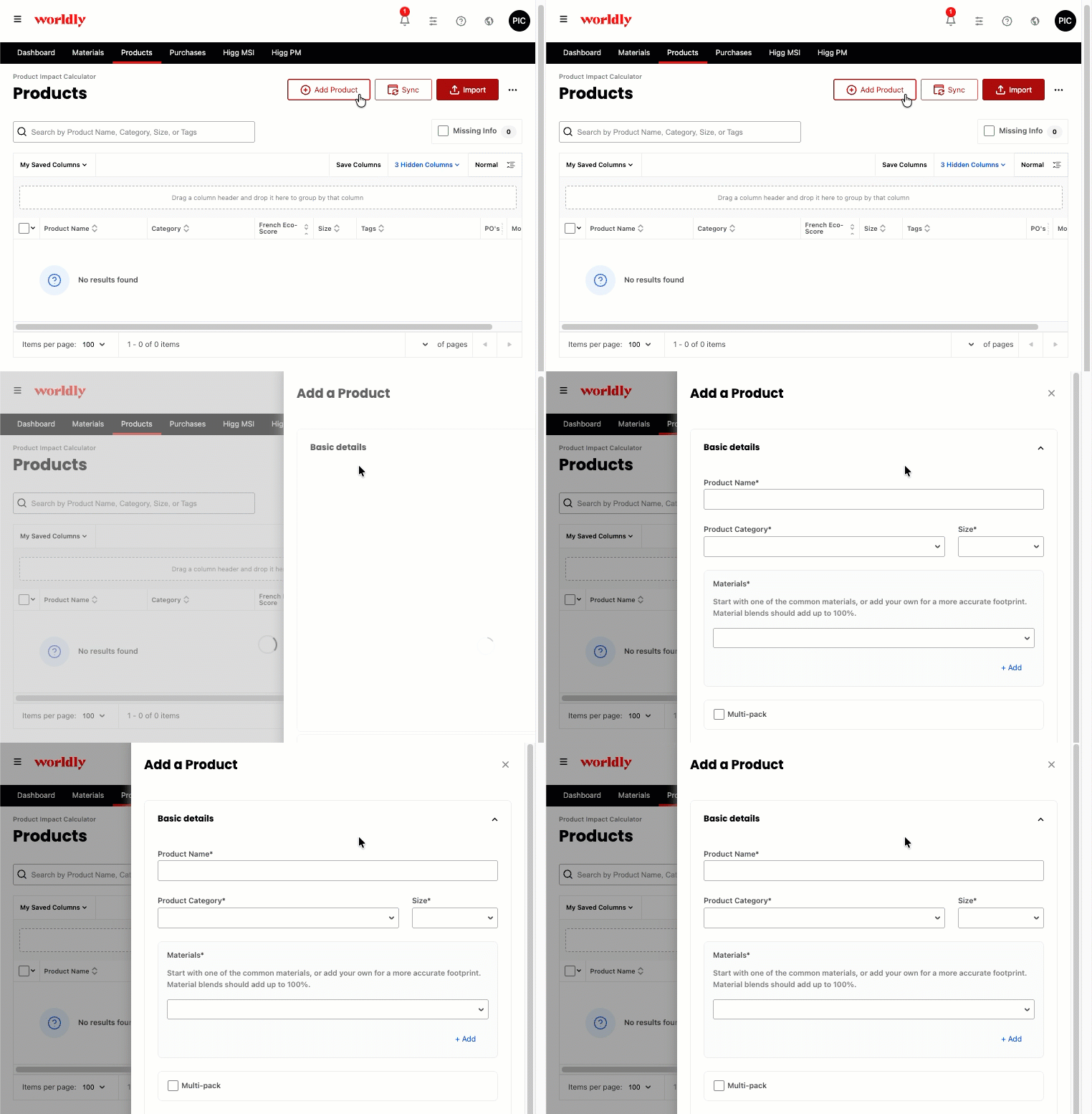
Add your first product:
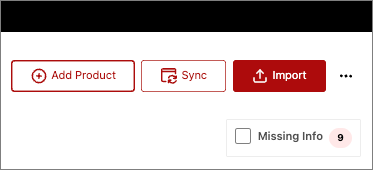
- Select Add Product from the Dashboard or Product Library tab.
-
On the Add a Product panel, fill out Basic details, Advanced details, Purchase order, and French Eco-Score Label sections.
Expand to show screenshot
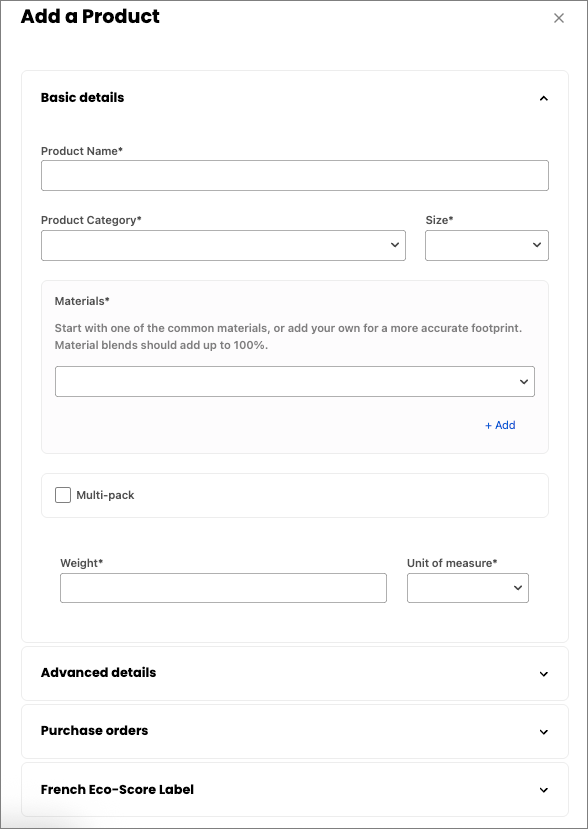
- There are several fields to input details about your product. Please note that any fields with asterisks are required to be filled out.
Basic Details
Expand to show screenshot
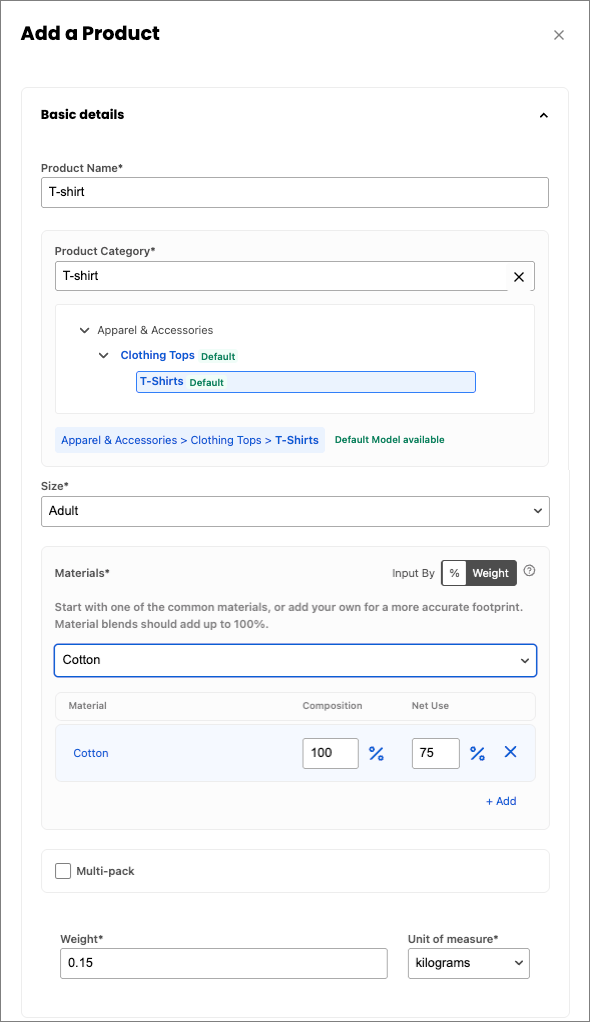
- Basic details: Each field in this section is required.
- Product Name* - T-Shirt
- The input for this field must be unique.
- Product Category* - T-Shirt
- Read more about the expansion of PIC categories here.
- Size* - Adult
- Materials* - 100% Cotton
- Multi-pack - Read more about how to use multi-packs below.
- Weight* - 0.15
- Unit of measure* - kilograms
- Product Name* - T-Shirt
Advanced Details
Expand to show screenshot
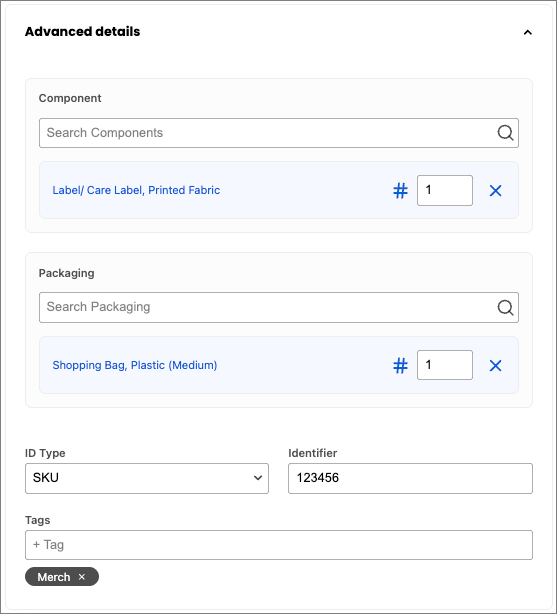
- Advanced details: Each field in this section is optional.
- Component - Label/Care Label, Printed Fabric
- Packaging - Shopping Bag, Plastic (Medium)
- ID Type - SKU
- Identifier - 123456
- Tags - Merch
Purchase Orders
Expand to show screenshot
-
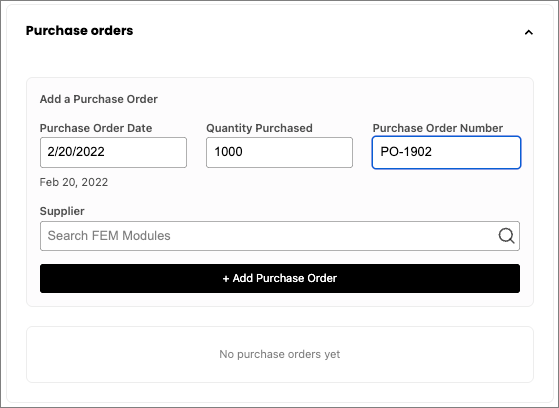
Purchase orders: Each field in this section is optional. Duplicate purchase orders are detected by checking the date and quantity.
NOTE:
You must first create a product in order to attach multiple purchase orders to the product.
- Purchase Order Date - February 24, 2022
- Quantity Purchased - 1000
- Purchase Order Number - PO-1902
- Supplier - Supplier Name associated with the purchase order.
-
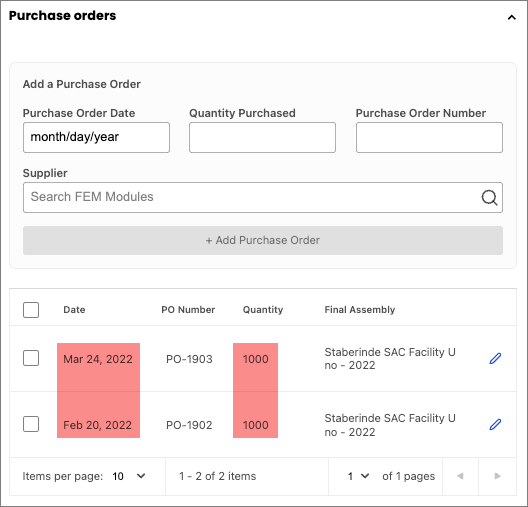
If two purchase orders have the same quantity, then the dates must differ.
Expand to show screenshot
-
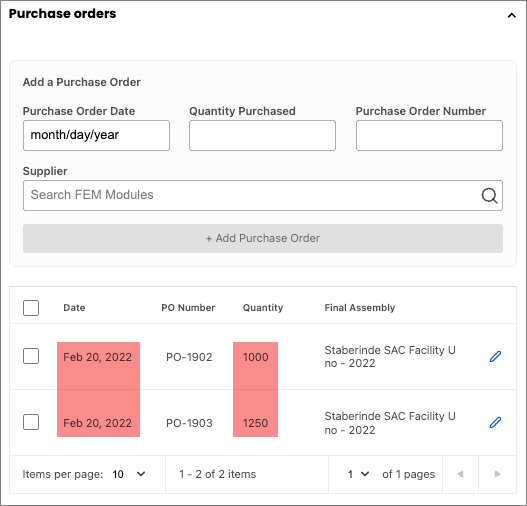
If two purchase orders have the same date, then the quantities must differ.
Expand to show screenshot
-
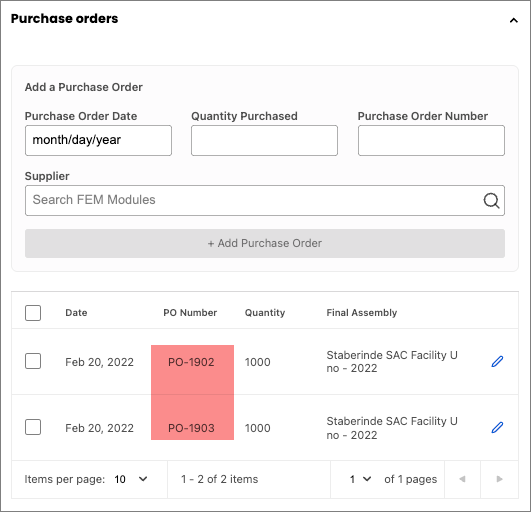
If two purchase orders have the same date and quantity, then you must provide a unique Purchase Order.
Expand to show screenshot
French Eco-Score Label
Expand to show screenshot
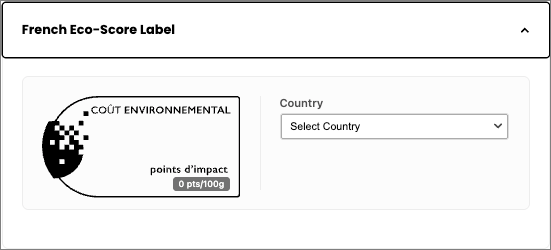
Click here to learn more about French Eco-Score Labels.
Multi-packs Example
By indicating the number of units per product, the system automatically calculates the new weight and counts one packaging option for the multi-pack.
Wool Socks Example
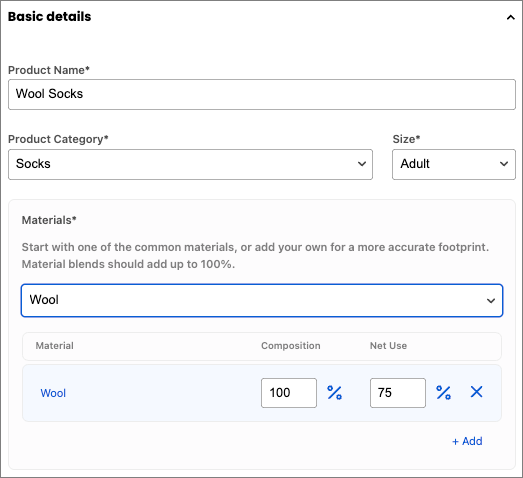
Let’s take a closer look at this with an example, a 3 pack of wool socks.
-
Select Add Product.
Expand to show screenshot
-
Enter in the Product Name, Product Category, Size, and Materials.
Expand to show screenshot
-
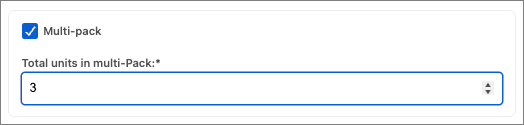
Check Multi-pack, and enter in the Total units in the multi-pack.
Expand to show screenshot
-
Enter in the Weight and the Unit of Measurement.
Expand to show screenshot
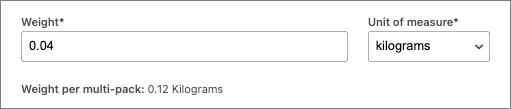
- Notice the Weight per multi-pack is 0.12 kilograms, which is 3x the weight of a single pair of socks.
-
Click on Advanced details to add any details on Components and Packaging.
Expand to show screenshot
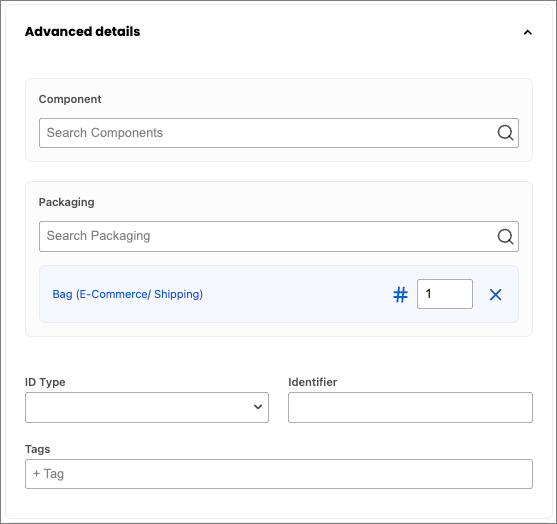
- A Bag (E-Commerce/Shipping) is added automatically. Since the Multi-pack option was checked, there is only one piece of packaging for all three pairs of socks.
- Click Save.
Click here to learn about bulk uploading in the Product Impact Calculator.
Editing a Product
You can directly edit products from anywhere within the Product Impact Calculator.
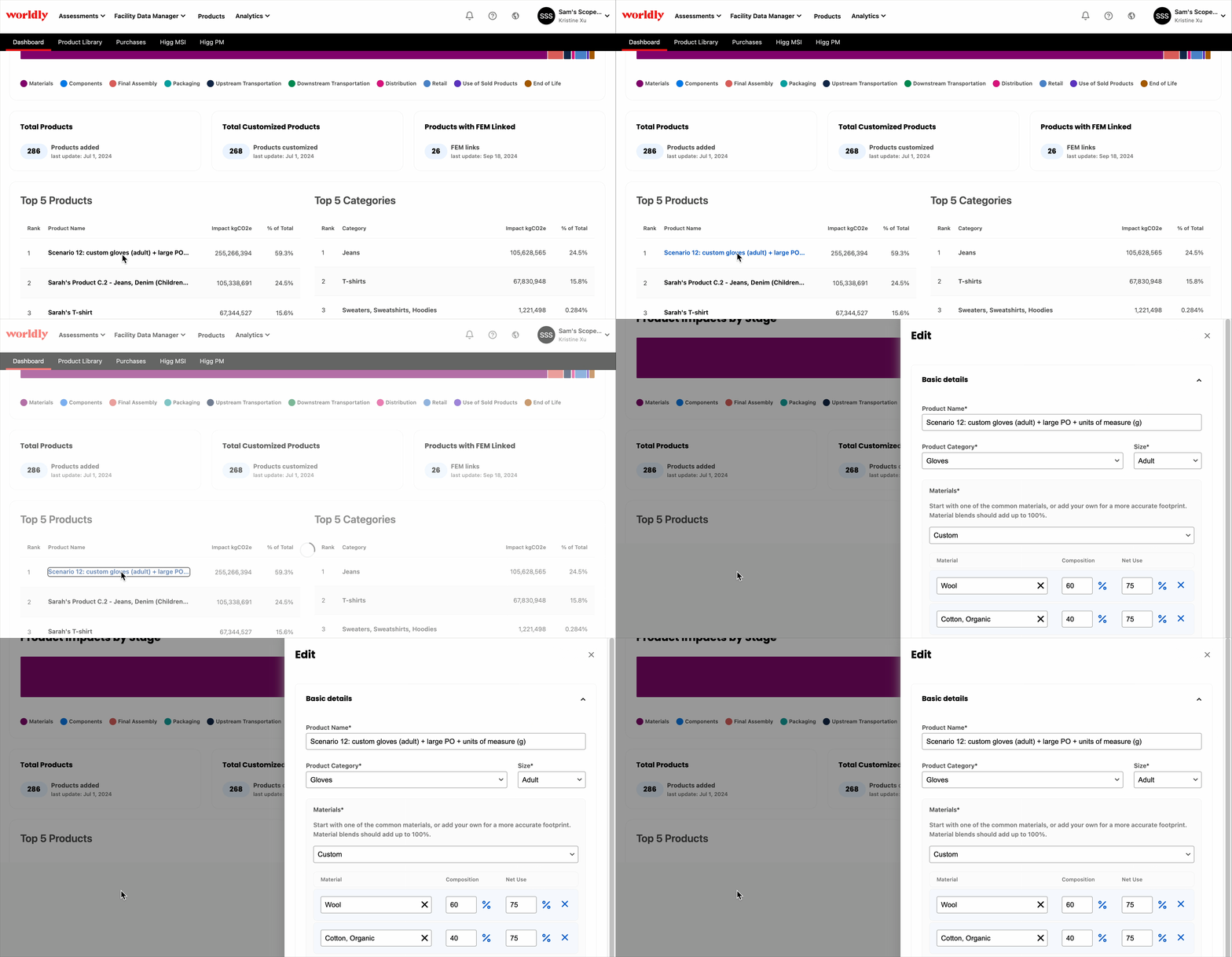
1. Select a product from the Dashboard page to directly edit details and purchase orders.
Expand to show screenshot
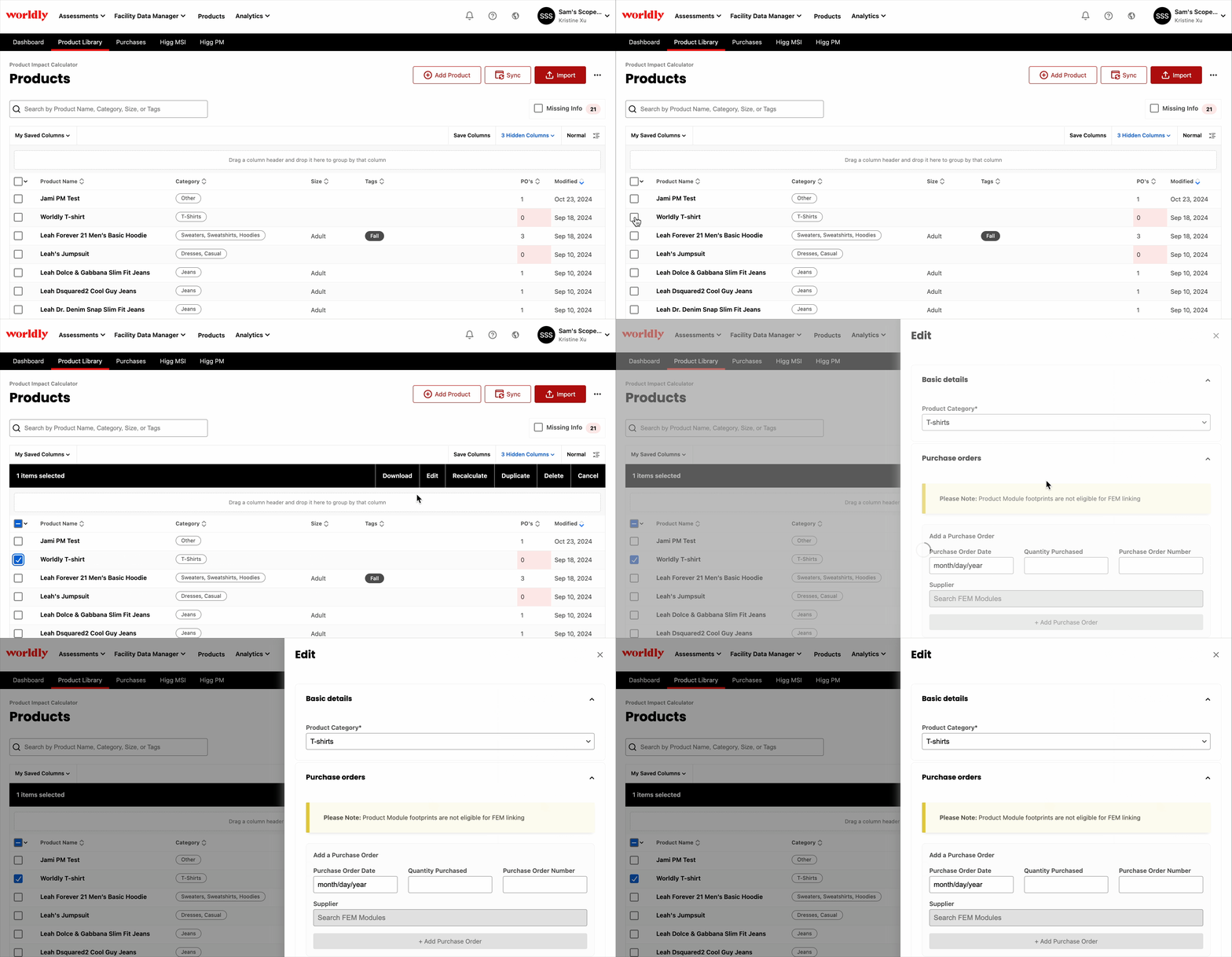
2. Select a product from the Product Library, followed by Edit.
Expand to show screenshot
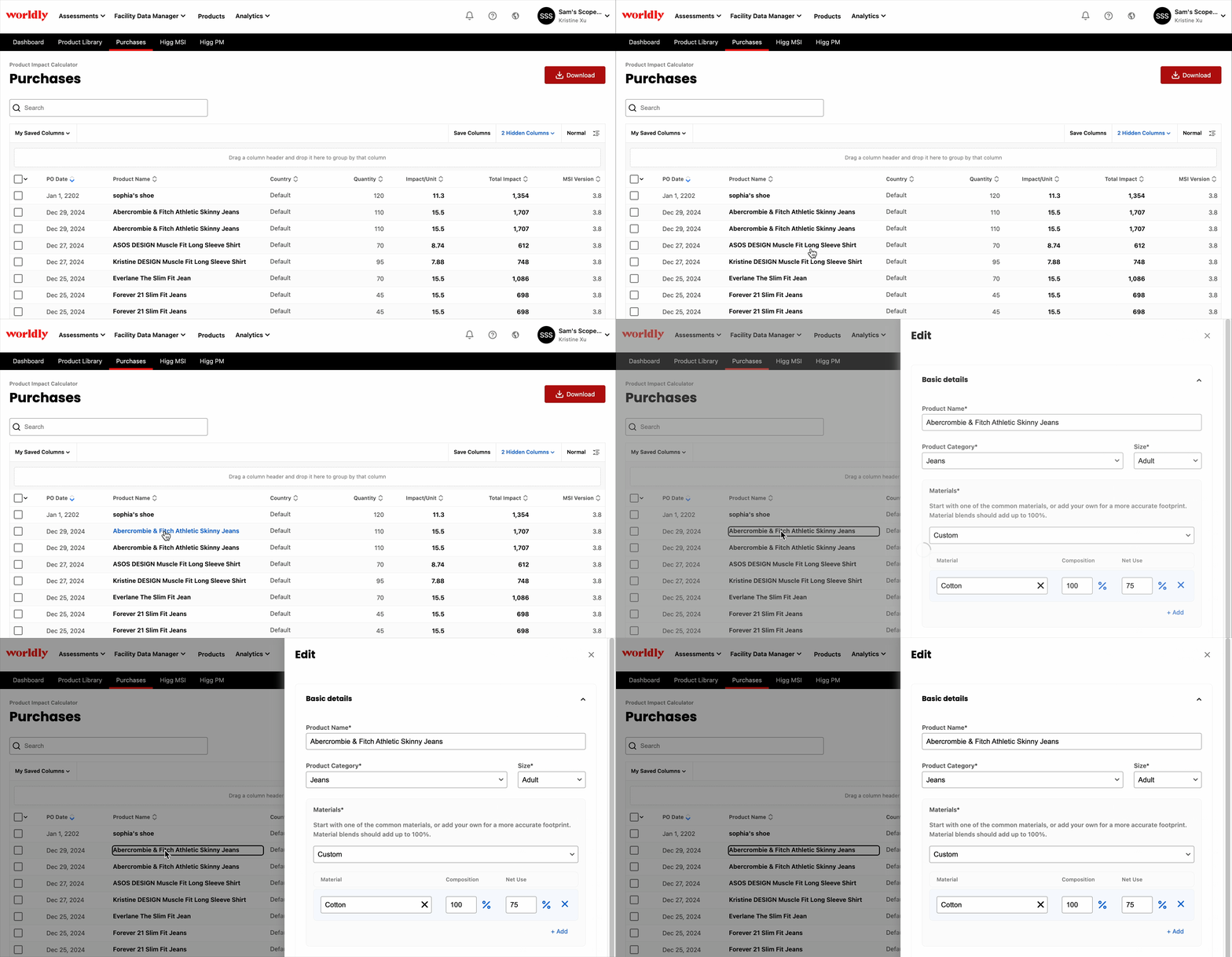
3. Select a product from the Purchases page to directly edit details and purchase orders.
Expand to show screenshot
No matter where you are within the tool, edit products with greater flexibility and control without interrupting your workflow.
Import from other Worldly tools
Importing data from other Worldly tools enhances the Product Impact Calculator by consolidating existing product and supply chain data to inform decision making regarding scope 3 emissions for purchased goods.
This integration enables teams to enhance existing product data and achieve deeper insights into their scope 3 carbon accounting.
Higg FEM
Link PIC to a Facility Environmental Module (FEM) module while adding or editing an existing product.
NOTE:
If you cannot locate a specific FEM to link to even though it was shared with your account, it is likely due to PIC filtering out FEMs that do not report:
- Production Volume
- Energy Use
- In piece/pair or kg
Linking to FEM while Adding a Product
Expand to show screenshot
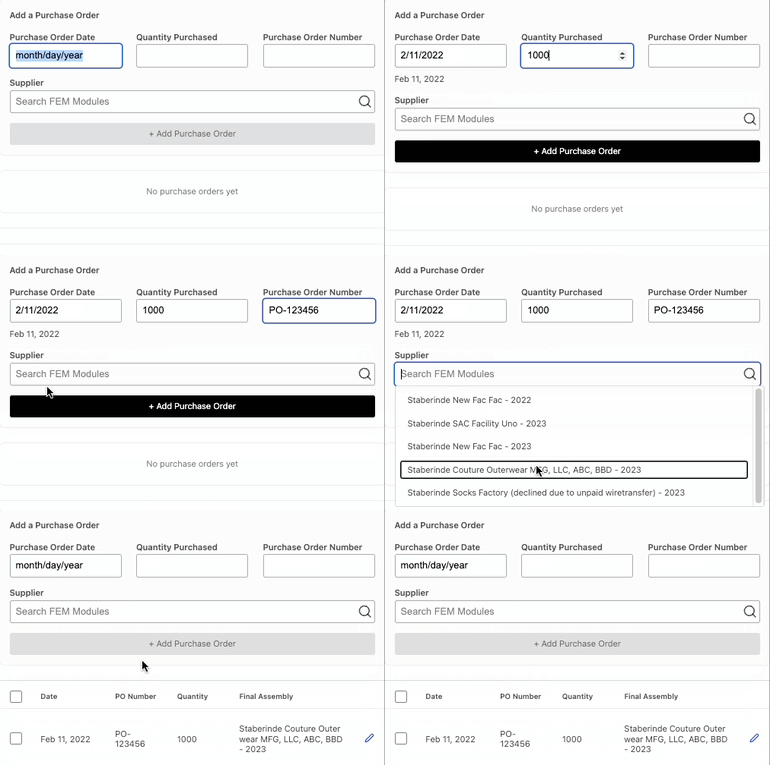
- Select Add Product from either the Dashboard or Product Library page.
- Under the Purchase Orders section, enter the Purchase Order Date, Quantity Purchased, and Purchase Order Number.
- Search for the FEM Module from the Supplier field and select Add Purchase Order.
- Don’t forget to click Save to finish linking.
Linking to FEM while Editing a Product
Expand to show screenshot
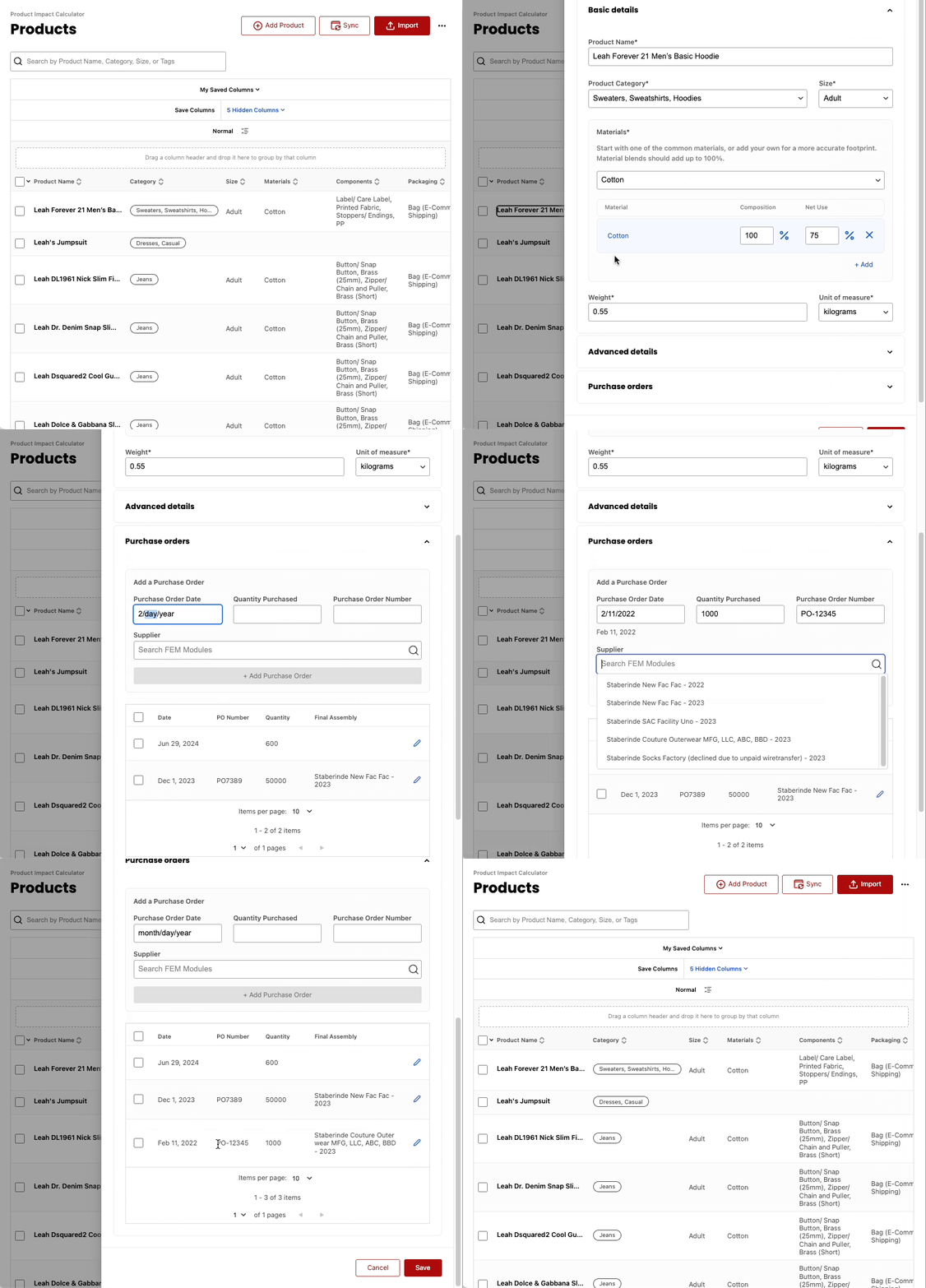
- Select the desired product from the Product Library page.
- Under the Purchase Orders section, enter the Purchase Order Date, Quantity Purchased, and Purchase Order Number.
- Search for the FEM Module from the Supplier field and select Add Purchase Order.
- Don’t forget to click Save to finish linking.
Higg MSI
Link PIC to Higg Materials Sustainability Index (MSI) materials while adding or editing an existing product.
NOTE:
In order to link MSI materials, the custom material must be created in MSI before it’s accessible in PIC.
Linking to MSI while Adding a Product
Expand to show screenshot
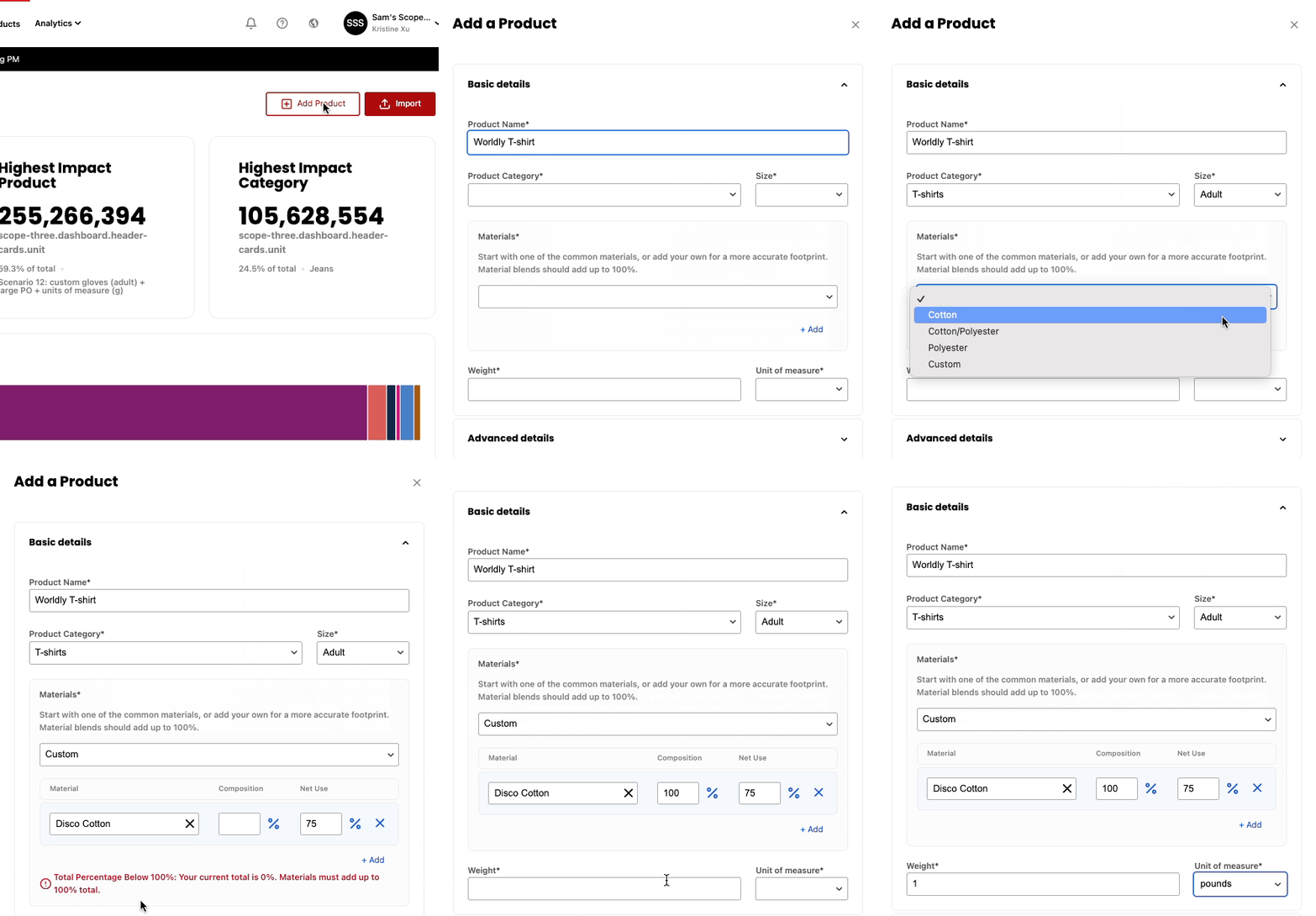
- Select Add Product from either the Dashboard or Product Library page.
- Under the Basic details section, enter the Product Name, Product Category, and Size.
- Next, select Custom from the Materials field and search for the desired material.
- Enter the Composition and Net Use percentages.
- Enter the Weight and Unit of measure for the product.
- Don’t forget to click Save to finish linking.
Linking to MSI while Editing a Product
Expand to show screenshot
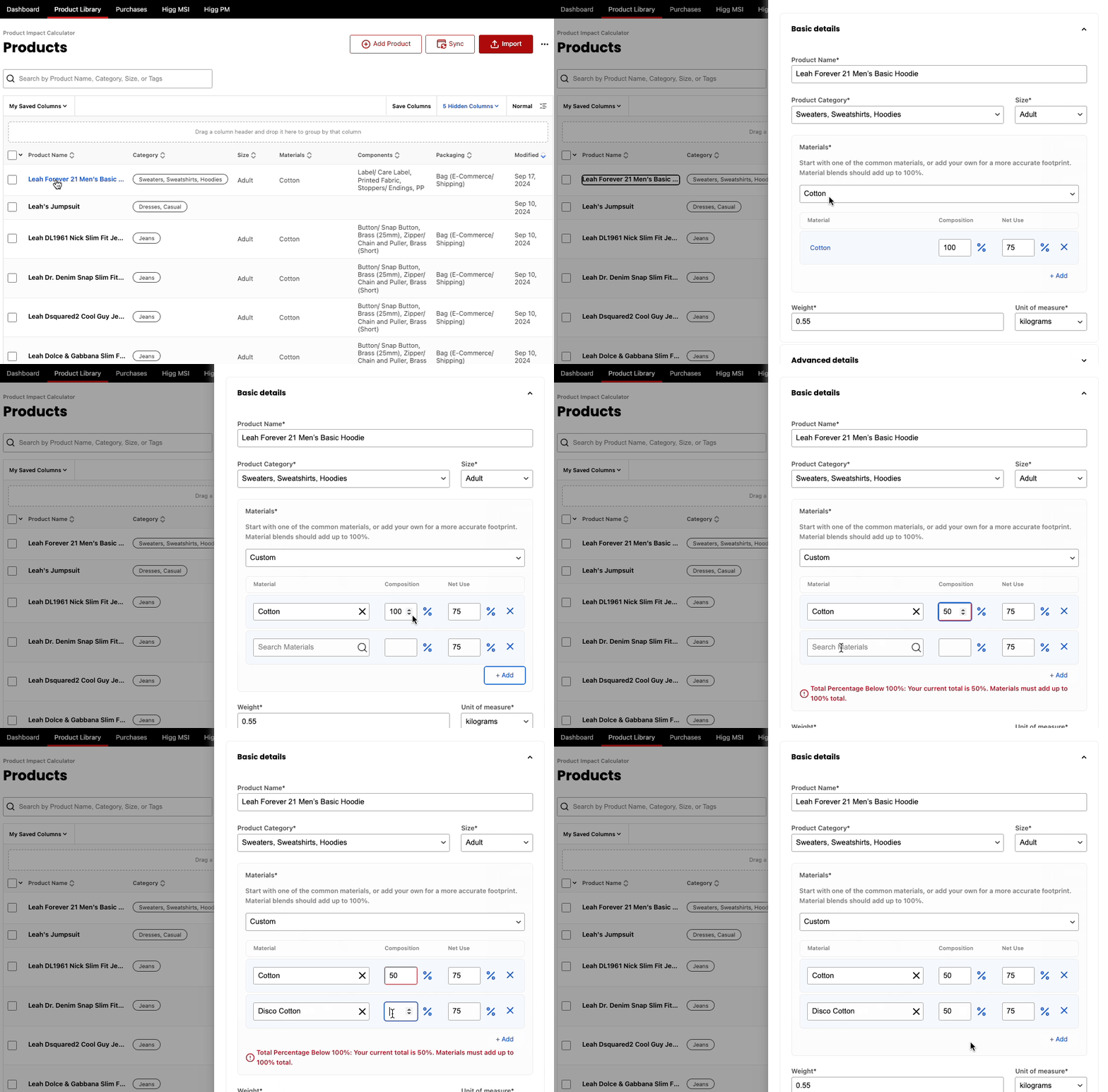
- Select the desired product from the Product Library page.
- Under the Basic details section, select +Add
- Select Custom from the Materials field and search for the desired material.
- Enter the Composition and Net Use percentages.
- If the product has more than one Material, make sure the Composition fields add up to 100% in total.
- Don’t forget to click Save to finish linking.
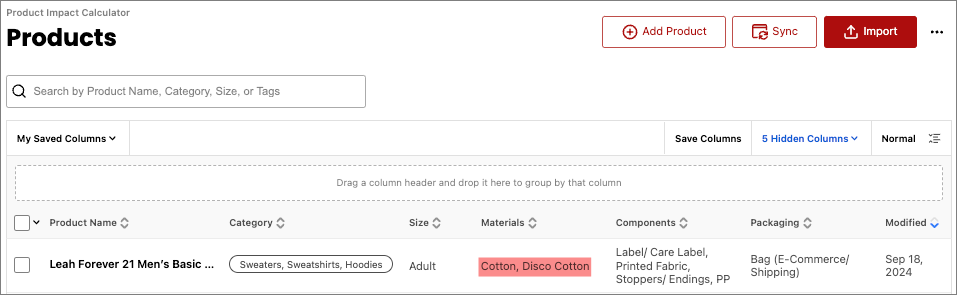
You’ll know you’ve succeeded if you unhide the Materials column (if necessary) and the Material shows up in the desired product’s row.
Higg PM
Learn about the Higg Product Module and how to link it to PIC here.
FEM Outlier Exclusion
Unusual or potentially erroneous FEM data is automatically excluded before it impacts product-level calculations.