
Table of Contents
Bulk Upload Overview
Bulk uploading enables you to upload a large quantity of products simultaneously. This saves time, reduces the need for manual individual uploads, and streamlines the data ingestion process. In addition, bulk upload can process files with tens of thousands of purchase orders asynchronously. The import process will continue in the background, even if you navigate away from or exit the page.
All field descriptions of available bulk upload fields and their constraints are available by hovering over the column headers.
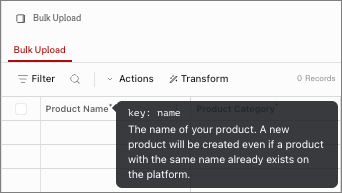
On the left-hand menu, there are five workbooks available depending on the level of granularity in your data.
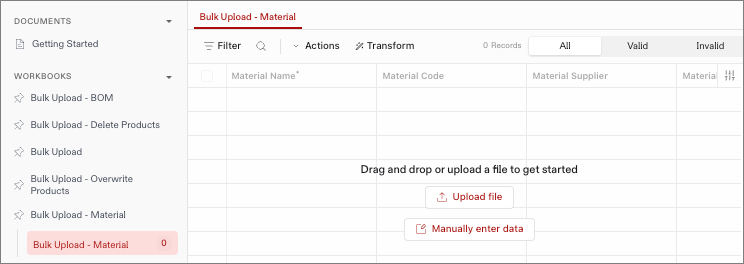
You can begin uploading multiple products or materials to the Product Impact Calculator by preparing your file with some of the available fields listed in the workbooks below. Although this is a comprehensive list of fields, bulk uploading only requires a minimum of three to four fields depending on whether you’re uploading products or materials.
Workbooks
Bulk Upload Workbook: This workbook is for products with only 4 materials or components.
Bulk Upload - BOM Workbook: This workbook is for products requiring more than 5 materials or components and features two additional columns: the BOM Type and the BOM ID columns.
Bulk Upload - Materials Workbook: This workbook is only for textiles with a maximum of 4 base materials.
Bulk Upload - Overwrite Products Workbook: This workbook is for overwriting values from one or more fields across multiple rows.
Bulk Uploading FAQs
Q: How do I upload multiple purchase orders of the same product?
A: Our recommended best practice is to first upload a unique list of products without any purchase orders, and then upload the multiple purchase orders in a second file. In other words, a product must first be created in the tool in order to attach multiple purchase orders to it.
Q: I accidentally uploaded a file with unnecessary columns. How do I delete the column from the Bulk Upload table?
A: In the Product Impact Calculator, you don’t need to delete columns. On the Field Mapping page, leaving the field empty will omit the column from being uploaded.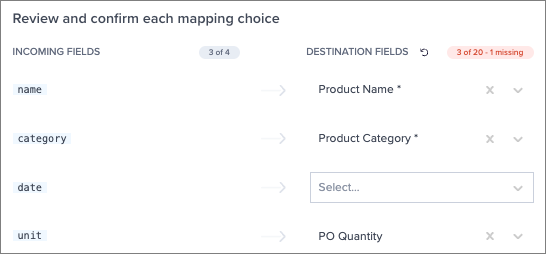
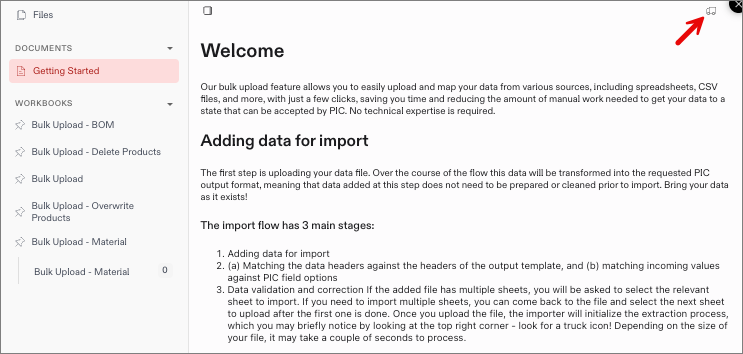
Q: Where can I view all Jobs?
A: You can view all Jobs under the truck icon.
Q: Where can I view definitions for Bulk Upload fields?
A: Select Getting Started in the upper left corner of the Bulk Upload screen to view all definitions as well as tips and tricks for getting started with the PIC.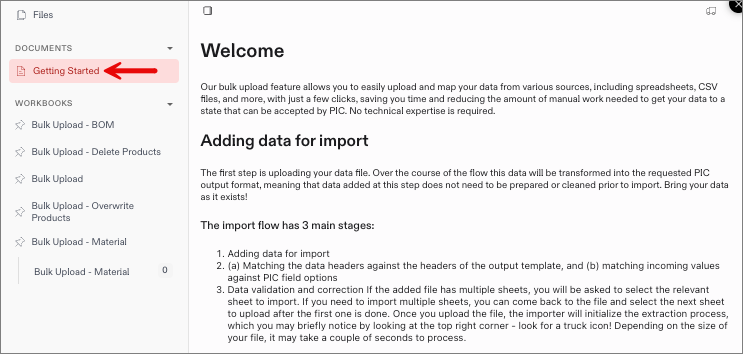
Q: After I uploaded my file, I no longer see some columns in my file. What happened and how can I get those hidden columns back?
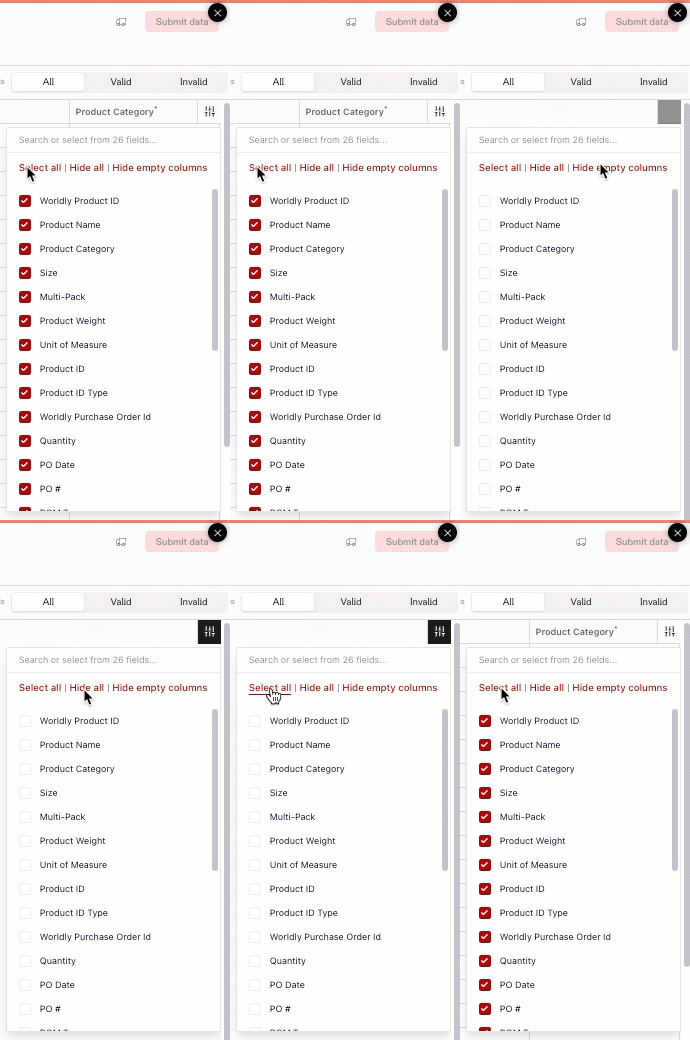
A: Non-required empty columns are hidden by default after file upload, which means that you will only see columns that have data. You will still be able to see empty columns that are required. You can still access the hidden columns by clicking on the columns icon in the upper right hand corner above the table.
Workbook Templates
Download the Bulk Upload Workbook Template, the Bulk Upload - BOM Workbook Template, and the Bulk Upload - Materials Workbook Template below.