
Facilities who have 12 months of data in Facility Data Manager can import their monthly data into the yearly Higg FEM. Before you import, check out the FDM to FEM Data Import Checklist to ensure that all the data you want to import is present. As always we recommend reviewing imported data for accuracy and completeness before posting your FEM assessment.
Table of contents:
- Import FDM Data into FEM
- Edit FDM submissions in order to import
- Update previously imported data
- FDM to FEM Outlier Detection
Import FDM Data into FEM
- Check the FDM to FEM Data Import Checklist to ensure that all the data you want to import is present.
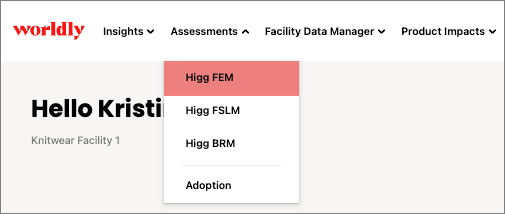
- Navigate to the FEM assessment by clicking Assessments, followed by Higg FEM.
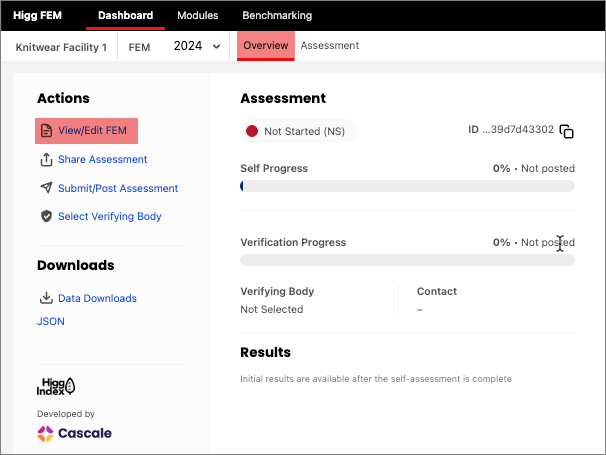
- Next, select View/Edit FEM from the Overview tab.
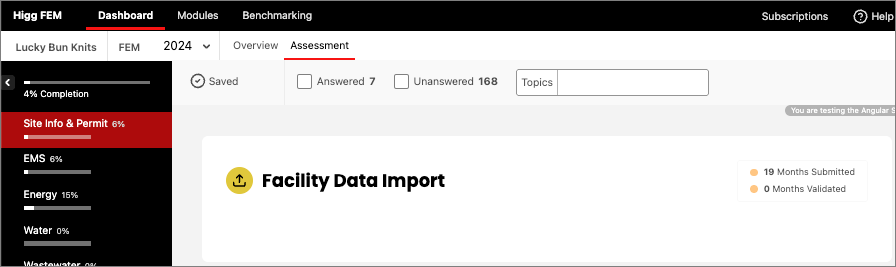
- If you have FDM submissions you will be shown a message indicating the number of submissions present and how many are validated. As long as you have 12 months submitted you may import.
- If your data is completely validated you may import by clicking the Import Validated Data. You can import unvalidated data by clicking the Import before all months are validated button.
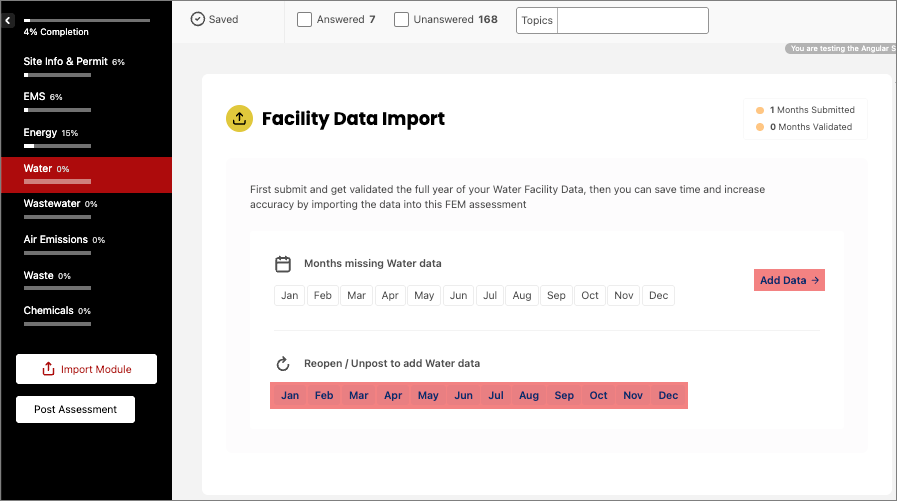
- Use the left hand side menu to select each section, you can check for missing months of data and navigate directly to the submission by clicking on the Month name, or you can go to the FDM Overview page by clicking Add Data:
Edit FDM submissions in order to import
Within the FEM assessment, each section will show you if you have all 12 months of data for that section. If you see a message indicating you are missing data, follow the steps below to resolve.
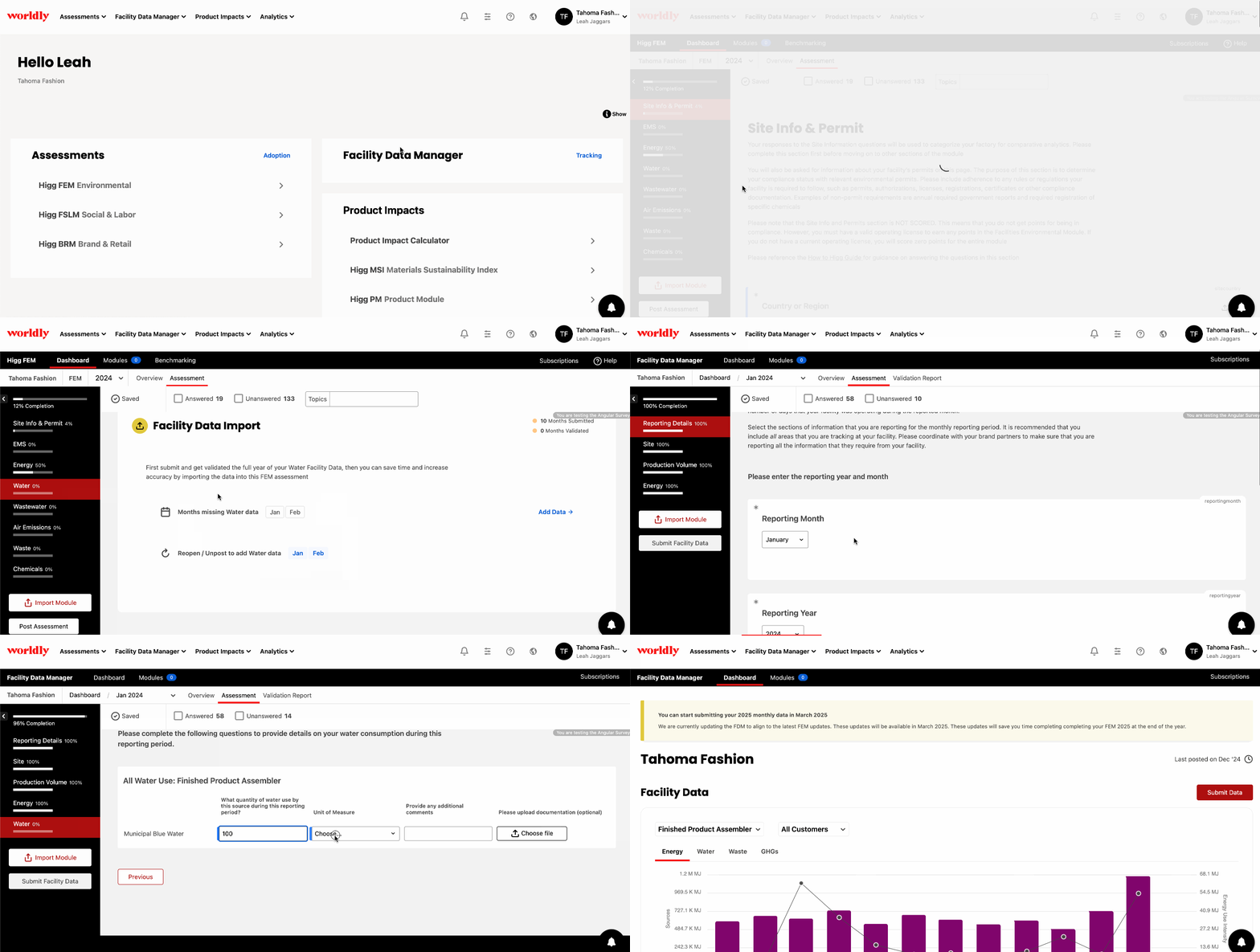
- Navigate to the FEM assessment and select View/Edit FEM.
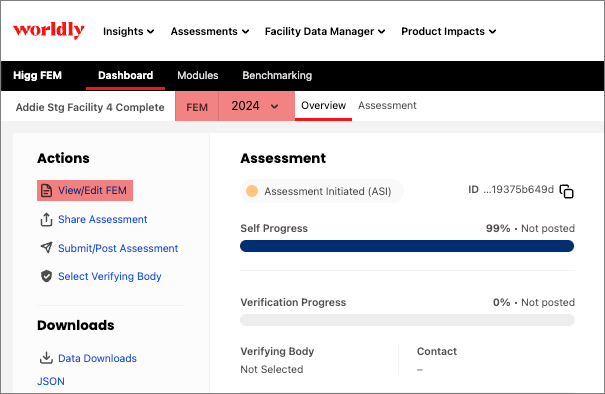
- Review each section for warnings that data is missing.
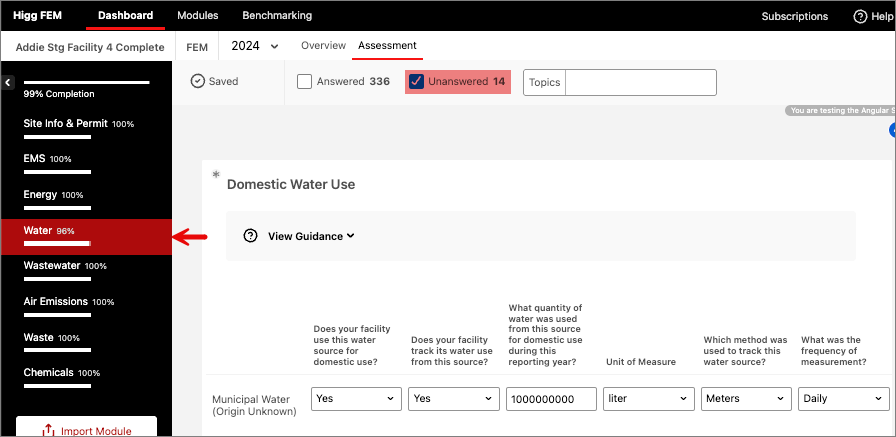
- In each section if there is data missing, a link is provided directly to the monthly submission that is missing data for that section. Click on the link for the month you wish to edit.
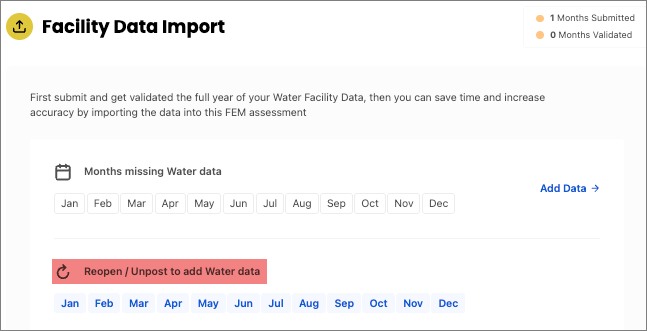
- Click Reopen/Unpost Assessment in the Actions menu:
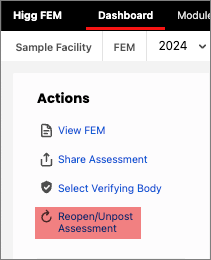
Note: If the submission is already validated you may not be able to unpost. Please reach out to Support team for assistance.
- Click View/Edit in the Actions menu:
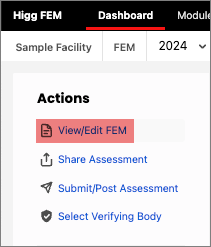
- Navigate to the section(s) you need to add data for by using the section menu on the left hand side
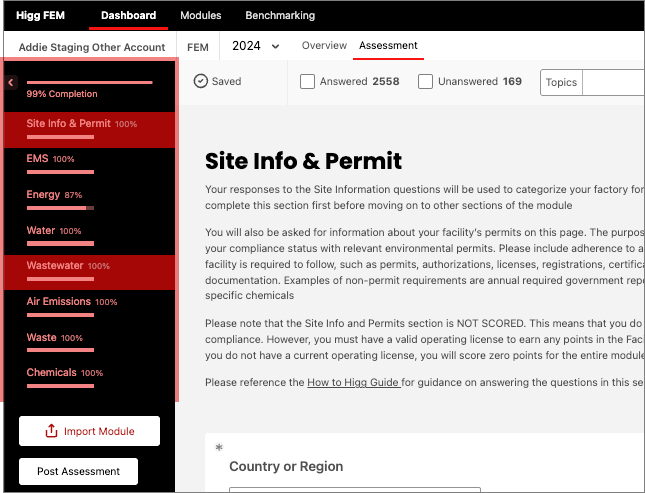
- Add any missing data until the loading bar at the top reads 100%. Next, click Post Assessment in the bottom left hand corner:
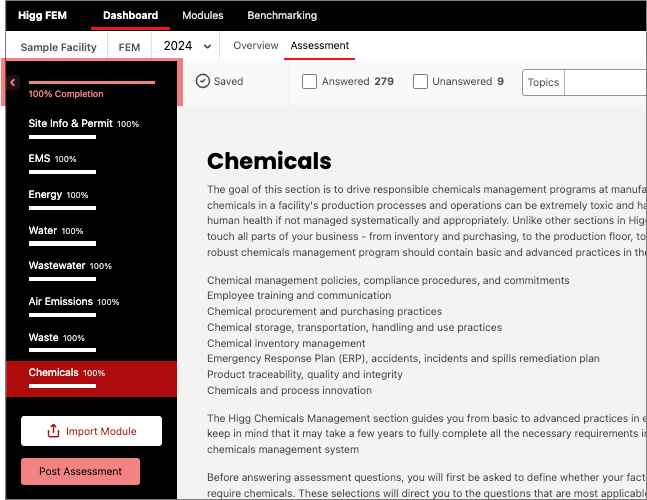
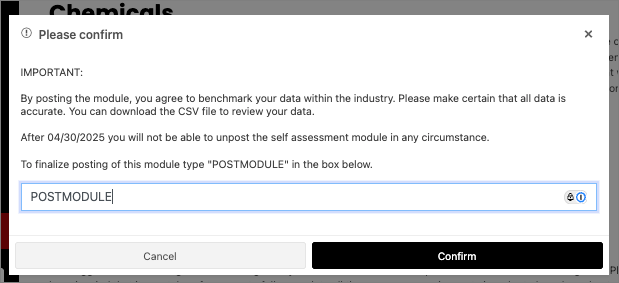
- Type POSTMODULE into the box provided to confirm submission and click Confirm.
Update previously imported data
If data in your FDM submissions were updated after you imported the data into FEM, you may re-import the submission data.
- Navigate to the FEM assessment and click View/Edit
- In each affected section there will be a message indicating that data has changed since the last import
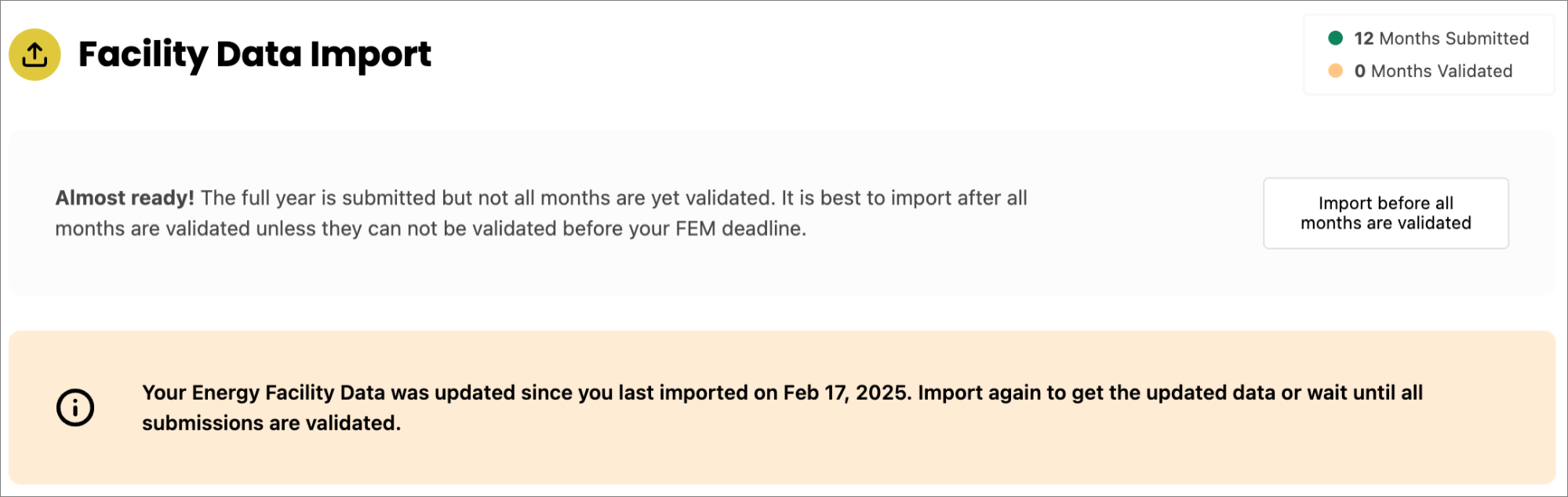
- Click the Import button to import the new data
- Review quantitative values for accuracy, you can learn more about which questions correspond in the FDM to FEM Data Dictionary
FDM to FEM Outlier Detection
Both FEM and FEM require outlier detection before posting.
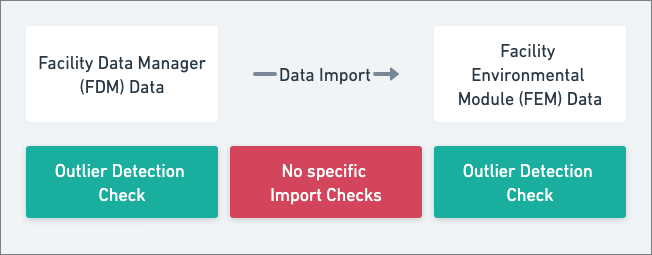
Please note that although FDM data imported to FEM is not checked during the transfer, FEM runs outlier detection on the imported data before the assessment is posted.