Table of Contents
Navigation
Navigate to Assessments, followed by Higg FSLM in the navigation bar.
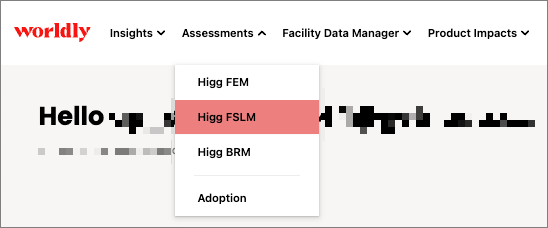
This leads you to the FSLM Dashboard.
Navigation Bar
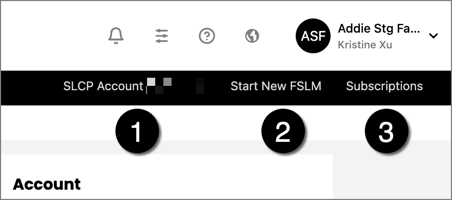
On the right side of the black navigation bar, you can always find:
- The ID of the SLCP Account connected to the assessment
- A link to Start New FSLM
- The current Subscriptions of your account
Overview
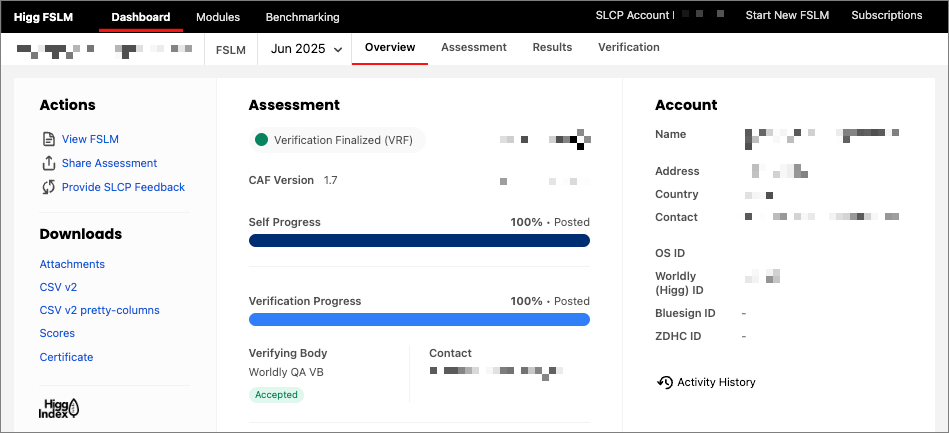
On the Overview tab, it shows you details related to a specific assessment. For example, the screenshot below shows an assessment for September 2025.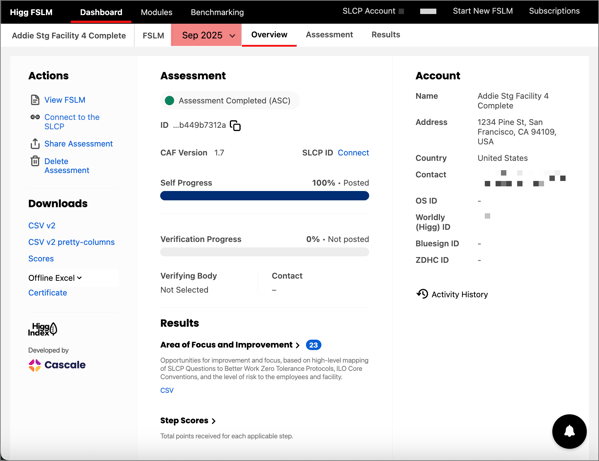
Actions
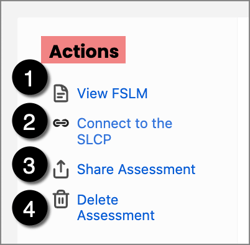
The Actions section is where you can:
- View FSLM
- Connect to the SLCP
- Share Assessment
- Delete Assessment
- NOTE: You will only see the Delete Assessment action if your assessment is in ASI or ASC. Reach out to SLCP if you need to delete an FSLM Assessment that is not in ASI or ASC status.
- Click here to learn more about Assessment Status Abbreviations.
The list above is not comprehensive, and will change depending on the status of your assessment.
Downloads
The Downloads section is where you can download data related to the assessment, such as a CSV file and scores.
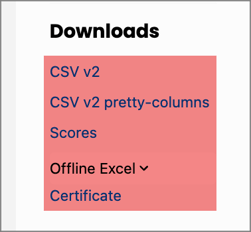
You can even download an Excel file to complete the assessment offline. At the bottom of the list, you can download the assessment's certificate.
Assessment
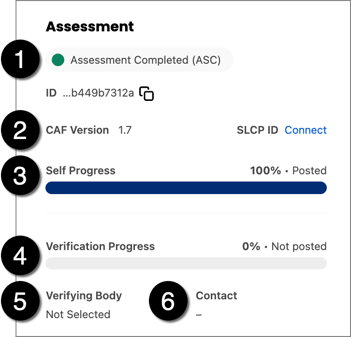
The Assessment section shows:
- The status of the assessment
- The CAF version
- The rate of completion for the self assessment
- The rate of completion for the assessment's verification
- Name of the verifying body
- Name of the verifying body's point of contact
Results
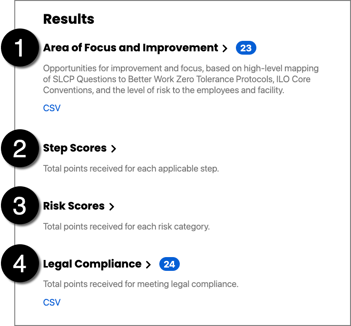
The Results section is where you can learn more about:
- Area of Focus and Improvement
- Step Scores
- Risk Scores
- Legal Compliance
Clicking on each redirects you to the Results tab.
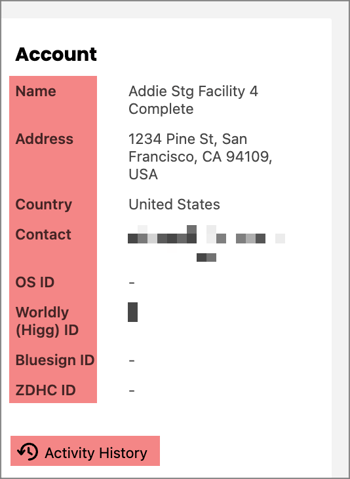
Account
The Account section details the name, address, country, contact, OS ID, Worldly (Higg ID), Bluesign ID, and ZDHC ID for the assessment.
Click Activity History to show a log of actions related to the assessment.
Assessment
Begin answering FSLM questions on the Assessment tab. Learn more about How to Complete the FSLM here.
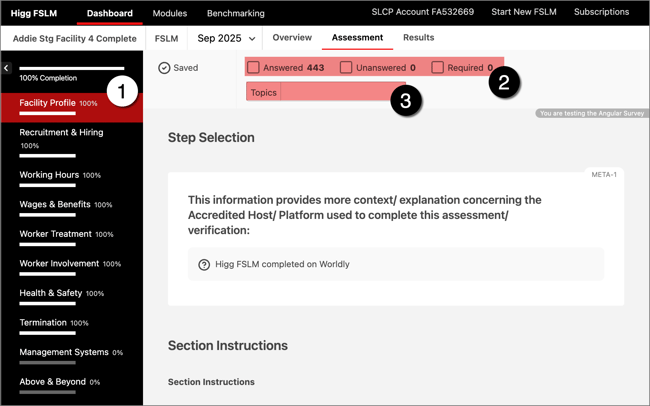
On the Assessment tab, you can
- View the status of completion for each FSLM section.
- The check boxes at the top show the number of Answered, Unanswered, and Required questions.
- Additionally, you can quickly jump through the assessment by Topic in the drop-down menu.
Results
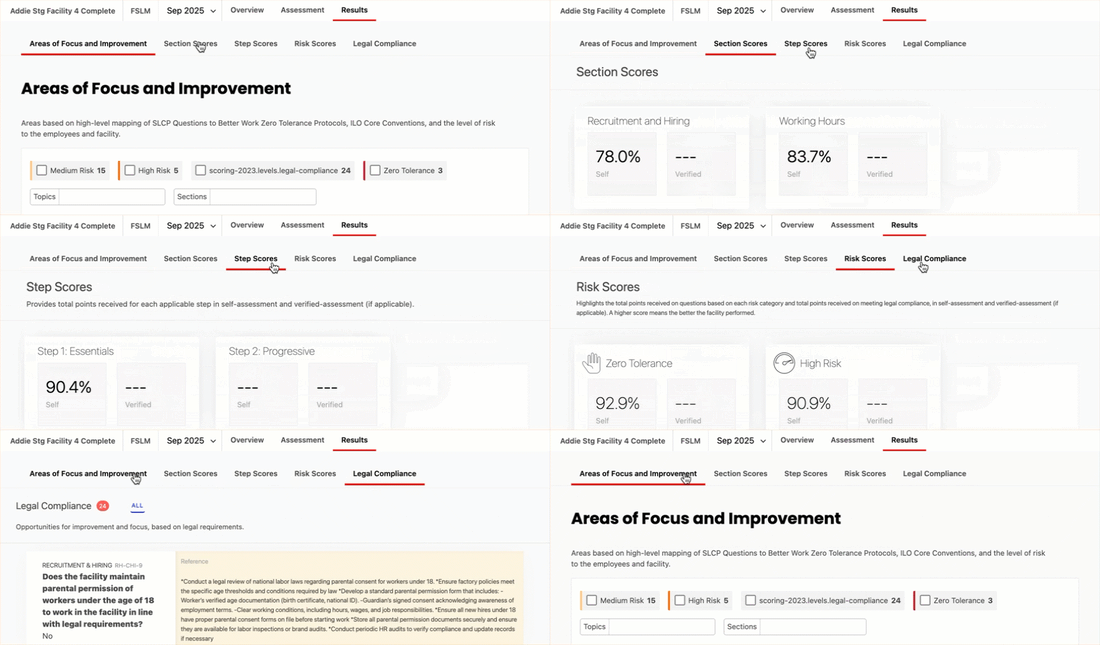
The Results tab shows more detail on each of the following:
- Area of Focus and Improvement: Areas based on high-level mapping of SLCP Questions to Better Work Zero Tolerance Protocols, ILO Core Conventions, and the level of risk to the employees and facility.
- Section Scores: The score for each section of the FSLM. These sections include: Recruitment and Hiring, Working Hours, Wages and Benefits, Employee Treatment, Employee Involvement, Health and Safety, Termination and Retrenchment, Management Systems, and Above and Beyond.
- Step Scores: Provides total points received for each applicable step in self-assessment and verified-assessment (if applicable).
- Risk Scores: Highlights the total points received on questions based on each risk category and total points received on meeting legal compliance, in self-assessment and verified-assessment (if applicable). A higher score means the better the facility performed.
- Legal Compliance: Opportunities for improvement and focus, based on legal requirements.
Verification
Verification ensures that you accurately complete all parts of the Higg FSLM, giving your self-assessment the credibility and accuracy required to share it publicly.
Verification of the FSLM or CAF assessment is conducted by a third-party SLCP-approved verifier. The Social and Labor Convergence Program (SLCP) is a multi-stakeholder initiative committed to improving working conditions in global supply chains.
Click here to learn more about the FSLM: Verification Process, and click here to learn how to link an SLCP Account.
How to Share an FSLM Assessment
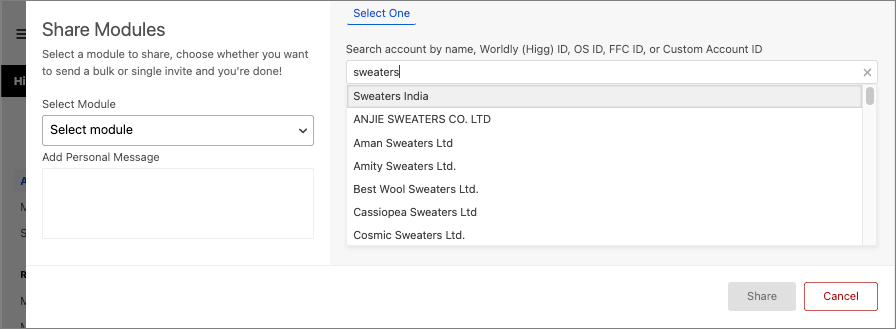
If you are working with brand partners, you will need to share your self-assessment with them through the Higg platform. Assessments can be shared at anytime, however, the data within the assessment is only visible to the share recipient after it has been posted.
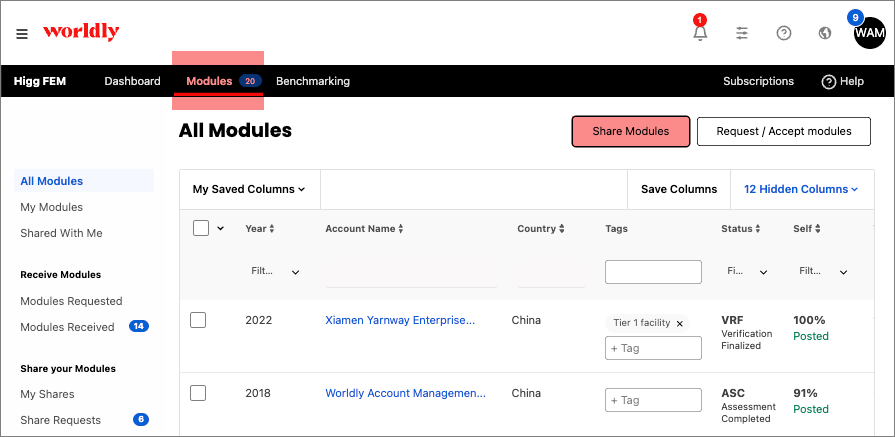
- To do this, go to the Modules page and select Share Modules.
- Select the Module you would like to share from the dropdown menu.
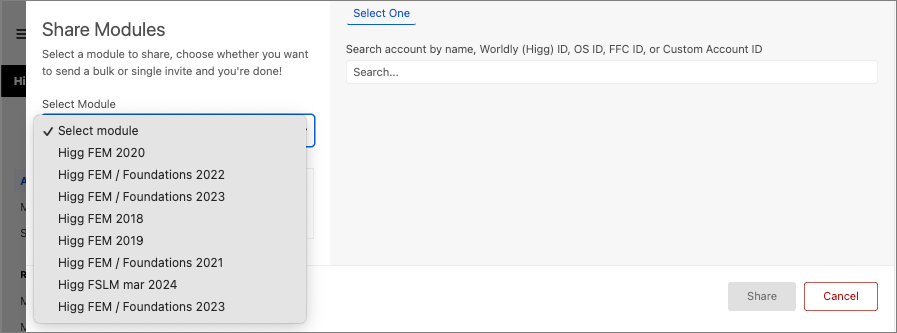
- In the search bar, look for the account you want to share the module with. You can search by name, Worldly (Higg) ID, OS ID, FFC ID, or Custom Account ID.