
Table of Contents
This workbook is for products requiring more than 6 materials or components.
Bulk Upload - BOM Workbook Fields
Worldly Product ID
(worldlyProductId)
A system-generated unique identifier assigned to a product
If empty, then Worldly Purchase Order ID is required
String
Product Name (Required)
(name)
For new products: name must be unique
For existing products: name must match exactly what's on platform
String
Product Category (Required)
(category)
Same 269 categories as main workbook ("T-Shirts", "Sneakers", etc.)
Picklist
Size
(size)
Options vary by product type:
- Apparel/Footwear: Adult, Childrens/Youth, One Size
- Sleeping Bags: Short, Regular, Long
- Backpacks: <35L, 35-60L, >60L
- Tents: 1-2 Person, 3-5 Person, 6-8 Person
Picklist (custom)
Multi-Pack
(multiPacksQuantity)
Enter the quantity purchased
String
Product Weight
(weight)
Enter the weight of the product
String
Unit of Measure
(unitOfMeasure)
Enter the corresponding unit of measure if the weight field is populated
String
Product ID
(productId)
Product ID Type
(productIdType)
Type identifier - EAN, GTIN, SKU, Other
Picklist
Worldly Purchase Order ID
(worldlyPurchaseOrderId)
Quantity
(amountPurchase)
Enter the quantity purchased
String
Purchase Order Date
(purchaseOrderDate)
Format: YYYY-MM-DD
String
Purchase Order Number
(purchaseOrderNumber)
Enter in the unique identifier for the Purchase Order
String
BOM Type (Required)
(bomType)
Options: material, component, packaging, final assembly
Determines what type of BOM entry this row represents
Picklist
BOM ID
(bomID)
Material
(material)
Same options as main workbook
Enter each material as new row
Picklist
Enter Materials by Weight
(isMaterialWeight)
Set to TRUE when entering materials by weight instead of composition percentage
Boolean
Material Unit of Measure
(materialUnitOfMeasure)
Must be number between 1-100
All composition fields must total 100%
Used when "Enter Materials by Weight" is FALSE
String
Material Weight
(materialWeight)
Options: kilograms, grams, milligram, pound, ounce
Required when Weight field is populated
Picklist
Net Use
(netUse)
Composition
(composition)
Component
(component)
Same component options as main workbook
Picklist
Component Units
(componentUnit)
Enter 1 or more units per product, when the "Component" field is populated
String
Packaging
(packaging)
Same packaging options as main workbook
Picklist
Units
(packagingUnit)
Enter 1 or more units per product when the "Packaging" field is populated
String
Final Assembly Name
(finalAssembly)
Facility name must match account name on platform
Picklist
Tags
(tags)
True: New product or PO for existing product
False: Update existing product
Boolean
Country for Manufacturing stage
Options: Region - Western Europe, Region - Eastern Europe, Region - Asia, Region - Africa, Region - Middle East, Region - Latin America, Region - North America, Region - Oceania, Myanmar, Bangladesh, China, France, India, Cambodia, Morocco, Pakistan, Tunisia, Turkey, Vietnam
Picklist
Country for Weaving/Knitting stage
Options: Region - Western Europe, Region - Eastern Europe, Region - Asia, Region - Africa, Region - Middle East, Region - Latin America, Region - North America, Region - Oceania, Myanmar, Bangladesh, China, France, India, Cambodia, Morocco, Pakistan, Tunisia, Turkey, Vietnam
Picklist
Country for Dyeing stage
Options: Region - Western Europe, Region - Eastern Europe, Region - Asia, Region - Africa, Region - Middle East, Region - Latin America, Region - North America, Region - Oceania, Myanmar, Bangladesh, China, France, India, Cambodia, Morocco, Pakistan, Tunisia, Turkey, Vietnam
Picklist
NOTE
If you are importing new products, the Overwrite column must be populated with False.
If you are importing existing products, the Overwrite column must be populated with True and paired with either a Worldly Product ID or Worldly PO ID.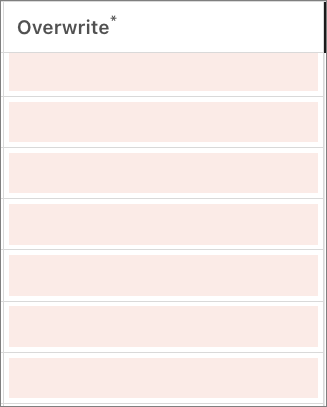
Example
Next, let's walk through an example of uploading a Bulk Upload - BOM workbook. Download the template at the bottom of this article.
-
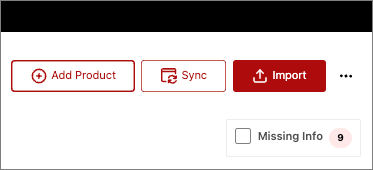
Select Import.
Expand to show screenshot
-
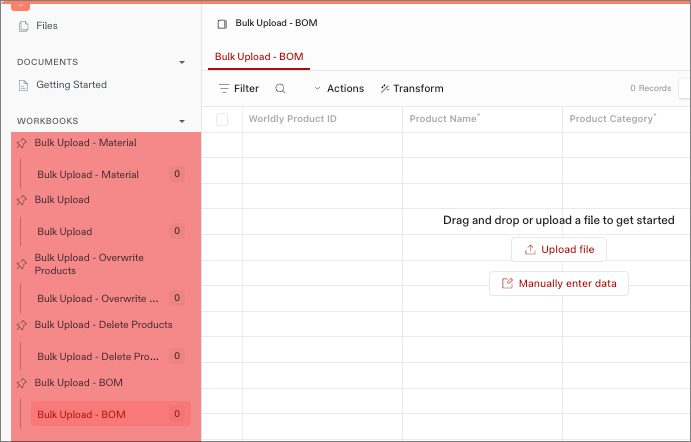
Select the Bulk Upload workbook, or whichever workbook corresponds with the column headers in your file.
Expand to show screenshot
-
Drag and drop your file onto the screen. You can upload the following file formats: CSV, Excel, or JSON. We recommend CSV as a best practice.
Expand to show screenshot
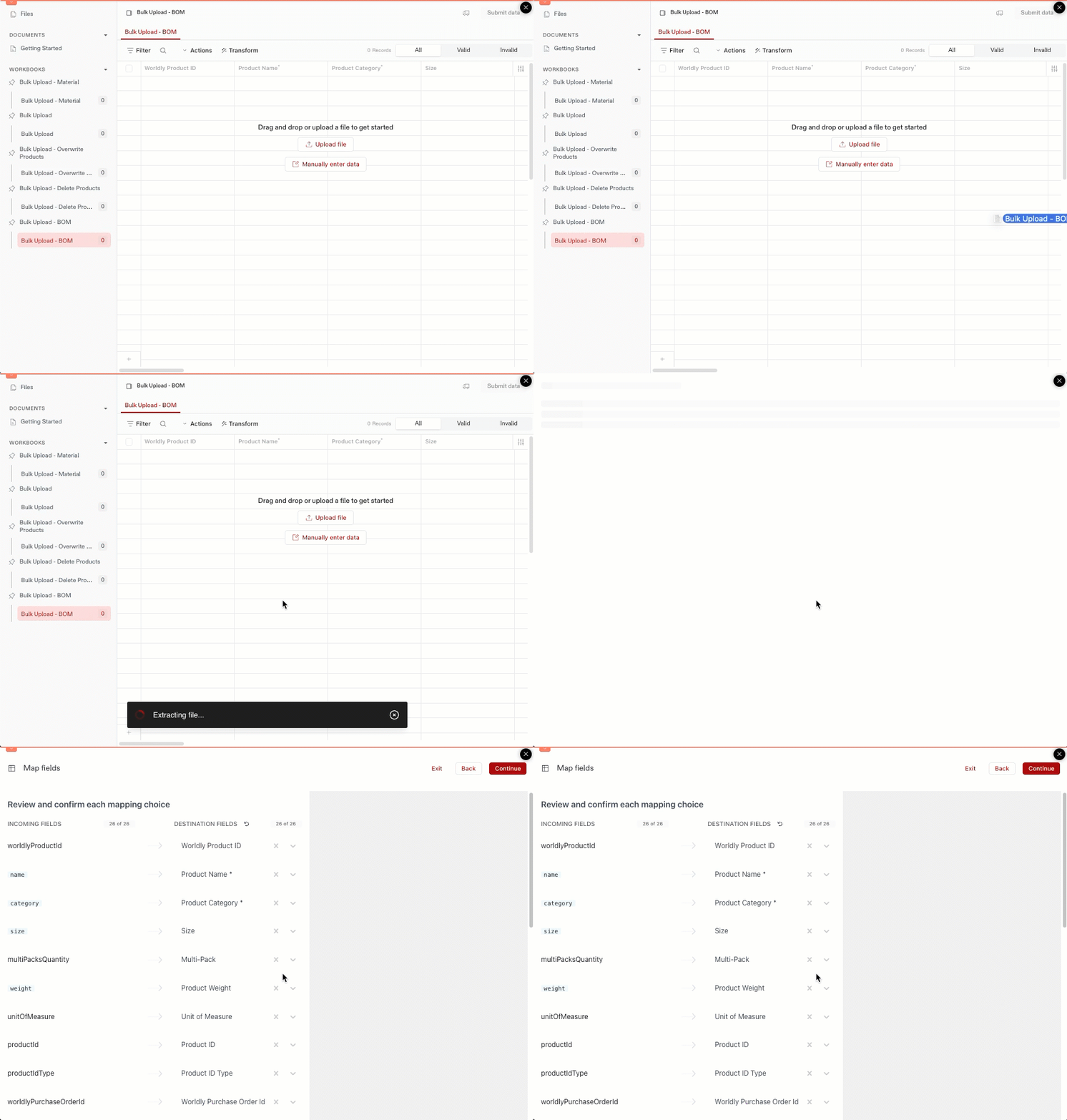
- Review the field mapping on the next two windows before clicking Continue.
- If a field is missing or incorrect, select the dropdown arrow to select the desired field.
- Preview the data for the category on the right side of the window. Hovering over different rows updates the preview window.
-
Select Continue.
Expand to show screenshot
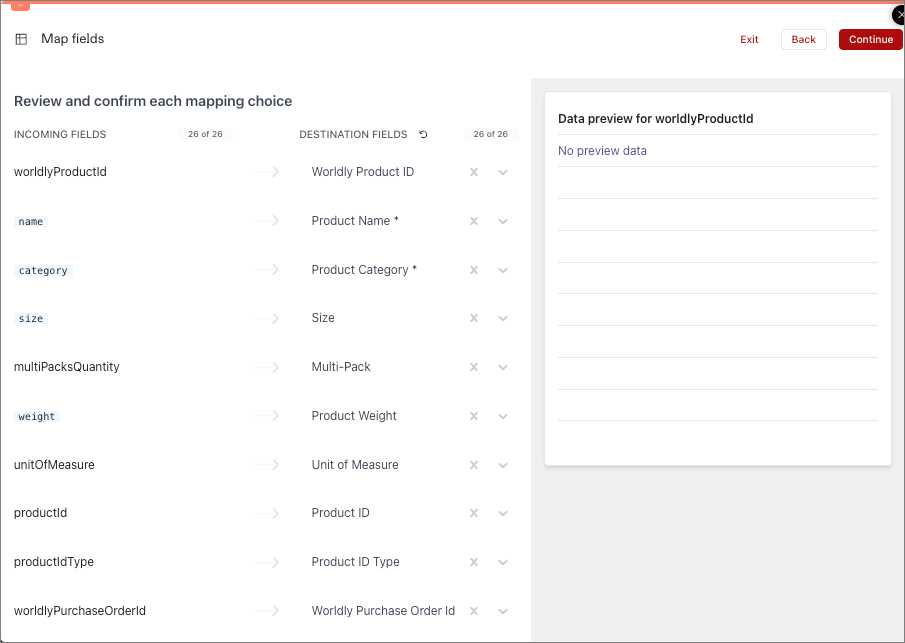
- On the next page, review the Bulk Upload table for any errors. Check the Missing Info and Revising section below for a detailed example of resolving errors.
-
After the table has been reviewed and all errors have been resolved, click Submit data.
Expand to show screenshot
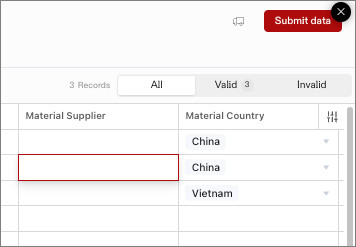
-
You'll know if you were successful when you see the Success pop up.
Expand to show screenshot
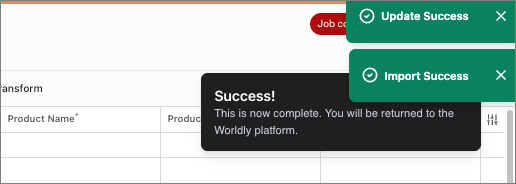
Missing Info and Revising
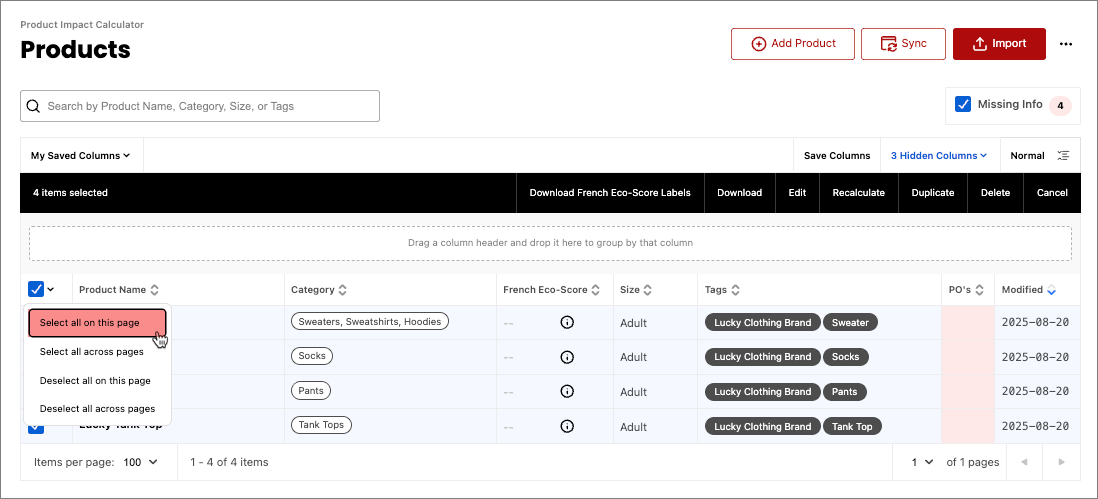
Select the Missing Info checkbox in the upper right-hand corner to target just the products that are missing information. In this case, all four products are missing purchase orders.
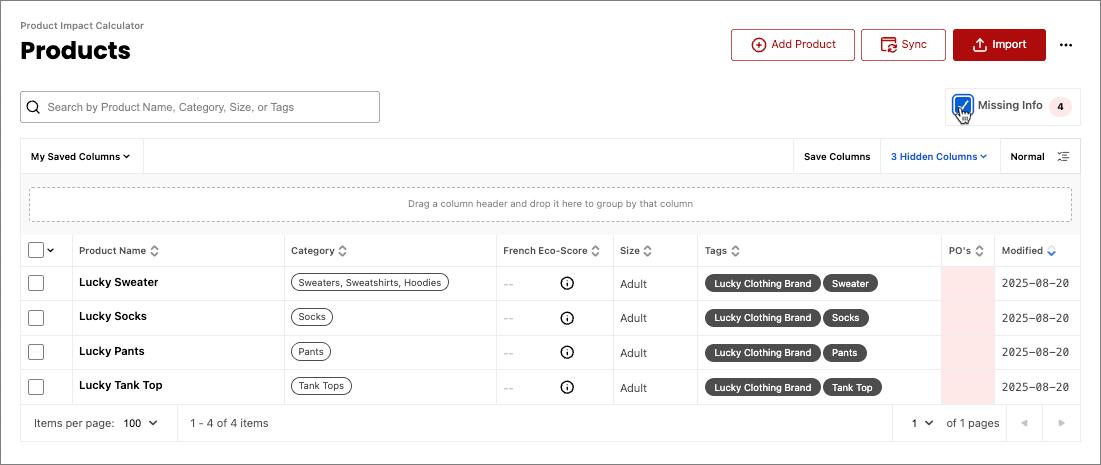
By using the bulk upload, you can make tens of thousands of edits to your Product Library with a single file upload.
- Check Missing Info box if you haven’t done so already.
-
Click the first checkbox in the Product Library, and navigate to Select all on this page. Steps 1 and 2 will check all the items that are missing information, which can come in handy if you’re dealing with hundreds of thousands of products.
Expand to show screenshot
-
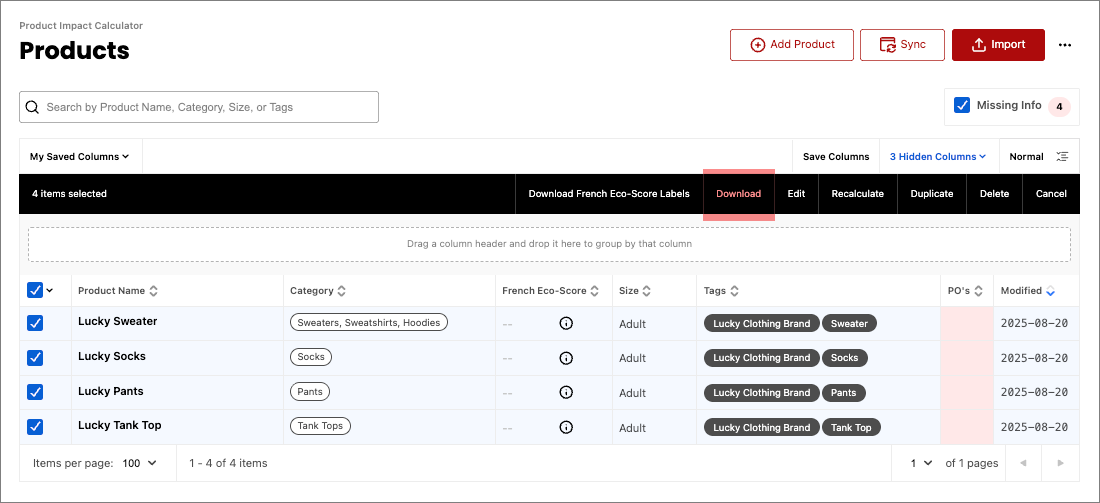
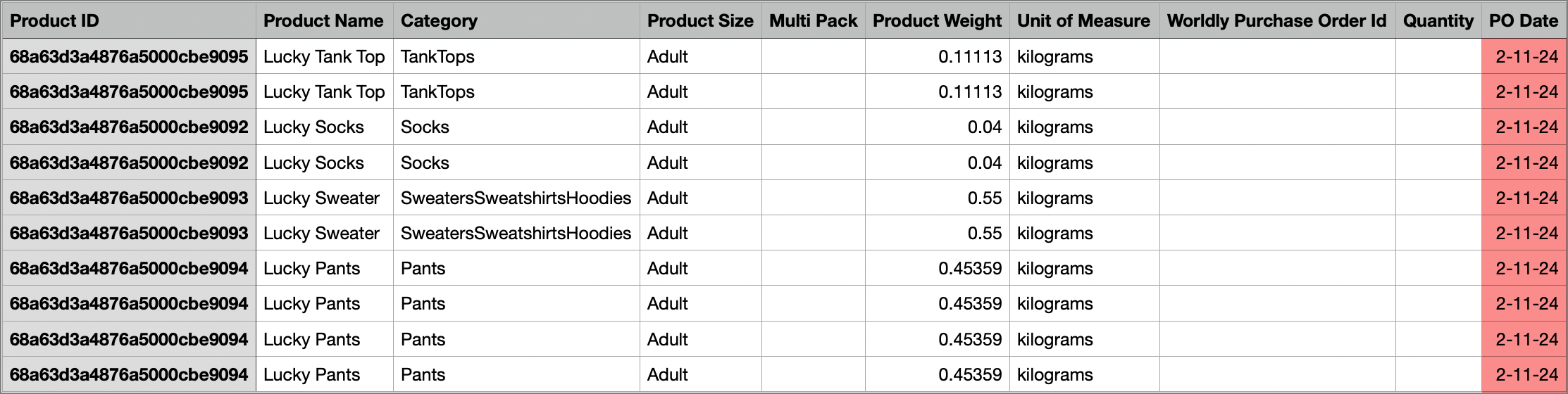
From the black navigation bar, select Download. This downloads a csv file that mirrors the selected rows in the Product Library.
Expand to show screenshot
-
Make any edits in the CSV file, in this case, adding the purchase order dates to the purchase order column. Make sure to save as a CSV file.
Expand to show screenshot
-
Back on the platform, select Import.
Expand to show screenshot

-
Select the Bulk Upload - BOM workbook, or whichever workbook corresponds with the column headers in your file.
Expand to show screenshot
-
Drag and drop your file onto the screen.
Expand to show screenshot
-
Review the field mapping and value mapping on the next two windows before clicking Continue.
Expand to show screenshot
- On the next page, review the Bulk Upload table for any errors.
-
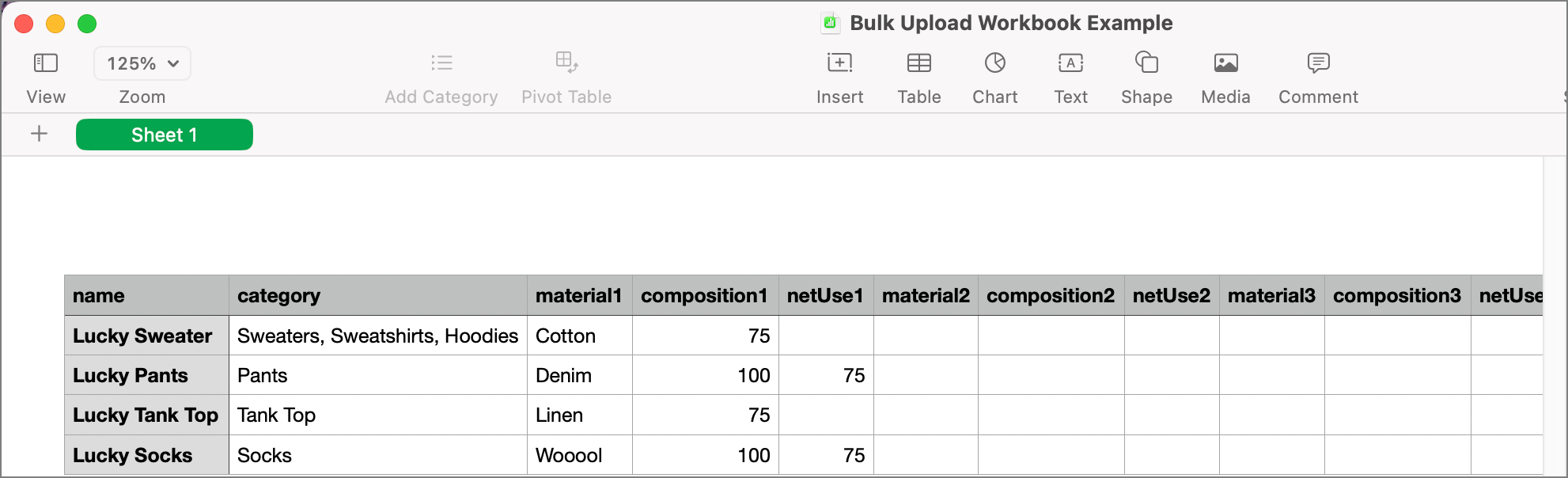
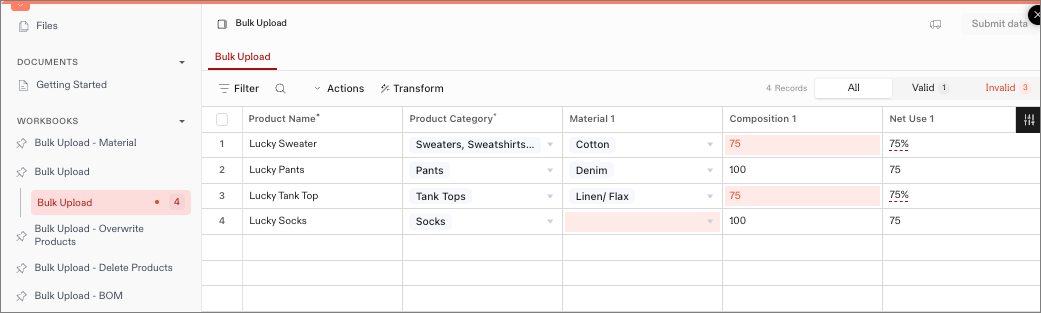
The following example is for a company uploading a workbook with four products.
Expand to show screenshot
-
The screenshot below has errors several errors that need to be resolved.
Expand to show screenshot
-
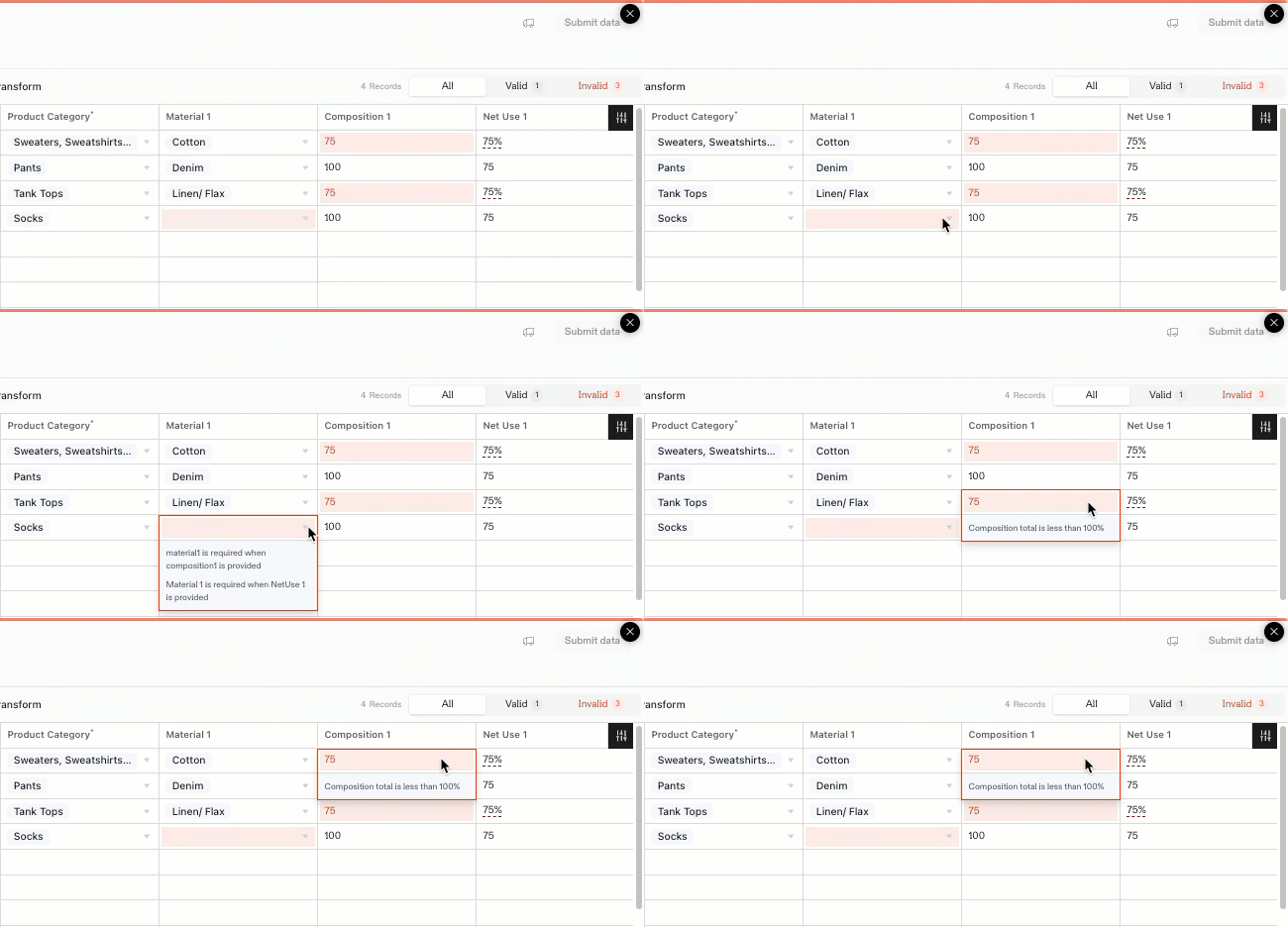
To resolve the errors, hover over the red shaded cells.
Expand to show screenshot
-
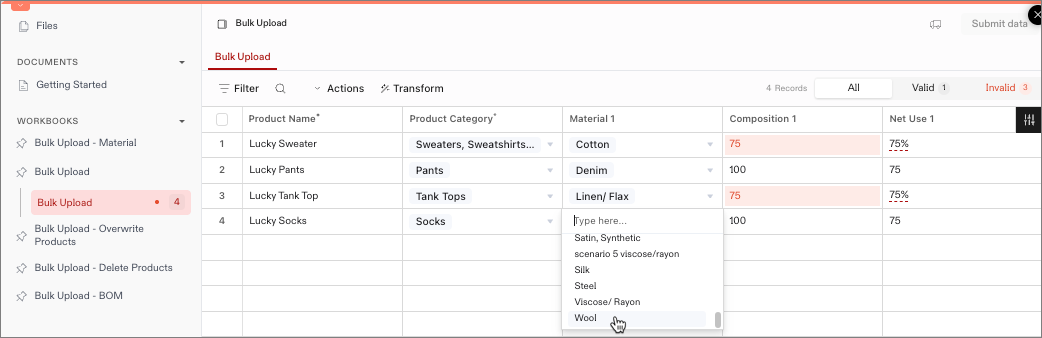
The red cell under the Material 1 column is blank. Select Wool from the drop-down menu.
Expand to show screenshot
-
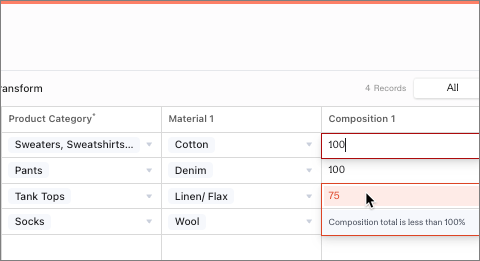
The red cells under Composition 1 column should be 100. Since these products are made with only one material (Material 2 and Composition 2 columns are not filled out), the composition must equal 100%. Enter 100 into the cells with 75.
Expand to show screenshot
-
-
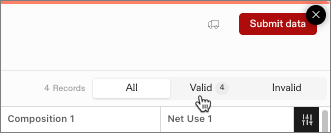
After the table has been reviewed and all errors have been resolved, click Submit data.
Expand to show screenshot
-
You’ll know if you were successful when you see the Success pop up.
Expand to show screenshot
Workbook Template
Download the Bulk Upload - BOM Workbook Template below.