
Table of Contents
- Navigation
- Purchases
- Date Range Filtering
- Bulk Removing Unverified FEMs
- Purchase Order Impacts Fields
- Materials, Components, Packaging Impacts Fields
- FEM Outlier Exclusion
Navigation
- Select Products.
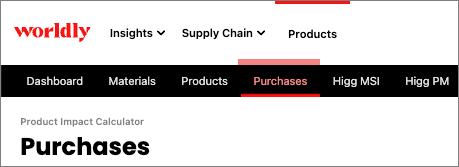
- Select Purchases from the black navigation bar.
- Purchases are available here.
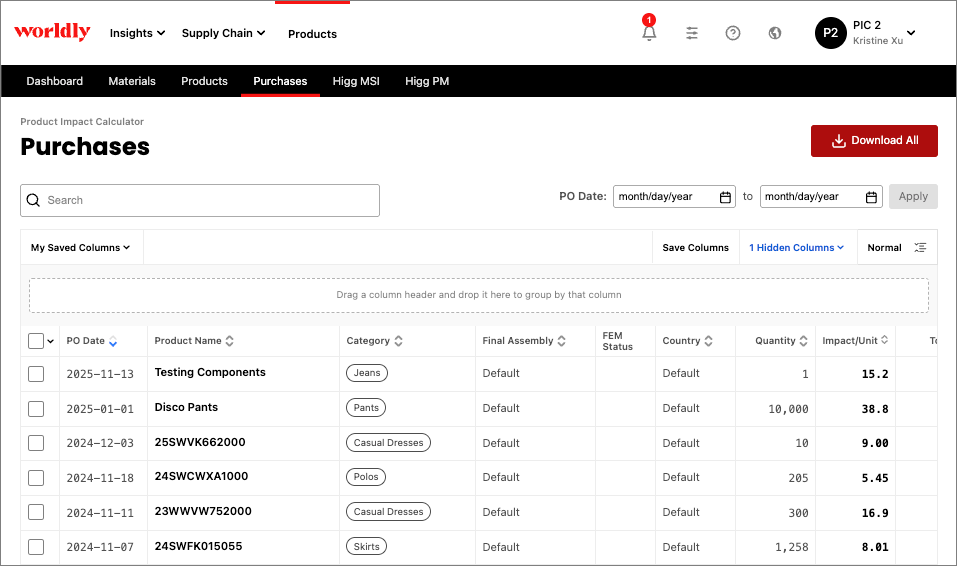
Purchases
The Purchases page is where you can view purchased goods and delete purchase orders. This page provides an interactive data table that gives brands the ability to identify hotspots such as highest emitting products and categories.
This table focuses on high levels of interaction and customization, such as finding records that fit a specific criteria, comparing data, and taking action on multiple records.
Purchases Table Columns
Navigating Purchases
- Select the Download button to download impact reports
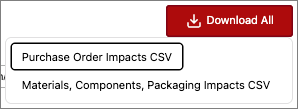
- The Purchase Order Impacts CSV - Provides specific details on the purchase order impacts by Scope 3 category.
- The Materials, Components, Packaging Impacts CSV - Provides specific metrics into Scope 3 Category 1 reporting impacts by individual materials, components, packaging, and Tier 1 Assembly impacts.
-
Search the Purchases page by typing into the search bar. For example, you can search for jeans to show all of your jeans on the purchases page.
Expand to show screenshot
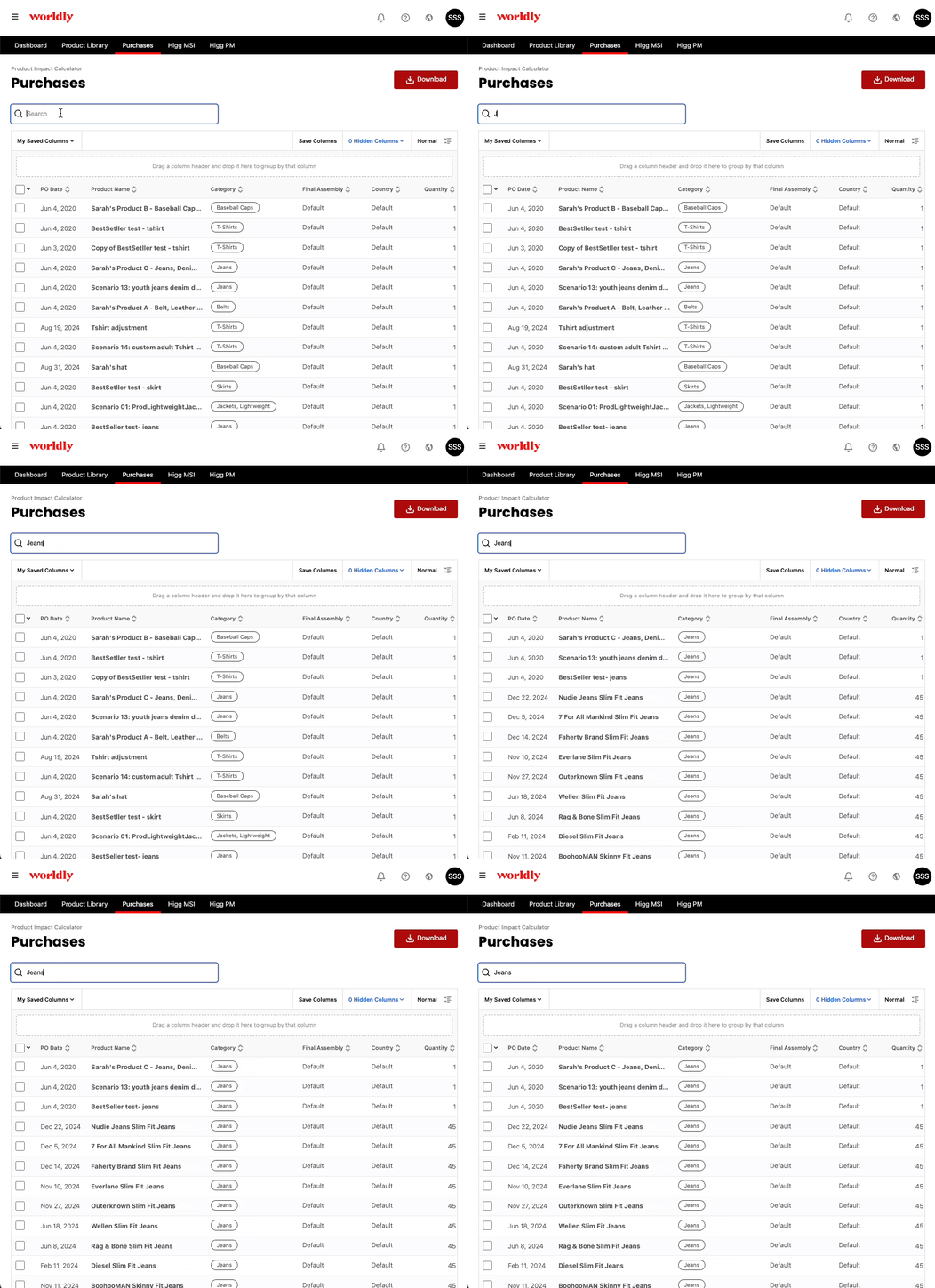
-
Sort the Purchases page by clicking the arrows next to the column. For example, you can sort the PO Date column for the purchase order date. You can also show or hide columns within the table.
Expand to show screenshot
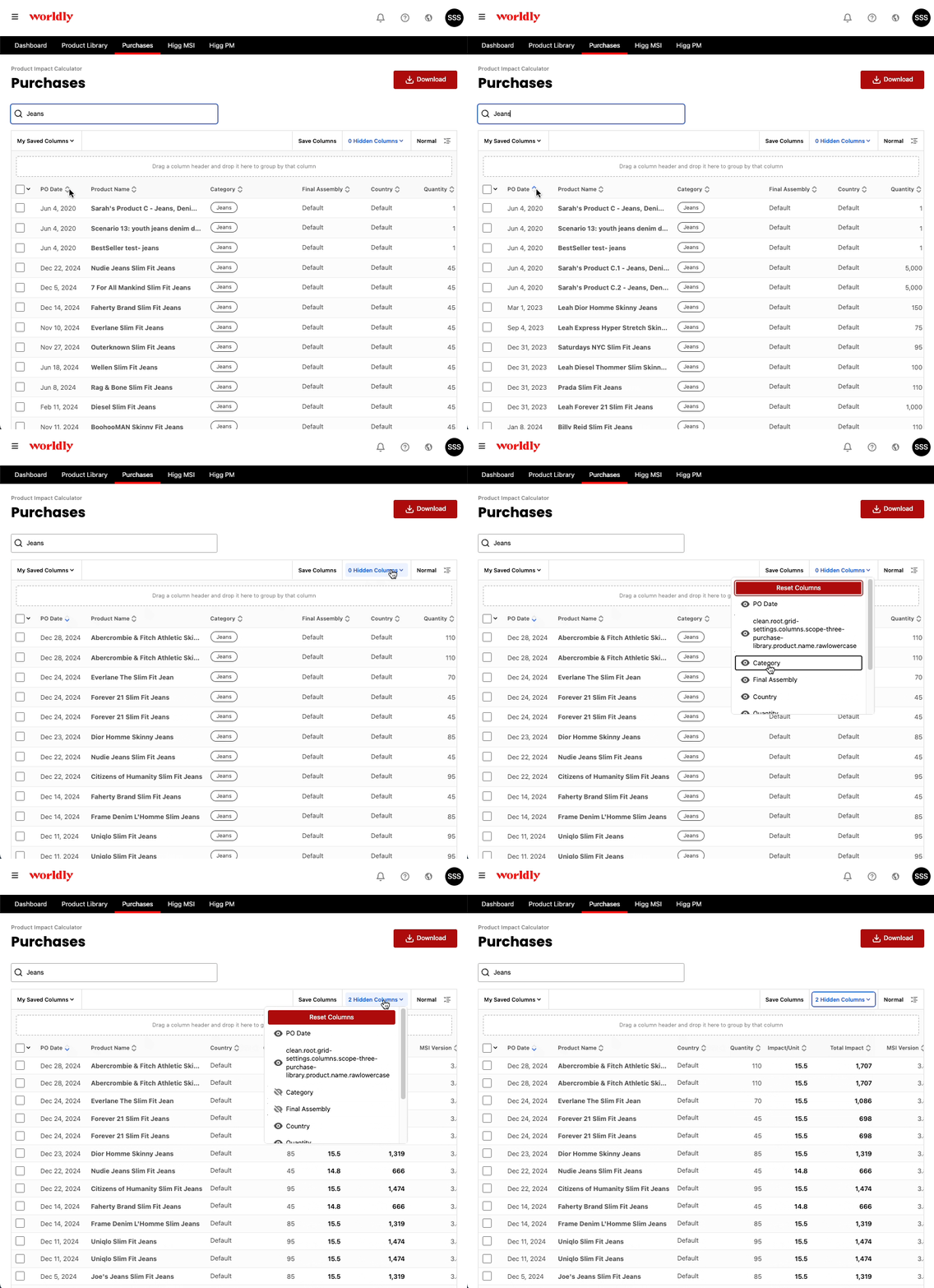
-
Group the Purchases page by dragging a column header to the top of the table. For example, if your products were purchased in several different companies, grouping by the Country header can help organize your inventory more efficiently. The grouping feature also aggregates the Quantity and Total Impacts as indicated by the Sum total in each column.
Expand to show screenshot
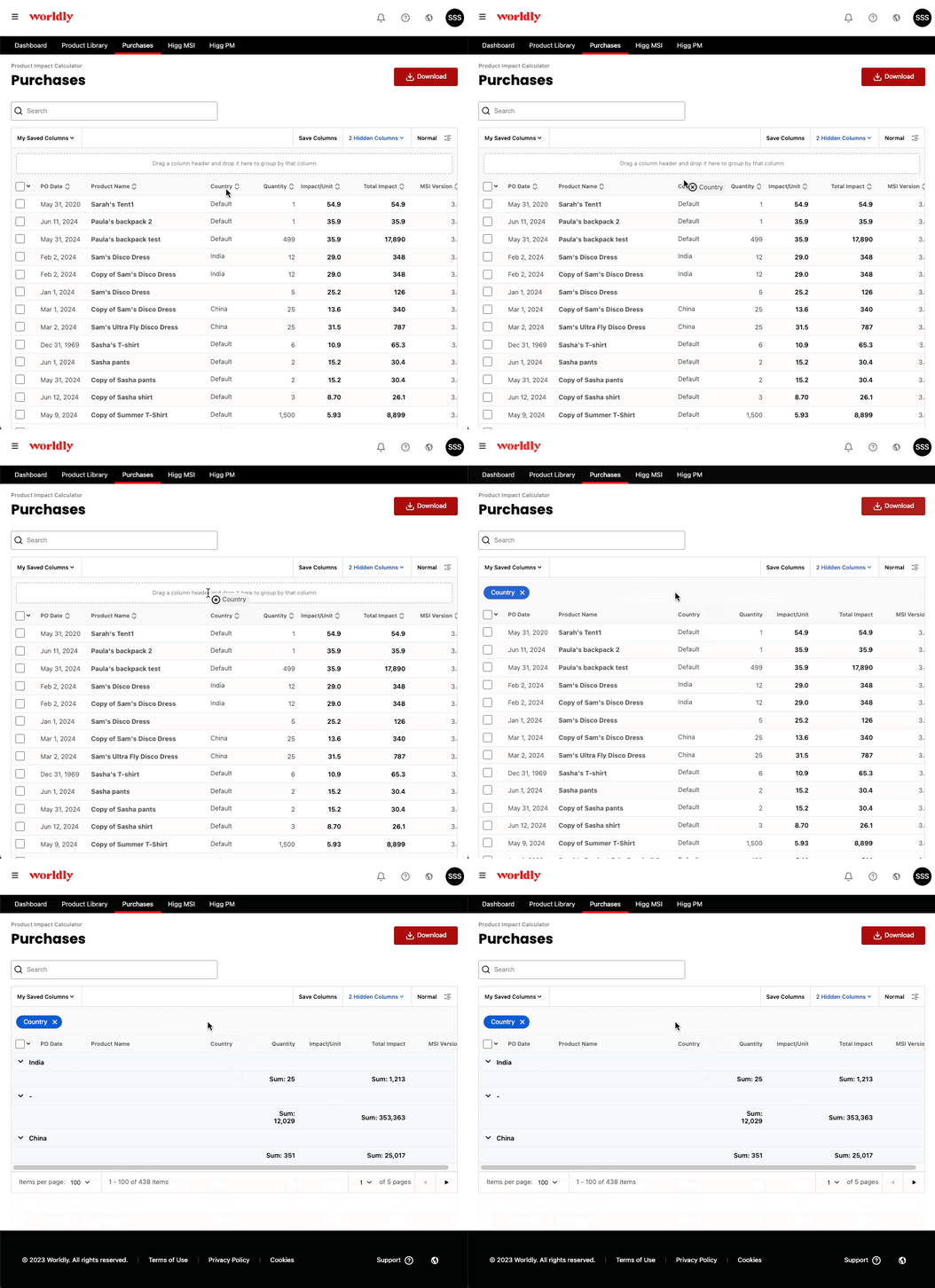
-
Toggle between Compact and Normal views by selecting the toggle at the upper right corner of the table. You can change your view depending on your viewing preferences.
Expand to show screenshot
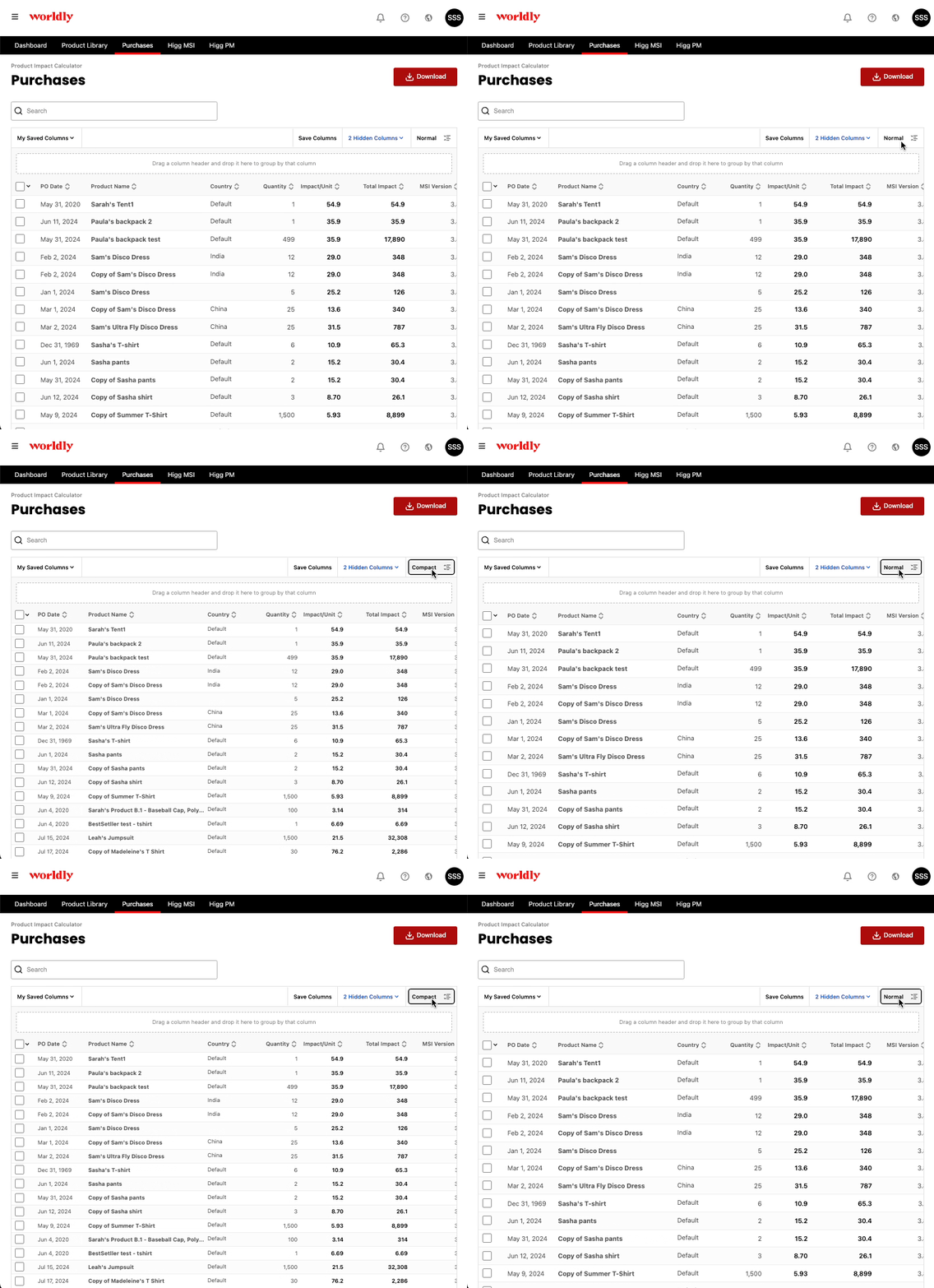
-
You can also save a view by selecting Save Columns and giving a name to your view. Saving a view makes it easier to access an already customized table specific to your organization.
Expand to show screenshot
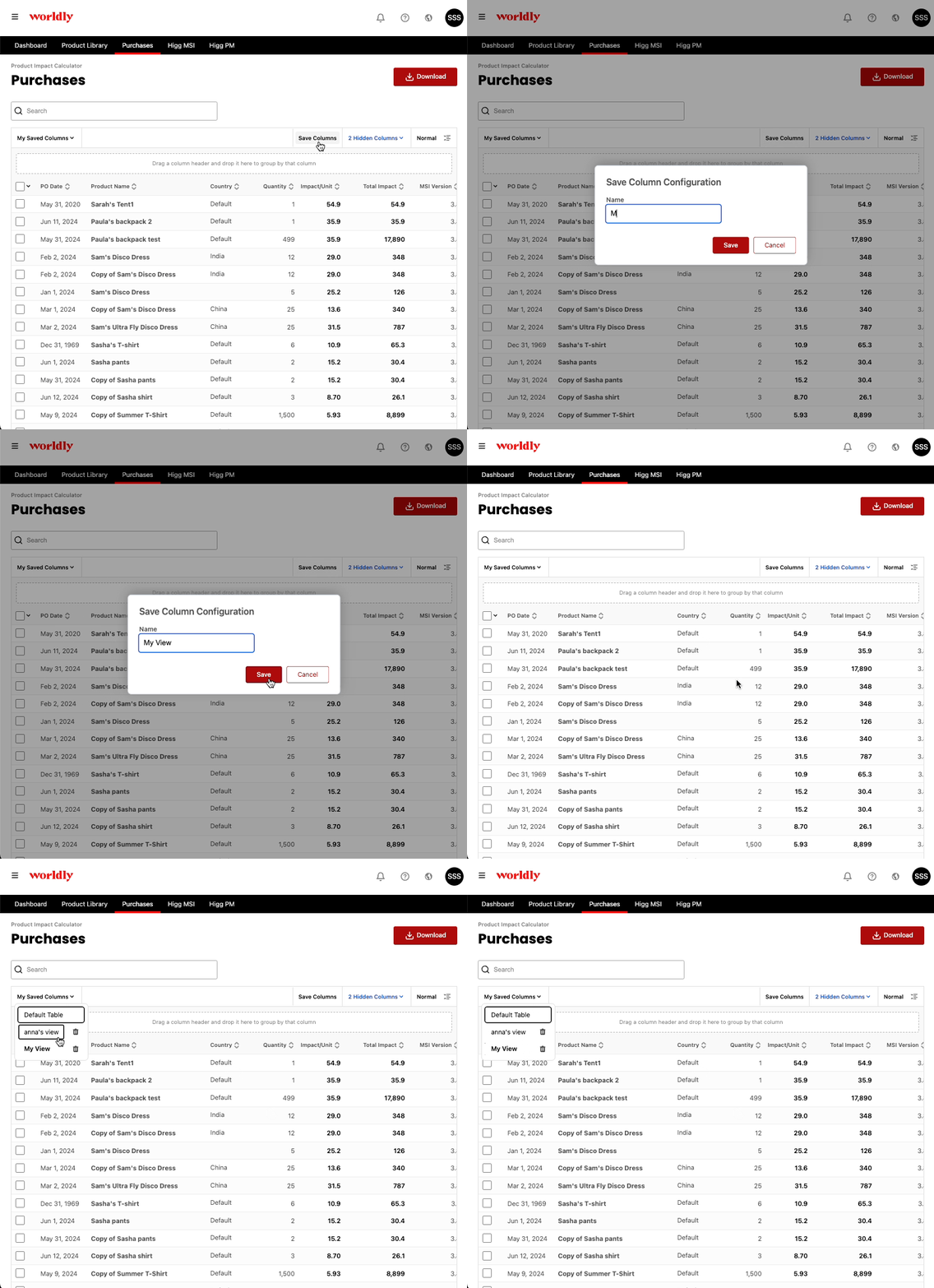
Date Range Filtering
In the upper right corner of the screen, notice the date range filter labeled PO Date. Enter in a start date and end date into the numerical fields to filter data for a specific date range.
For example, if you’d like to filter for 2024, enter January 1, 2024 to December 31, 2024.
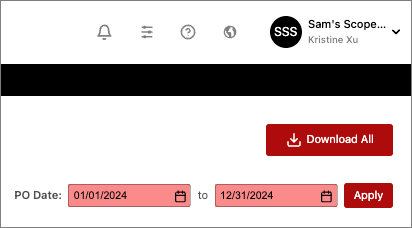
Click Apply, which will update the page to include data just within that date range.
Expand to show screenshot
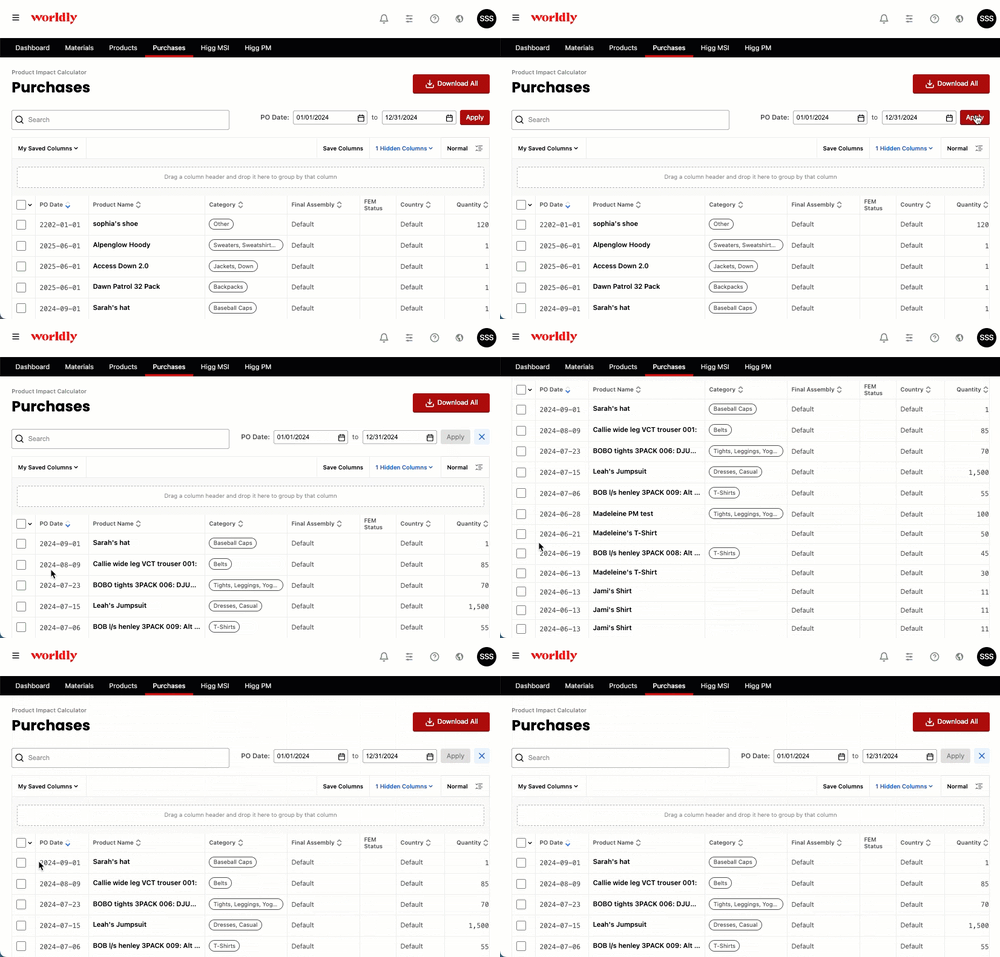
This applies to the Dashboard, as well as the Purchases tab.
Expand to show screenshot
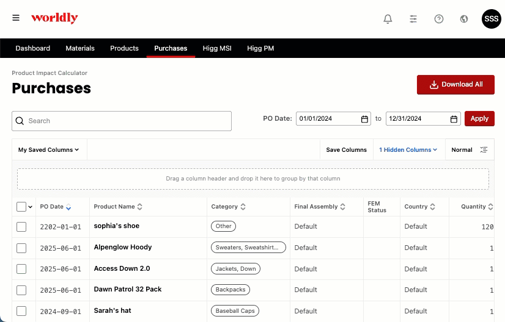
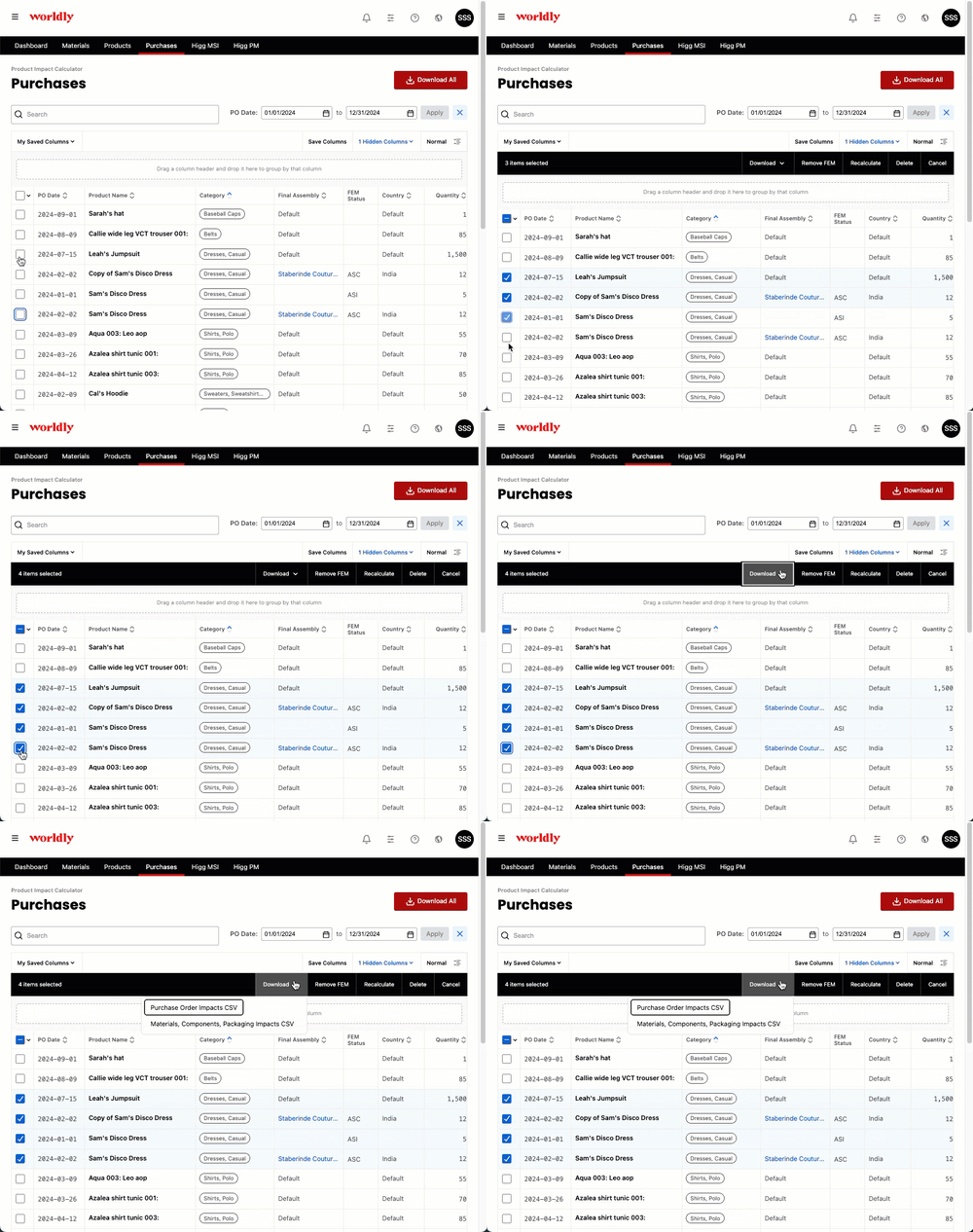
Once the Purchases table is filtered to the date range, you can even download customized CSV files tailored to the specific products selected in the table.
Expand to show screenshot
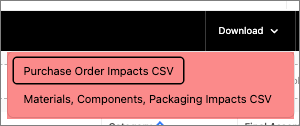
For example, the casual dresses from the table are selected, revealing the black toolbar where you can select Download to access both CSV files. Once downloaded, both CSV files will only show the selected products.
Expand to show screenshot
Bulk Removing Unverified FEMs
On the Purchases tab, the highlighted column allows you to filter your data based on the FEM assessment status. For a full list of FEM Status definitions, read more here.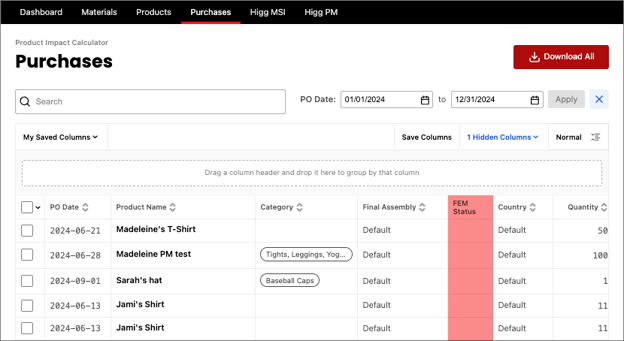
If you only want to link Purchase Orders to verified FEM assessments, follow these instructions to remove the unverified assessments:
-
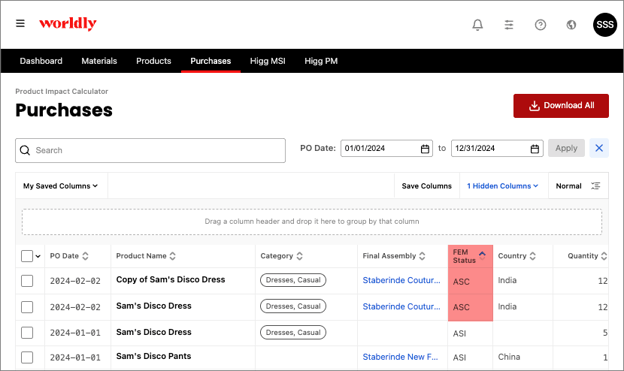
Sort the data alphabetically by clicking on the FEM Status column to sort the data alphabetically. The ASC status refers to Self Assessment Completed, meaning the assessment has been completed but not verified.
Expand to show screenshot
-
Click the check boxes in the row you wish to remove the unverified FEM from.
Expand to show screenshot
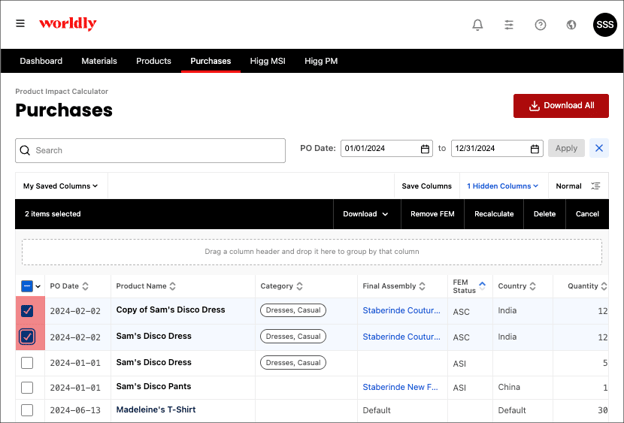
-
A black navigation bar appears after checking the boxes in the left-hand column. Click Remove FEM to unlink the product from the unverified FEM assessment.
Expand to show screenshot
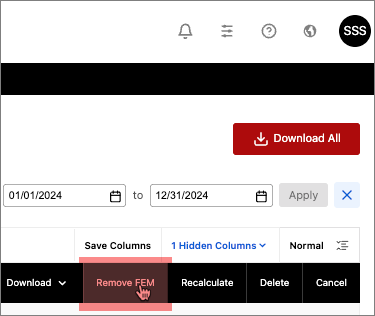
NOTE: This action cannot be undone.
Expand to show screenshot
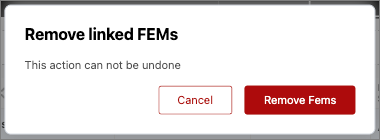
-
Select Remove FEMs. The unverified FEMs have now been unlinked.
Expand to show screenshot
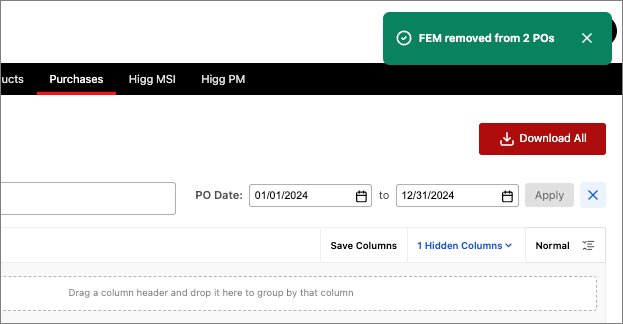
Purchase Order Impacts CSV Fields
Materials, Components, Packaging Impacts CSV Fields
FEM Outlier Exclusion
Unusual or potentially erroneous FEM data is automatically excluded before it impacts product-level calculations.