
Table of Contents
This workbook is for overwriting values from one or more fields across multiple rows.
Bulk Upload - Overwrite Products Workbook Fields
Worldly Product ID
(worldlyProductId)
(At least one required)
String
Worldly Purchase Order ID
(worldlyPurchaseOrderId)
(At least one required)
String
Product Name
(name)
Product Category
(category)
Enter Materials by Weight
(isMaterialWeight)
Set to TRUE when entering materials by weight instead of composition percentage
When TRUE: Use Material Weight fields, composition percentages not required
When FALSE: Use Composition fields (must total 100%)
Boolean
Material 1
Material 2
Material 3
Material 4
Material 5
Material 6
(material1-6)
Supports both PIC materials (e.g., "MatTX0001" for Cotton) and custom materials
Array field - can select multiple materials per set
Picklist with 100+ options
Composition 1
Composition 2
Composition 3
Composition 4
Composition 5
Composition 6
(composition1-6)
Must be number between 1-100
All composition fields must total 100%
Used when "Enter Materials by Weight" is FALSE
String
Net Use 1
Net Use 2
Net Use 3
Net Use 4
Net Use 5
Net Use 6
(netUse1-6)
Number between 1-100
Default value is 75%
String
Component 1
Component 2
Component 3
Component 4
(component1-4)
30+ options like "Comp1001" (Button/Snap Button, Aluminum 12mm)
Supports custom components
Picklist
Component Units 1
Component Units 2
Component Units 3
Component Units 4
(componentUnit1-4)
Must be 1 or more units per product
Required when Component field is populated
Number
Packaging 1
Packaging 2
Packaging 3
Packaging 4
(packaging1-4)
30+ options like "Pack1001" (Box, Shipping Medium)
Supports custom packaging
Picklist
Units 1
Units 2
Units 3
Units 4
(packagingUnit1-4)
Must be 1 or more units per product
Required when Packaging field is populated
Number
Size
(size)
Options vary by product type:
- Apparel: Adult, Childrens/Youth, One Size
- Sleeping Bags: Short, Regular, Long
- Backpacks: <35L, 35-60L, >60L
- Tents: 1-2 Person, 3-5 Person, 6-8 Person
Picklist (custom)
Final Assembly Worldly Id
(finalAssemblyWorldlyId)
When provided, leave Final Assembly column blank
Picklist (custom)
Final Assembly
(finalAssembly)
Facility name must match account name on platform
Picklist (custom)
Purchase Order Quantity
(amountPurchase)
Must be 1 or more
Number
Purchase Order Date
(purchaseOrderDate)
Format: YYYY-MM-DD
String
Purchase Order Number
(purchaseOrderNumber)
Multi-Pack
(multiPacksQuantity)
Weight
(weight)
Unit of Measure
(unitOfMeasure)
Required when Weight field is populated
Options: kilograms, grams, milligram, pound, ounce
Picklist
Tags
(tags)
Identifier Type
(identifierType)
Required when Identifier ID is populated
Options: GTIN, SKU, UPC, OTHER
Picklist
Identifier ID
(identifier)
Final Assembly Location
(frenchLabelCountry)
Country for Manufacturing stage
Options: Region - Western Europe, Region - Eastern Europe, Region - Asia, Region - Africa, Region - Middle East, Region - Latin America, Region - North America, Region - Oceania, Myanmar, Bangladesh, China, France, India, Cambodia, Morocco, Pakistan, Tunisia, Turkey, Vietnam
Picklist
Textile Formation Location
(frenchLabelFabricCountry)
Country for Weaving/Knitting stage
Options: Region - Western Europe, Region - Eastern Europe, Region - Asia, Region - Africa, Region - Middle East, Region - Latin America, Region - North America, Region - Oceania, Myanmar, Bangladesh, China, France, India, Cambodia, Morocco, Pakistan, Tunisia, Turkey, Vietnam
Picklist
Preparation, Dyeing, Finishing Location
(frenchLabelDyeingCountry)
Country for Dyeing stage
Options: Region - Western Europe, Region - Eastern Europe, Region - Asia, Region - Africa, Region - Middle East, Region - Latin America, Region - North America, Region - Oceania, Myanmar, Bangladesh, China, France, India, Cambodia, Morocco, Pakistan, Tunisia, Turkey, Vietnam
Picklist
Example
Next, let's walk through an example of filling out and uploading this workbook.
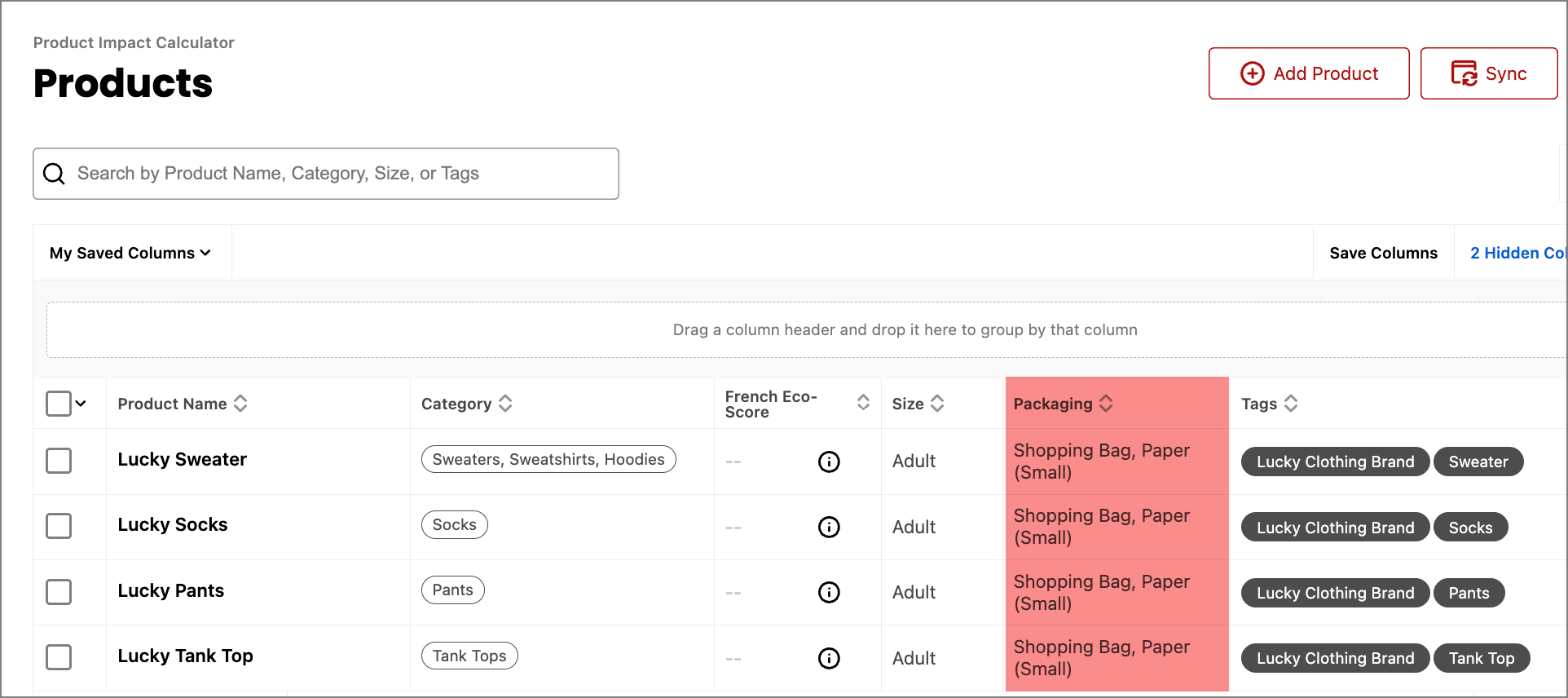
- In this example, the packaging column is populated with "Shopping Bag, Paper (Small)". Use the Bulk Upload - Overwrite Products workbook to update the packaging column to larger shopping bags.
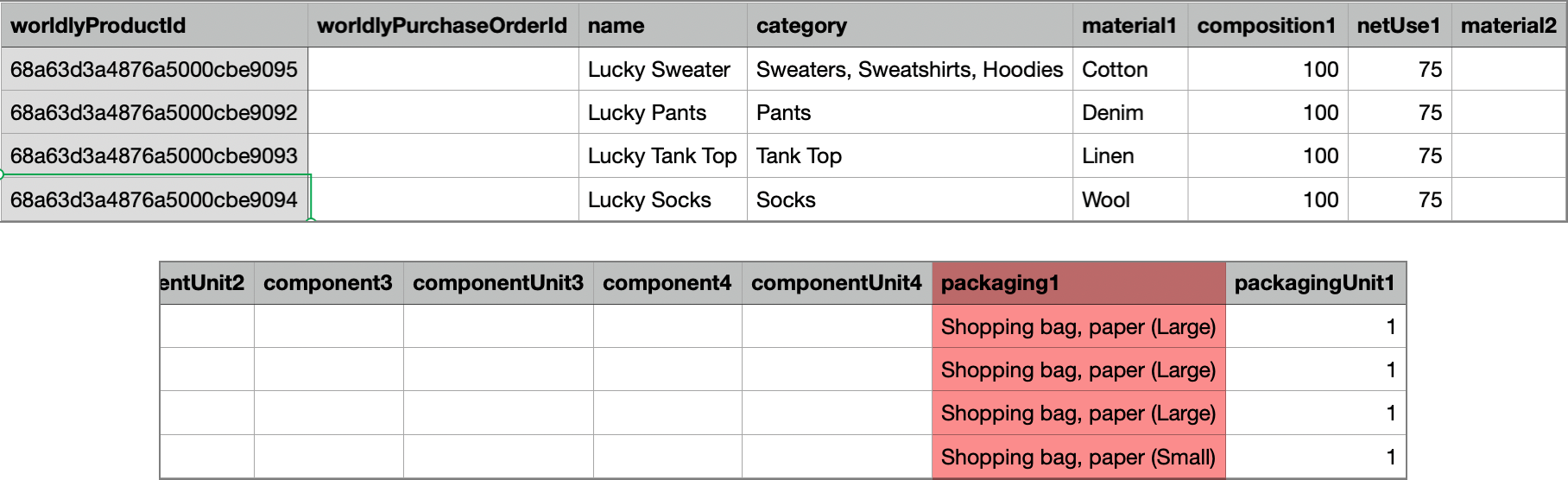
- Using the Bulk Upload - Overwrite Products workbook, change the first three rows in the packaging column to "Shopping Bag, Paper (Large)". Save it as a CSV file.
- Drag and drop your file onto the screen. You can upload the following file formats: CSV, Excel, or JSON. We recommend CSV as a best practice.
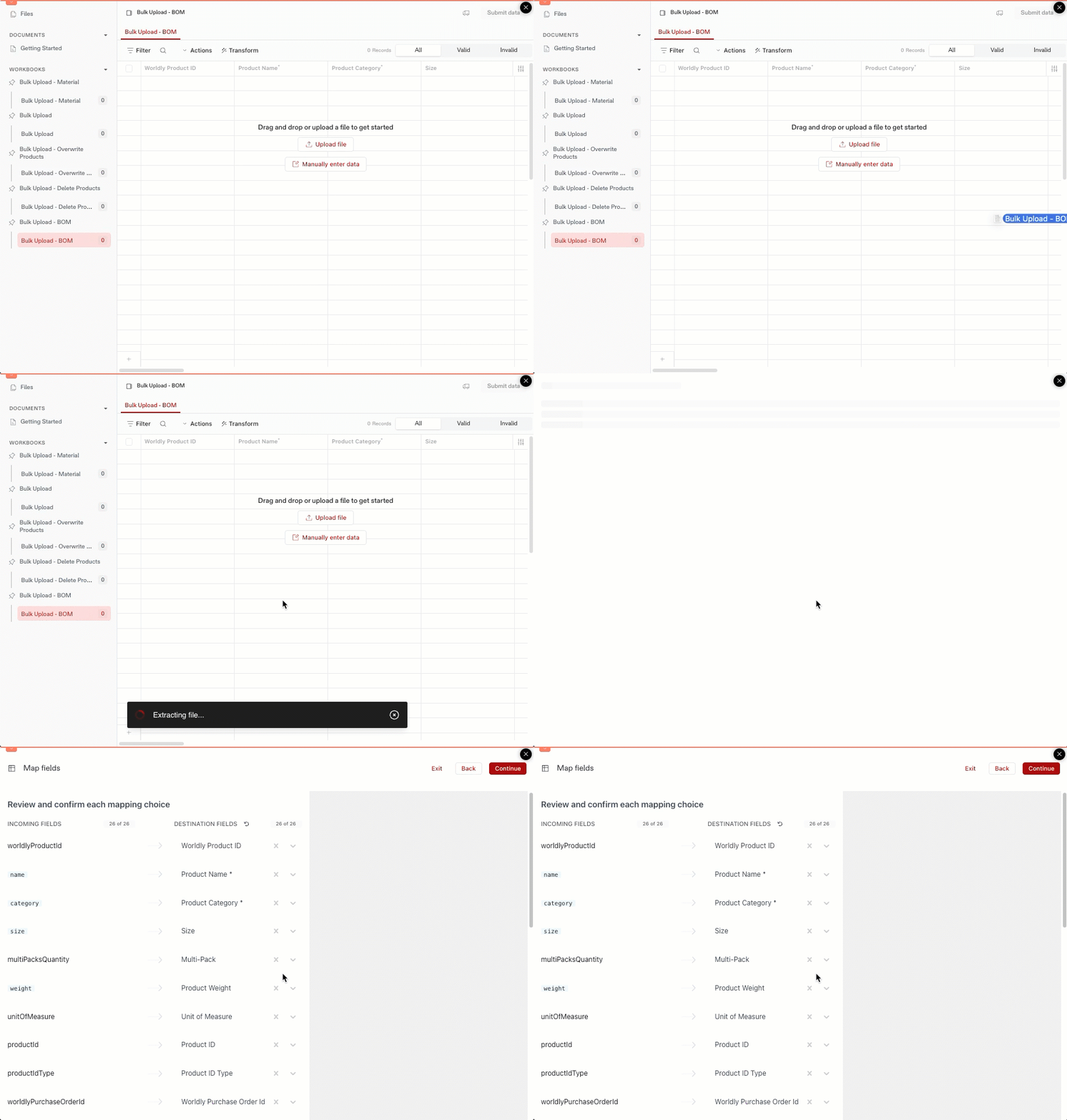
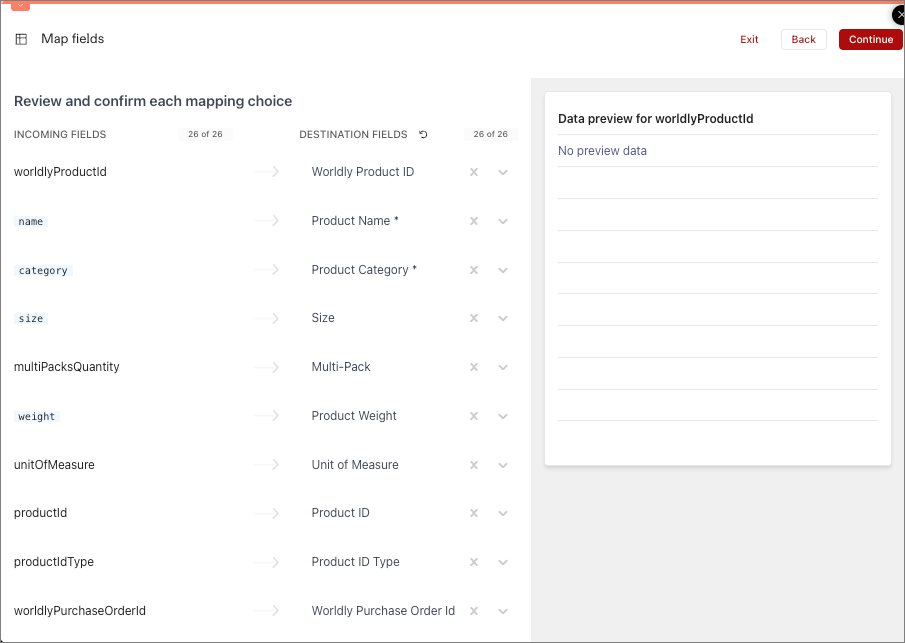
- Review the field mapping on the next two windows before clicking Continue.
- If a field is missing or incorrect, select the dropdown arrow to select the desired field.
- Preview the data for the category on the right side of the window. Hovering over different rows updates the preview window.
- Select Continue.
- On the next page, review the Bulk Upload Table for any errors.
- EX: There are no errors because all rows are in the Valid tab, as seen in the right corner of the table.
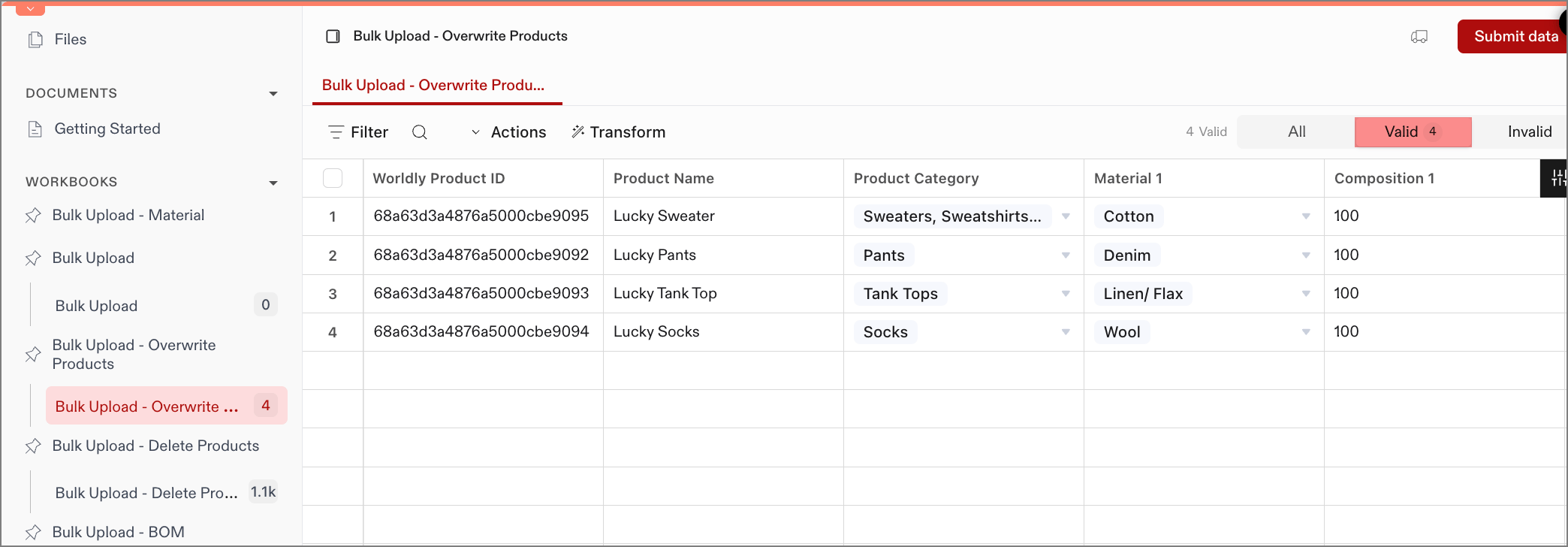
- EX: There are no errors because all rows are in the Valid tab, as seen in the right corner of the table.
- After the table has been reviewed and all errors have been resolved, click Submit Data.
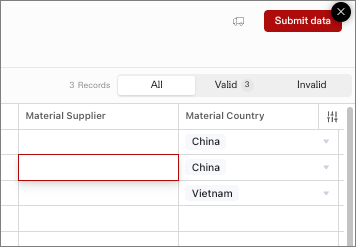
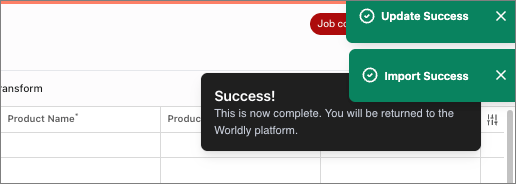
- You’ll know if you were successful when you see the Success pop up.
Workbook Template
Download the Bulk Upload - Overwrite Products Workbook Template below.