
Table of Contents
- Capabilities
- Best practices for using Transform
- Navigation
- Bulk Upload
- Transformations
- Assessment Status Abbreviations
- Module Share Notifications
Use the Bulk Uploader’s Transform function to clean up and optimize files uploaded to Worldly’s platform.
Transformations can be used to:
- Normalize dates, capitalization, and formatting.
- Fix any values that don’t meet validation rules
- Run simple calculations using existing fields in your data
- Apply the same fix across many rows without manual editing
Capabilities
- Fix capitalization
- Remove extra spaces and special characters
- Extract parts of text (e.g., first/last name, domain from email)
- Find and replace text
- Standardize formats
- Convert text to numbers
- Round decimals
- Run basic math operations
- Convert units
- Format currencies
- Convert text to date format
- Standardize date formats
- Extract parts of dates (e.g., year, month, day)
- Calculate date or time differences
- Remove duplicates
- Fix spelling errors
- Standardize variations
- Remove invalid characters
Best practices for using Transform
Navigation
Use the bulk upload’s Transform function to optimize supplier lists.
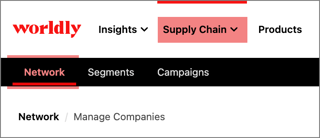
- Begin by navigating to Supply Chain, followed by Network.
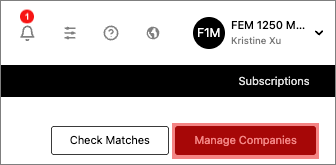
- On the right-hand corner, click Manage Companies.
-
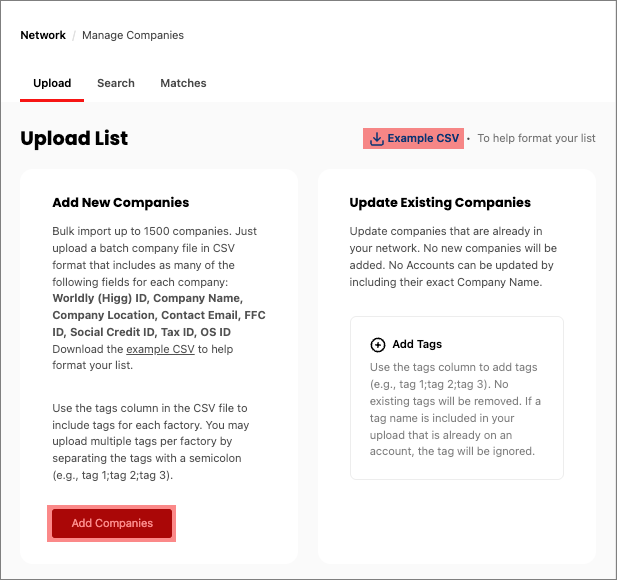
Select Example CSV to download a blank template, followed by Add Companies.
Bulk Upload
- Drag and drop your file onto the screen. Files can have up to 1,500 rows of data. You can upload the following file formats: CSV, Excel, or JSON. We recommend CSV as a best practice.
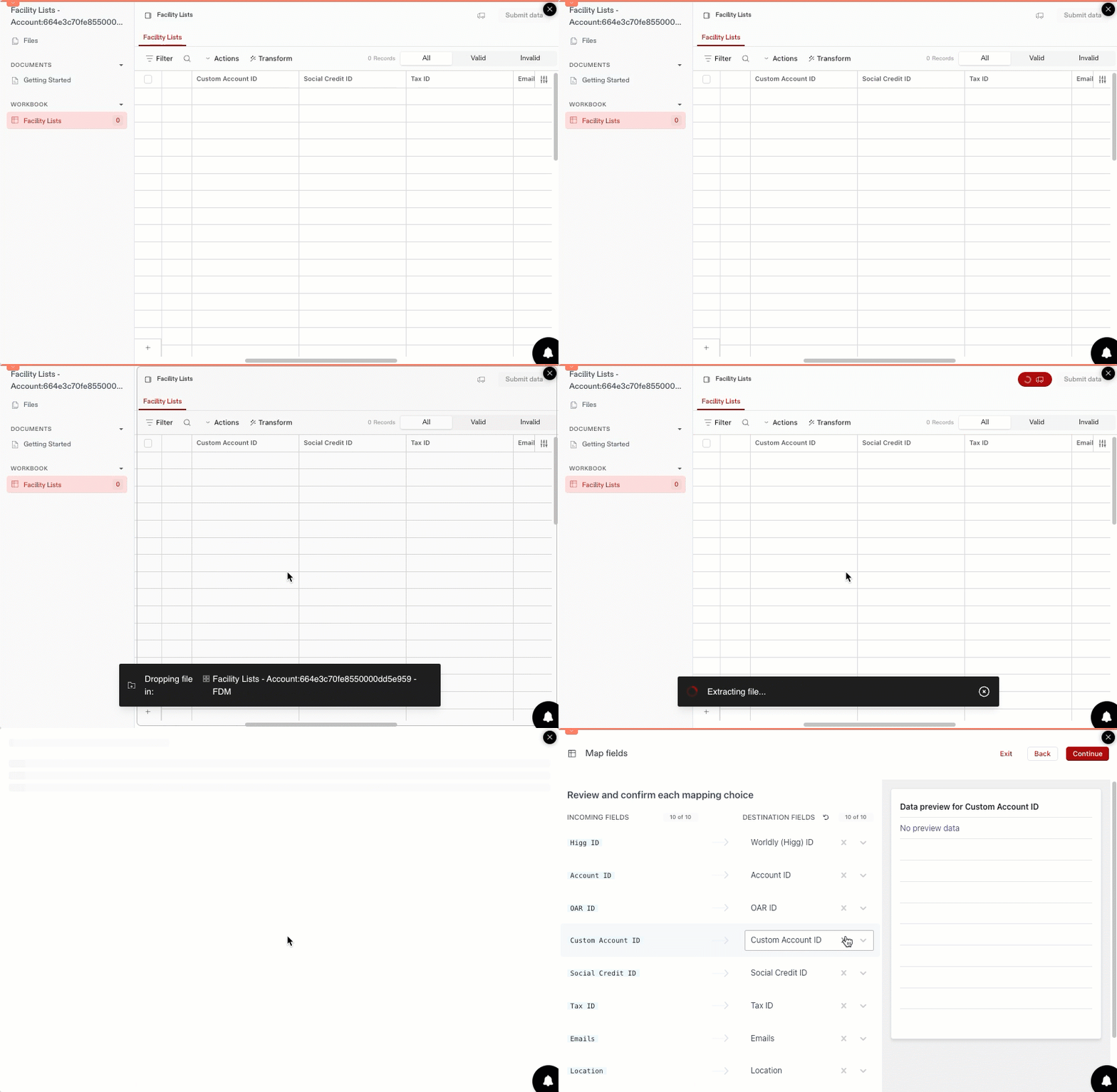
- Review the field mapping before clicking Continue.
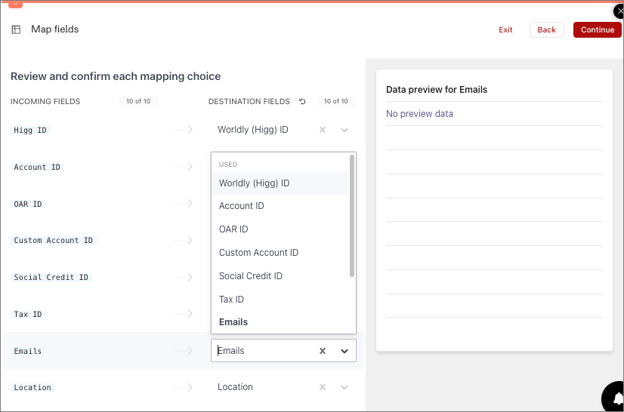
- If a field is missing or incorrect, select the dropdown arrow to select the desired field.
- Preview the data for the category on the right side of the window. Hovering over different rows updates the preview window.
- Select Continue.
- On the next page, review the bulk upload table for any errors. Check the Transformations section below for examples of transforming data.
- After the table has been reviewed and all errors have been resolved, click Submit Data.
- You'll know if you were successful when you see the Success pop up.
Transformations
The Transform function allows you to make edits in mass to files uploaded to the bulk upload. 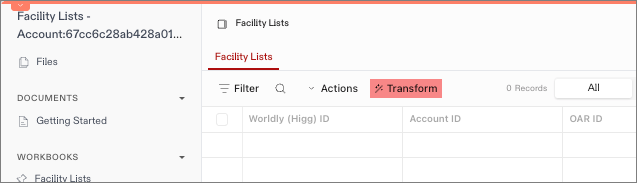
Refer to the following examples to streamline supplier lists for the Worldly Collaboration Suite.
Example 1: Append the location as a tag
Prompt: If @location contains “US”, add a value of “Domestic” to @tags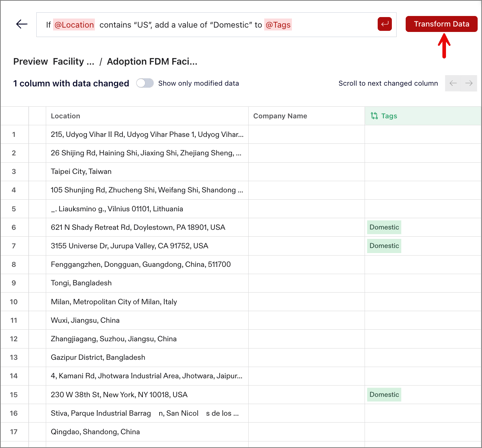
Example 2: Duplicate company names
Prompt: If @company name contains a duplicate value, append “(1)” to the duplicate value in @company name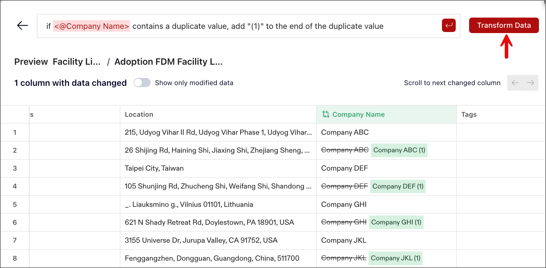
Example 3: Add country information
Prompt: If @location contains “Fujian”, append “China”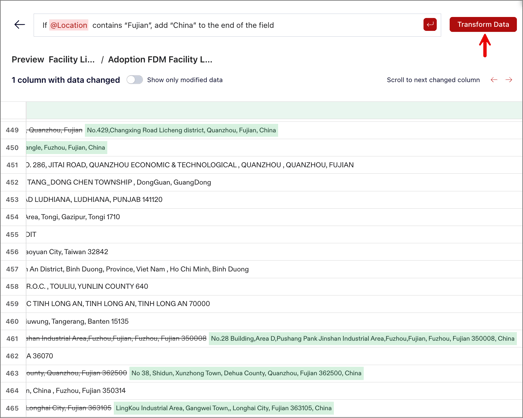
Assessment Status Abbreviations
- No Account - no account on the Worldly platform
- No Module – No module has been purchased
- Module Acquire or NS – Module has been purchased, but has not been started
- ASI – Self-Assessment In Progress
- ASC – Self-Assessment Completed
- VRP – Verification In Progress
- VRC – Verification Complete
- VRD – Verification Disputed
- VRF – Verification Finalized (Not Posted)
- VRF – Verification Finalized (Posted)
- VRE – Verification Edit (if anything needs editing, a facility can apply for VRE)
- VRQ – Verification Quality Check
- VRI – Verification Invalidated (may occur if the facility disputes the verification and the VOO agrees with them)
- ASD – Assessment Deleted
Module Share Notifications
Module share requests are automatically sent to facilities when emails are enabled in campaigns. There are two locations where you'll see module share notifications: the Supply Chain dropdown and section headers.
If you see blue notification bubbles next to an assessment type, this means:
- There are modules that are shared with you that you haven't been accepted yet
- There are requests to share your module that you haven't yet approved
Supply Chain Dropdown
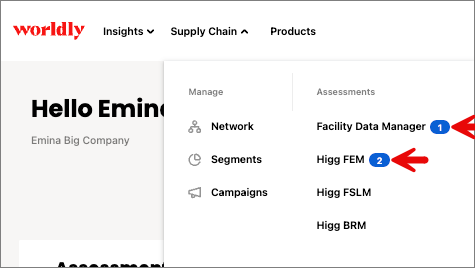
Clicking on the blue notification bubble will bring you to the appropriate Modules table.
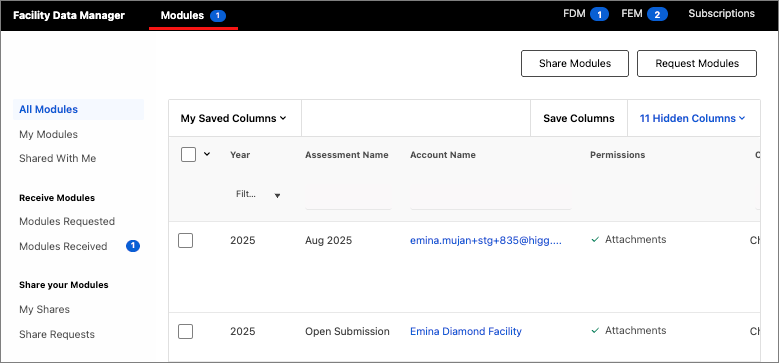
Section Headers
If you have blue notification bubbles in the Supply Chain dropdown, these will be mirrored in the Network, Segments, and Campaigns section headers.

Clicking on the blue notification bubble in the section header opens a pop up to review shares of that assessment type.
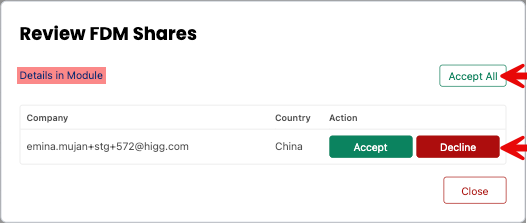
- Select Accept All to bulk accept.
- Select Accept/Decline to review each share individually.
- Select Details in Module if you want to view the request in the corresponding Modules table.