
Table of Contents
Common Mistake: Selecting the wrong database entry
Your chemical manufacturer name or chemical name spelling might differ from the entry in The BHive database. E.g.:
- Dyestuffs: Color name in local language
- Make sure you select the English Name
- Chemical supplier name: Local production entity
- Check for head office name and add your local production entity under “Supplier”
- Spelling Mistakes
- Double check the spelling to ensure you select the right chemical
TIP 1: If you have access to ZDHC Gateway you can also search for chemicals using the PID
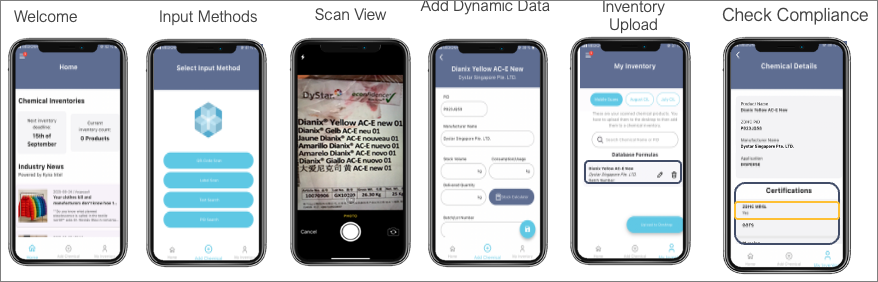
TIP 2: You can also check the compliance status prior to upload on The BHive APP or on the Database search
Check your compliance
The BHive Platform - Analytics
- Open your Dashboard
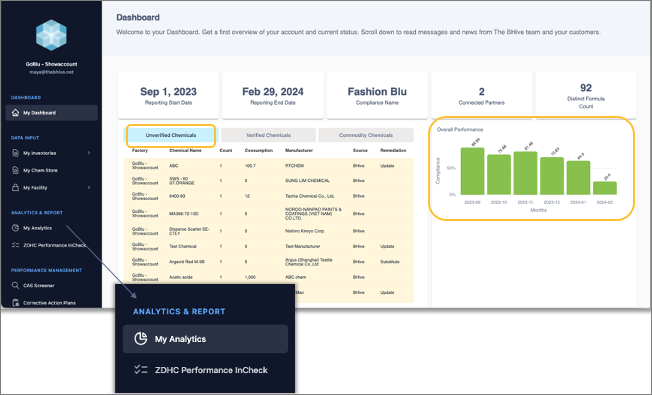
- Note: The label “Unverified” does not imply that chemicals contain hazardous substances. It shows that there is no verification of ZDHC MRSL compliance in the system.
- Under Analytics & Report find your inventory data and download inventories in different formats (e.g. xls, pdf)
- Open your Inventories
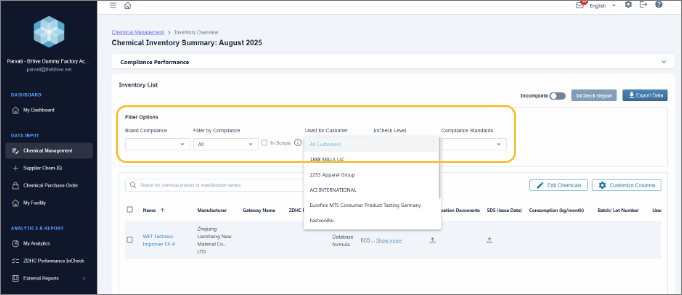
- Under the Chemical Inventory Overview Filter for compliance and brand-related production
- You can indicate which chemicals are used for your customer production under “Used for Customer”. In adding batch related data, you can also filter your performance by customer specific production
- Chemical Inventories - Analytics
- View your Inventory Analytics: Select the standard or customer requirements, according to which you would like to analyse your chemical inventory.
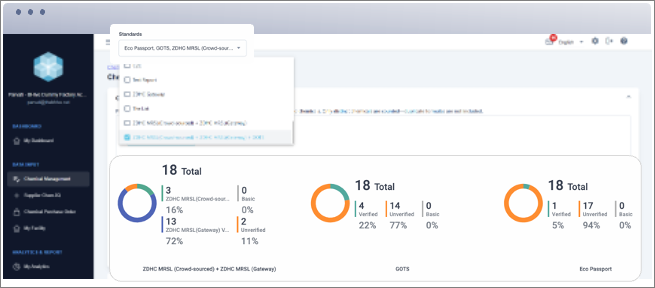
- View your Inventory Analytics: If you generate InCheck on The BHive, you can also choose to see your performance based on both Gateway (ZDHC MRSL Gateway) and The BHive data (ZDHC MRSL crowd-sources) if you select the piechart ZDHC MRSL (crowd-sourced) + ZDHC MRSL (Gateway)
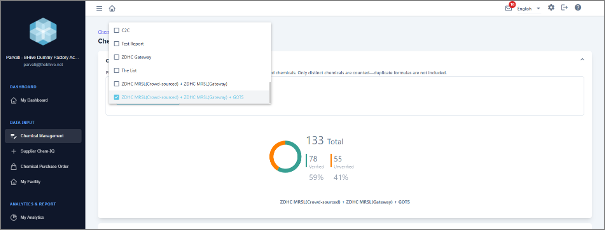
- View your Overall Analytics: Under ”My Analytics” - “Chemical Information” you will find a list of the chemicals and chemical suppliers that are unverified and used most in your production. This way you can connect with chemical suppliers effectively and efficiently.
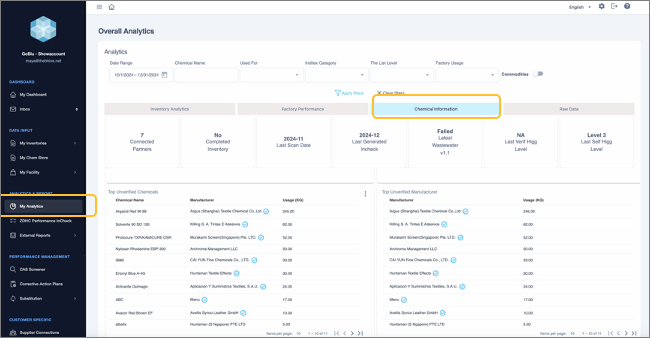
- View your Inventory Analytics: Select the standard or customer requirements, according to which you would like to analyse your chemical inventory.
The BHive mobile APP
The BHive CAS Screener
Remediation: ADD CAS NUMBER
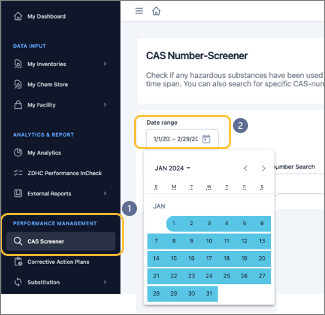
- Go to “Performance Management” and then “CAS Screener” to check if hazardous substances have been used in your production
- Select a Date Range to apply on your search
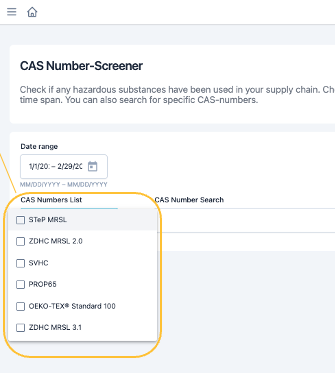
- Select one or multiple standards at once
- Use the filter to choose against which Standard you want to check the CAS number
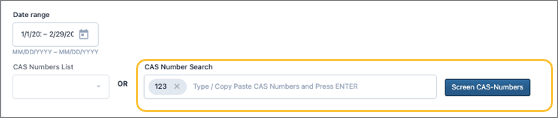
- Alternatively, type in manually or copy paste the CAS number of the chemical product to be checked.
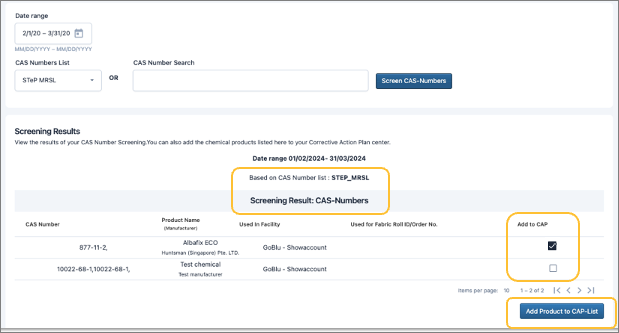
- The upper section shows screening results where a CAS number has been identified, confirming the presence of hazardous chemicals
- Select the hazardous chemicals to add to CAP
- Click on “Add Product to CAP-List” button
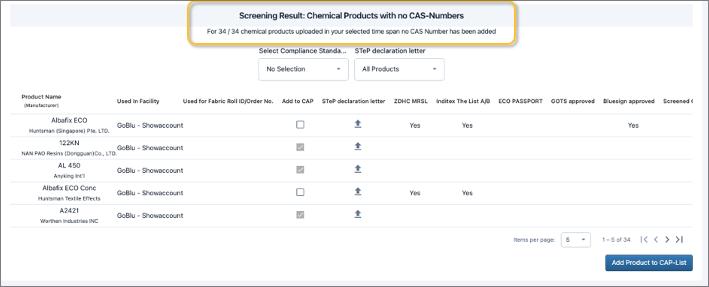
- The lower section shows screening results where a CAS number has not been added during the CIL upload or identified by the system
- Please note: These are not necessarily hazardous chemicals
- Click “My ChemStore” on the toolbar to add missing CAS number to a specific chemical products.
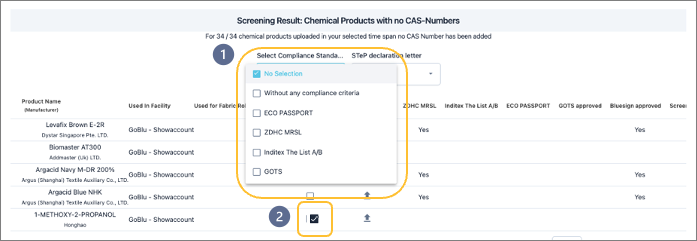
- Use the filter to screen for a Compliance Standard
- Add the chemical to a CAP by clicking on the check icon
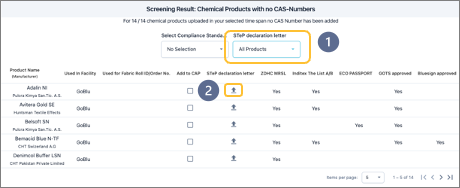
- Filter for “All product” or “Products with/without STeP Self-Declaration Letter”
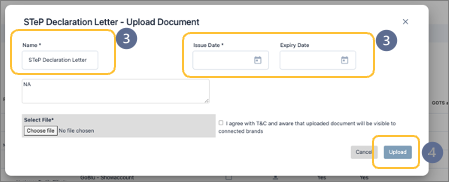
- Upload STeP Declaration Letter by clicking on the arrow icon
- Add relevant information:
- Name of the document
- Date of issue and expiry date
- Click on the upload button to complete the action