
Table of Contents
Navigation
To add an organization account, begin by navigating to Supply Chain and selecting Organization List from the left-hand navigation menu.
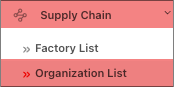
Adding an Organization Account
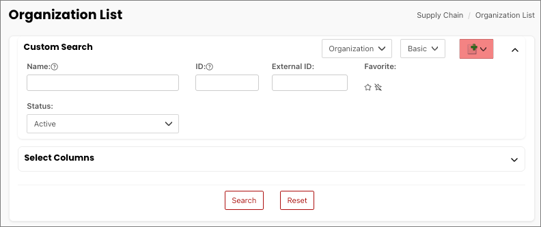
On the Organization List, select the + Symbol.
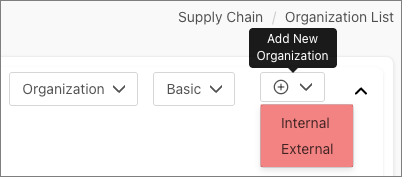
Select the type of organization from the dropdown menu. (Internal or External)
After selecting the type of organization, the Organization Information page appears.
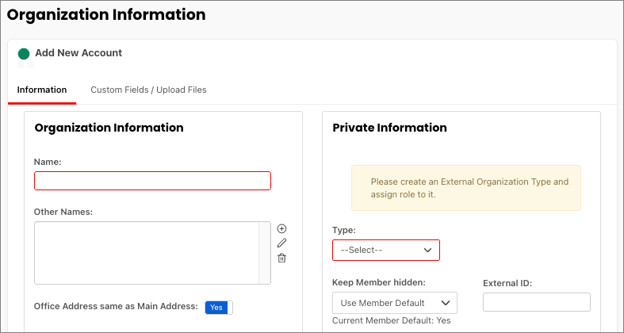
On this page, there are two tabs: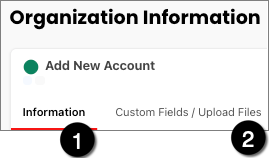
- Information
- Custom Fields/Upload Files
Information tab
The Information tab includes three windows:
- Organization Information
- Private Information
- Other Information
Organization Information
The Organization Information section has the following fields.
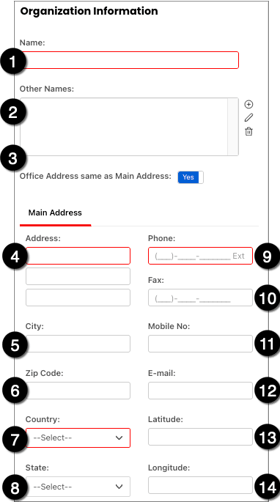
Fields marked with an asterisk are required:
- Name*
- Other Names: Entering information in Other Names, Latitude, and/or Longitude fields will help others find an organization that has changed its name.
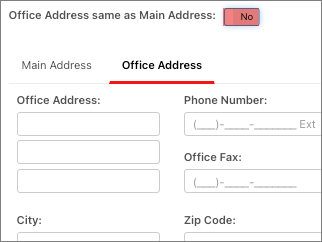
- Office Address same as Main Address: If the Office Address is different from the Main Address, toggle the slider to No and an Office Address tab will appear.
- Address*: If you don't have the information for the Address and/or Phone Fields, enter “1” as a placeholder.
- City
- Zip Code
- Country*
- State
- Phone*: If you don't have the information for the Address and/or Phone Fields, enter “1” as a placeholder.
- Fax
- Mobile No.
- Latitude: Entering information in Other Names, Latitude, and/or Longitude fields will help others find an organization that has changed its name.
- Longitude: Entering information in Other Names, Latitude, and/or Longitude fields will help others find an organization that has changed its name.
Private Information
The Private Information section has the following fields.
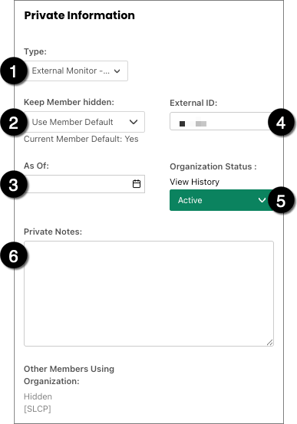
- Type: Select the specific type of organization.
- Keep Member hidden: Set by default to Yes and locked. This can be changed once the new organization is entered into the system.
- As Of
- External ID
- Organization Status
- Private Notes
Other Information
The Other Information section has the following fields.
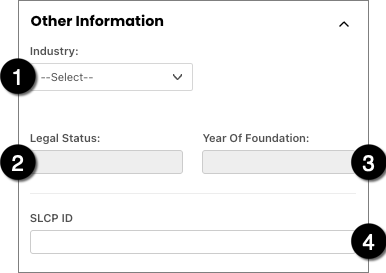
- Industry: Select the industry the factory is associated with
- Legal Status: Enter the factory’s legal status
- Year of Foundation: Enter the year the factory was founded
- SLCP ID: Enter the SLCP ID
Once you’re done entering in all required information, check all fields for accuracy before selecting Save.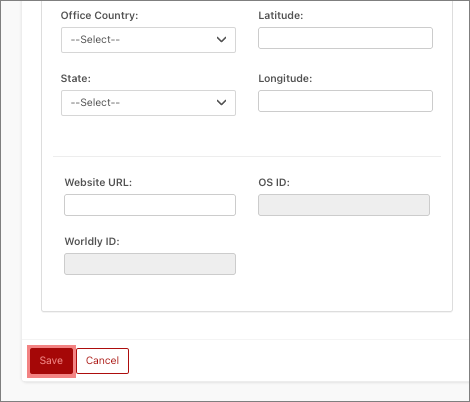
Custom Fields/Upload Files tab
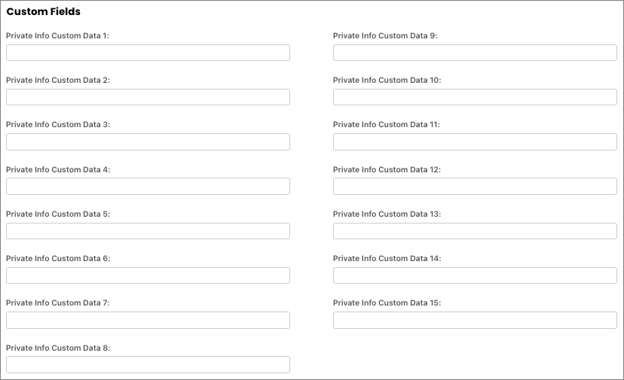
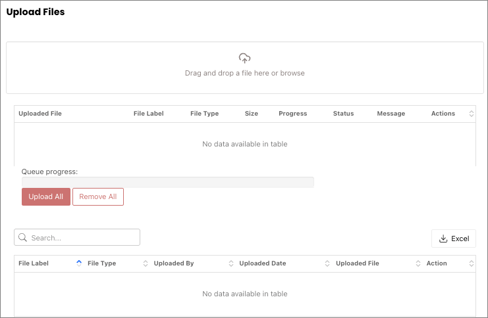
The Custom Fields/Upload Files tab has two sections:
- Custom Fields section: Available to add account information relevant to the brand. Custom information fields are optional and configured by the brand.
- Upload Files section: Drag and drop a file here or browse.
Saving Organization Information
Once you’re done entering in all required information, check all fields for accuracy on both the Information and Custom Fields/Upload Files tab.
Select Save.
Verify Account
The Verify Account window will popup if the platform detects that the new organization you're adding is a duplicate of an existing one. Choose between making the member active in an existing organization on the list or creating a new entry in the system.
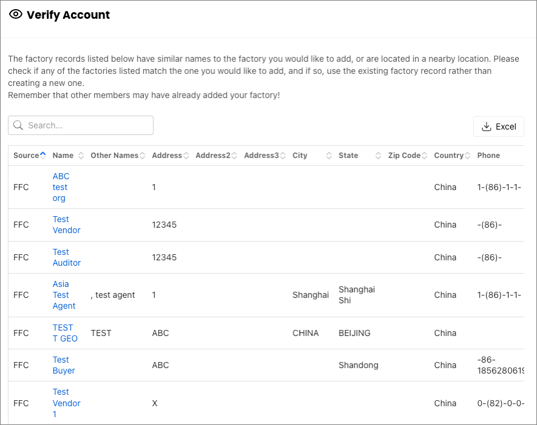
- Select the organization name to make the member active in the existing organization.
- Select Continue if you want to add a new organization to the platform.