
Table of Contents
The certificate and registration portion is public and visible for any facility user.
Navigation
Selecting your member affiliation brings you to the Factory Information page.
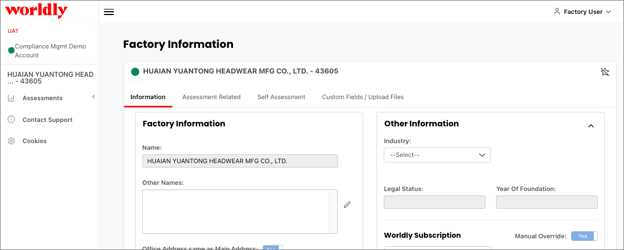
How to Add a Certificate or Registration
To add a certificate or registration to your account
- Scroll down to Certificates and Registrations on the right side of your screen.
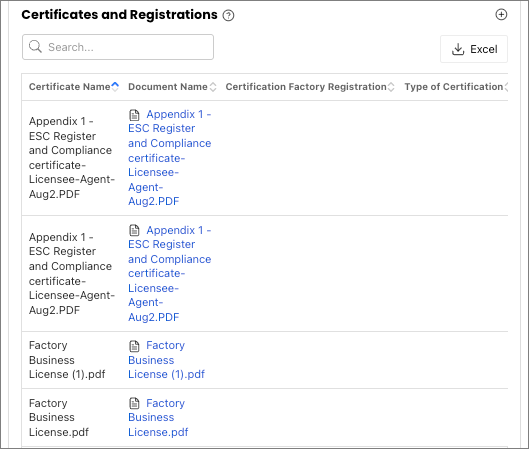
- Click on the + symbol in the Certificates and Registration section.

- This reveals the Add Certificate window.
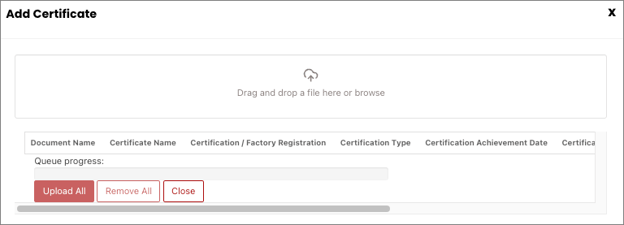
- Once you’ve dragged and dropped your file or browsed for it, fill in the following fields.
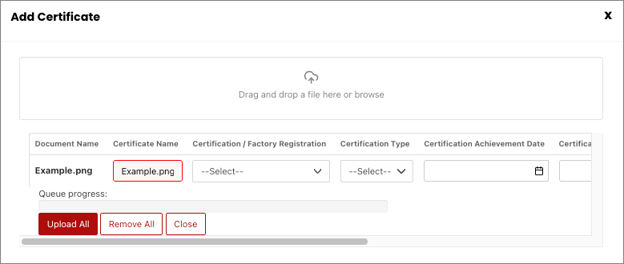 Fields with an asterisk are required:
- Certificate Name*
- Certification/Factory Registration
- Certification Type
- Certification Achievement Date
- Certification Expiration Date
Once you’ve entered in the information, click on Upload All and the document will appear in the Certificate and Registration list.