
Table of Contents
- Account Designations
- Create an Account Designation
- How to update a facility designation
- How to view designation history
Account Designations
Account designations are custom classifications that indicate the status of a factory regarding the brand/purchaser compliance process.
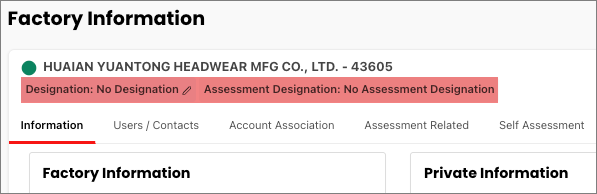
- Classifications and terminology typically exist in a brand’s quality system and can be incorporated into the platform.
- If need be, the brand can customize the classification and terminology to suit their needs.
Create an Account Designation
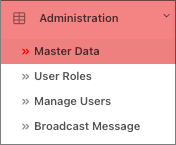
- Begin by navigating to Administration followed by selecting Master Data.
- Expand Other Master Modules and select the Designation folder.
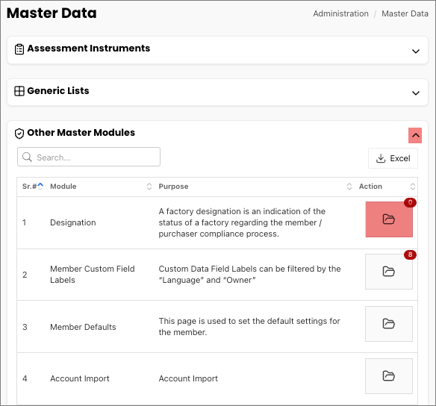
The Designation window has two sections:
- Designation
- Existing Designations
Designation
Enter information for the designation here. There are three tabs on this section:
- General
- Expiry
- Default
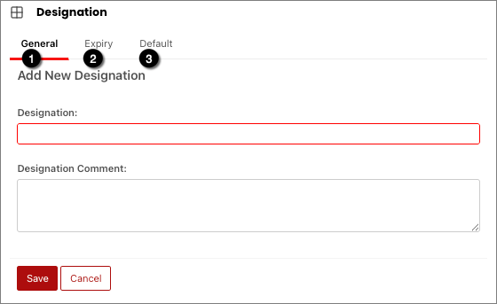
The Designation window is where you will enter all the information related to the designation.
In the Designation window there are three tabs:
- General
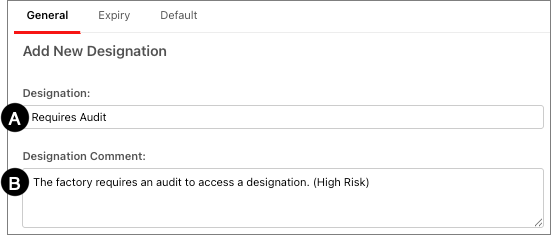
- Designation (required): Enter the name of the designation
- Designation Comment: Enter description of the designation
- Expiry
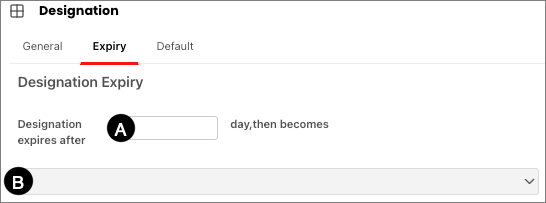
- Enter the number of days the designation lasts
- Enter the designation that follows the number of days
- Default
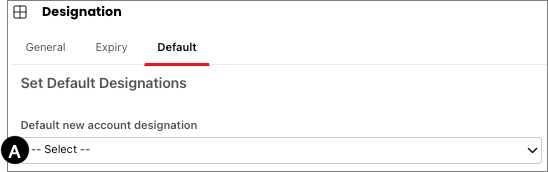
- Default new account designation: If the brand wants to have a default designation assigned to new factories, choose one from the dropdown menu.
- Select Save after completing the General, Expiry, and Default tabs. This records the designation.
Existing Designations
The Existing Designations window is a list of all the active and inactive designations the member has created.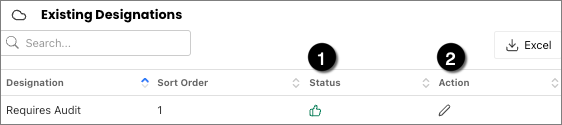
- Toggle the designation to Active or Inactive.
- Thumbs up is Active
- Thumbs down is Inactive
- Select the pencil icon to edit the designation information. This reopens the designation in the general tab.
How to update a facility designation
Select the pencil icon to update designation, effective dates, and expiry dates.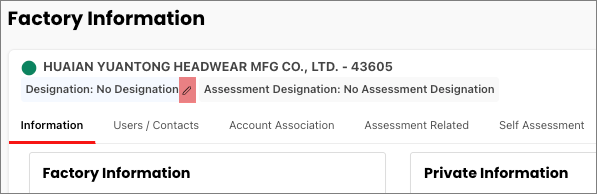
The Designation section has the following fields.
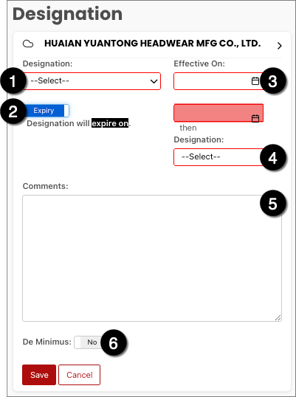
Fields marked with an asterisk are required:
- Designation*
- Expiry toggle: Select the toggle to add and remove the second date box.
- Effective On*
- Designation*
- Comments: Add any designation comments here.
- De Minimus
How to view designation history
View designation history here.
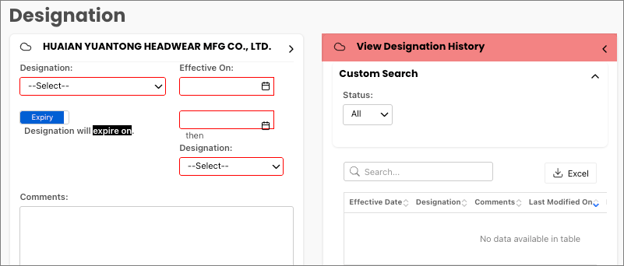
If a designation was previously set to be automatic, the column will show that it’s been updated by a generic email address.