Table of Contents
Navigation
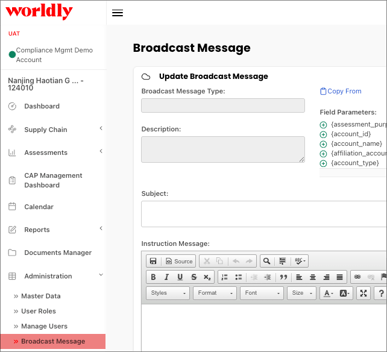
Begin by navigating to Administration and selecting Broadcast Message from the left-hand navigation menu.
Broadcast Message Overview
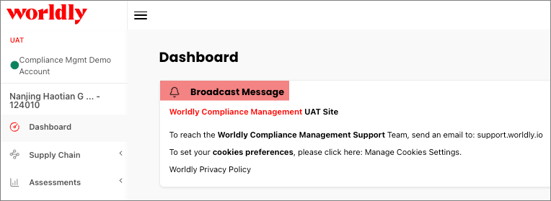
Administrators use Broadcast Messages to create and manage system-wide messages that appear on the Dashboard. These messages communicate important announcements, reminders, or time-sensitive updates to platform users.
There are two sections under Broadcast Message:
- Update Broadcast Message
- Existing Broadcast Message
Update Broadcast Message
The Update Broadcast Message section allows administrators to create new broadcast messages or edit existing ones.
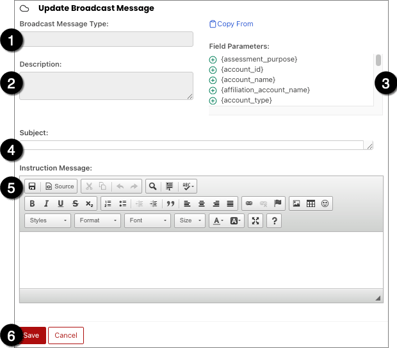
- Broadcast Message Type: Identifies the message template that is created or updated, which helps organize different broadcast messages within the system. This field is not editable.
- Description: Enter the description of the broadcast message, which helps administrators understand the purpose or use case of the broadcast message. This field is not editable.
- Field Parameters: Displays variables that are available to be inserted into the subject or instruction message. These variables automatically populate with data from the system when the message is delivered.
- Subject: Enter the title of the broadcast message.
- Instruction Message: Enter the main content of the broadcast message.
- Select Save.
Existing Broadcast Message
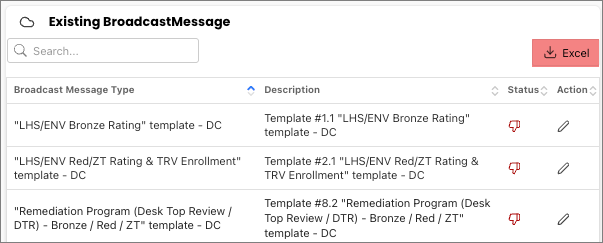
The Existing Broadcast Message section lists all broadcast message templates currently available in the platform.
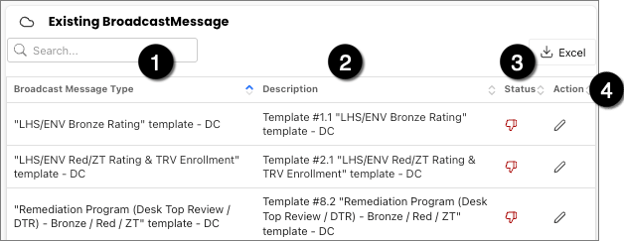
- Broadcast Message Type: The name of the message template
- Description: Explanation of the message
- Status: Indicates whether the message is active or not.
- Thumbs up: The message is enabled and will display on the dashboard.
- Thumbs down: The message is disabled and will not be displayed.
- Action: Select the pencil icon to edit the message.
Select Excel to export a file with all broadcast messages.