
Table of Contents
Navigation
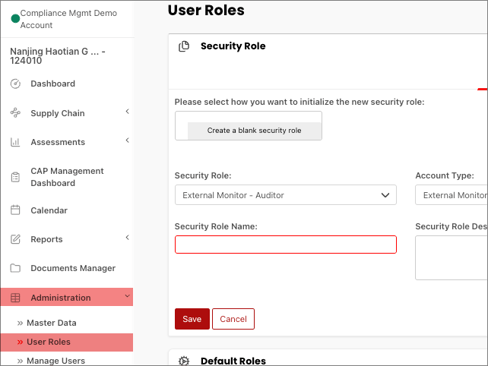
Begin by navigating to Administration from the left-hand navigation menu and select User Roles.
Freeze and Unfreeze
Freeze and Unfreeze functionality allows organizations to control when assessments and findings can be edited. Administrators configure these permissions to determine which users can:
- Freeze findings within an assessment
- Unfreeze findings to allow edits
- Freeze an entire assessment
- Unfreeze an assessment to restore editing
Auditors may be allowed to freeze their findings, while Super User Administrators retain the ability to unfreeze assessments or findings. Access to these functions is controlled through Security Role permissions.
- In the Available Security Role section, select the pencil icon next to the Security Role Name you wish to edit.
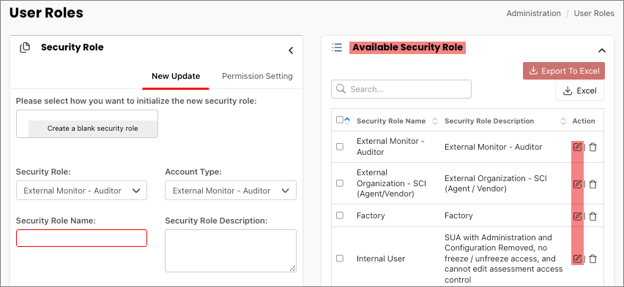
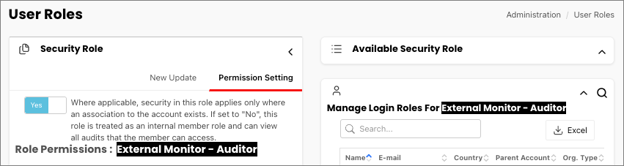
- This reveals the Permission Setting window, where you can edit Role Permissions.
-
Select Ctrl + F and search for Freeze. This will bring you to the appropriate permissions to freeze and unfreeze under Assessments.
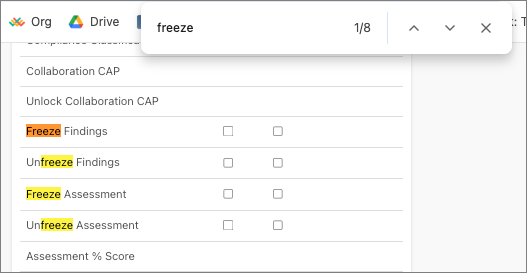
Available permissions include:
- Freeze Findings
- Unfreeze Findings
- Freeze Assessment
- Unfreeze Assessment
- After selecting the desired permissions, select Save at the bottom of the page.