
Table of Contents
In this article, you’ll learn about opening a CAP from an assessment finding, identifying the CAP workflow and responsibilities across Brand/Facility/Verifier, Update CAP information to document corrective action progress, and how to verify and close a CAP.
Corrective Action Plans (CAPs) are automatically generated in the Worldly platform when findings are identified during an assessment. Each CAP corresponds to a specific finding and provides a structured workflow for documenting how the issue will be addressed.
How to open a CAP from an assessment
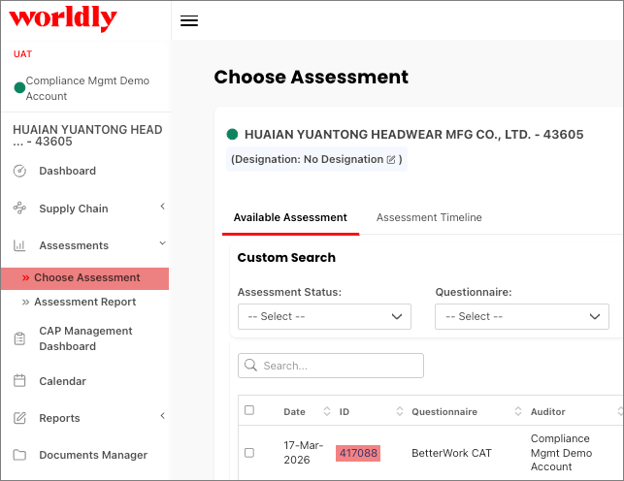
- Open an Assessment from the Choose Assessment page.
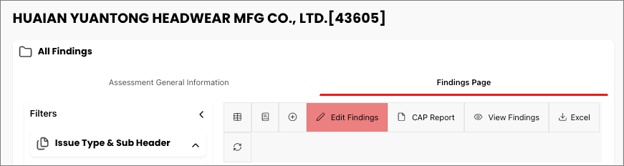
- Click the Findings Page and click Edit Findings.
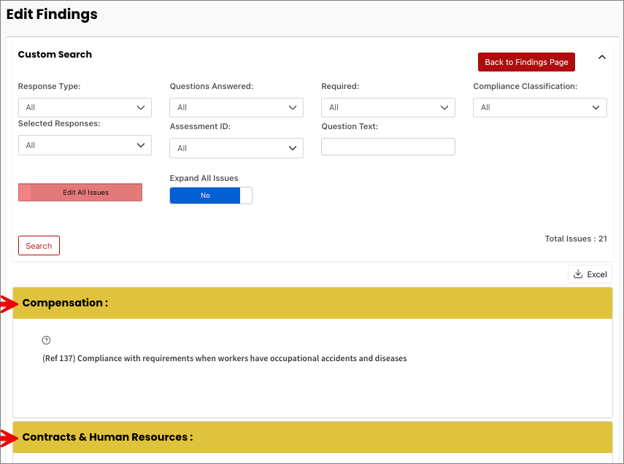
- Click the findings in the table. TIP: If you don’t see any findings, select the toggle to Edit All Issues.
Section 1 of the CAP
Section 1 is completed by the Brand, including the Company Plan of Action and Deadline Date.
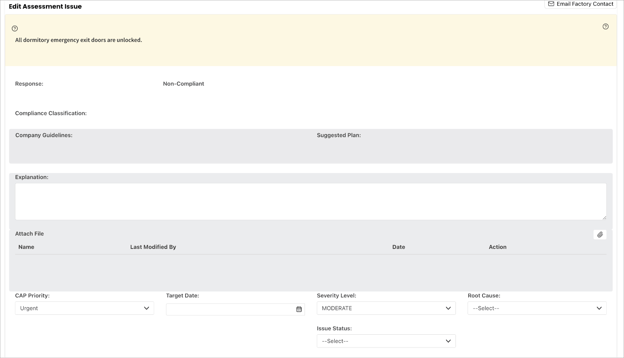
Note: Customers can configure the fields used throughout the CAP to meet their needs, including making fields mandatory and hiding those that are not required.
Section 2 of the CAP
Section 2 is completed by the Factory.
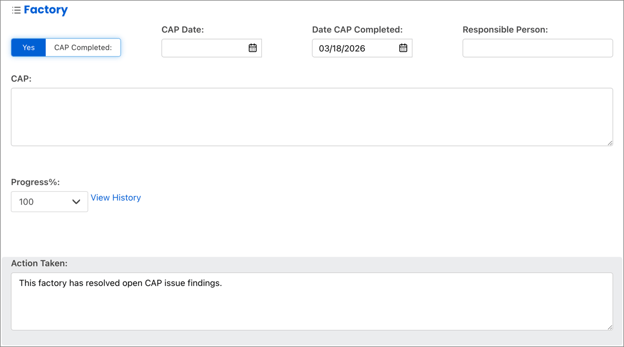
Facility users can either:
- Enter updates directly in the platform
- Use the Offline Alternative tool provided by the Brand
Evidence files, such as photos, can also be submitted.
Section 3 of the CAP
Section 3 is completed by a Verifier.
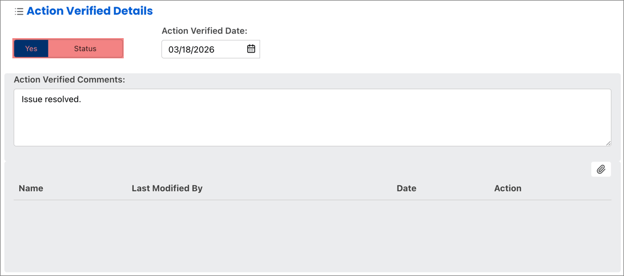
Action Verified Details are used to document review and approval of the facility actions taken. The verifier reviews the corrective action and supporting evidence.
To close a CAP:
- Scroll to Action Verified Details
- Toggle Status to Yes
- Click Save
Once verified, the CAP will no longer appear as an open issue.