Table of Contents
Navigation
You can navigate to a factory or organization’s account page to download an Assessment Report from:
- The Factory List
- Favorite Accounts
Factory List
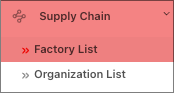
- Begin by navigating Supply Chain and select Factory List from the left-hand navigation menu.
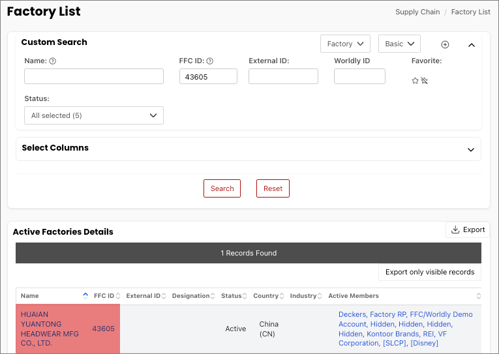
- Search for the factory and select the factory record. For more information on how to search for a factory or organization, click here.
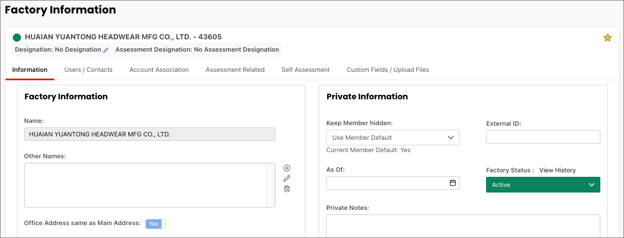
- This reveals the Factory account page.
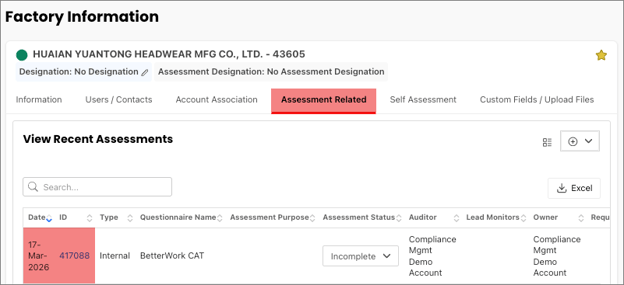
- On the Factory account page, select the Assessment Related tab, followed by the assessment.
Favorite Accounts
If you have the account tagged as a favorite, you can also navigate to an account page by:
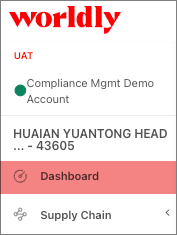
- Selecting the Dashboard from the left-hand navigation menu.
- Under Favorite Accounts, select the account.
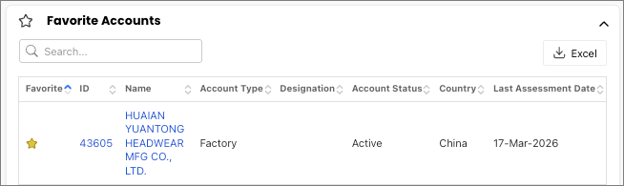
- This reveals the Factory account page.
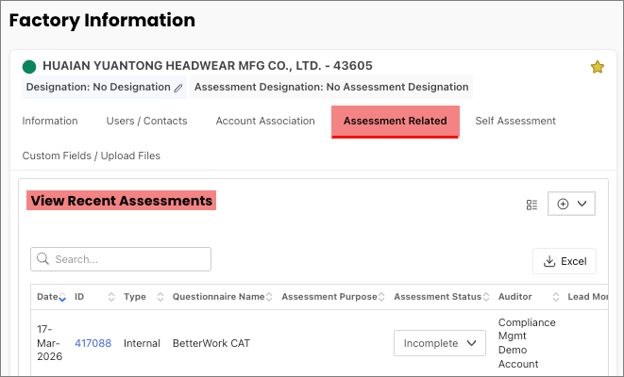
- On the account page, select the Assessment Related tab and find the assessment from the View Recent Assessments table.
How to Download an Assessment Report
After selecting an assessment, you will see the All Findings page. Select the Findings Page.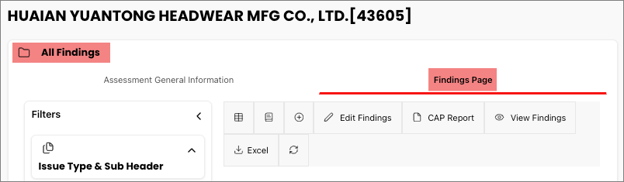
On the Findings Page, download Assessment Reports by selecting:
- Print to PDF
- Export findings to Excel
Print to PDF
- Select Print to PDF
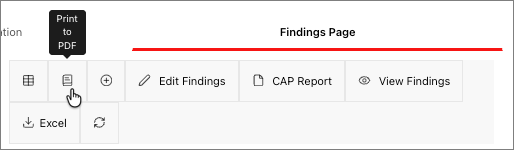
- This reveals the Assessment Report page.
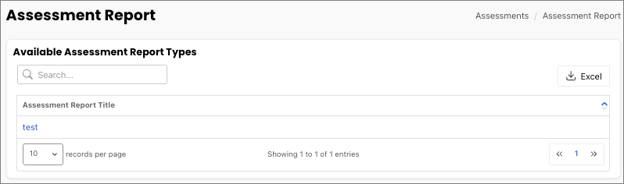
- Select the applicable Assessment Report Title to print or export as PDF.
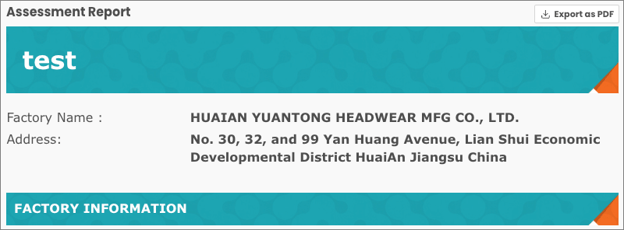
- The information presented in a PDF is dependent on how the brand configured the assessment report template.
Export Findings to Excel
- Selecting Export Findings to excel saves an Excel file to your desktop.
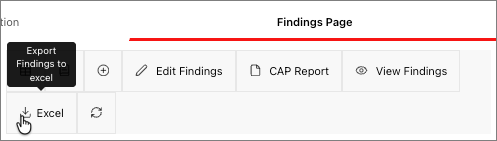
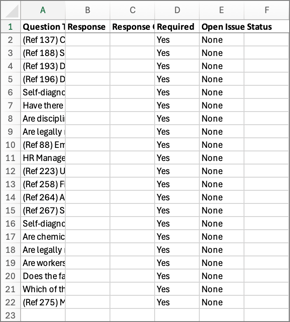
- The file named Findings displays each code provision/question and the findings, in separate rows.