
Table of Contents
Navigation
Begin by navigating to Mailbox from the left-hand navigation menu.
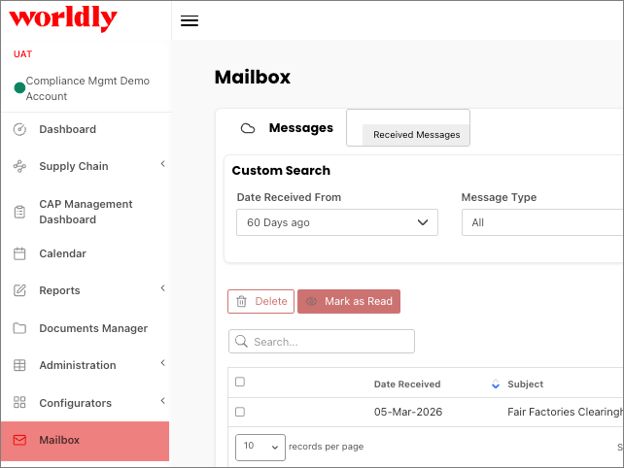
Mailbox
Alerts, notifications and messages are all available in the mailbox. The number of new items in your mailbox will show beside your name at the top right hand part of the screen.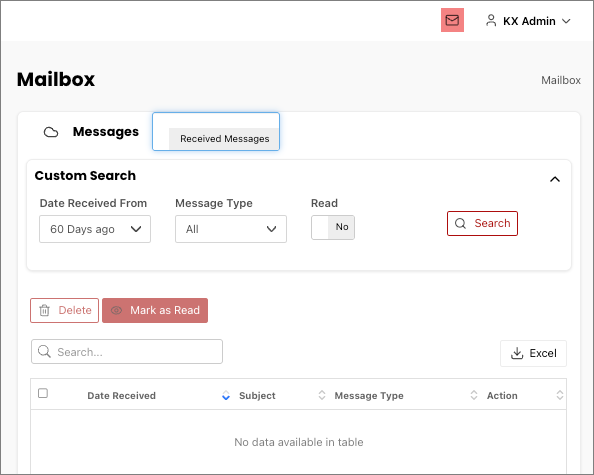
The mailbox defaults to all Received Messages. Select the toggle to view any Sent Messages
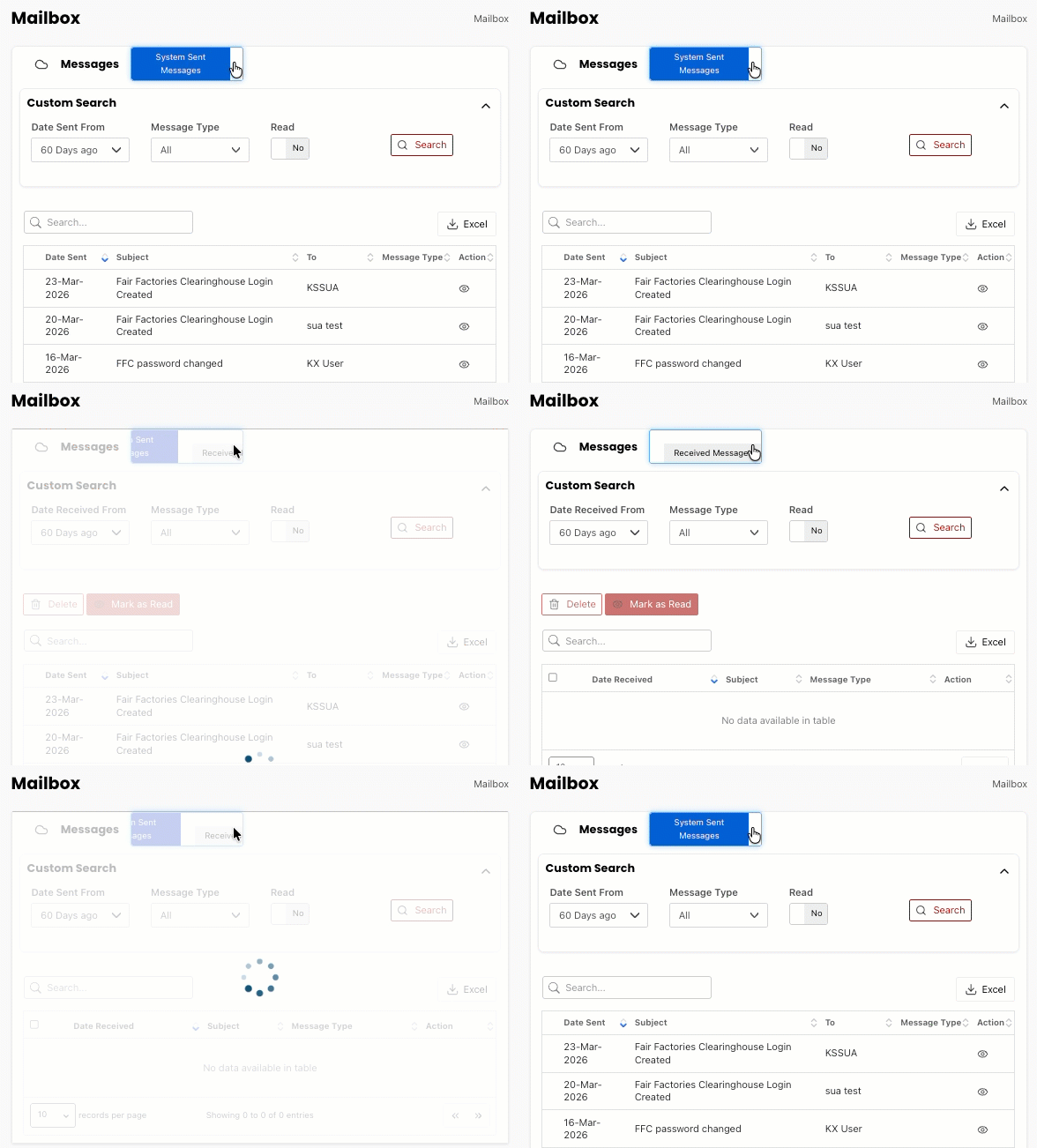
System Sent Messages
System Sent Messages include messages sent by you and viewed by others at your company.
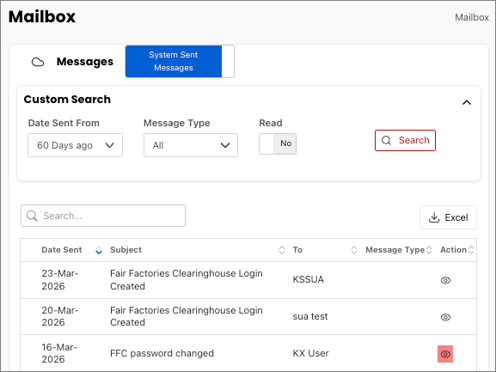
In the table, select the eye symbol to view the details of the message.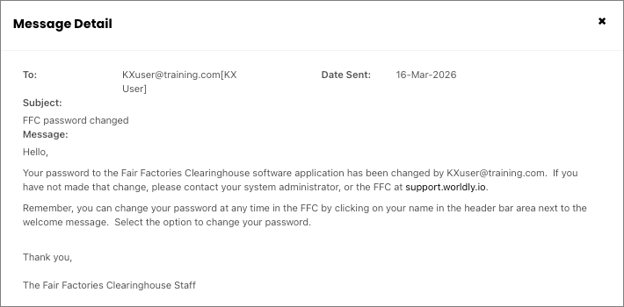
Alerts and Notifications
Supplier Compliance Management Alerts and Notifications sent to your external email:
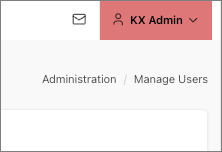
- Select your name in the upper right corner
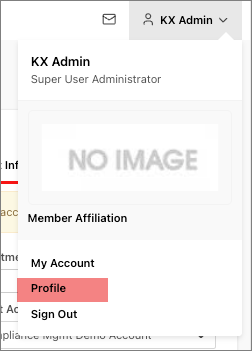
- Select Profile.
- Select Account Information tab.
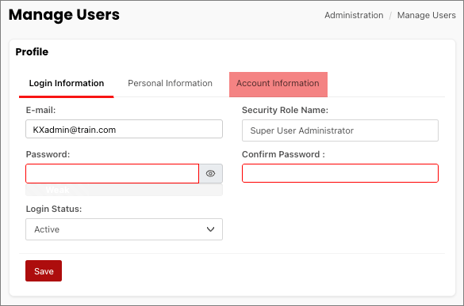
- Toggle the Send Batch mail to Yes.
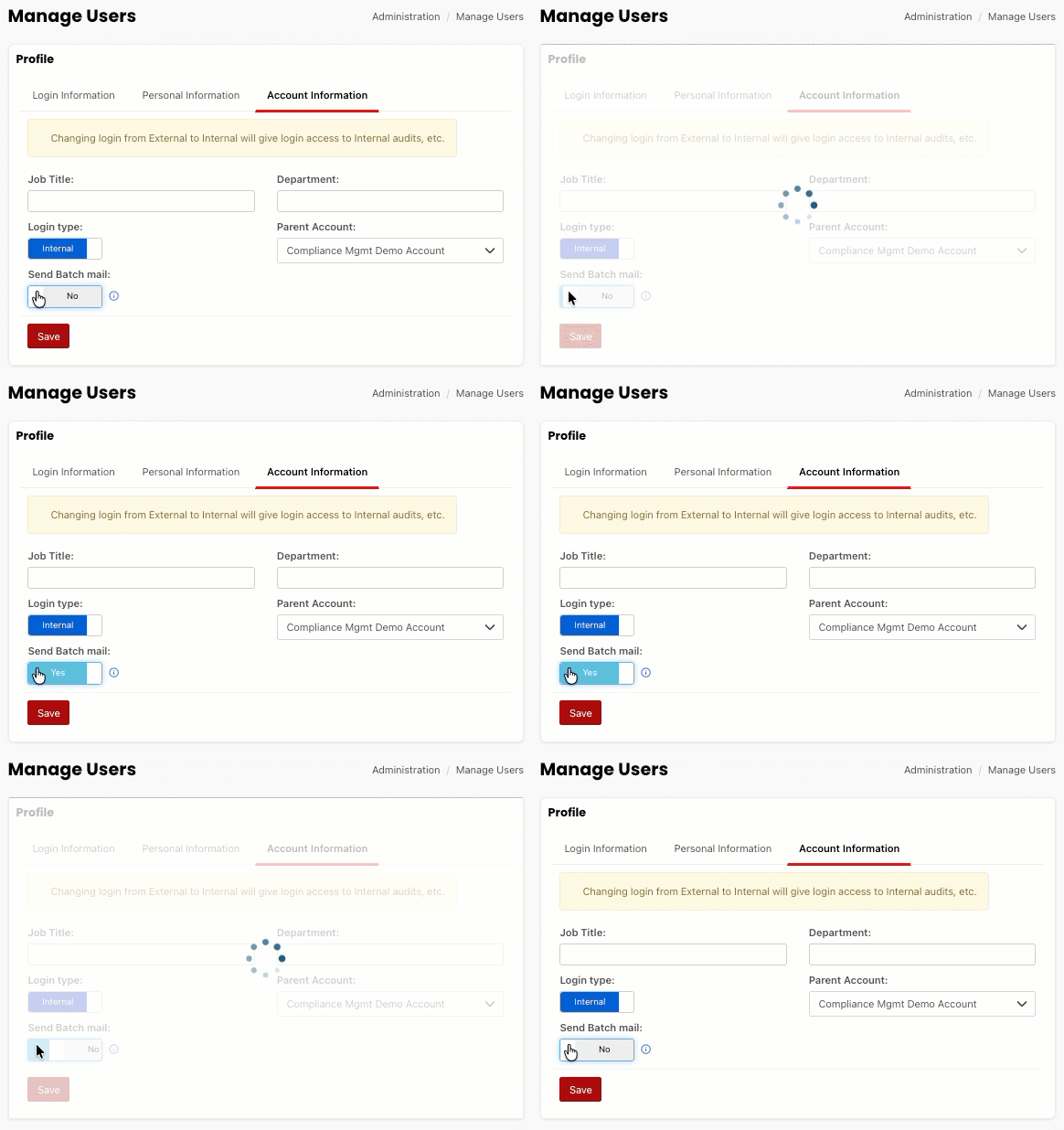
- Select Save.
Send Batch Mail
All Alerts and Notifications will be sent to your external email.
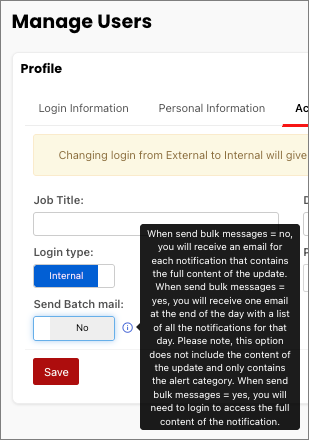
- If the toggle is switched to No, you will receive an email for each notification that contains the full content of the update.
- If the toggle is switched to Yes, you will receive one email at the end of the day with a list of all notifications for that day. You will need to login to access the full content of the notification.
- Note: This option does not include the content of the update and only contains the alert category.