
Table of Contents
Navigation
Begin by navigating to Supply Chain and selecting Factory List or Organization List from the left-hand navigation menu
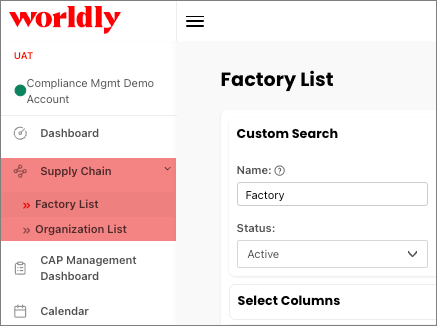
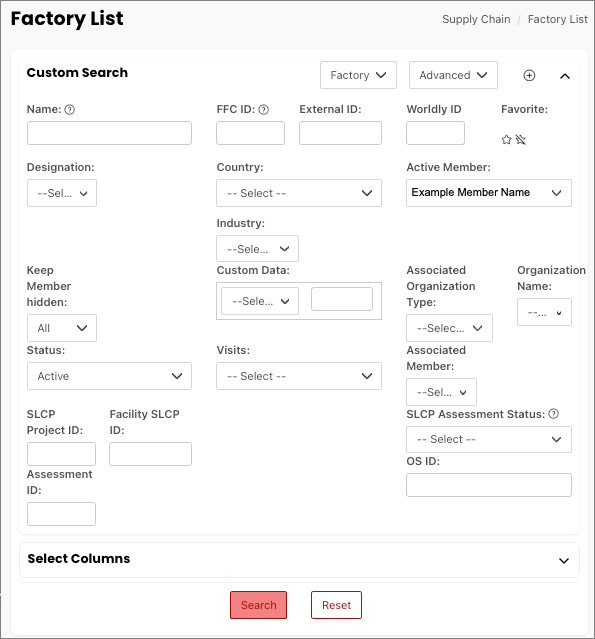
In the workspace you’ll see:
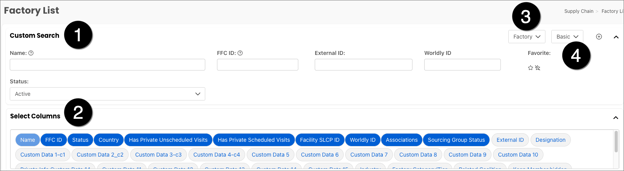
- Custom Search tool
- Select Columns tool
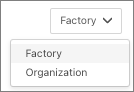
- Factory/Organization: This toggle is used to switch between searching Factories or Organizations.
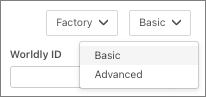
- Basic/Advanced: This toggle is used to access the advanced search options.
Custom Search Tool
This is used to enter search criteria in a basic search.
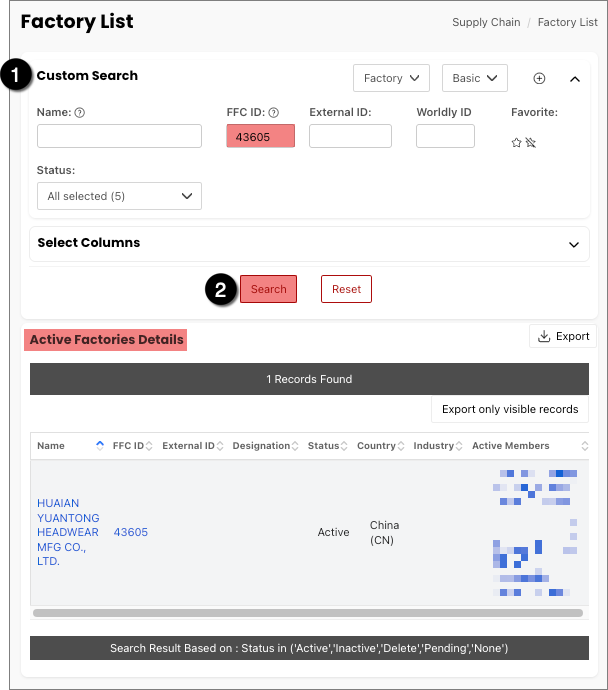
To search by Name, ID, or External ID:
- Type the Name, ID or External ID in the appropriate field.
- Click Search and the account will appear in the Active Factories Details list.
- The asterisk * symbol can be used to conduct a text based search.
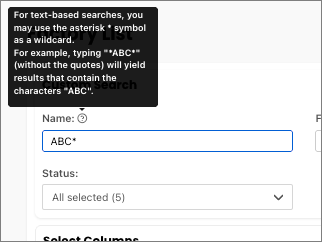
- The asterisk * symbol can be used to conduct a text based search.
A search can be conducted in multiple ways:
- Name, ID, or external ID
- Type the Name, ID, or External ID in the appropriate field
- Click Search and the account will appear in the “Account” Detail list.
- Letters, numbers, or keywords
- Type the letter, number, or keyword in the Name field.
- Click Search and all the factories with the letter, number, or keyword in their name will appear in the Factories Detail list.
- For example, this search was conducted with the keyword “test”, which displays all the factories with the keyword in the name.
- Using the asterisk wildcard symbol
Select Columns Tool
This is used to configure the fields you want displayed after a search is complete.
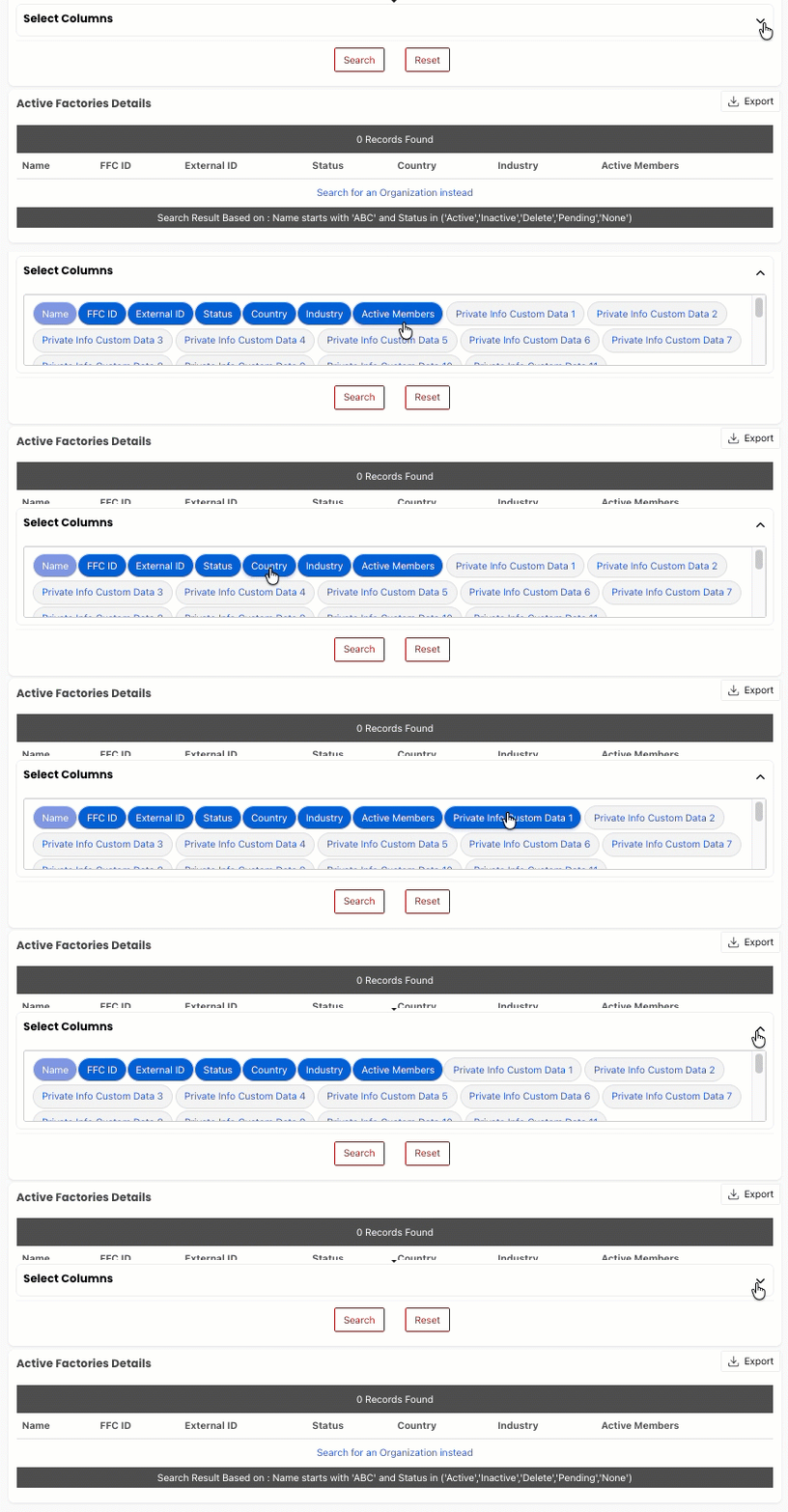
To configure the fields:
- Click on the arrow symbol to expand/collapse the window
- Click on the fields you want displayed (blue means it’s active)
The selected columns will appear in every search list until they are changed.
Advanced Search
To access the advanced search tools, select Advanced from the Basic/Advanced toggle.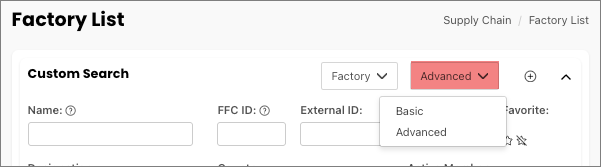
- The Advanced Search page provides you with multiple qualifiers such as Industry, Product Category, Country, and Active Member that will help filter the search results.
- Basic search fields such as Name, ID, and External ID are also available.
- Search results can also be filtered by SLCP ID and Status.
Example
Let’s take a look at an Advanced Search example that shows all the factories you have in common with another brand:
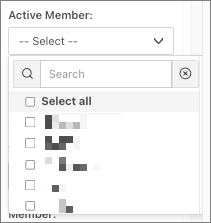
- In the Active Member box, click on the brand(s) you want to check.
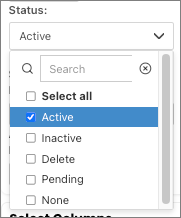
- In the Status box, click on Active. You’ll know if you’ve selected it if it turns blue.
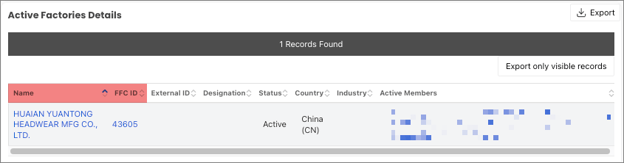
- Click on Search. View the list of accounts meeting your criteria in the Details list.
- If you want to change the Factory Status, select either the Name or the ID, which will open the factory account.
- On the Factory Information page, select the desired status from the Factory Status dropdown.
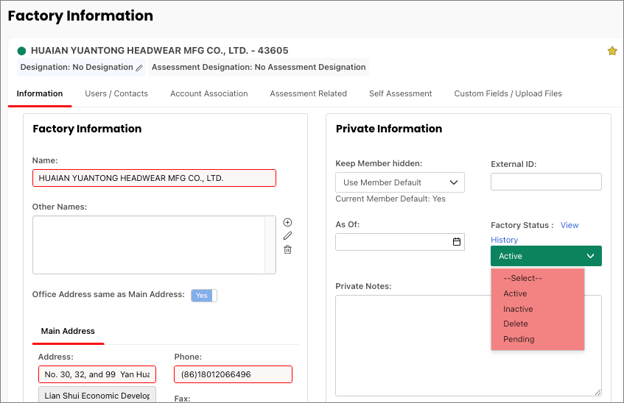
- Select Save in the bottom left corner.
- If you want to change the Factory Status, select either the Name or the ID, which will open the factory account.