
Table of Contents
After logging in, you’ll see the homepage, which is made up of the navigation bar, the dashboard, and the user information window.
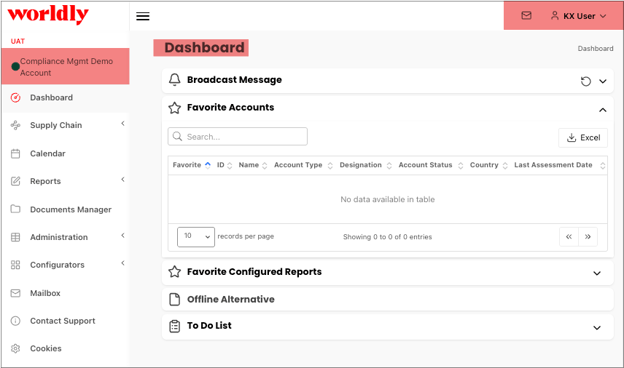
By default, the Dashboard is displayed. View the brand your login is affiliated with in the upper left corner (ex: Compliance Mgmt Demo Account).
The Workspace
The workspace is where information windows, record lists, search windows, and configurators appear after clicking on an option in the navigation bar.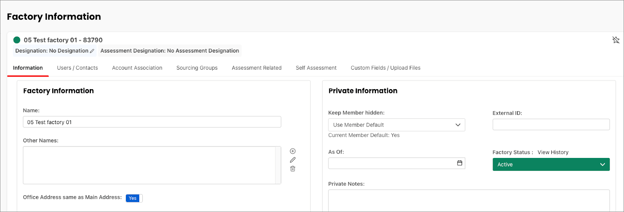
It is where you will enter, view, edit, delete, and manage:
- Supply Chain
- Assessments
- Calendar
- Reports and documents
- Administration
- Configuration
Expanding the Workspace
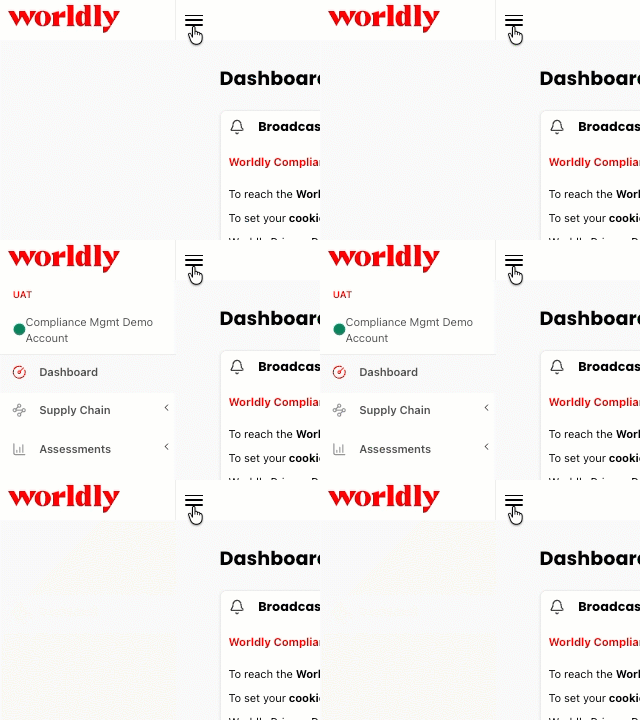
Select the three horizontal bars to expand or collapse the navigation bar.
Expanding a Window
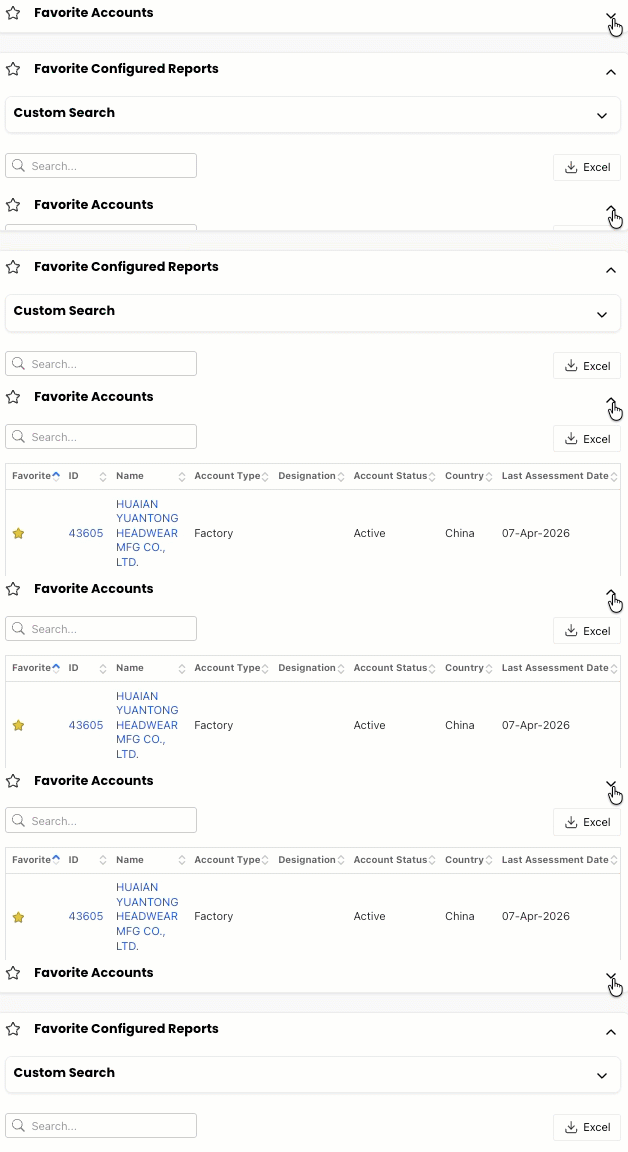
Select the arrow icon to expand or collapse a window.
The Navigation Bar
The navigation bar is a list of options associated with different functions of the Supplier Compliance Management platform.
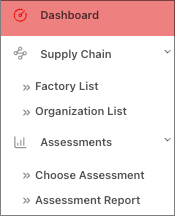
The following is a brief description of the options in the navigation bar. More detailed information is available in specific modules.
Dashboard
Considered to be the home page of the Supplier Compliance Management platform. 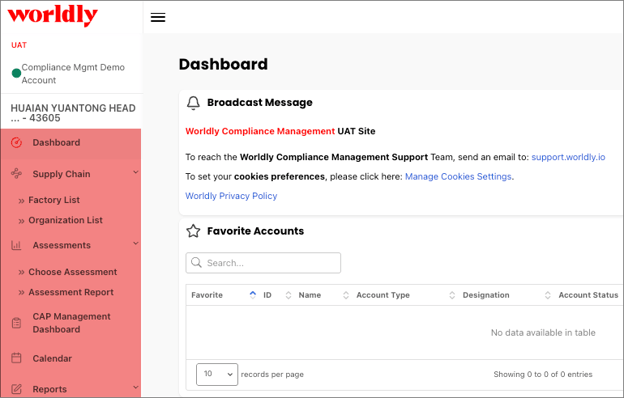
The Dashboard contains Favorite accounts, posted/configured Offline Alternative file, and selected tools.
Supply Chain
Supply chain is used to search for, and add, factory and organization accounts.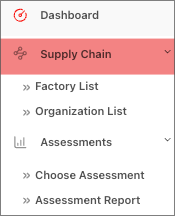
Note: A login user must have permissions to add a factory or organization account.
Assessments
When an account is active in the session users may open the Assessments option in the navigation bar.
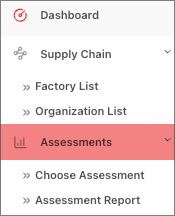
Select Choose Assessment or Assessment Report for the active account.
CAP Management Dashboard
The CAP Management Dashboard helps you track and manage Corrective Action Plans (CAPs) for our supplier factories.
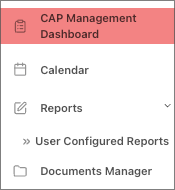
All CAPs are linked to specific assessment questions from the brand’s code of conduct audits.
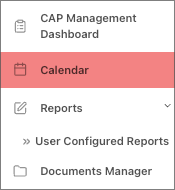
Calendar
The Calendar is used for scheduling and requesting visits in a particular factory account.
Reports
Brands have access to pre-defined factory reports and they can also generate custom reports based on configurable queries of the database.
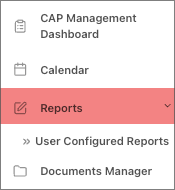
- Standard Reports are Supplier Compliance Management preconfigured generated reports that are ready to utilize.
- User Configured Reports are customizable queries.
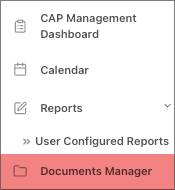
Documents Manager
Select Documents Manager to open the document library, which has a customer specific folder for internally shared documents.
Administration
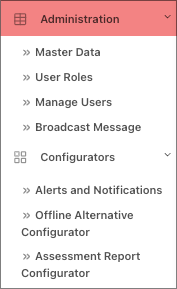
Under administration you have the following options:
- Master Data: Configure and manage assessment instruments, generic lists, brand defaults, and administration options.
- User Roles: Create user roles and assign security permissions
- Manage Users: Add and edit login users
- Broadcast Message: Create automatic messages related to various tasks and alerts
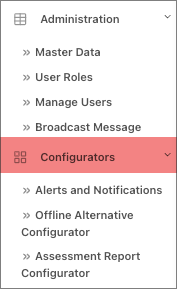
Configurators
High level administrators use the configurator option to configure the following:
- Alerts and Notifications
- Offline Alternatives, which enable the download and upload of Excel spreadsheets for offline Assessment and CAP data collection.
- Assessment Reports
- SLCP Findings Engine
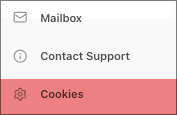
Mailbox
View system notifications and emails in the mailbox.
Contact Support
Send a message to the Worldly customer support team.
Cookies
View the Cookie Policy, which describes the automatic tracking technologies used on Worldly and any other website that this Cookie Policy is placed on.
User Information Window
Select your name in the upper right corner to view the user information window.
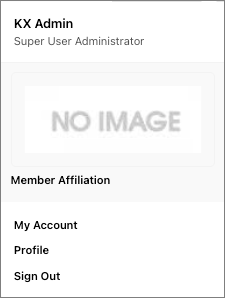
In the user information window you can:
- Affiliate with members who have given you permission
- View the affiliated members information
- Manage your profile
- Sign Out
User Interface Elements
There are a number of items to note on the Dashboard.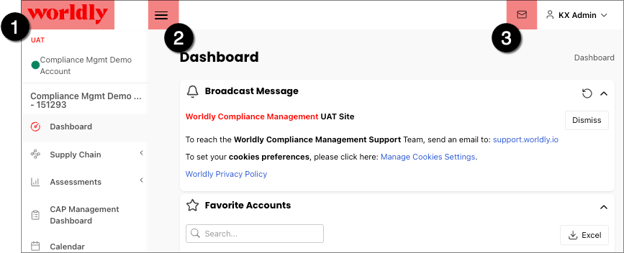
These include:
- Home Button: Click here to return to the Supplier Compliance Management home page.
- Workspace Expand / Collapse Button: Hide the navigation bar and expand the workspace.
- E-mail Button: Click here to view notifications and emails.
General Buttons
The following buttons are commonly found throughout the platform. Use these to help you manage records and expedite your work. Other buttons not shown are further explained in the modules they appear in.


Used to select an account, login user, or contact to a record.
Note: An account, login user, or contact must first be added to the system to appear in the picklist.