
Table of Contents
Navigation
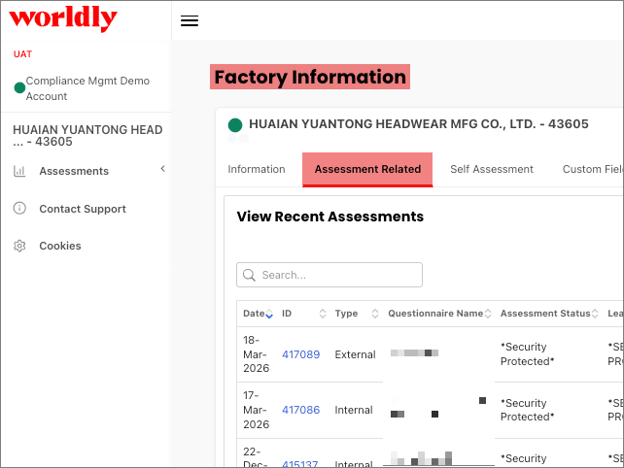
- When you log in to the platform, you will see the Factory Information page. Select the Assessment Related tab.
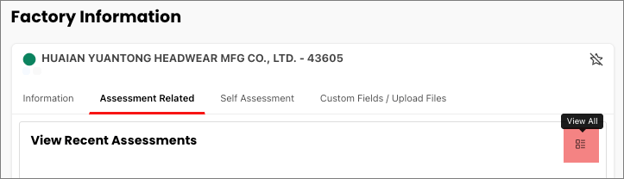
- Select the View All button.
- This displays all available assessments for your factory account. Select the assessment ID from the table.
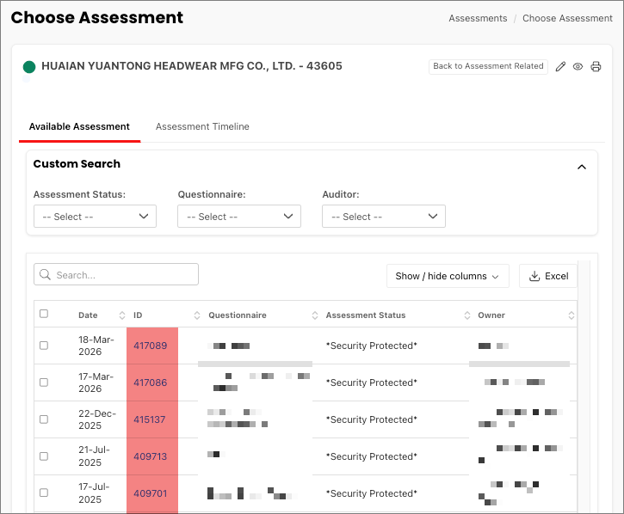
Opening an assessment
- This opens the All Findings page.
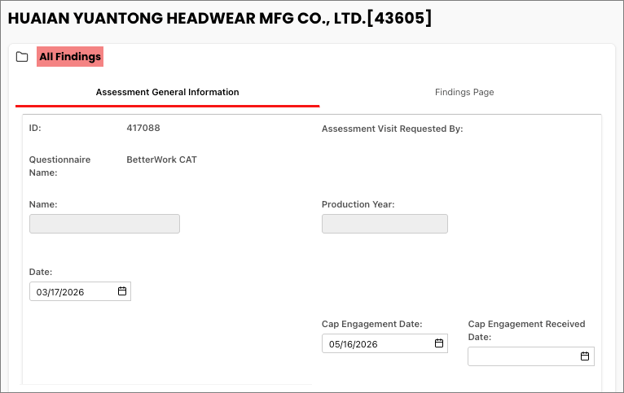
- There are two tabs, the Assessment General Information tab and the Findings Page.
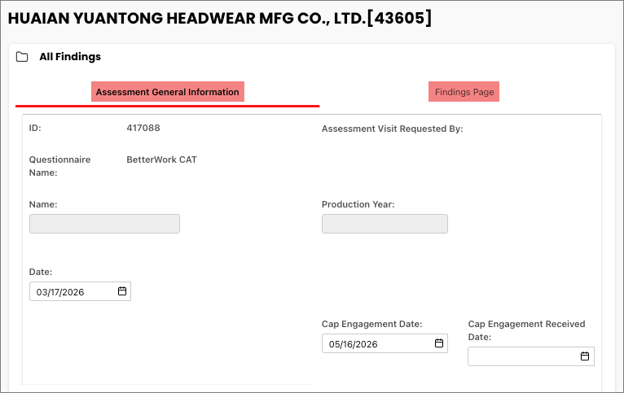
Assessment General Information
On this tab, find information related to an entire assessment: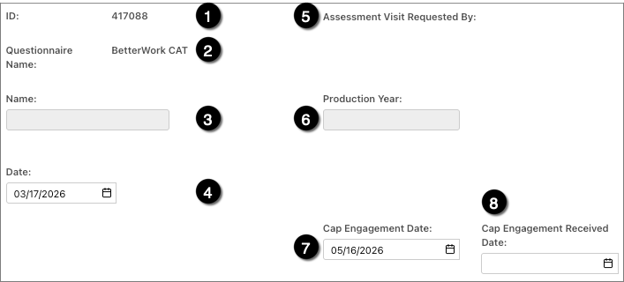
- Assessment ID
- Questionnaire Name
- Name
- Date
- Assessment Visit Requested By
- Production Year
- Cap Engagement Date
- Cap Engagement Received Date
There’s also a section to Upload Files and Photos.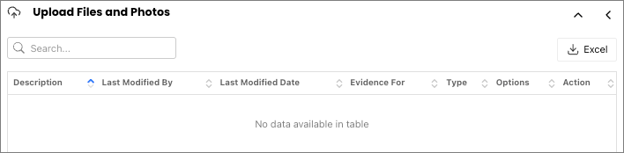
As well as an Offline Alternative section.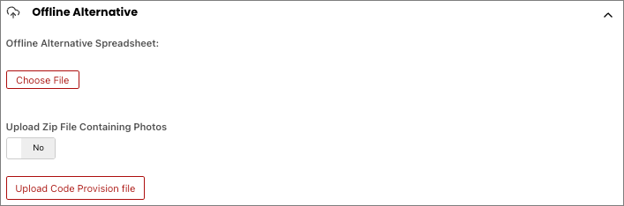
Findings Page
On this tab, access desired assessment questions and the related Corrective Action Plan (CAP) for those questions. There are multiple options to display findings:
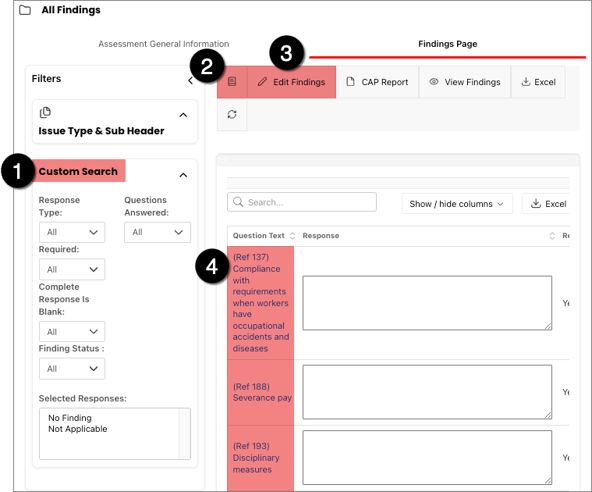
- Use Custom Search to filter questions.
- Use Print to PDF to access the Assessment Report
- Select Edit Findings to open a list of all assessment findings, which enables you to edit Corrective Action Plans for all findings from one screen.
- Select the blue Question Text to open a single assessment finding and edit the individual Corrective Action Plan for that single finding
NOTE: Some features shown in the screenshots may not be available due to your security permission settings.
Edit Findings
- View details of the finding and any guidelines or instructions from the brand here.
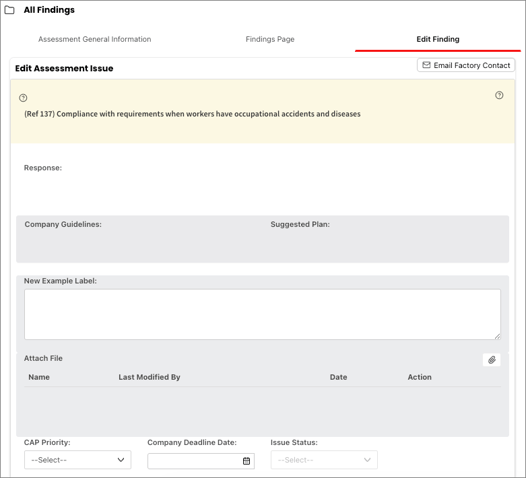
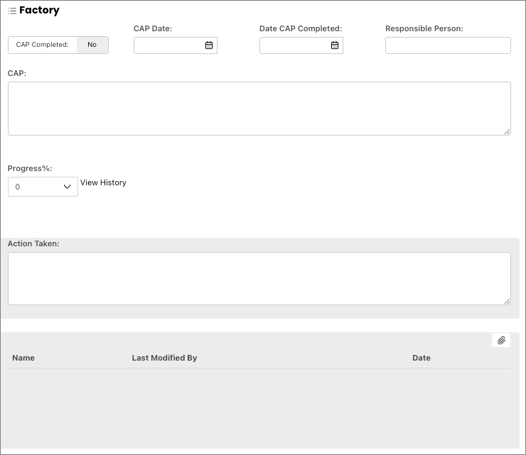
- Define your Corrective Action Plan, provide status updates, or upload any supporting files here.
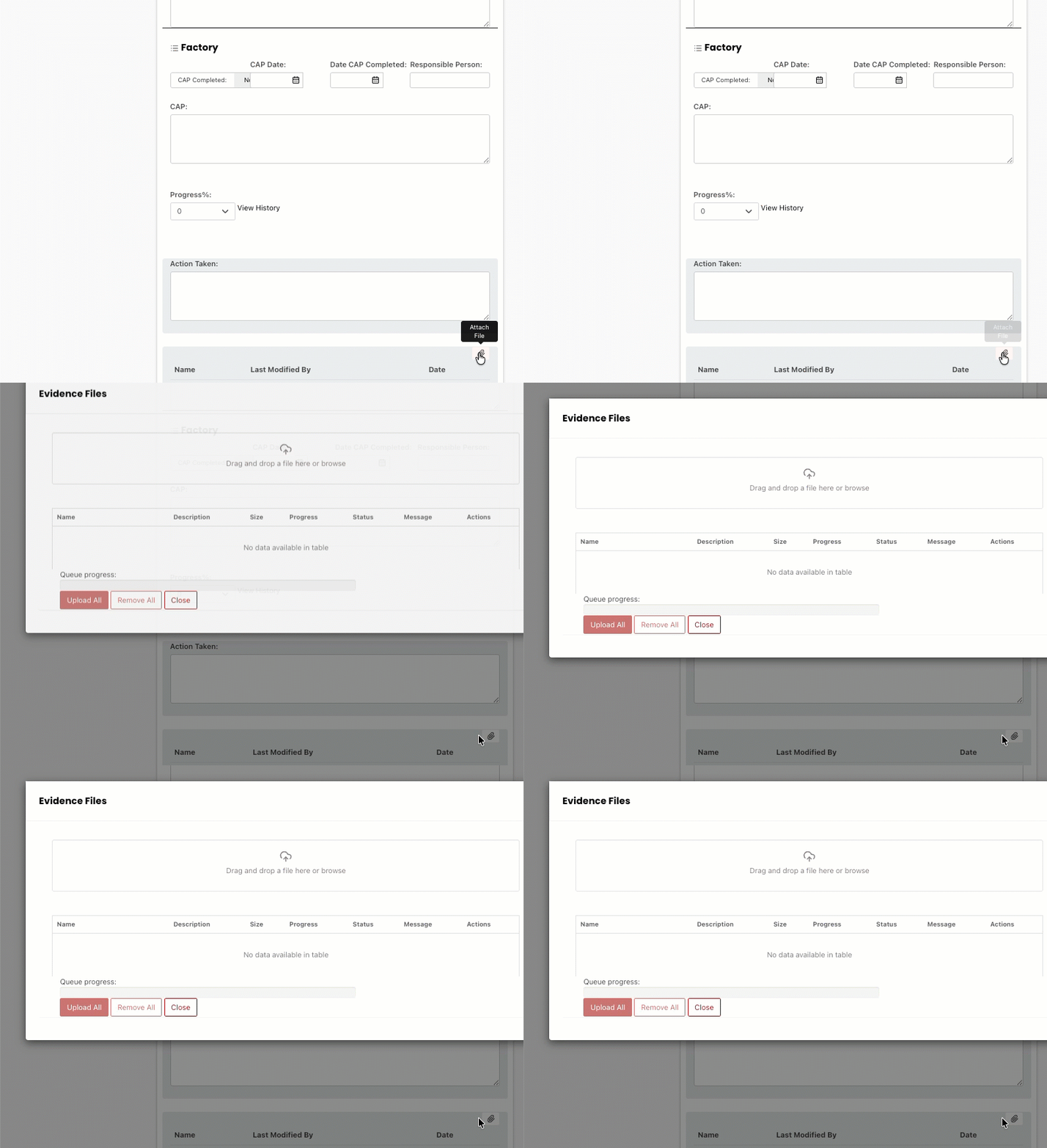
- Select the paper clip to add any Evidence Files. Drag and drop a file here or browse, and select Upload All.
When finished editing the finding, select the red Save button.