Table of Contents
- CAP Field Labels
- Updating CAP field labels
- Label Changes in the Platform
- Offline Alternative Files
- View Default CAP Labels
Customizing Corrective Action Plan (CAP) Field Labels allows brands to better align CAP terminology with the brand’s internal processes.
CAP Field Labels
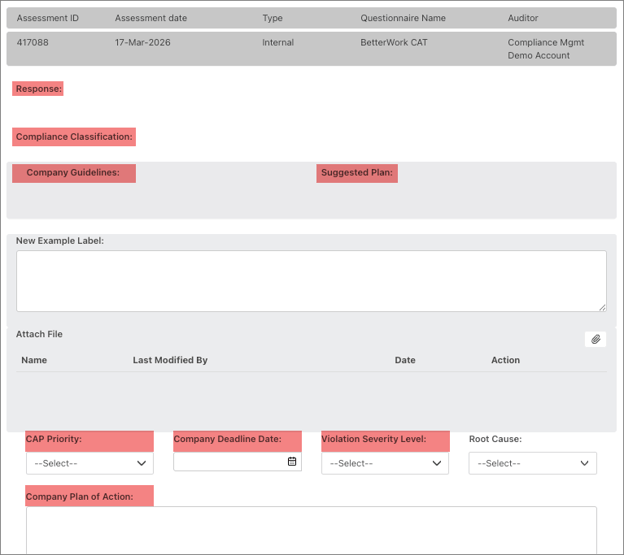
- A CAP is used to track remediation actions for findings identified during an assessment.
- Each CAP contains multiple data fields with default system labels.
- Administrators can rename labels to match organizational terminology, including:
- Response
- Compliance Classification
- Company Guidelines
- Suggested Plan
- CAP Priority
- Company Deadline Date
- Violation Severity Level
- Company Plan of Action
- Customize these labels by navigating to Master Data
Updating CAP field labels
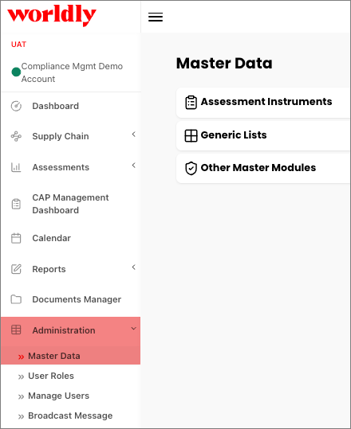
- Begin by navigating to Administration in the left-hand menu. Select Master Data.
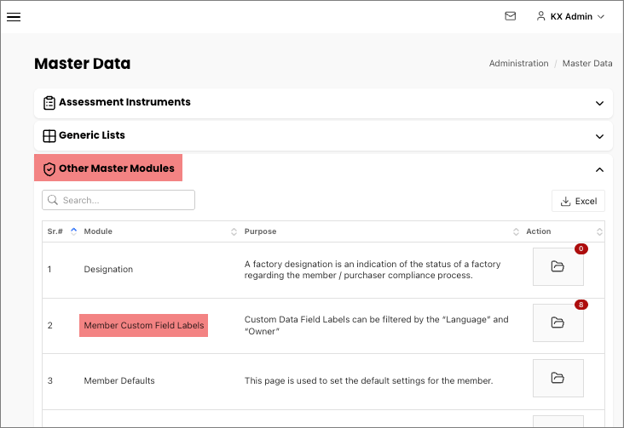
- Expand Other Master Modules and select the Member Custom Field Labels folder.
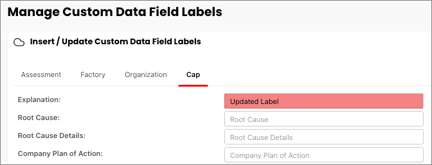
- Select Cap. Locate the field you want to modify, for example Explanation.
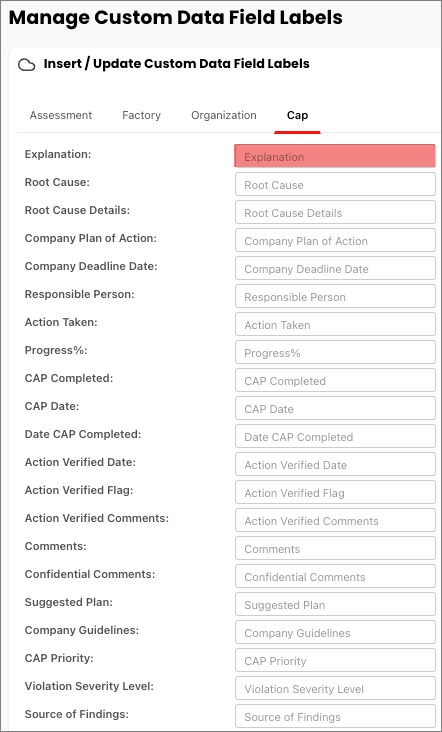
- Enter the new label in the freeform text box
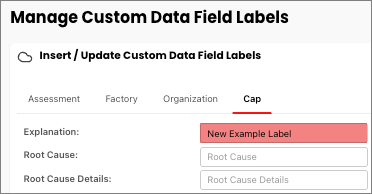
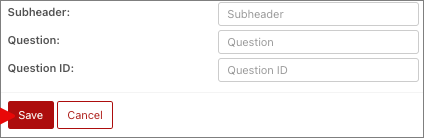
- Click Save. The new label will immediately be applied throughout the system.
Label Changes in the Platform
Updated CAP labels appear in several areas of the platform:
- Edit Findings tab: CAP fields
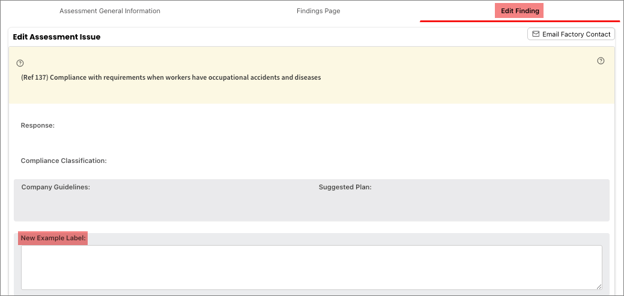
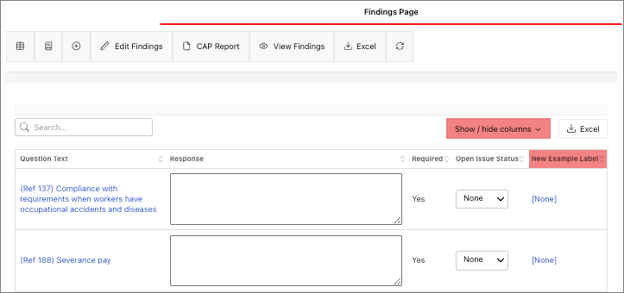
- Findings Page: If you do not see your label, the column may be hidden. Use the Show/Hide Columns dropdown to unhide the column.
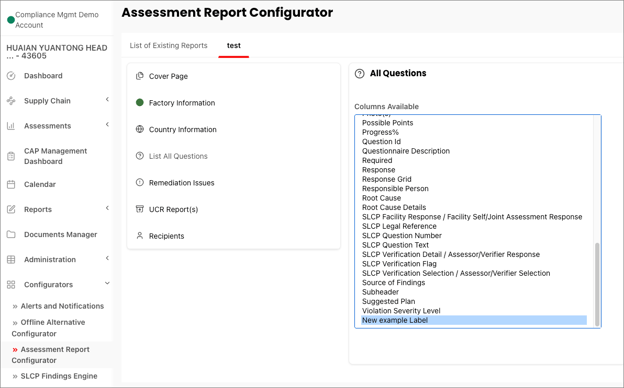
- The Assessment Report Configurator
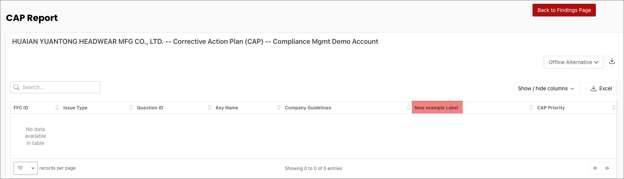
- The Excel CAP Report
- User Configured Reports
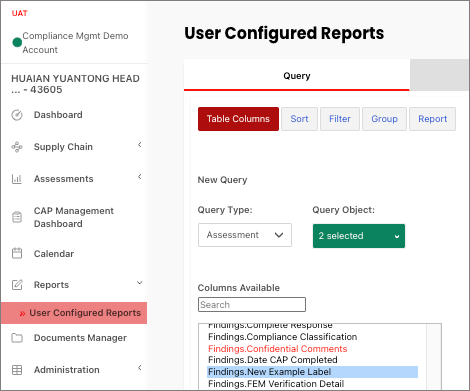
Offline Alternative Files
CAP label updates are also reflected in the Offline Alternative Configurator.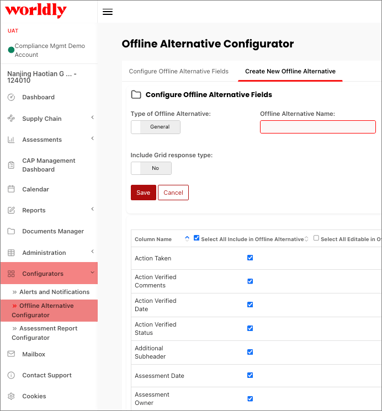
However:
- A new offline alternative file must be generated
- Existing offline files will not reflect updated labels
- Offline files capture the configuration at the time they are created.
- If labels change later, a new configuration must be generated.
View Default CAP Labels
If you want to view, update, or restore the system's original label names once CAP field labels have been modified, navigate back to the Cap tab.