
Table of Contents
Navigation
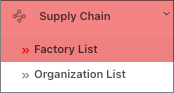
- Begin by navigating to Supply Chain and select Factory List from the left-hand navigation menu.
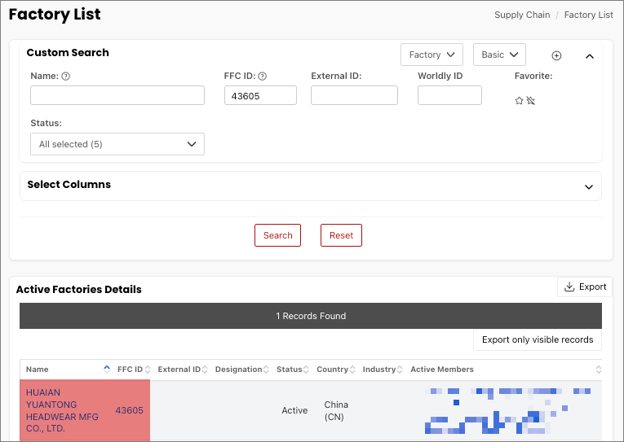
- Search for the factory and select the factory record. For more information on how to search for a factory or organization, click here.
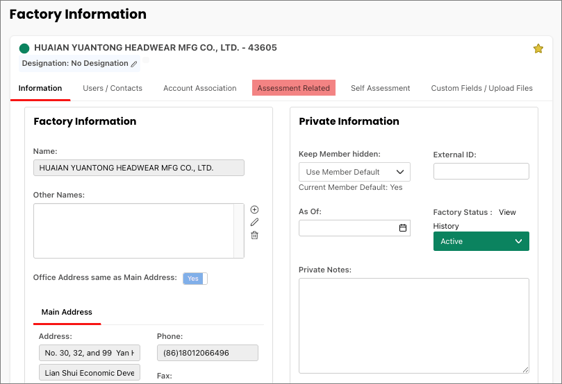
- This reveals the Factory account page. Select the Assessment Related tab.
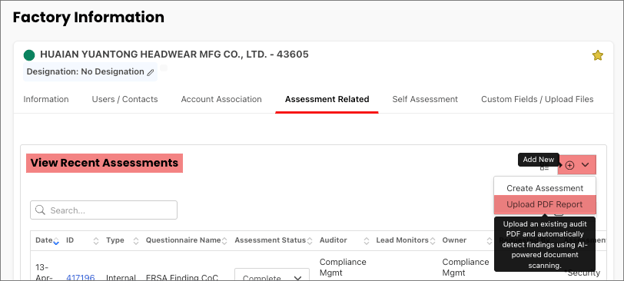
- In the View Recent Assessments table, select Upload PDF Report from the Add New dropdown.
Create an Assessment from PDF
On the PDF Upload Configuration page, complete the following fields. Fields with an asterisk are required: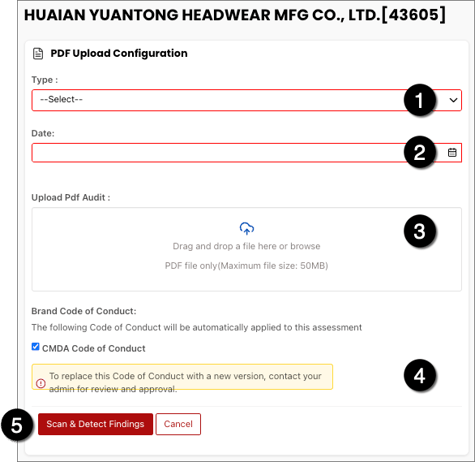
- Type*: Select the audit type (BSCI, ERSA, SMETA, WRAP)
- Date*: Enter the audit date
- Upload PDF Audit: Drag and drop the PDF or select Browse. If the upload is successful, the name of the uploaded file appears.
- Code of Conduct:
- Check the Code of Conduct box if you want third party audit findings mapped to the Code of Conduct, and if relevant, compliance classifications assigned.
- Uncheck the Code of Conduct box if you want findings to remain as original audit text without mapping.
- If a Code of Conduct is NOT available select the checkbox next to Brand CoC not set up in system - request assistance to create
- Once you have selected the checkbox the Red button will change to "Request to Define CoC questionnaire" and you can click to send a message to your CS person and they will contact you regarding setting up your CoC:
- Select Scan & Detect Findings.
Once complete, the Assessment General Information page for the newly created assessment is displayed.
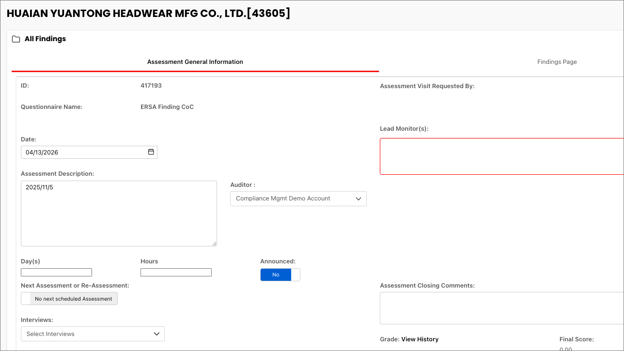
A copy of the original PDF audit report is attached to the bottom of the Assessment General information page.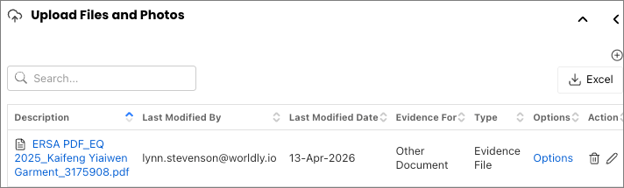
Review Findings
Navigate to the Findings Page, where each row represents a finding extracted from the audit.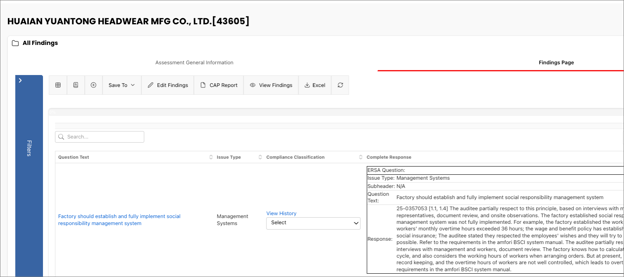
The example shown reflects an assessment where a Code of Conduct has been applied. However, not all findings may map to a Code of Conduct provision. In this example, the first finding is not mapped because a relevant provision was not identified.
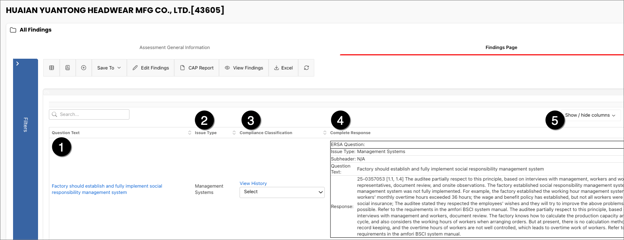
The following columns are displayed:
- Question Text - Displays the question associated with the finding
- If the finding is mapped to a Code Provision, this field displays the Code of Conduct provision
- If the finding is not mapped, this field displays the original audit question text
- Issue Type - Displays the category of the finding
- If the finding is mapped, this reflects the standardized category aligned to the Code Provision
- If the finding is not mapped, this displays the original audit issue type
- Compliance Classification - Displays the severity classification assigned to the finding (e.g., Critical, Major, Minor)
- This is applied automatically when the finding is mapped to the Code Provision
- If the finding is not mapped and the brand is using compliance classifications for assessment scoring, the user can select the appropriate classification from the drop down
- Complete Response - Displays the full details of the finding from the audit report, including:
- Original audit question
- Extracted finding details
- Supporting context from the audit
- Use the Show / hide columns button, to adjust the columns being displayed as well as their order.
No Findings Detected
If the PDF contains no findings, the system will not create an assessment. You will see the following message No findings detected, assessment will not be created.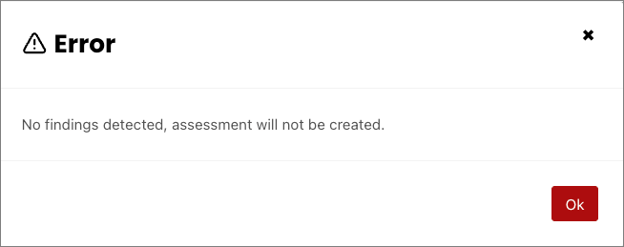
Related Articles
- Managing Audits and Assessments
- Corrective Action Plans: Manage Findings in an Assessment
- Scoring Grid Matrix
- CAP Management Dashboard