Table of Contents
- Navigation
- How to Create a New User Role
- How to Edit or Delete an Existing User Role
- Default roles for new External Organization logins
Navigation
To create a user role, navigate to Administration from the left-hand navigation menu and select User Roles.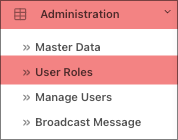
The User Roles page includes:
- Security Role
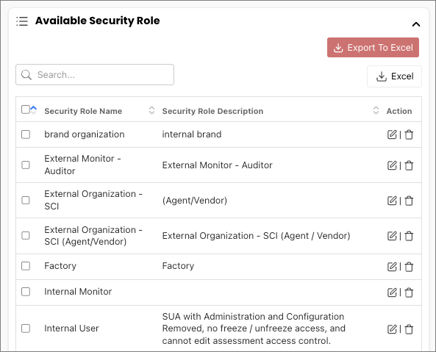
- Available Security Role
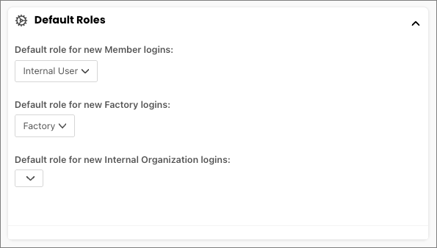
- Default Roles
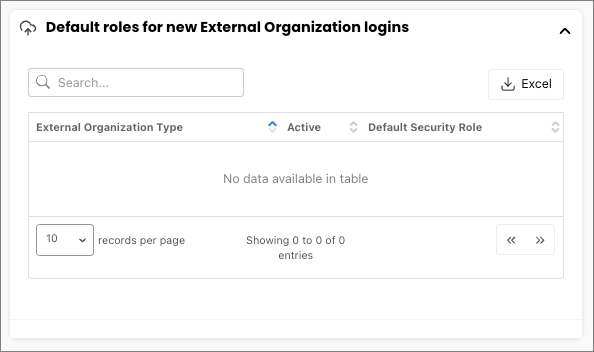
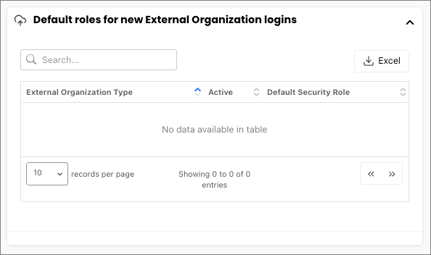
- Default roles for new External Organization logins
How to Create a New User Role
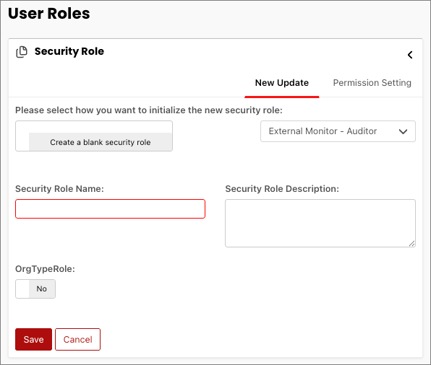
Go to the Security Role window. The window has two tabs: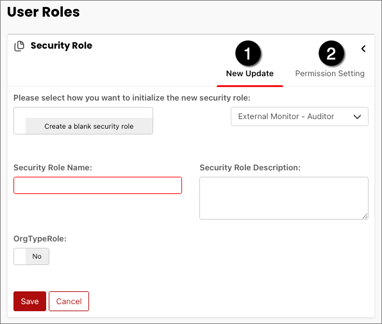
- New Update
- Permission Setting
New Update
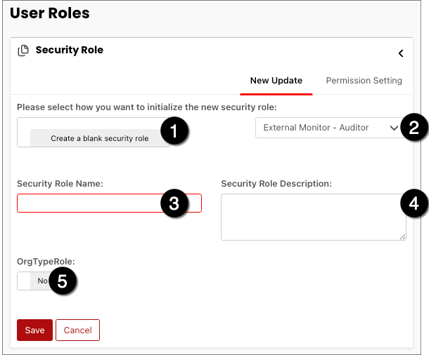
Fields marked with an asterisk are required:
- Create a blank security role: Use the toggle to indicate whether you are creating a new role from an existing role or a blank security role.
- Security Role Dropdown: Select the appropriate role type from the dropdown
- Security Role Name*: Enter the name of the security role
- Security Role Description: Enter the description of the security role
- OrgTypeRole: Toggle Yes or No
Create a blank security role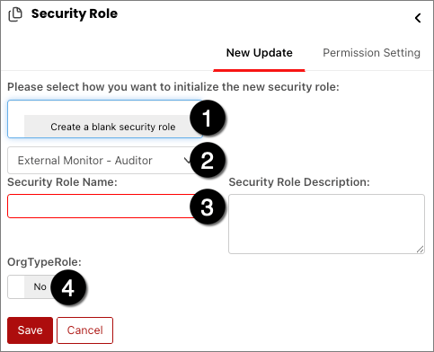
- Toggle to Create a blank security role
- Choose the account type from the dropdown menu
- Fill in the Security Role Name
- Indicate Yes or No for the OrgTypeRole
Create a new role from an existing one
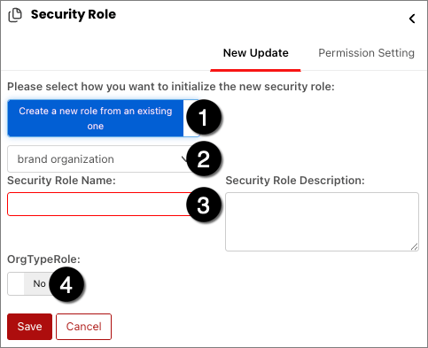
- Toggle to Create a new role from an existing one
- Choose the account type from the dropdown menu
- Fill in the Security Role Name
- Indicate Yes or No for the OrgTypeRole
Permission Setting
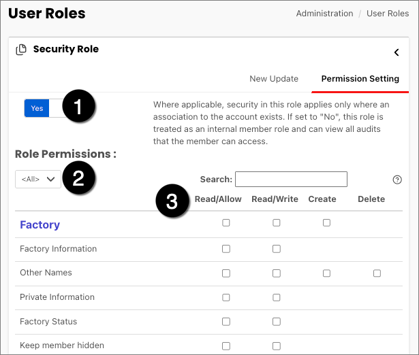
- Yes/No Toggle
- Yes: This security role should only apply if there is an association to the account
- No: This security role is treated as an internal account and allows access to audits the member has.
- Role Permissions: Individual permissions are grouped into a category to help set up the login user permissions.
- Note: A login user may need security permissions in multiple categories
- Access Permissions: Allows you to set the individual permissions for each role.
- Read/Allow: Used for read only permissions
- Read/Write: Allows the user to edit information
- Create: Allows the user to add login users, factories, and organizations.
- Delete: Allows the user to delete login users, factories, and organizations.
Access Permissions Overview
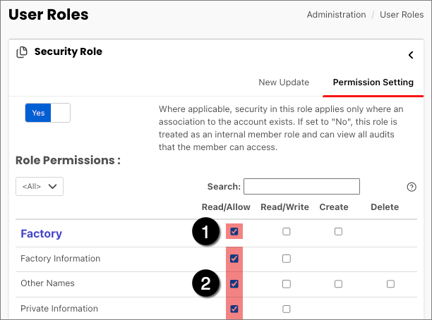
When you:
- Click on an access permission at the category level
- All the individual permissions in that column will be selected for the category
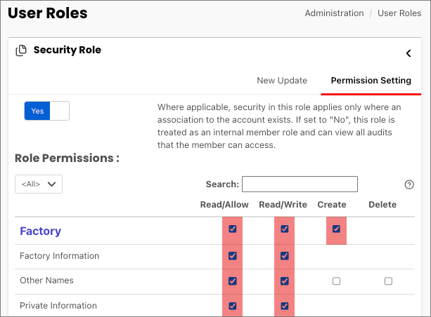
When you:
- Click on Create at the category level
- All the Read/Allow and Read/Write individual permissions will be selected in that category.
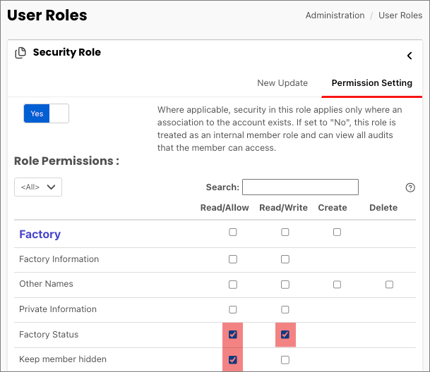
Lastly, you can individually select access permissions. Repeat these steps for all the categories a login user needs.
When the Permission Setting configuration is complete, scroll to the bottom of the table and select Save.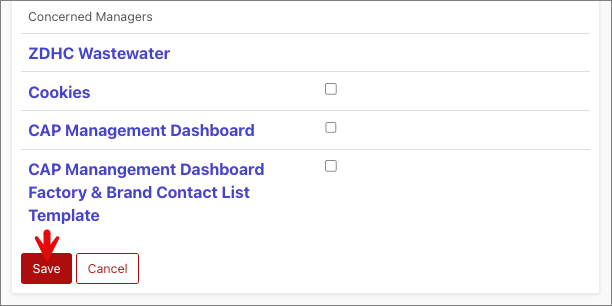
How to Edit or Delete an Existing User Role
In the Available Security Role window:
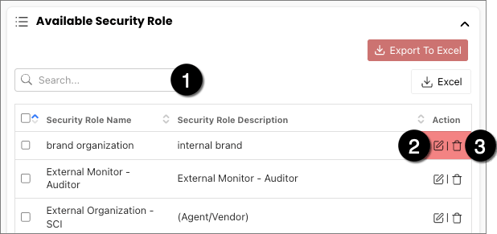
- Conduct a search for the security role you want to edit.
- Select the pencil icon to make edits.
- Select the trash button to remove a security role.
In the Available Security Role window, you can also select:
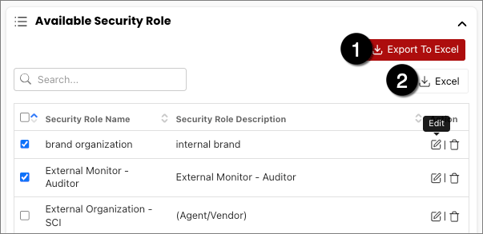
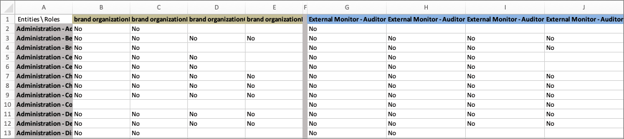
- Export to Excel: Download a detailed file comparing two or more security roles
- Excel: Download a high-level list of all current security roles
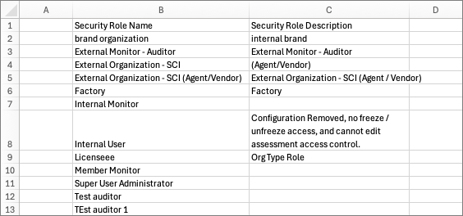
When you select the pencil icon, it opens the security role under Permission Setting.

Click here to learn more about Permission Settings.
Default roles for new External Organization logins
The Default Roles window is where default security roles are assigned for any login user that can create logins but not edit them.
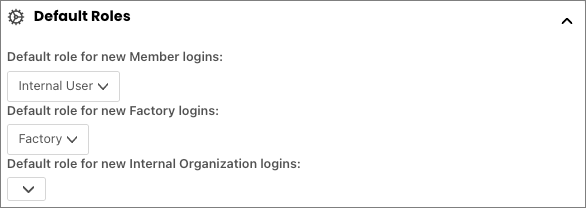
The Default Roles for New External Organization Logins window is where you assign default security roles to different external organization types.