
Table of Contents
- Dashboard
- The Workspace
- The Navigation Bar
- Contact Support
- Cookies
- User Information Window
- User Interface Elements
Dashboard
After logging in, you’ll see the dashboard. You will also see a navigation bar and the user information window. Select the factory account.
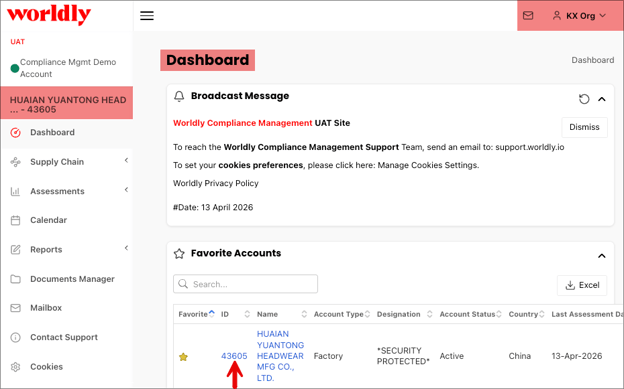
NOTE: The fields and navigation options in your account may differ slightly from the screenshots shown in this article. The Compliance Management platform allows each External Organization to define the details and information you interact with. If you work with more than one External Organization, your experience will be different based on the External Organization you are affiliated with.
The Workspace
The workspace is where information windows, record lists, and search windows appear after clicking on an option in the navigation bar.
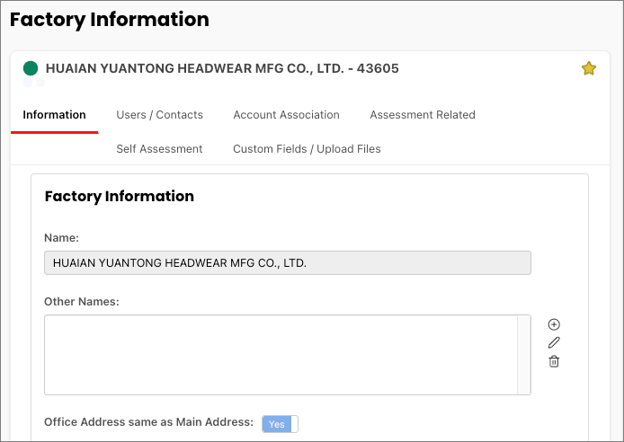
The Factory Information page is where you will enter, view, edit, delete, and manage:
- Your profile information, including certificates & registrations
- Users / Contacts
- Account Associations
- Assessment Related
- Self-Assessments
- Custom Fields / Upload Files
Expanding the Workspace
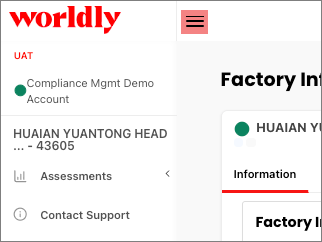
Select the three horizontal bars to expand or collapse the navigation bar.
Expanding a Window
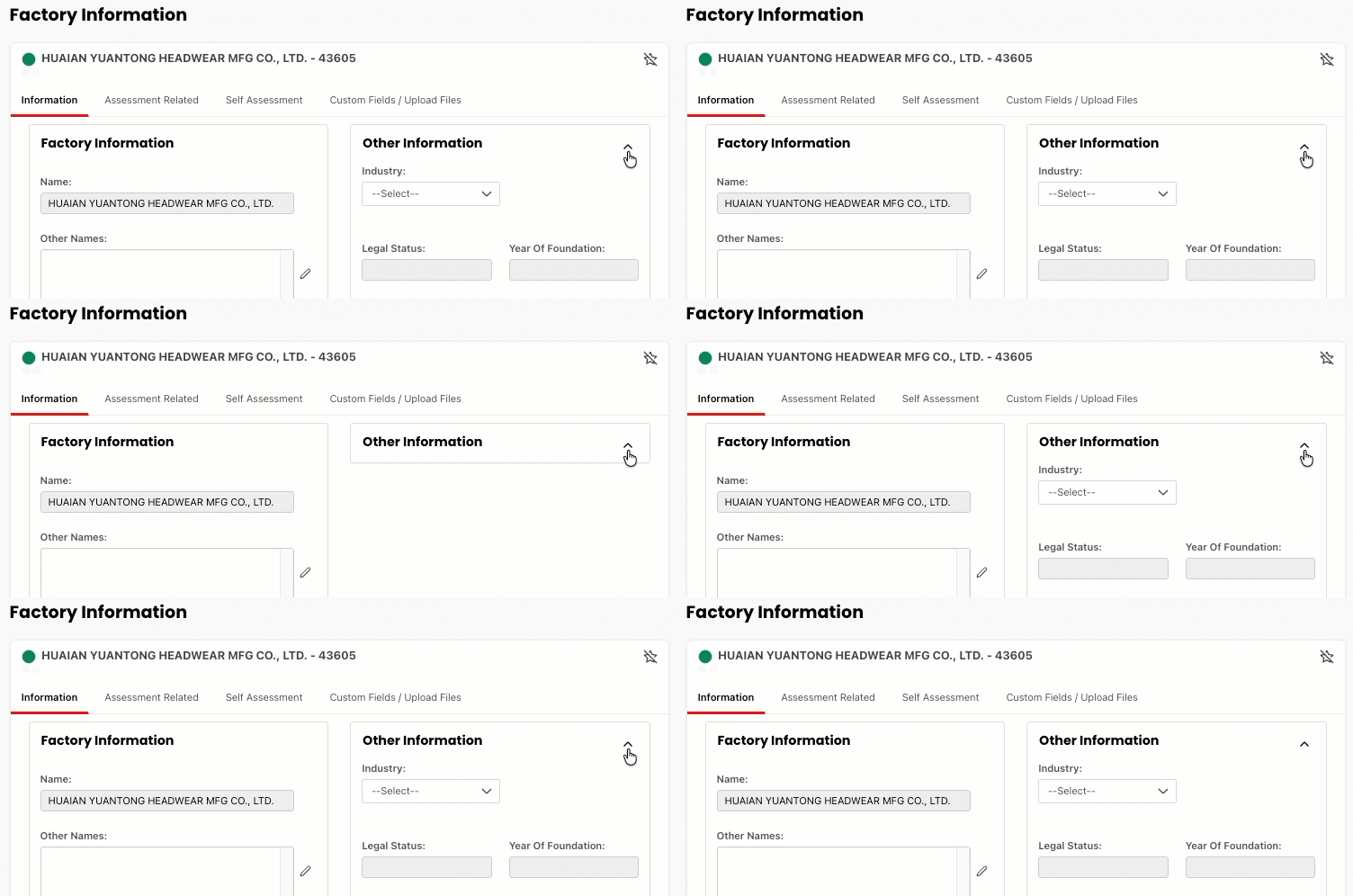
Select the up arrow icon to expand or collapse a window.
The Navigation Bar
The navigation bar is a list of options associated with different functions of the Supplier Compliance Management platform.
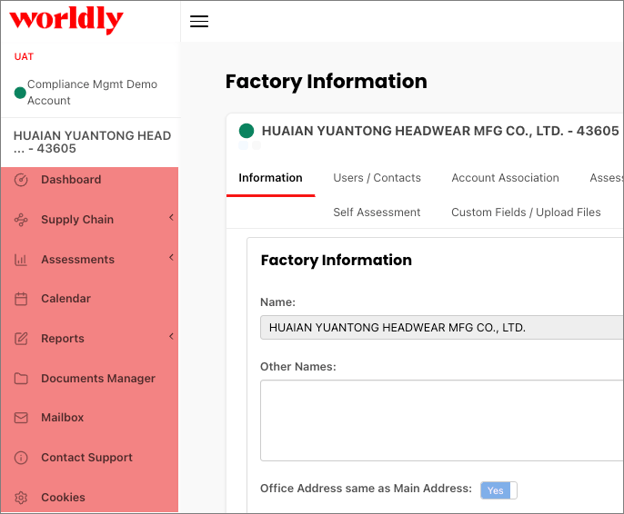
The following is a brief description of the options in the navigation bar. More detailed information is available in specific modules.
Assessments
You may open the Assessments option in the navigation bar.
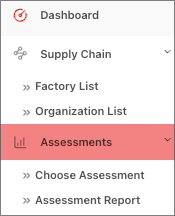
You may select Choose Assessment to see a list of your assessments or run an Assessment Report if your permissions allow.
Contact Support
Send a message to the Worldly customer support team.
Cookies
View the Cookie Policy, which describes the automatic tracking technologies used on Worldly and any other website that this Cookie Policy is placed on.
User Information Window
Select your name in the upper right corner to view the user information window.
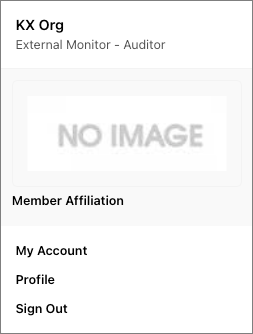
In the user information window you can:
- Affiliate with members (brands) who have given you permission
- Manage your account
- Manage your profile
- Sign Out
User Interface Elements
On the home page there are a number of elements you should be aware of. 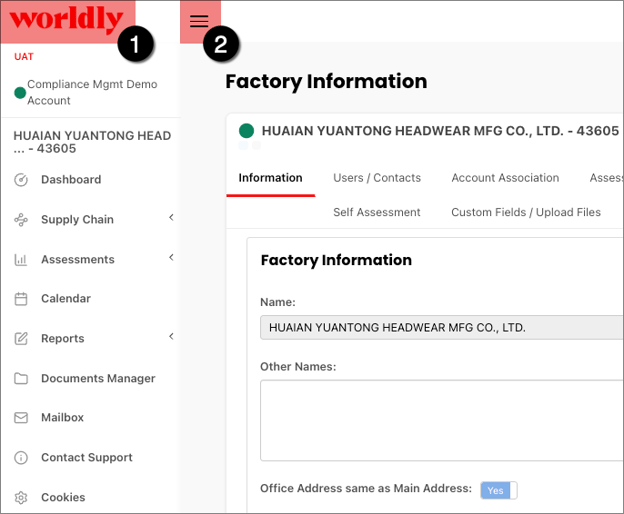
These include:
- Home Button: Click here to return to the Supplier Compliance Management home page.
- Workspace Expand / Collapse Button: Hide the navigation bar and expand the workspace.
General Buttons
The following buttons are commonly found throughout the platform. Use these to help you manage records and expedite your work. Other buttons not shown are further explained in the modules they appear in.


Used to select an account, login user, or contact to a record.
Note: An account, login user, or contact must first be added to the system to appear in the picklist.