
Table of Contents
- Step 1: Select the BHive in the ZDHC Gateway
- Step 2: Connect Your ZDHC Gateway Account to The BHive
- Step 3: Preparing Your Chemical Inventory List (CIL)
- Step 4: Reviewing Automatic Matches and Resolving Unmatched Chemicals
- Step 5: Review Your Chemical List
- Step 6: Submit Your Chemical List to the Gateway
- Step 7: Publish Your Submission and Retrieve PDF Report
- Handling Report Timing and Re-Generation Restrictions
This article outlines how to connect your The BHive account to the ZDHC (Zero Discharge of Hazardous Chemicals) Gateway, prepare and match your monthly chemical inventory, submit the list, and obtain your final InCheck PDF report. This process takes you from initial setup through final report retrieval.
Note
- Submissions are final, and only one submission is allowed per month. It is important to review the inventory fully before you submit.
- Select The BHive in the Gateway to ensure the account connection succeeds. If you do not select The BHive, the account connection may fail.
- Confirm the inventory in the Gateway or wait for the automatic deadline process. The PDF does not generate immediately after submission.
- Use custom chemicals only when the chemical cannot be found in the Gateway. Custom chemicals appear as Not Evaluated in the report.
- Do not rely on old ZDHC IDs. New IDs are in use for both organizations and chemical products.
- Decline the existing InCheck report before you generate a second one. You cannot generate a second report while one is active.
Step 1: Select The BHive in the ZDHC Gateway
- Log in to your relaunched ZDHC Gateway account.
- In the top navigation, click InCheck.
- On the left side of the page, click InCheck Settings.
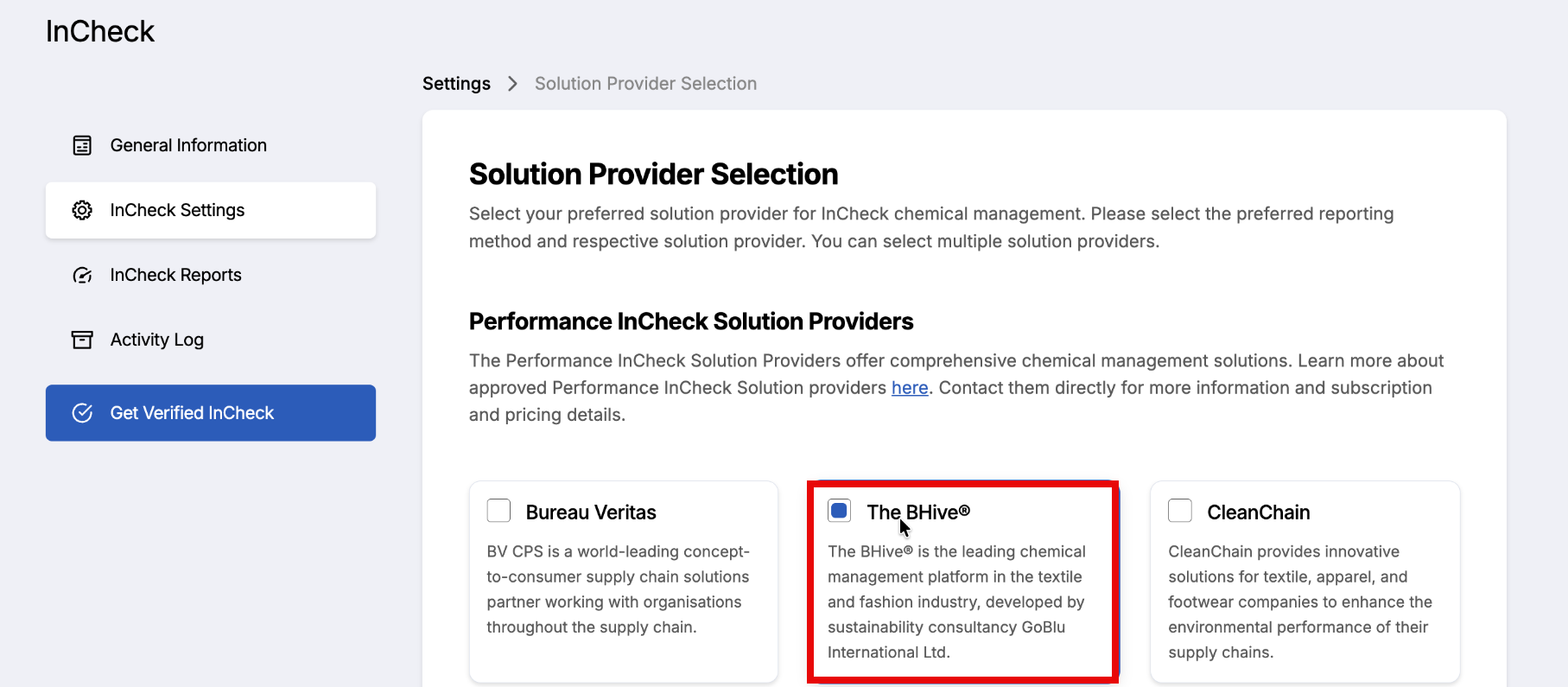
- Under Open Solution Provider, click Configure.
- Check The BHive then click Save Selection.
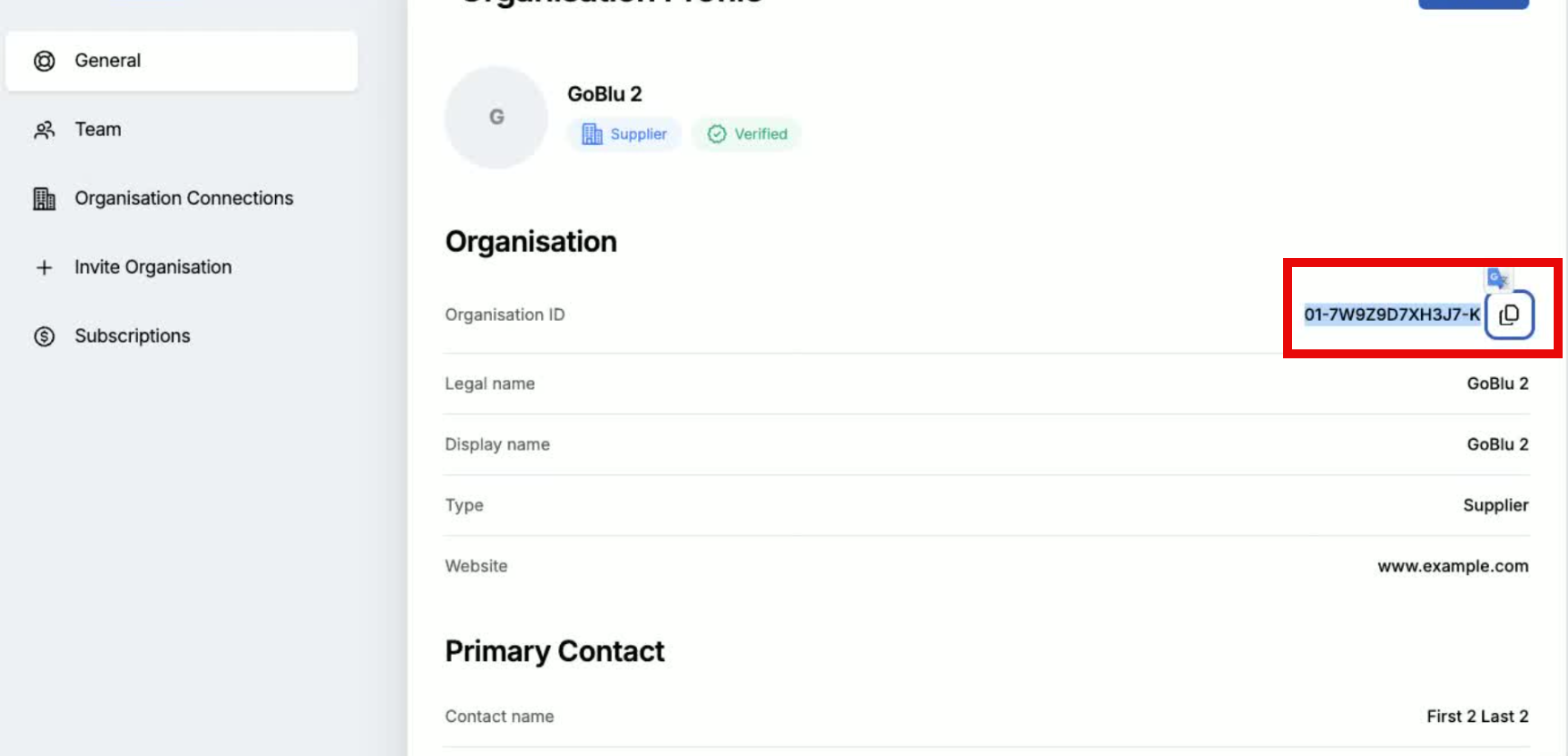
- At the top of the page, click your organisation name > Organisation Profile.
- Under Organisation, copy the organisation ID.
- This number is required to connect the accounts in step 2 (below).
Step 2: Connect Your ZDHC Gateway Account to The BHive
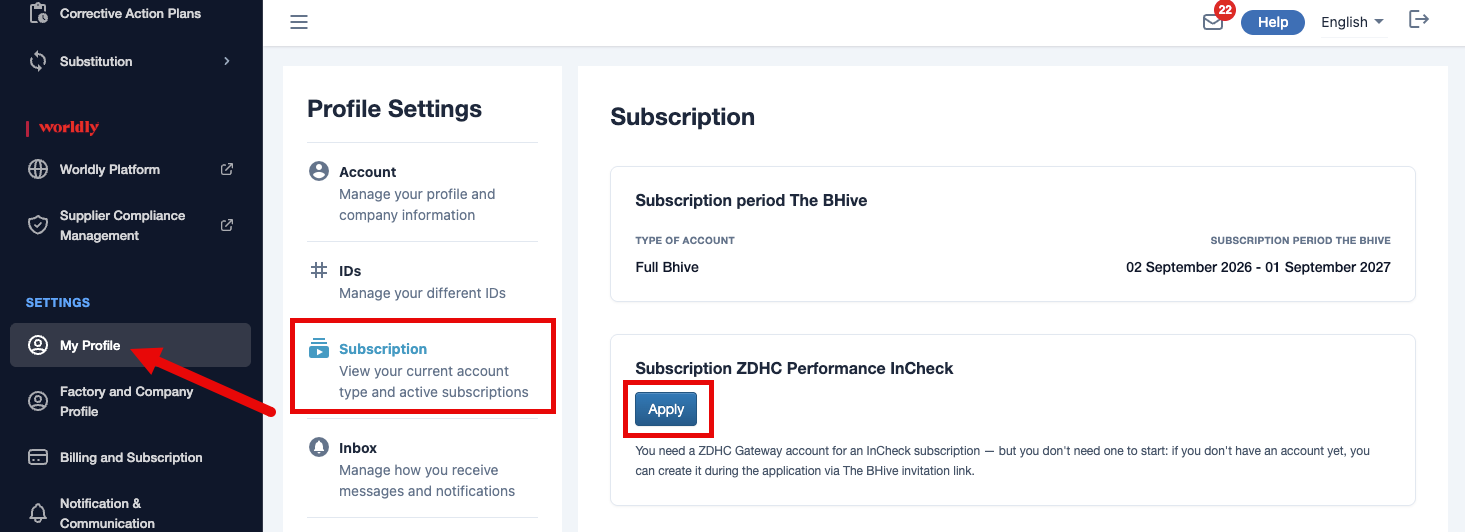
- Navigate to your The BHive application.
- On the left navigation, under Settings, click My Profile.
- Under Profile Settings, click Subscription.
- Under Subscription ZDHC Performance InCheck, click Apply.
- A pop-up box appears.
- Click Continue to confirm the terms of use.
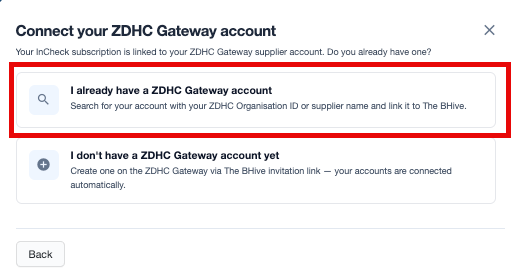
- Click I already have a ZDHC Gateway account.
- Input or paste the organisation ID number you copied in step 1 (above).
- Click Search.
- If the account is found, click Use this account and submit application.
- The BHive team validates your application within a few days.
- Click Done when finished.
Step 3: Preparing Your Chemical Inventory List (CIL)
- On the left navigation, under Data Input, click Chemical Management.
- Click the name of your monthly inventory.
- Review all uploaded chemicals for the month.
- Review the inventory information (consumption, general usage).
- At the top of the page, next to Inventory List, use the toggle to set your inventory to Complete.
- Note: The InCheck Report button is now active.
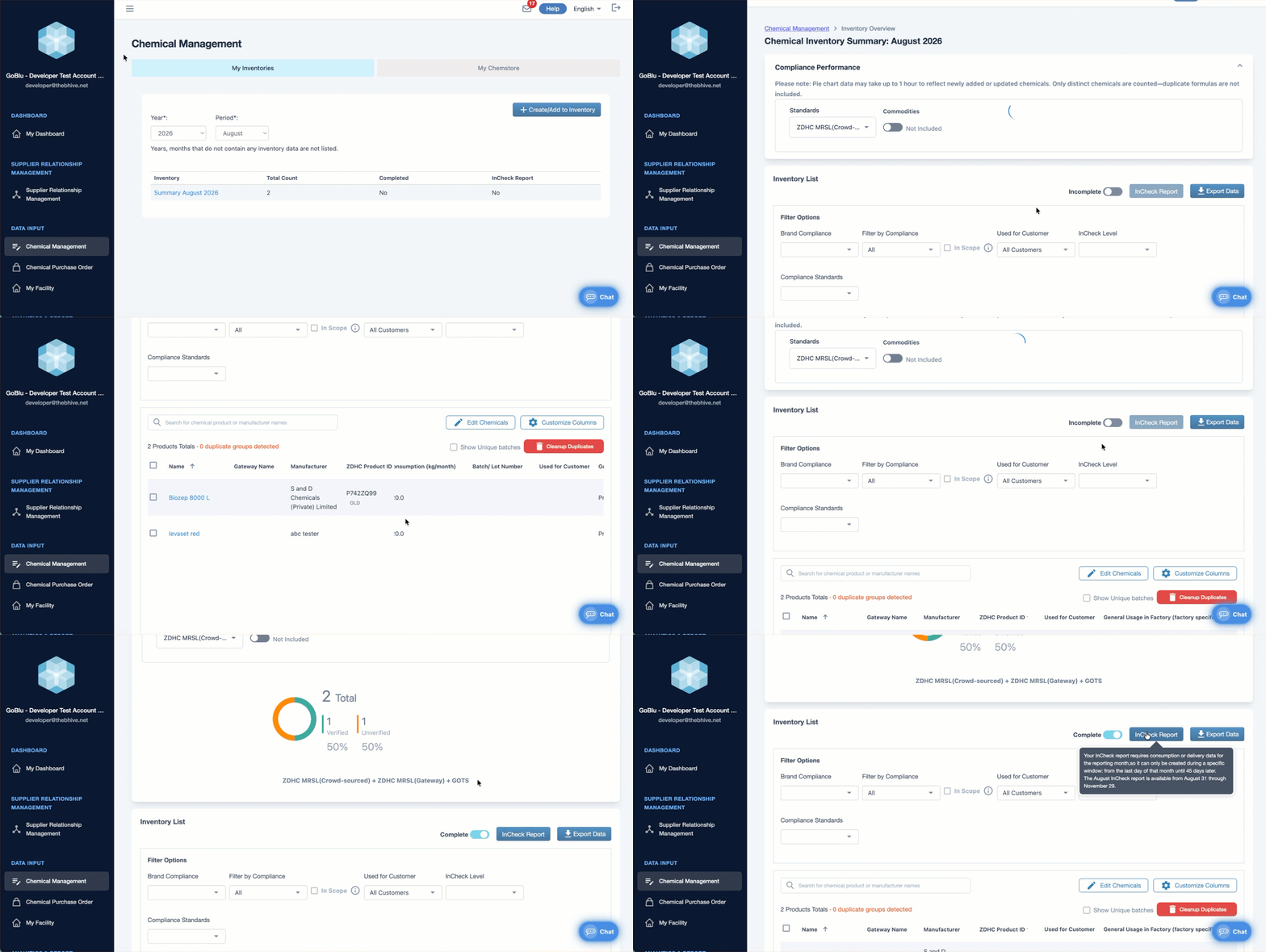
Step 4: Reviewing Automatic Matches and Resolving Unmatched Chemicals
- Click on the InCheck Report.
- Under the Gateway Chemical column, you can see certain chemicals that are matched and are not matched.
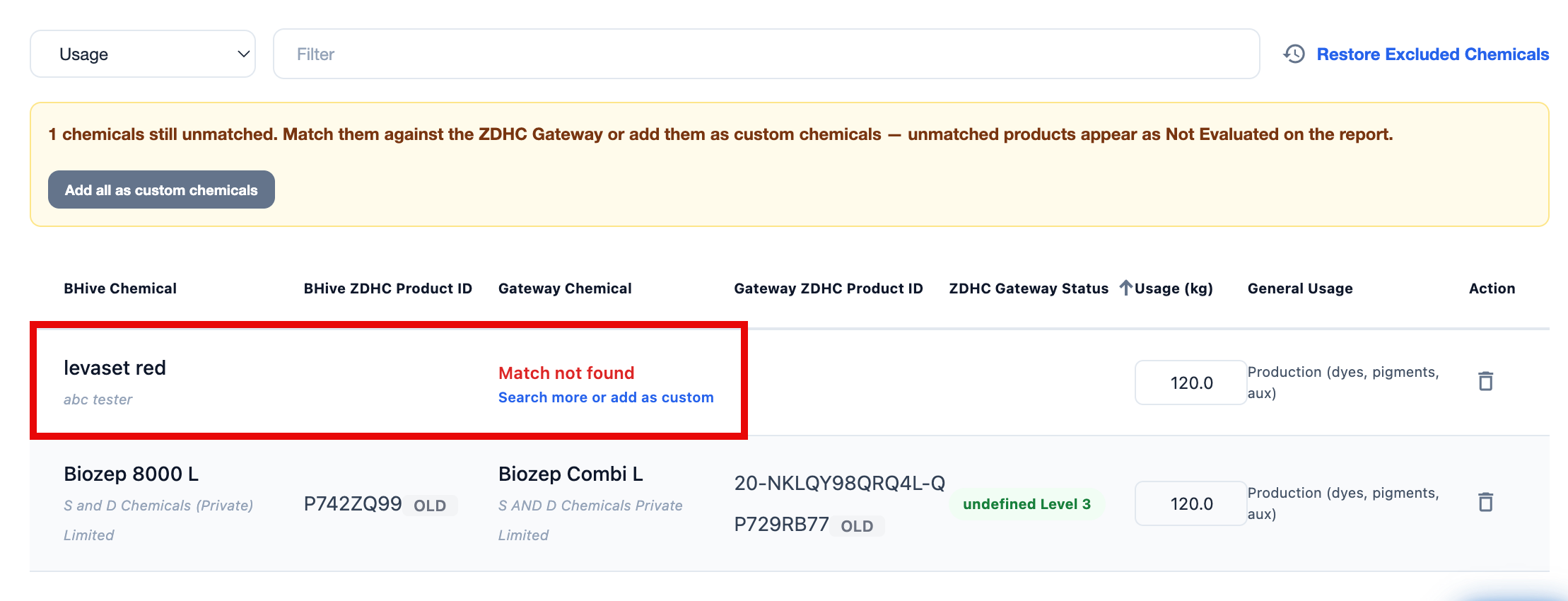
- This is based on the chemical ID number provided or any previous matching between The BHive database and gateway databases.
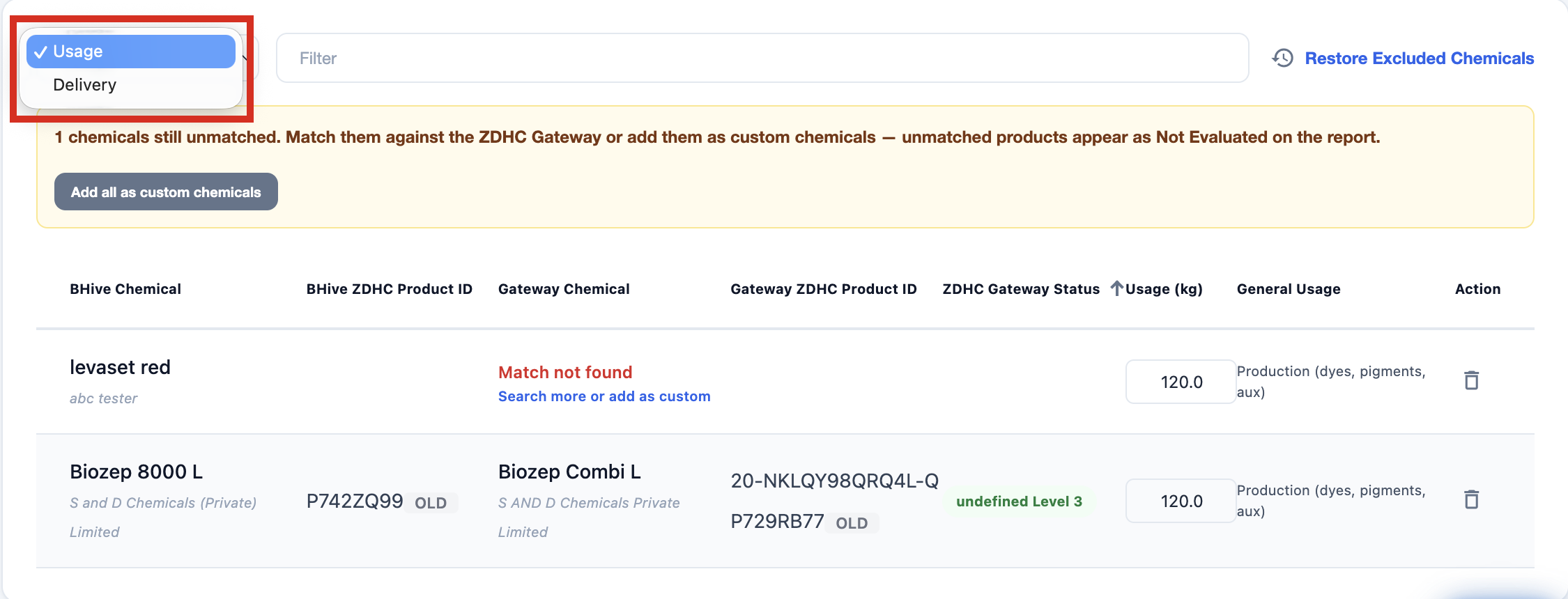
- Confirm that your report should be based on Usage or Delivery before matching.
- Clicking Restore Excluded Chemicals brings up a pop-up box that shows chemicals that have been automatically excluded.
- Under the Action column, click Add Back to manually add them back to the report.
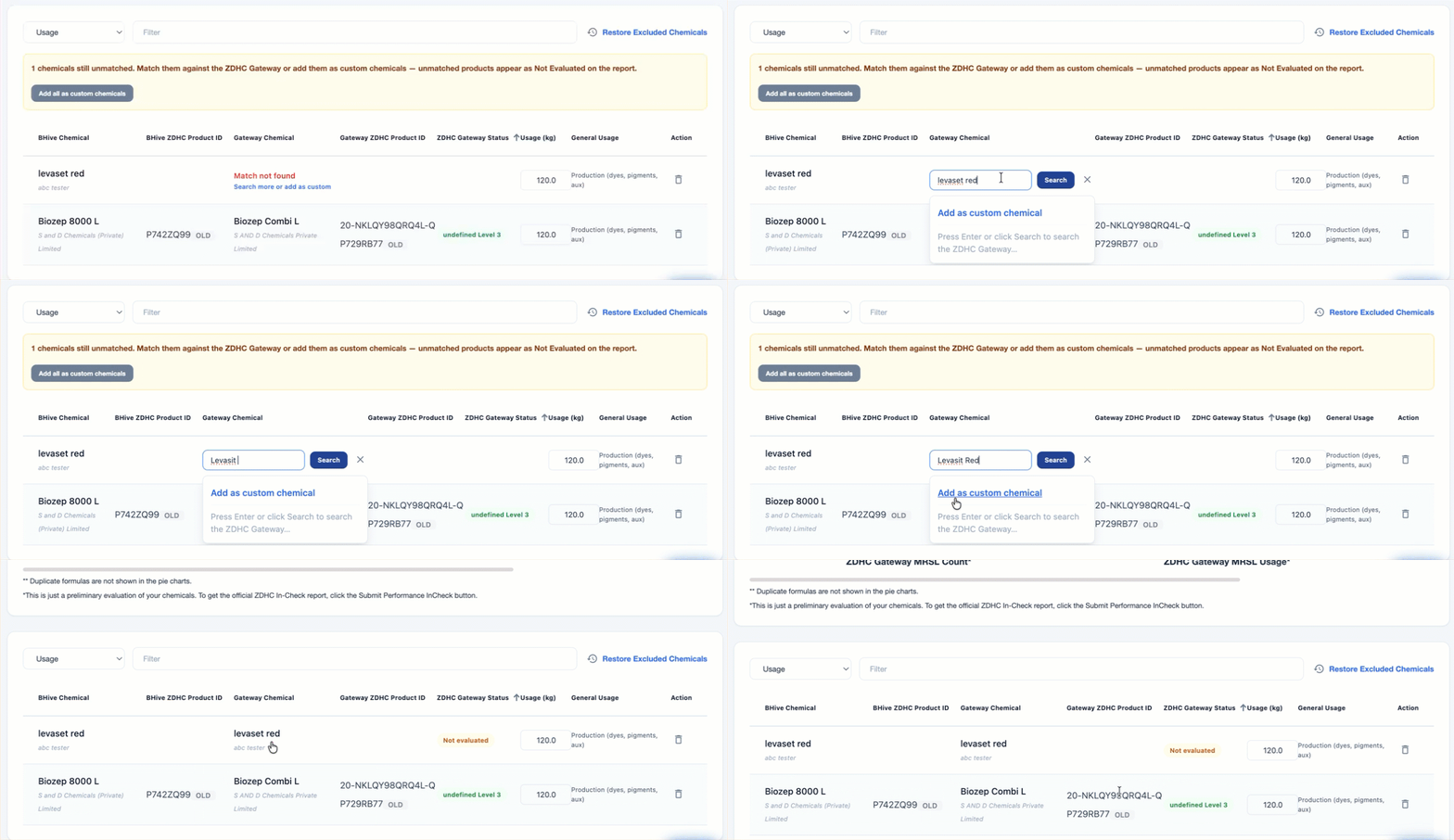
- Under the Gateway Chemical column, click Match not found.
- Search for the name of the chemical.
- If the chemical is found, click the name of the chemical.
- If the chemical is not found, click Add as custom chemical.
- Add custom chemicals individually, or use the bulk custom chemical feature when several chemicals are missing from the Gateway.
- Note: Custom chemicals are not evaluated.
Step 5: Review Your Chemical List
Review the following:
- Check the consumption data for accuracy
- Confirm the matching status for each chemical
- Verify the gateway status for all items
- Make any final corrections before submission
Step 6: Submit Your Chemical List to the Gateway
Warning
Submission of the list is final.
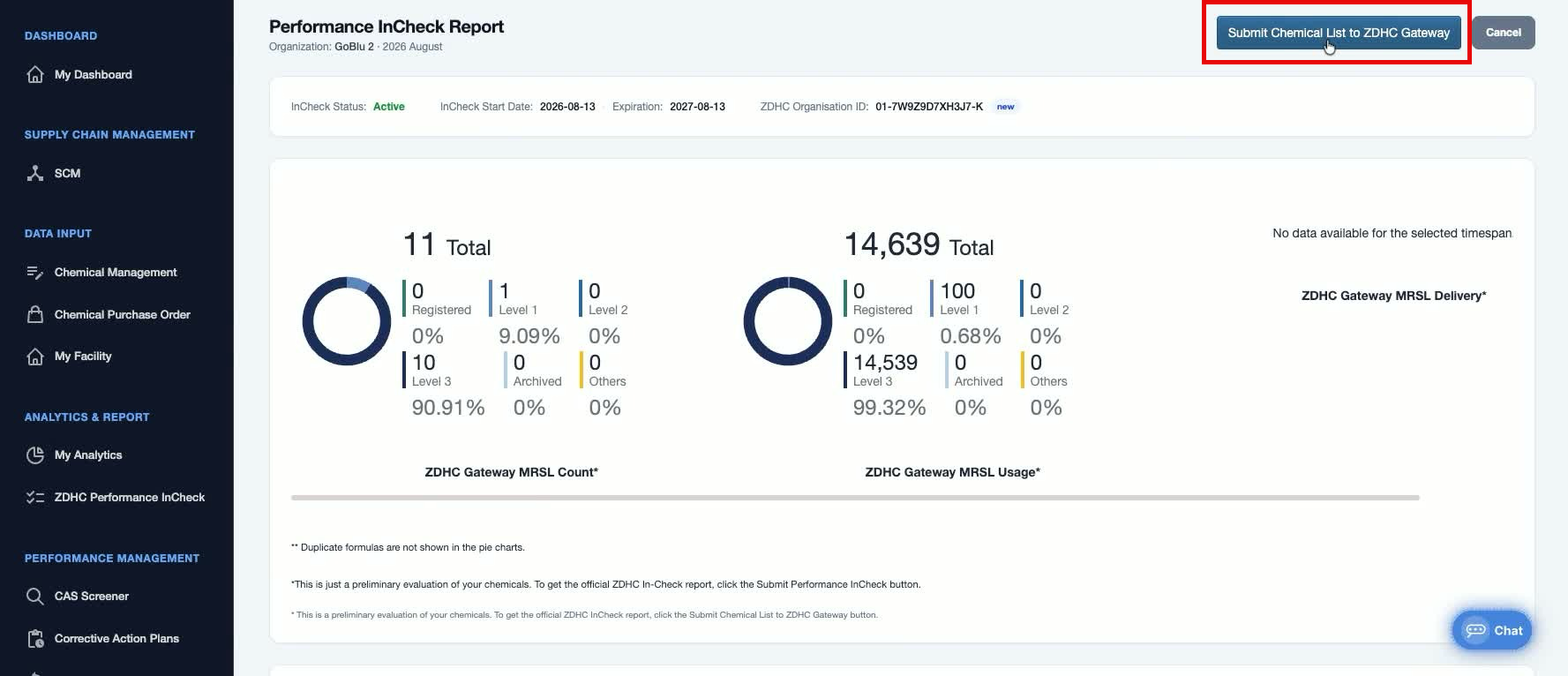
- At the top of the page, click Submit Chemical List to ZDHC Gateway.
- A pop-up box appears.
- Click Submit to confirm.
- Note: Only one submission can be open at a time.
- You cannot submit again for the same month while a submission is under review in the gateway. The status changes to declined and you may correct the list and submit a new one if the submission is declined.
- Decline the submission in the ZDHC Gateway to change the chemical list after submission. Then correct the inventory and resubmit in The BHive InCheck Module.
- Note: Only one submission can be open at a time.
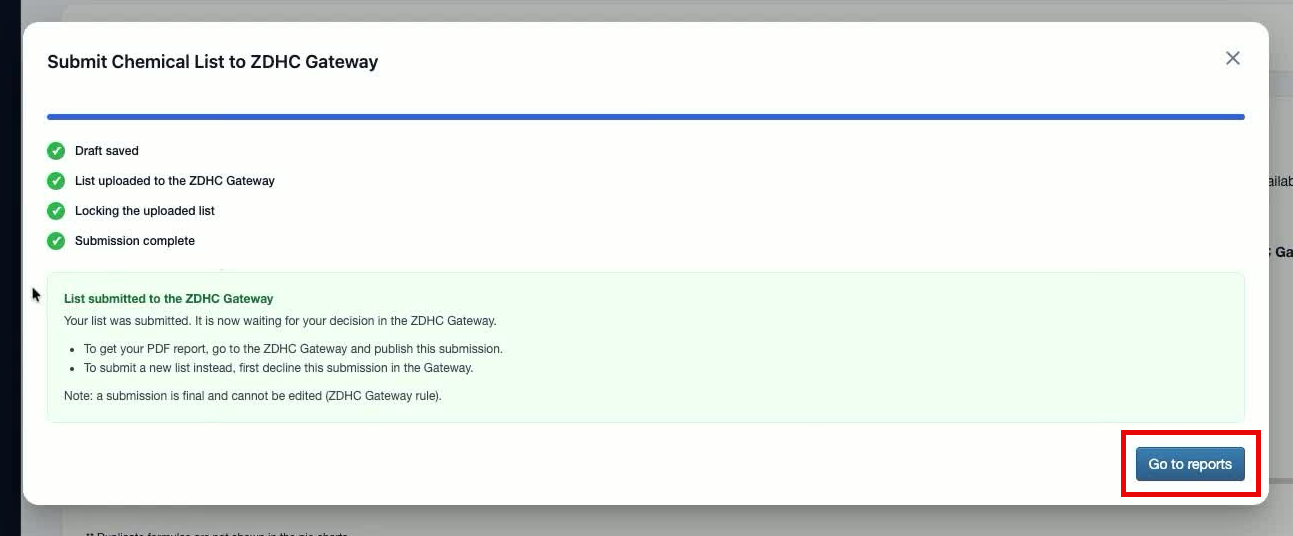
- A success message appears stating the list was submitted to the ZDHC Gateway.
- Click Go to reports.
Step 7: Publish Your Submission and Retrieve PDF Report
- Navigate to your ZDHC Gateway account.
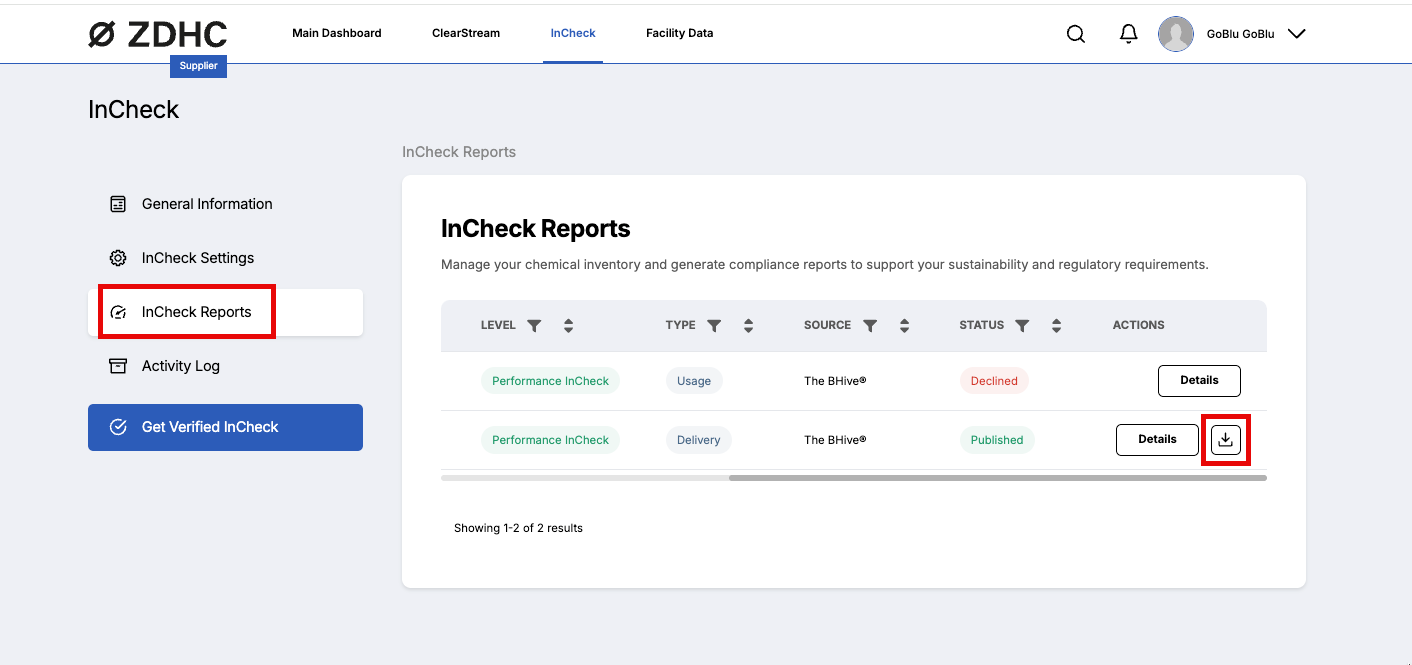
- In the top navigation, click InCheck.
- On the left side of the page, click InCheck Reports.
- The submitted inventory now appears for your review.
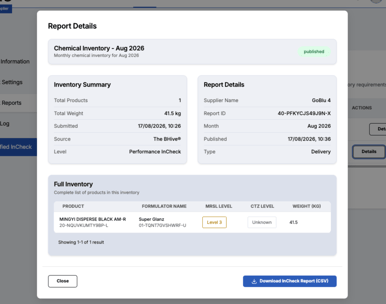
- The submitted inventory now appears for your review.
- Choose one of the following options:
- Publish - The Gateway generates the InCheck PDF report.
- Decline - The submission is rejected and no report is generated. You can then correct the inventory in The BHive and submit again.
- Note: To decline the submission, click Publish then click Decline. Enter your reason for declining, then click Confirm.
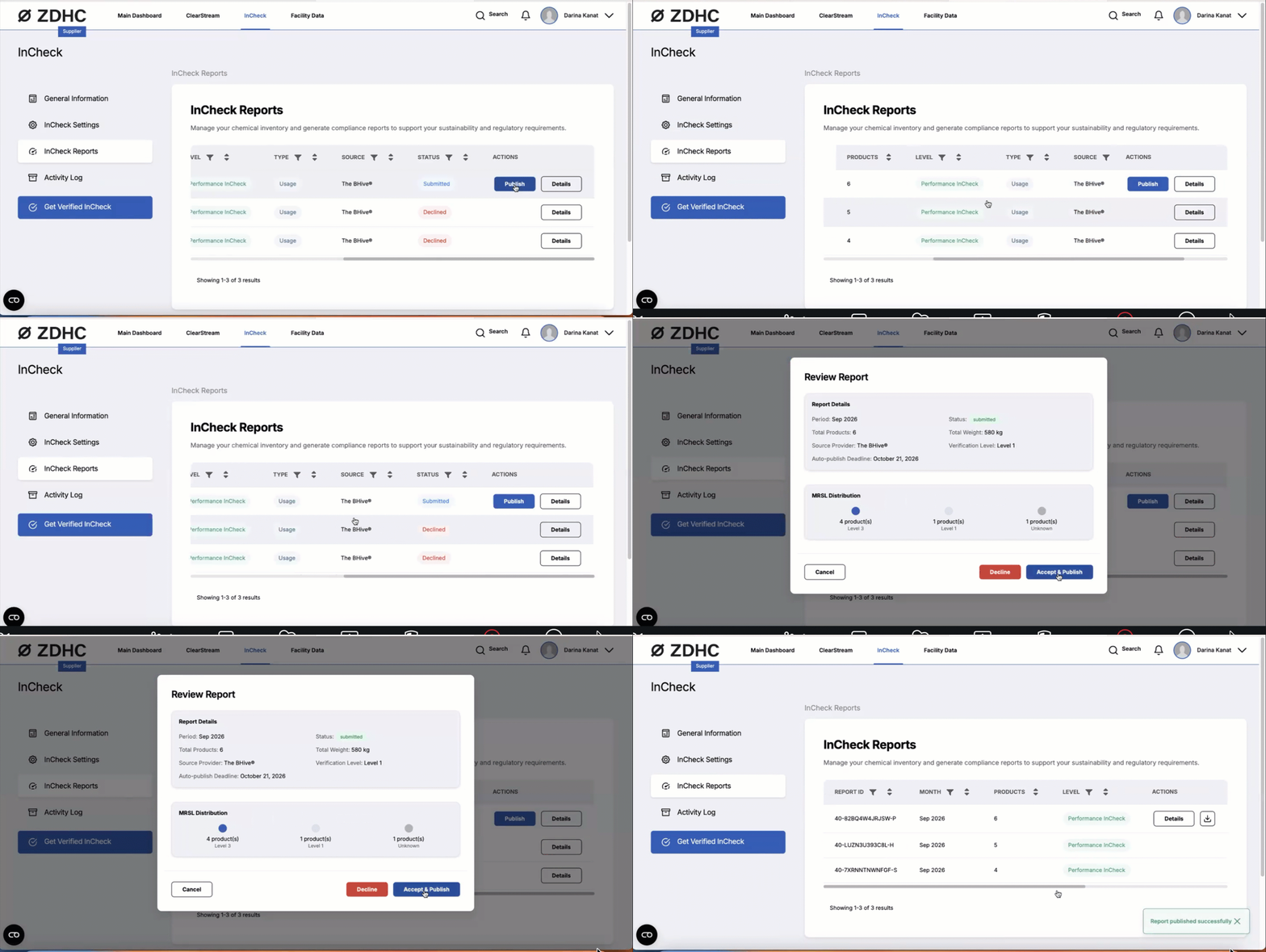
- Note: To decline the submission, click Publish then click Decline. Enter your reason for declining, then click Confirm.
- Under the Actions column, click the download icon.
- Navigate to The BHive.
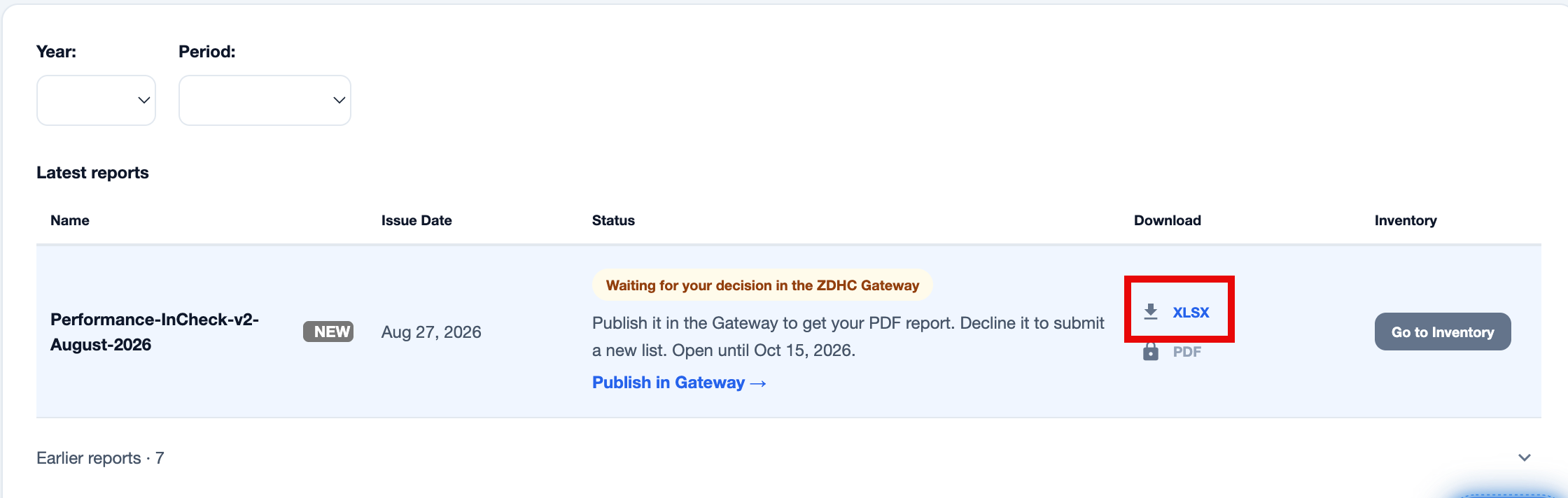
- On the left navigation, under Analytics & Report, click ZDHC Performance InCheck.
- Under the Download column, click XLSX to download the Excel file of the report version of the report OR click PDF to download the PDF version of the report.
Handling Report Timing and Re-Generation Restrictions
- The Gateway publishes the report automatically if you do not publish or decline the submission before the deadline.
- You have 45 days after the reporting month ends to publish or decline the inventory. For example, you must publish or decline a January inventory by 17 March.
- You cannot generate a second InCheck report for a month period while an existing InCheck report is active. Decline the existing submission first (in the ZDHC Gateway), correct the inventory (in The BHive InCheck Module), and submit again.
- The report reflects the inventory as you submitted it after the Gateway publishes the report automatically. Plan corrections before the deadline.