
Table of Contents
- Navigation
- Bulk Upload - Material Workbook
- Material Library Overview
- Recycled Materials
- Detailed Material Components Report Fields
- Material Impacts Report Fields
- FEM Outlier Exclusion
- Material Library FAQs
- Workbook Template
The Material Library allows brands to simply and efficiently add material information for better impact calculations. Materials make up the majority of scope 3 emissions for consumer goods. It is imperative to accurately account for material impacts in scope 3 emission calculation and decarbonization planning.
As a companion to the Product Library, the Material Library provides a central hub for bulk uploading materials and scalable linking to Tier 2 and Tier 3 supplier information. The Material Library provides insight into material impacts at the process level by swapping out energy defaults in emission calculations for supplier specific data by linking to Tier 2 and Tier 3 FEM data.
Navigation
- Select Products.
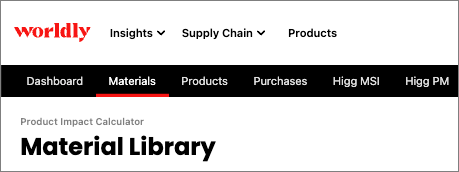
- Select Materials from the black navigation bar.
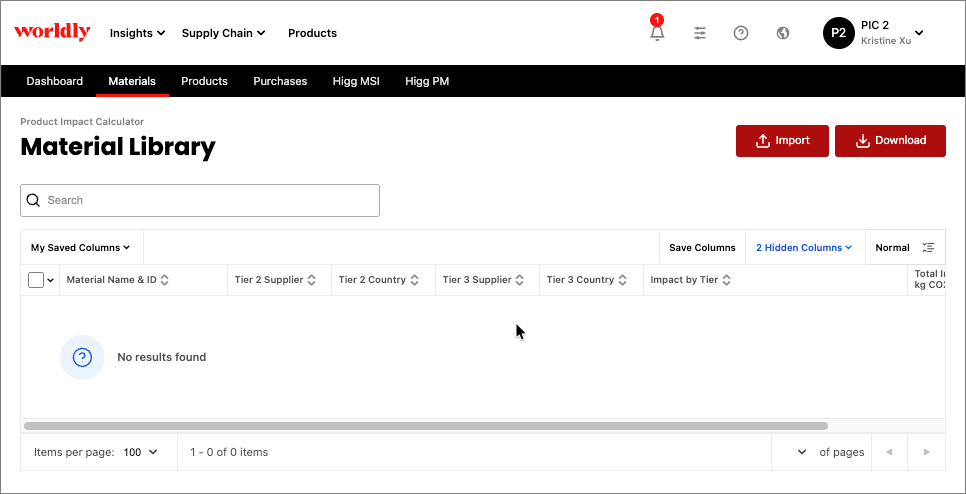
- The Material Library is available here.
Bulk Upload - Material Workbook
This workbook is only for textiles with a maximum of 4 base materials.
Bulk Upload - Material Workbook Fields
No FEM linking
This optional field is intended to help identify a material. These are Vendors who are not involved in the making of the actual material. They’re the point of contact for the brand when they buy textiles.
Example: Vendor ABC in China sold me 50 Cotton/50 Poly blend, and Vendor DEF in Vietnam sold me 50 Cotton/50 Poly blend
Base Material 5,
Base Material 6
Sustainability 3, Sustainability 4,
Sustainability 5, Sustainability 6
Enter Recycled if the material is recyclable.
Leave blank if the material is not recyclable.
Composition 5,
Composition 6
Enter a number between 1-100 when the "Material" field is populated
All composition columns must add up to 100%
Supplier Name or Worldly ID
If No Match, map to Keep value as is
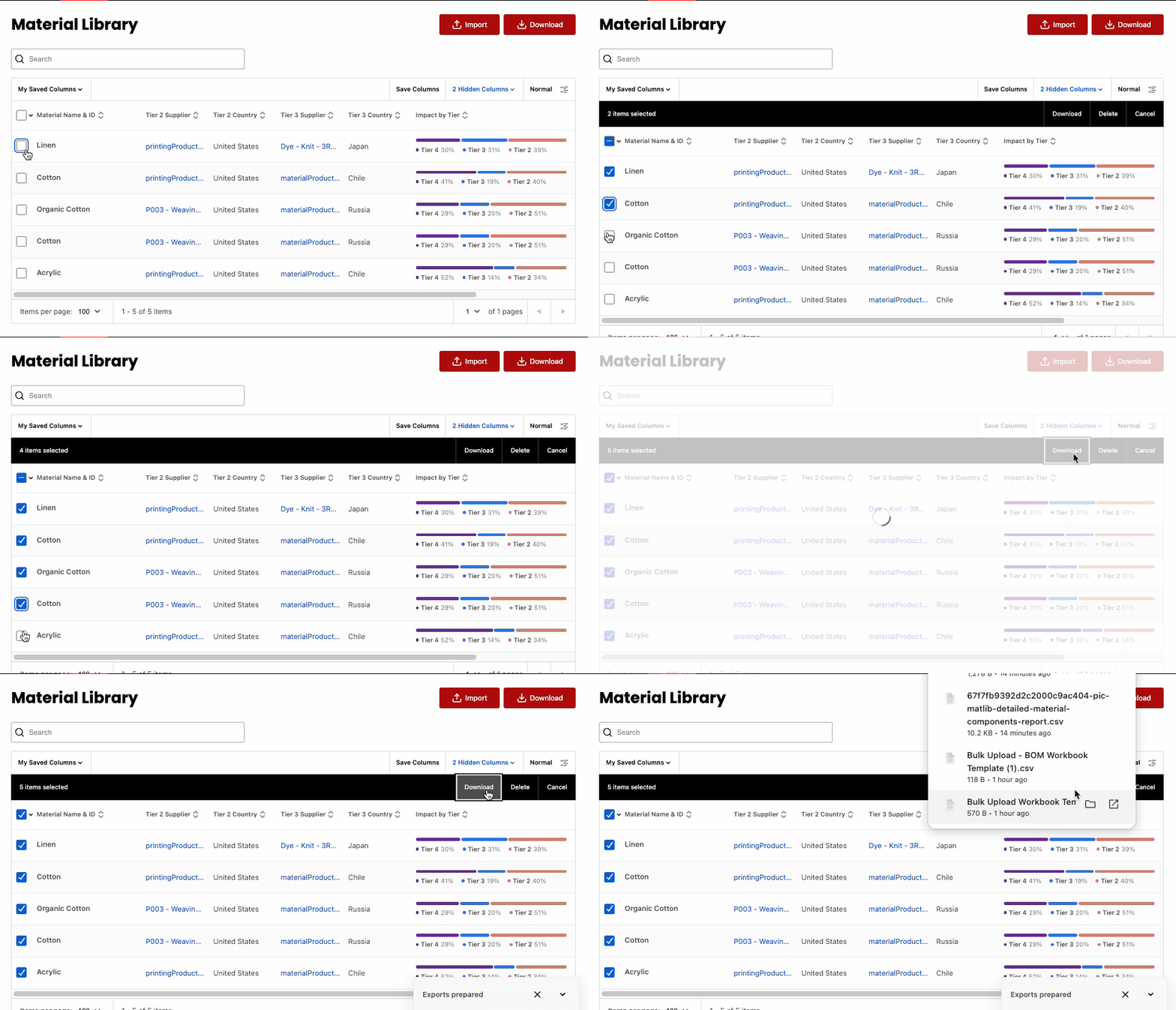
Contents of MatLib can be exported by selecting one or more materials and clicking Download in the table action bar
Automatically Pre-populated: T3 Facility value
Lifecycle Stage: Yarn Formation stage (i.e. Spinners)
Automatically Pre-populated: T3 Country value
Automatically Pre-populated: T2 Facility value
Lifecycle Stage: Textile Formation stage
Automatically Pre-populated: T2 Country value
Definition: Supplier Name or Worldly ID
Automatically Pre-populated: T2 Facility value
Lifecycle Stage: Preparation stage
Automatically Pre-populated: T2 Country value
Automatically Pre-populated: T2 Facility value
Lifecycle Stage: Coloration stage
Automatically Pre-populated: T2 Country value
Automatically Pre-populated: T2 Facility value
Lifecycle Stage: Finishing stage (e.g. Applying heat transfers, or adding a weatherproofing coating)
Automatically Pre-populated: T2 Country value
This is a read-only field that stores the supplier information as part of the PO record, even when no eligible FEM is found during import
If a user maps unmatched suppliers to “Keep as is”, the system imports this information to the FacilityRawText field
This is a read-only field that stores the supplier information as part of the PO record, even when no eligible FEM is found during import
If a user maps unmatched suppliers to “Keep as is”, the system imports this information to the FacilityRawText field
Example
Next, let's walk through an example of uploading a Bulk Upload - Material workbook. Download the template at the bottom of this article.
-
Select Import
Expand to show screenshot
-
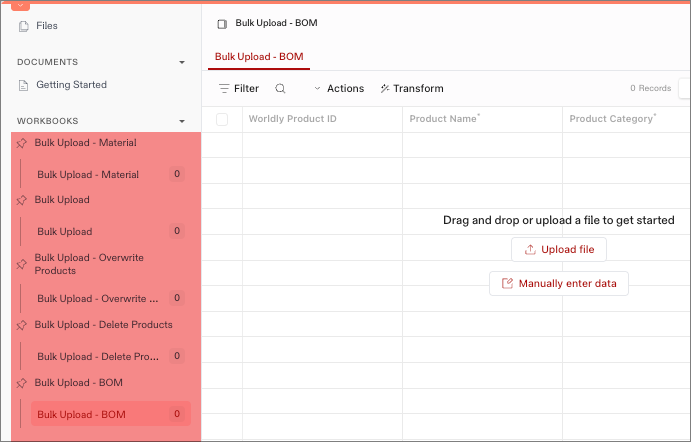
Select the Bulk Upload - Material workbook.
Expand to show screenshot
-
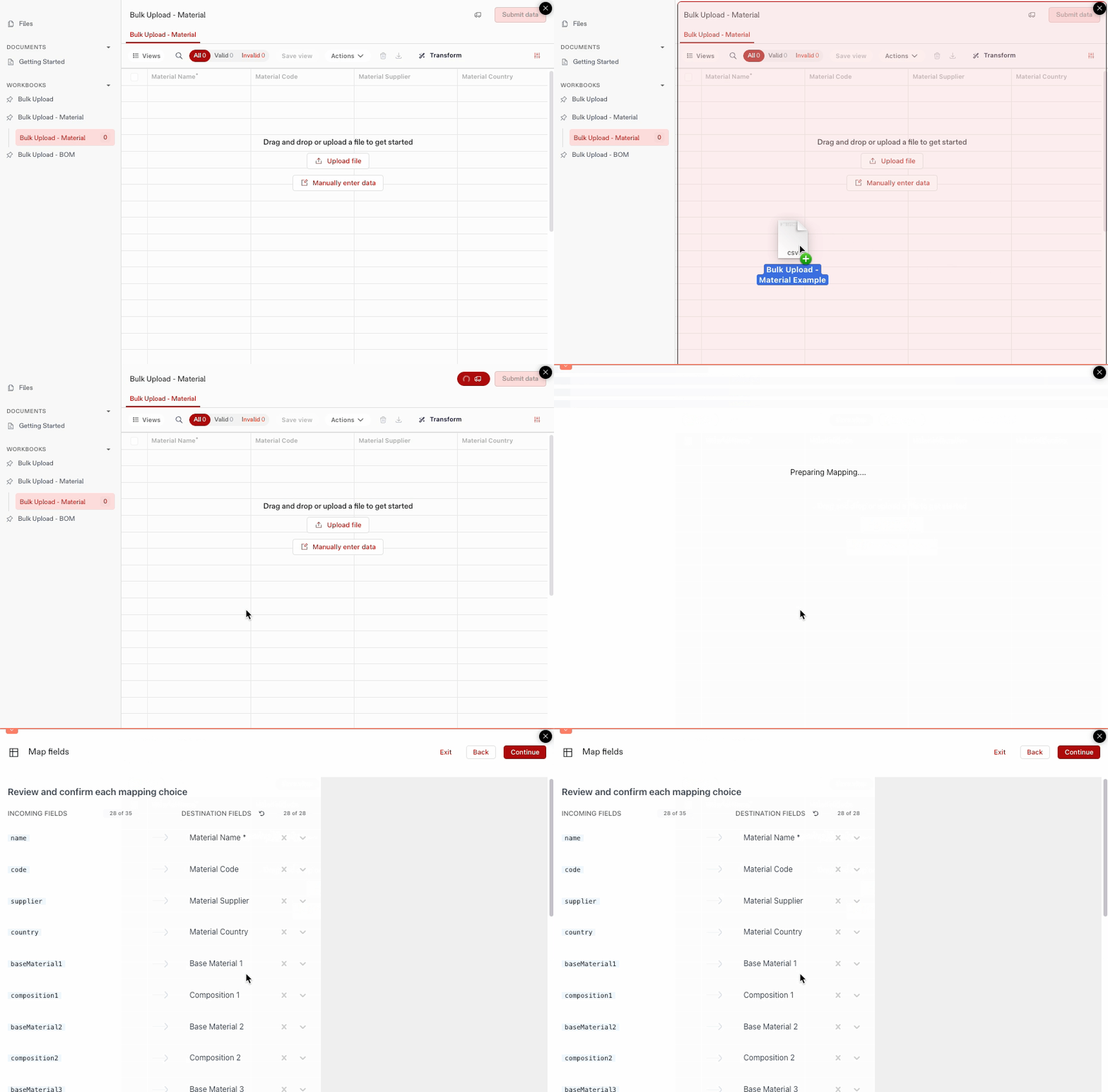
Drag and drop your file onto the screen. You can upload the following file formats: CSV, Excel, or JSON. We recommend CSV as a best practice.
Expand to show screenshot
-
Review the field mapping on the next two windows before clicking Continue.
Expand to show screenshot
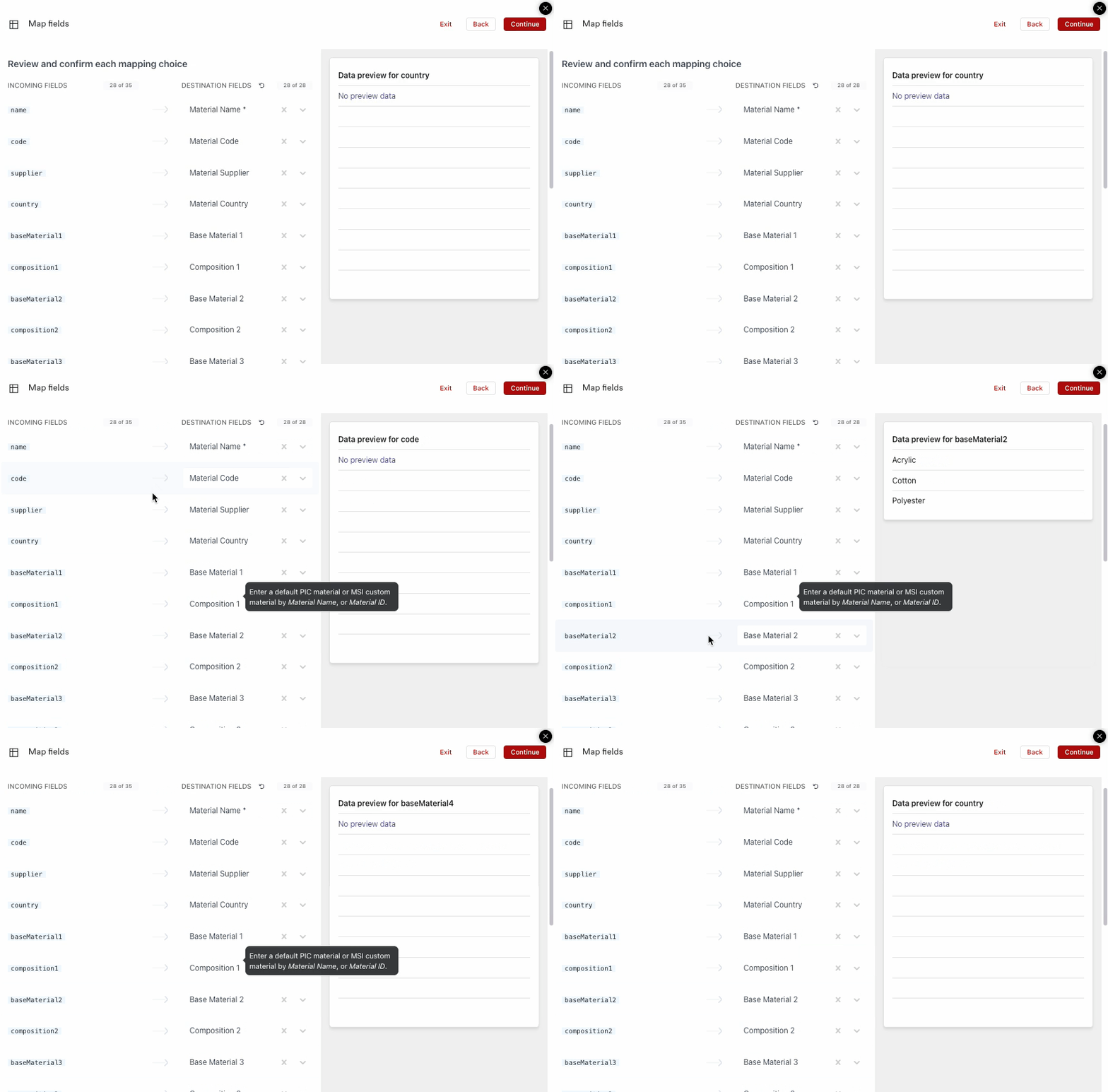
- If a field is missing or incorrect, select the dropdown arrow to select the desired field.
- Preview the data for the category on the right side of the window. Hovering over different rows updates the preview window.
- Select Continue.
-
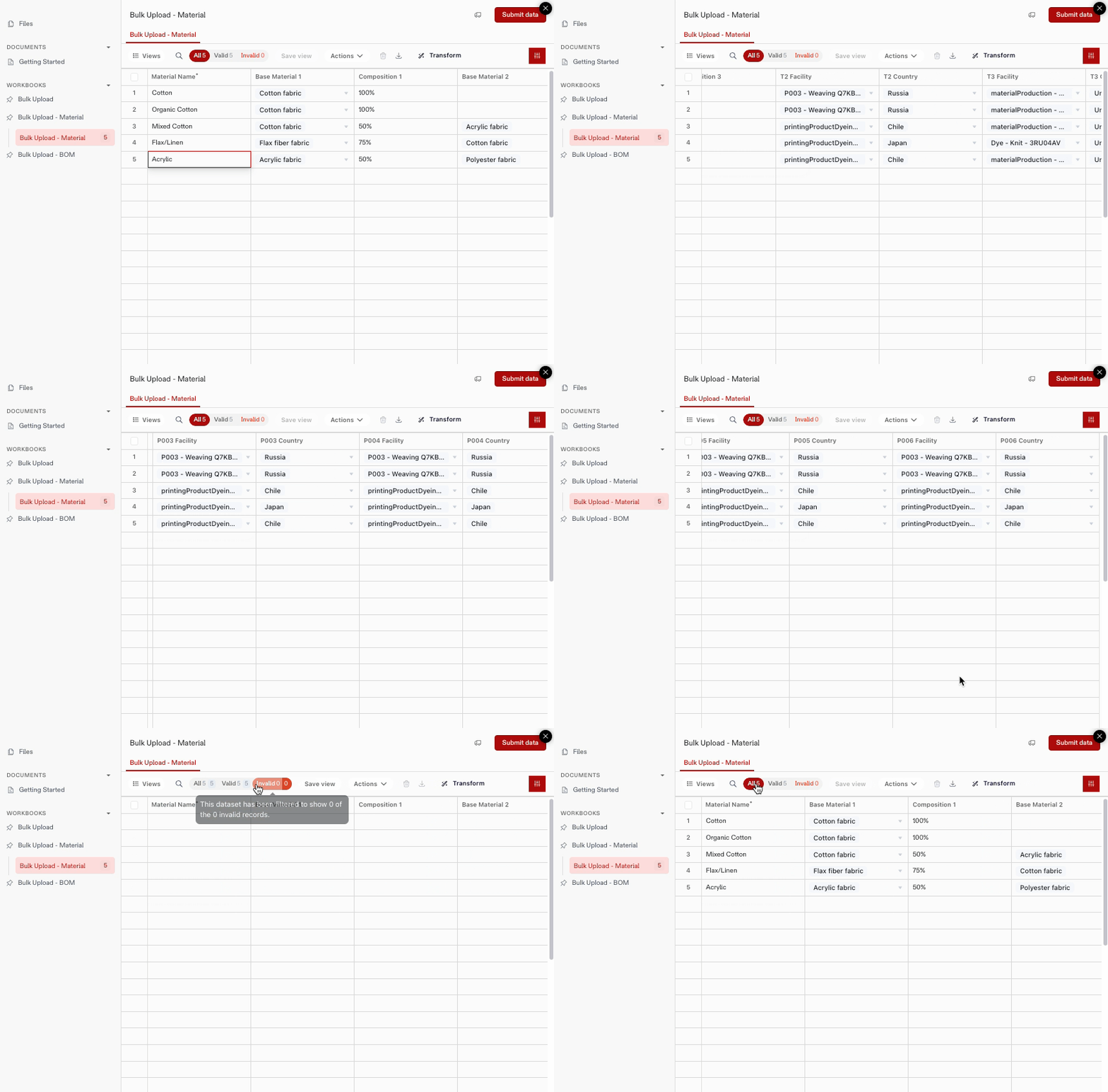
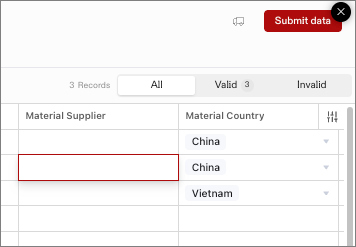
On the next page, review the Bulk Upload table for any errors.
Expand to show screenshot
-
After the table has been reviewed and all errors have been resolved, click Submit data.
Expand to show screenshot
Material Library Overview
The Material Library allows you to link materials to Tier 2 and Tier 3 FEM data and replace energy defaults in emission calculations for supplier specific data.
- Select the Download button to access two different reports, the Detailed Material Components Report and the Material Impacts Report.
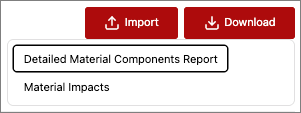
- Detailed Material Components Report - Breaks down each base material into composition %.
- Material Impacts Report - Provides a high level summary of base materials and Tier 1, 2, 3, and 4 Impacts.
-
Download data for a single material or a large batch of select materials. This enables you to download a customized CSV file of your material library.
Expand to show screenshot
-
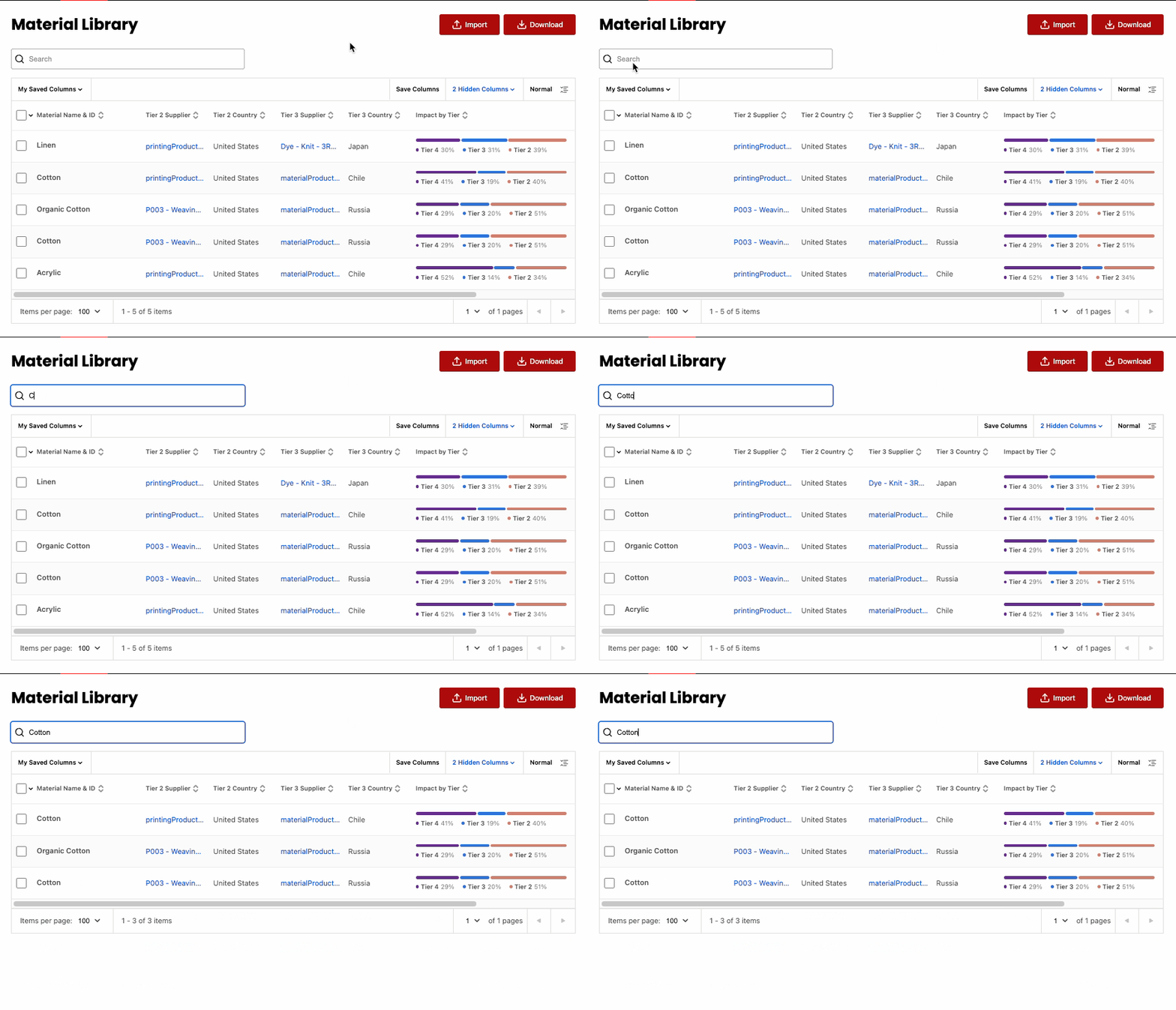
Search the library by typing into the search bar. For example, you can search for cotton materials in the material library.
Expand to show screenshot
-
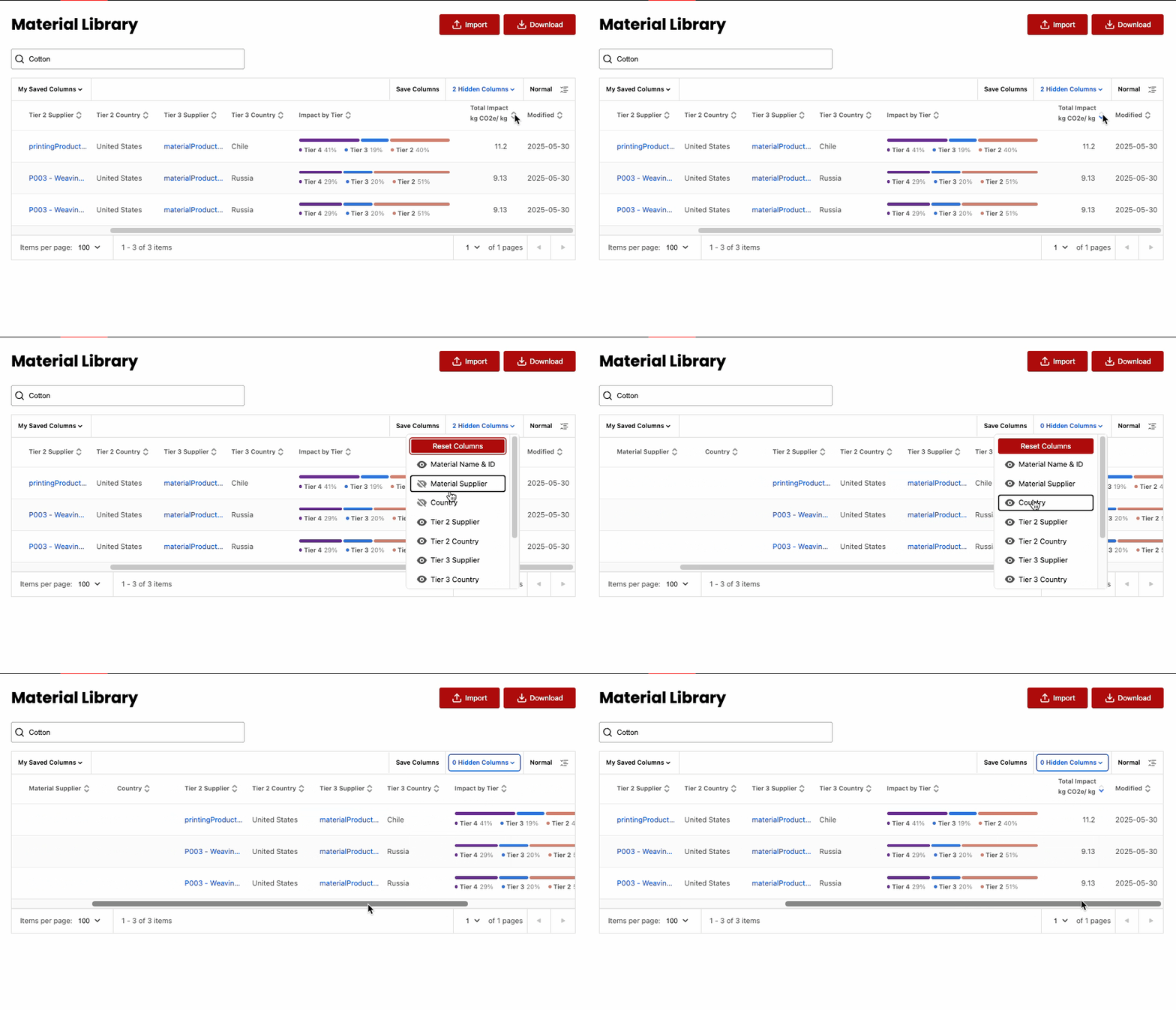
Sort the library by clicking the arrows next to the column. For example, you can sort the Total Impact kg CO2e/ kg column for most impactful materials. You can also show or hide columns within the table.
Expand to show screenshot
-
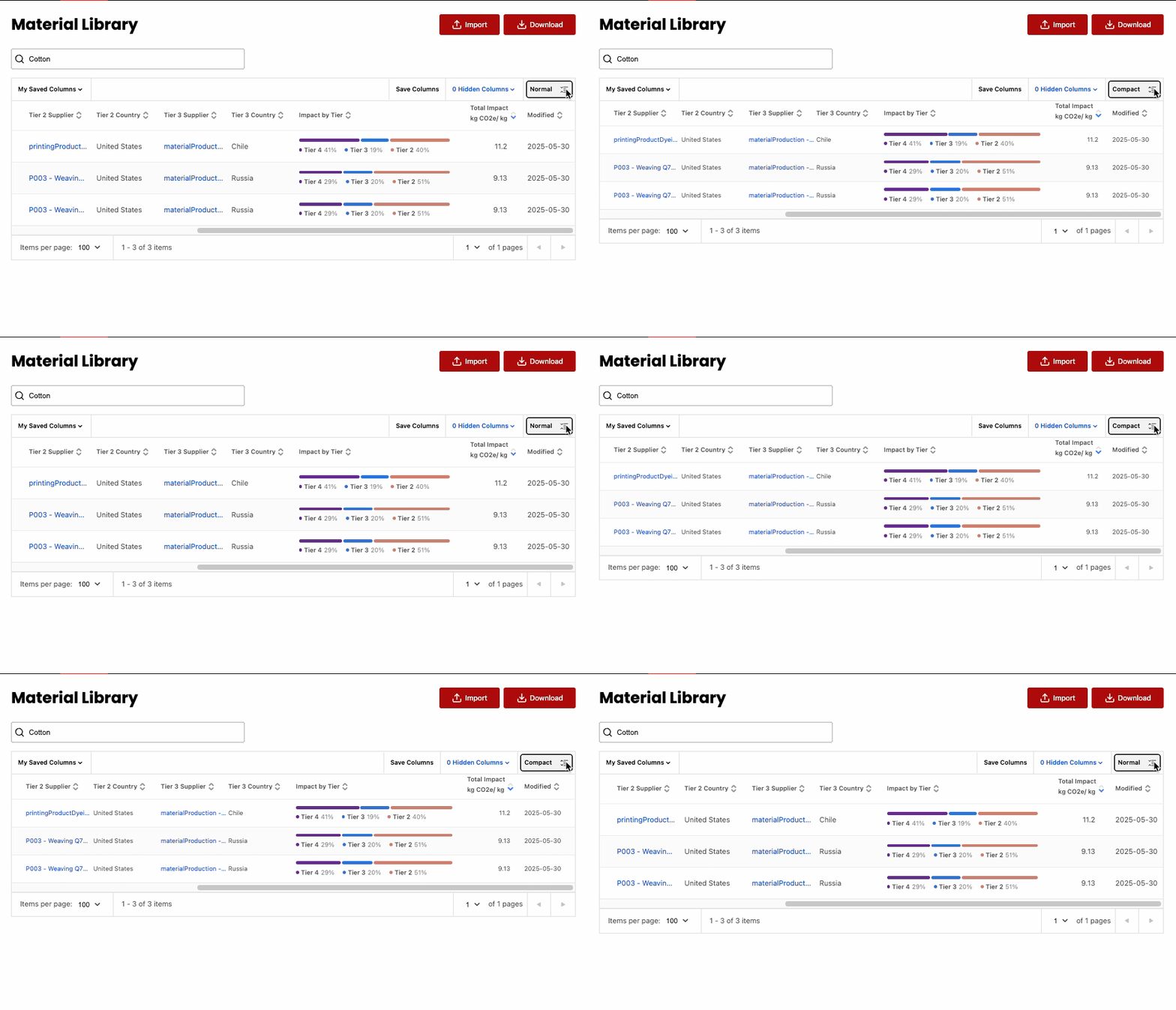
Toggle between Compact and Normal views by selecting the toggle at the upper right corner of the table. You can change your view depending on your viewing preferences.
Expand to show screenshot
-
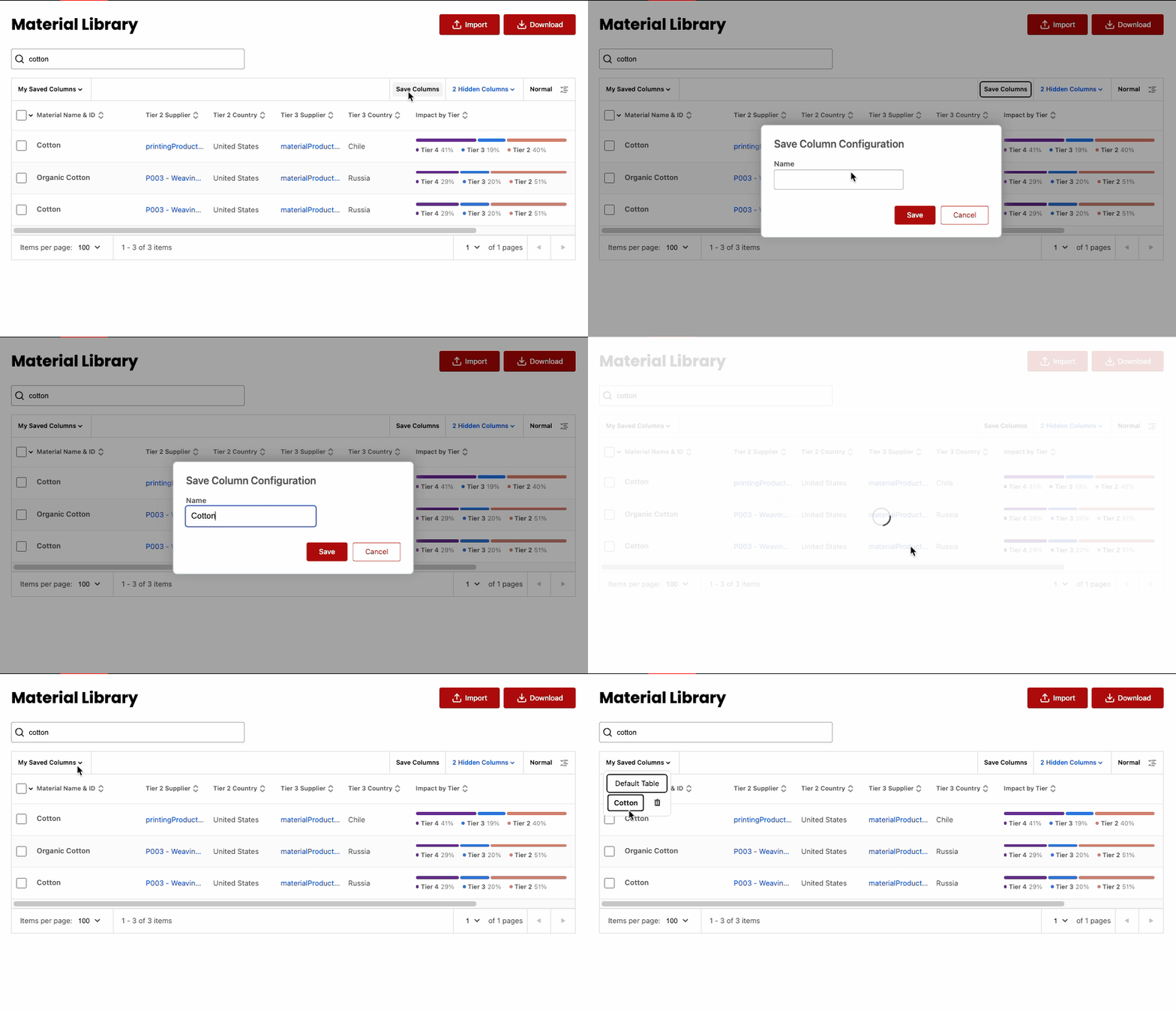
You can also save a view by selecting Save Columns and giving a name to your view. Saving a view makes it easier to access an already customized table specific to your organization.
Expand to show screenshot
Recycled Materials
Use the Sustainability Attribute field in the Material Library to create recycled materials. PIC will automatically map these materials to the correct Tier 4 recycled processes from MSI when a match exists. Use this feature to model the impact of recycled content of products.
Prerequisites
Before getting started, make sure of the following:
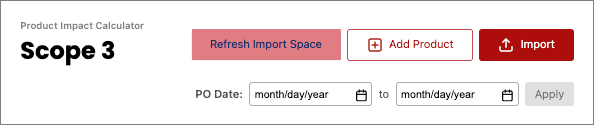
- Select Refresh Import Space on the PIC Dashboard to ensure the new workbooks are updated.
- During bulk upload, you must have a data file that includes a column indicating which materials are recycled.
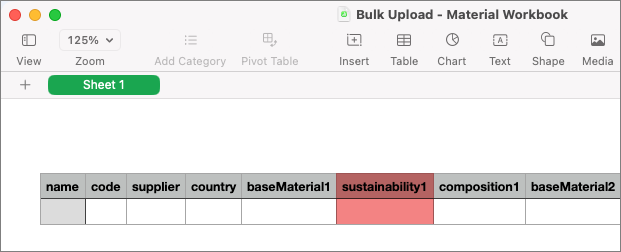
Which materials have automatic Tier 4 recycled process mappings?
If a material is not on this list, no recycled process option is available.
- Cotton
- Nylon
- Polyester
- Polyethylene (PE)
- Polypropylene (PP)
- Wool
How does it work?
Prepare the Upload File
- Include “- Recycled” in the Material Name column.
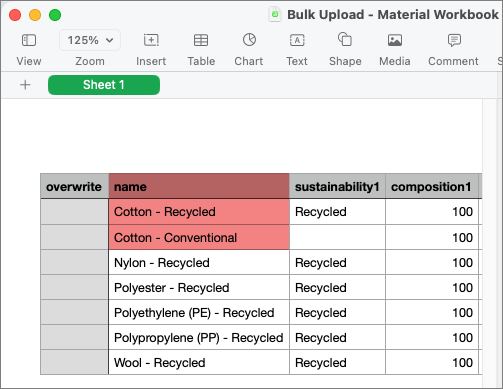
- Recycled material example: Cotton - Recycled
- Not recycled material example: Cotton - Conventional
- Include a column for the sustainability attribute in the upload file.
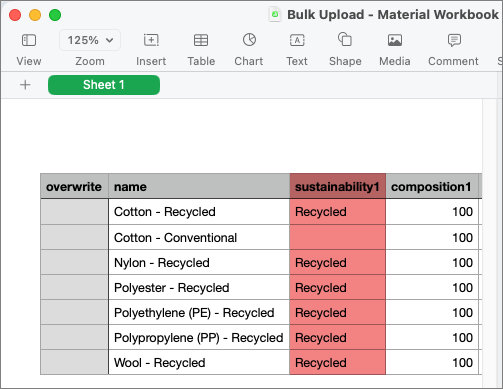
- If you are uploading recycled material, enter Recycled under this column.
- If you are not uploading a recycled material, leave the sustainability attribute blank.
Upload and Map Fields
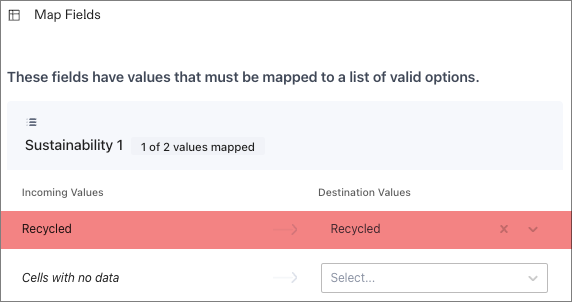
- Upload your file using these instructions, and you’ll see an option to map columns to the new Sustainability Attribute field.
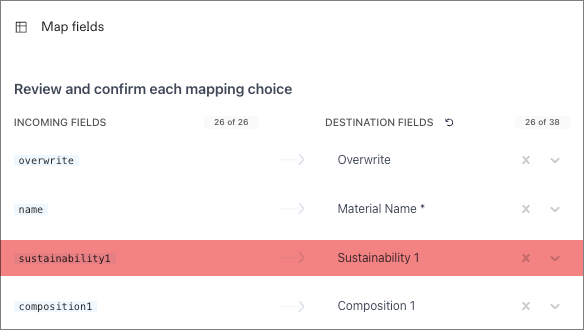
- During the value-mapping step, map your Recycled values accordingly.
Download Impact Report - Tier 4 Process Assignment
The download reports show the adjusted Tier 4 processes and impact for recycled materials.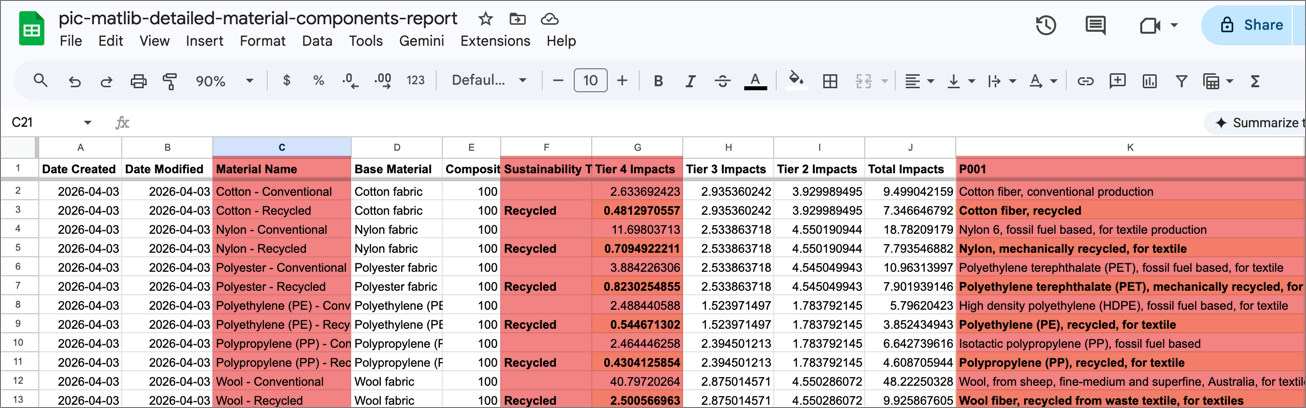
Click here to jump to Detailed Material Components Report Fields
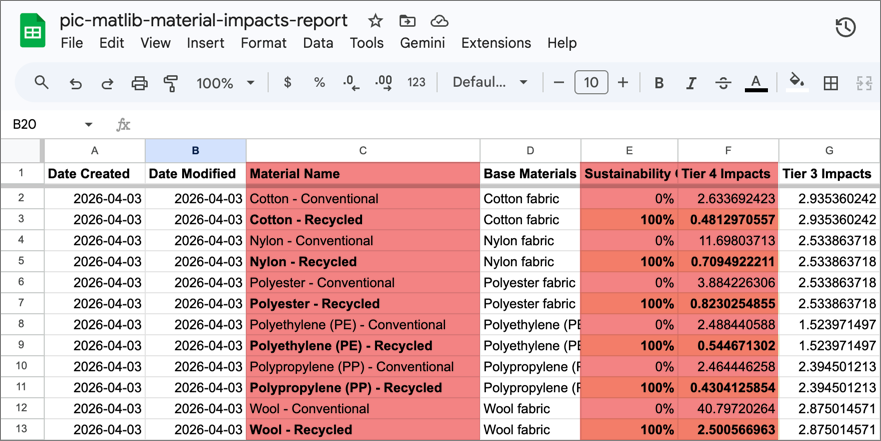
Click here to jump to Material Impacts Report Fields
Detailed Material Components Report Fields
Enter Recycled if the material is recycled.
Leave blank if the material is not recycled.
Material Impacts Report Fields
FEM Outlier Exclusion
Unusual or potentially erroneous FEM data is automatically excluded before it impacts product-level calculations.
Material Library FAQs
Workbook Template
Download the Bulk Upload - Material Workbook Template below.