Timeline
Upgrading a Worldly subscription as a Facility
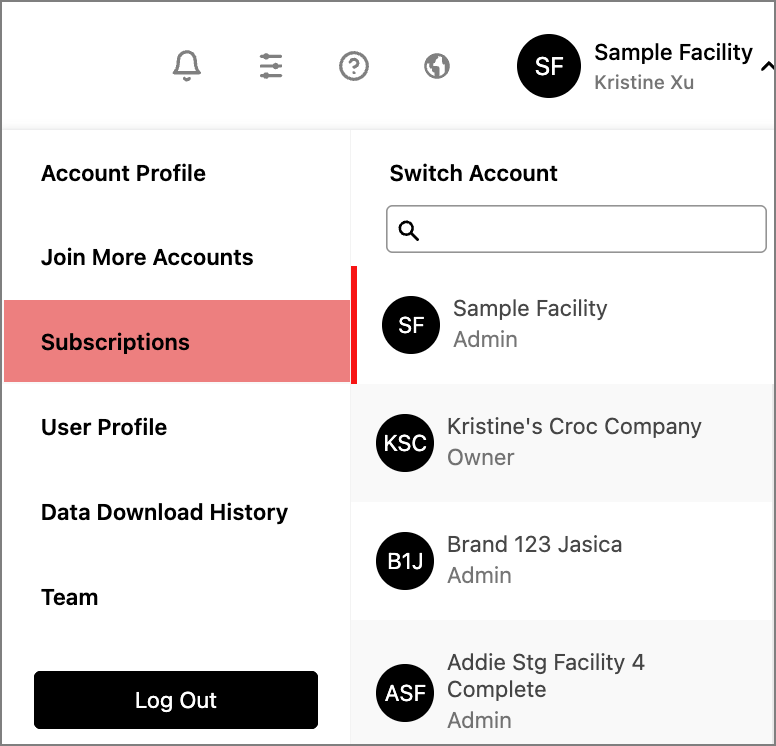
- In the upper right corner of the homepage, hover over the black circle and select Subscriptions.
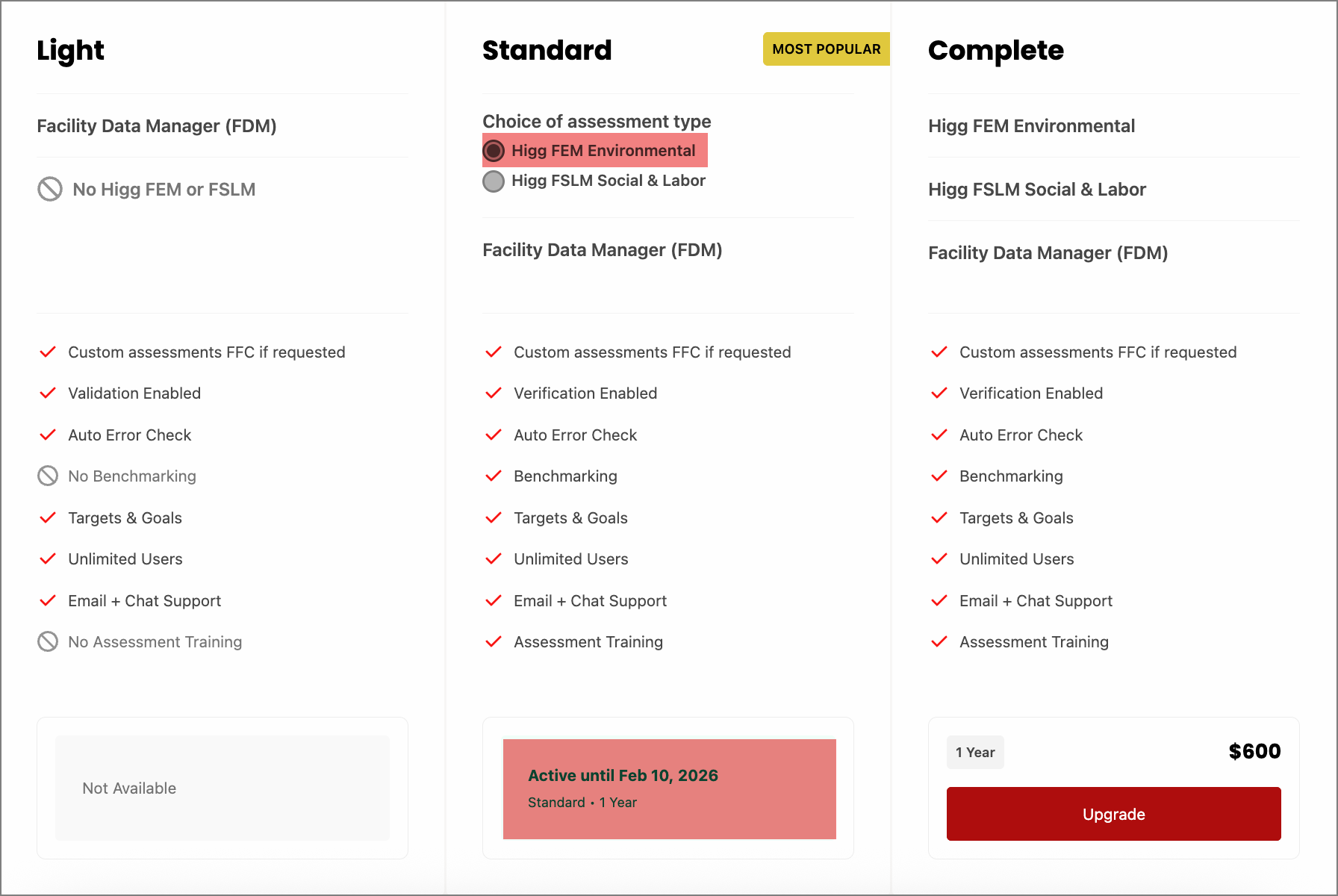
- On the Subscriptions page, scroll down to view the three types of subscription plans.
- In this example, this facility account is subscribed to the Standard subscription plan with access to only the FEM Environmental assessment.
- This plan only has access to either the FEM Environmental assessment OR the FSLM Social & Labor assessment.
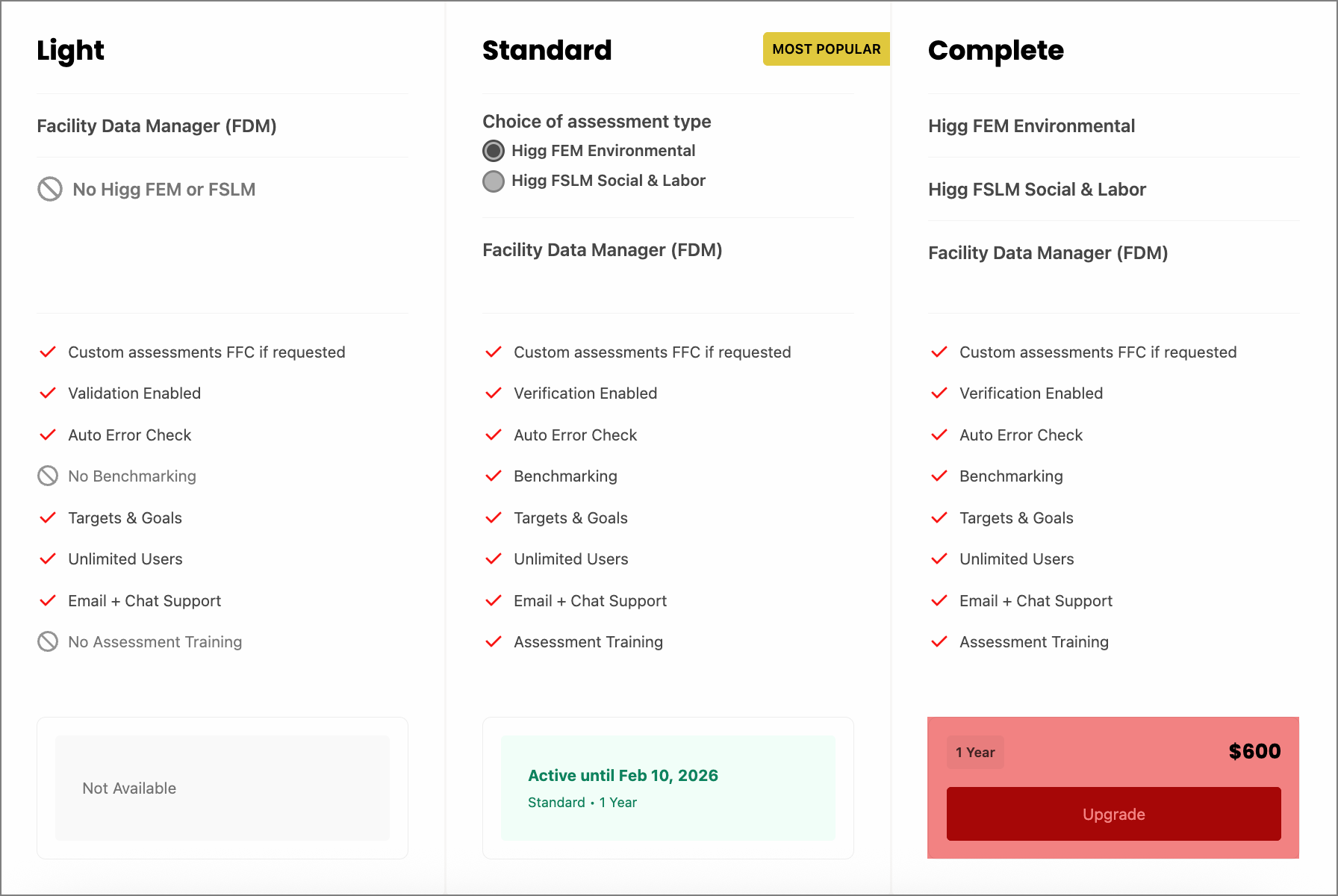
- To access both the FEM and FSLM assessments, click Upgrade under the Complete subscription plan.
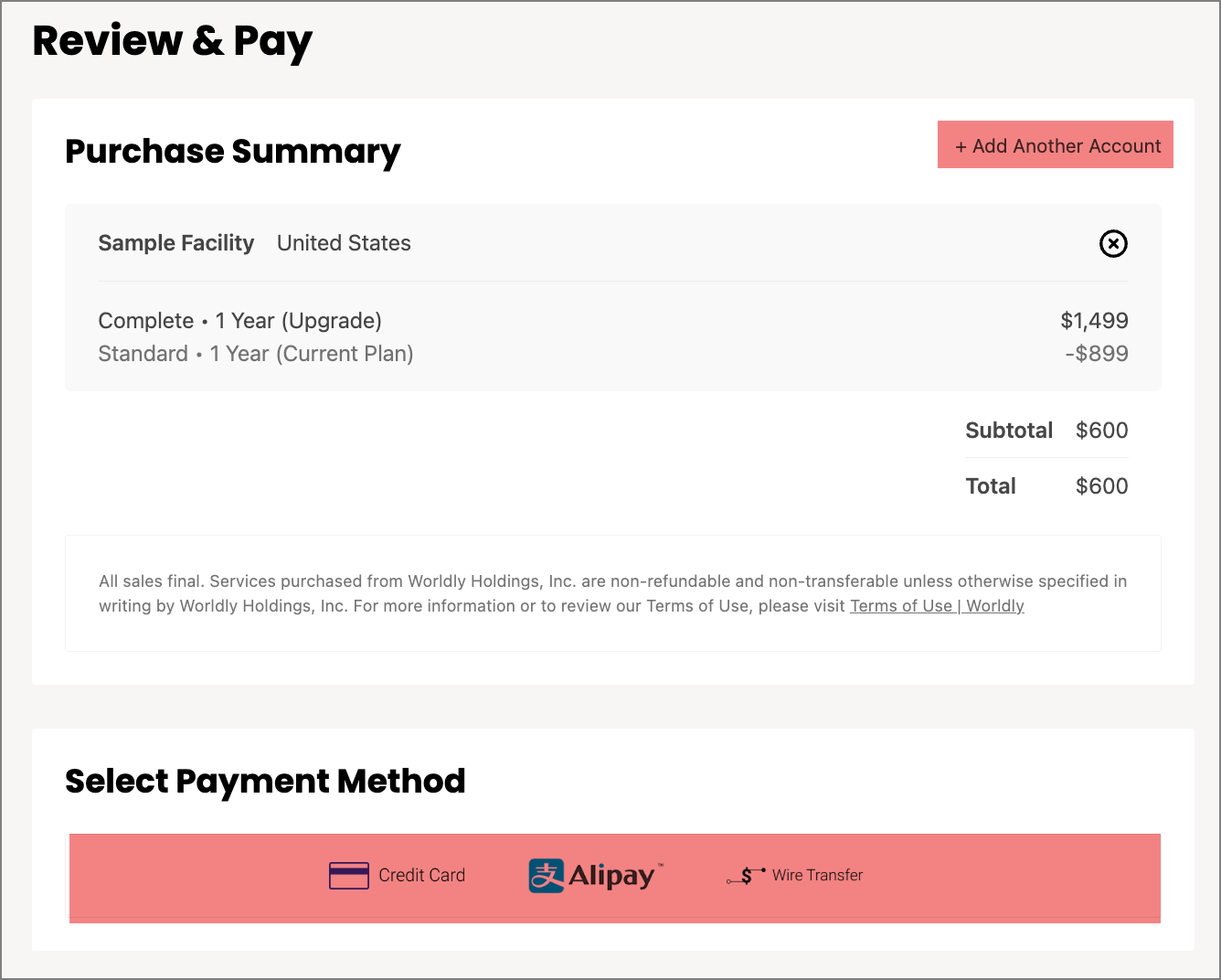
- On the next page, review your purchase summary and select a payment method. You can also select Add Another Account if you would like to purchase a plan on behalf of someone else.
- Click here to read about Worldly's Payment Methods and Terms of Use.
- Click here to read about the wire transfer payment process.
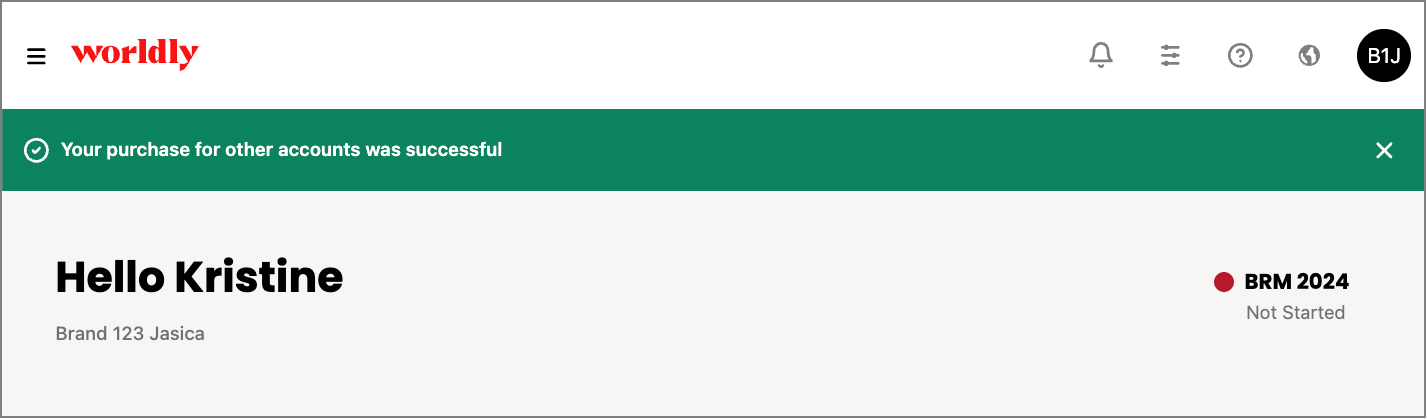
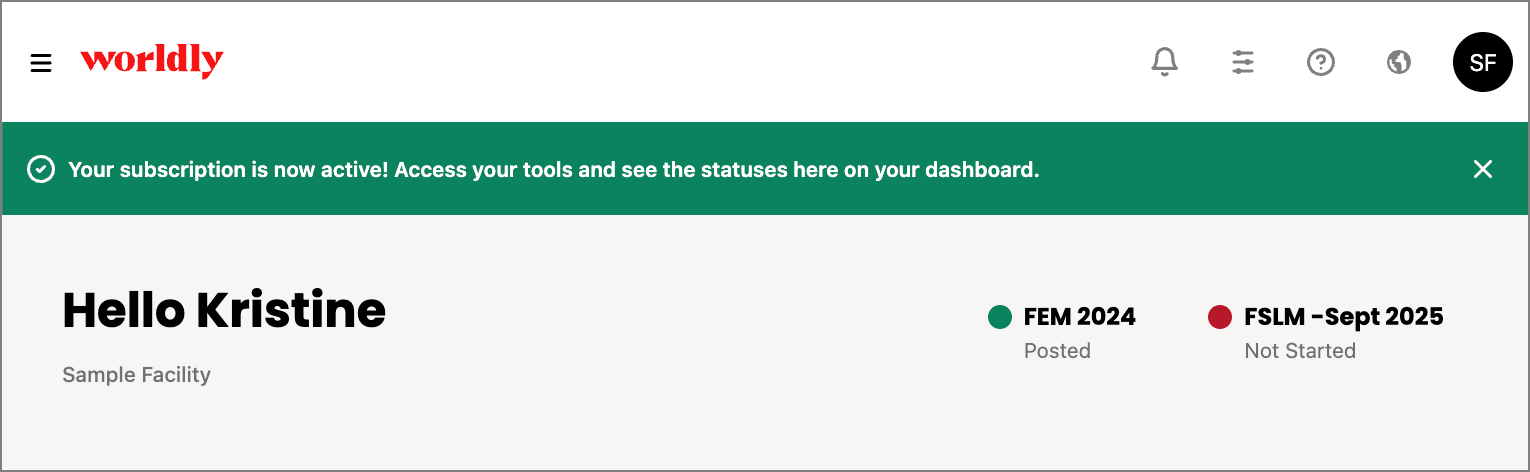
- Once you've submitted your information, you'll know if your payment was accepted if you see a green banner.
Upgrading a Worldly subscription as a Brand
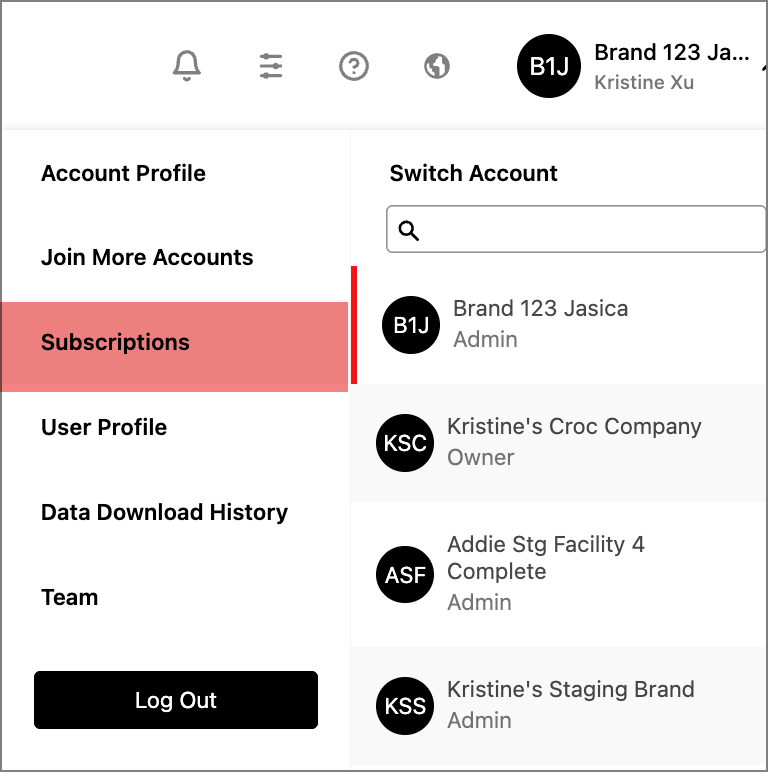
- In the upper right corner of the homepage, hover over the black circle and select Subscriptions.
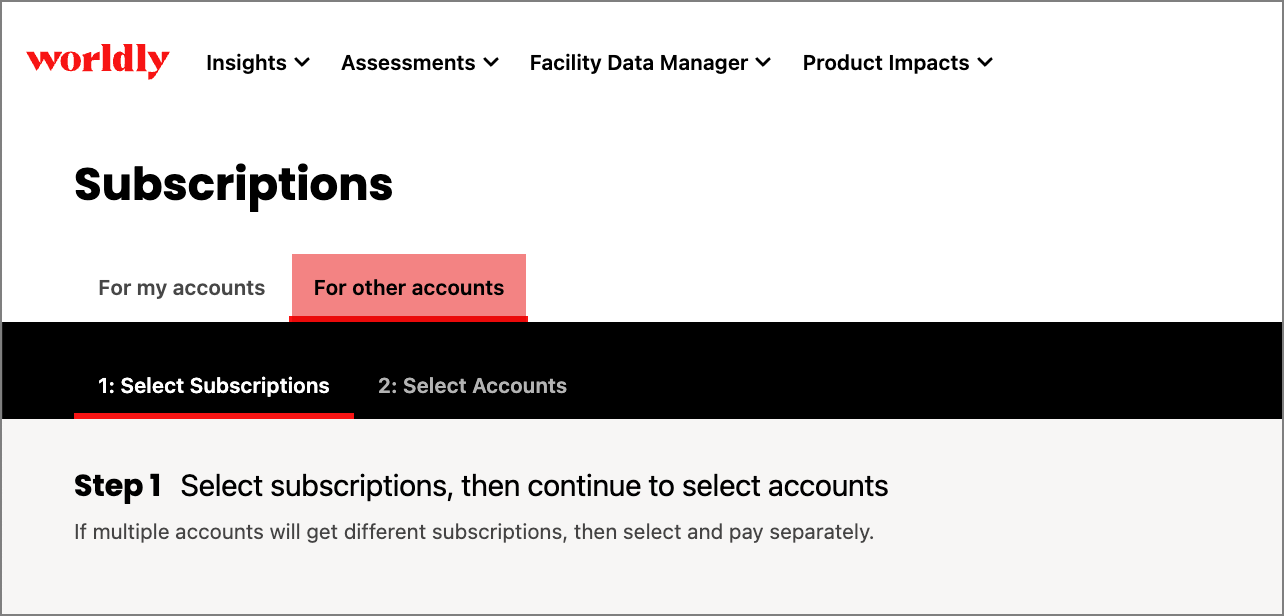
- On the Subscriptions page, click For other accounts.
- In this example, this facility account is subscribed to the Standard subscription plan with access to only the FEM Environmental assessment.
- This plan only has access to either the FEM Environmental assessment OR the FSLM Social & Labor assessment.
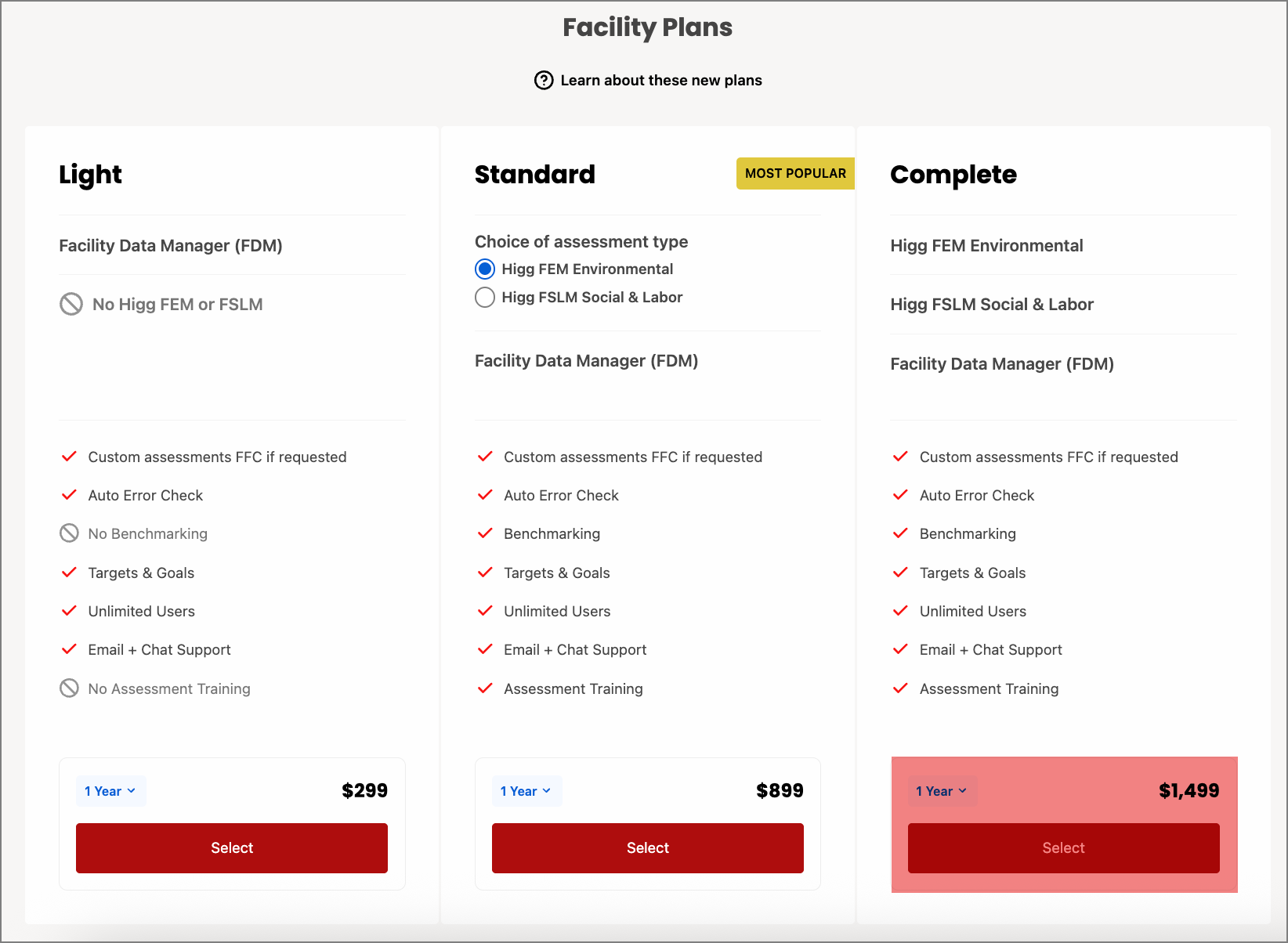
- Next, scroll down to view the three types of subscription plans. Select which subscription you'd like to purchase.
- In this example, this brand account is purchasing the Complete subscription plan for a facility.
- The facility account is available for upgrade, as indicated by the table.
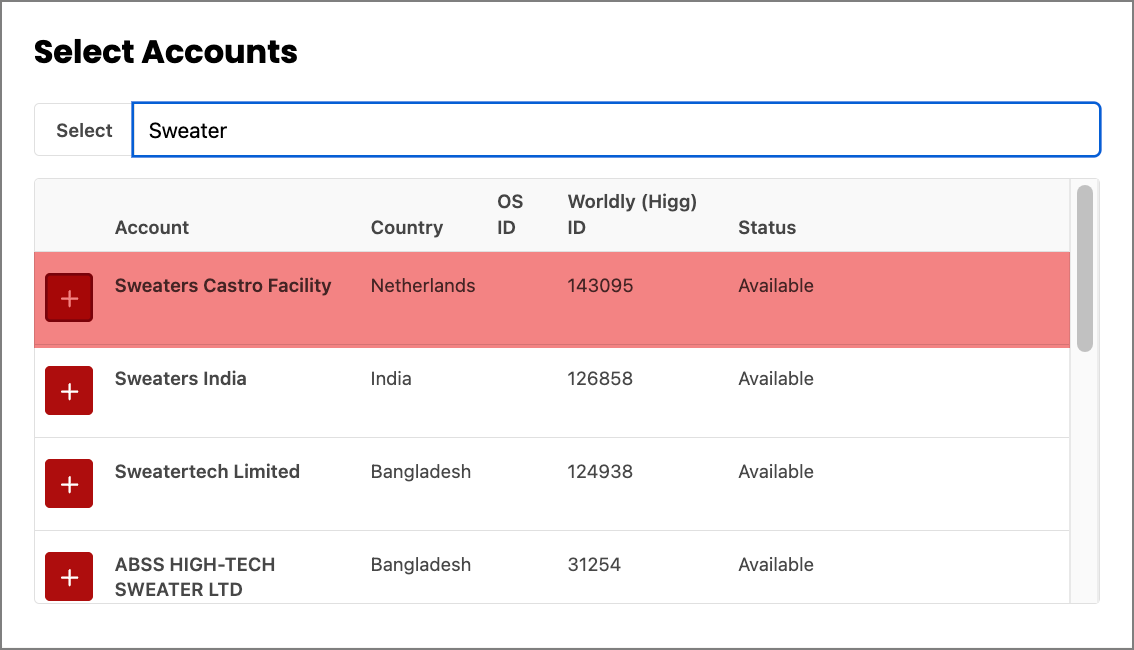
- In this example, this brand account is purchasing the Complete subscription plan for a facility.
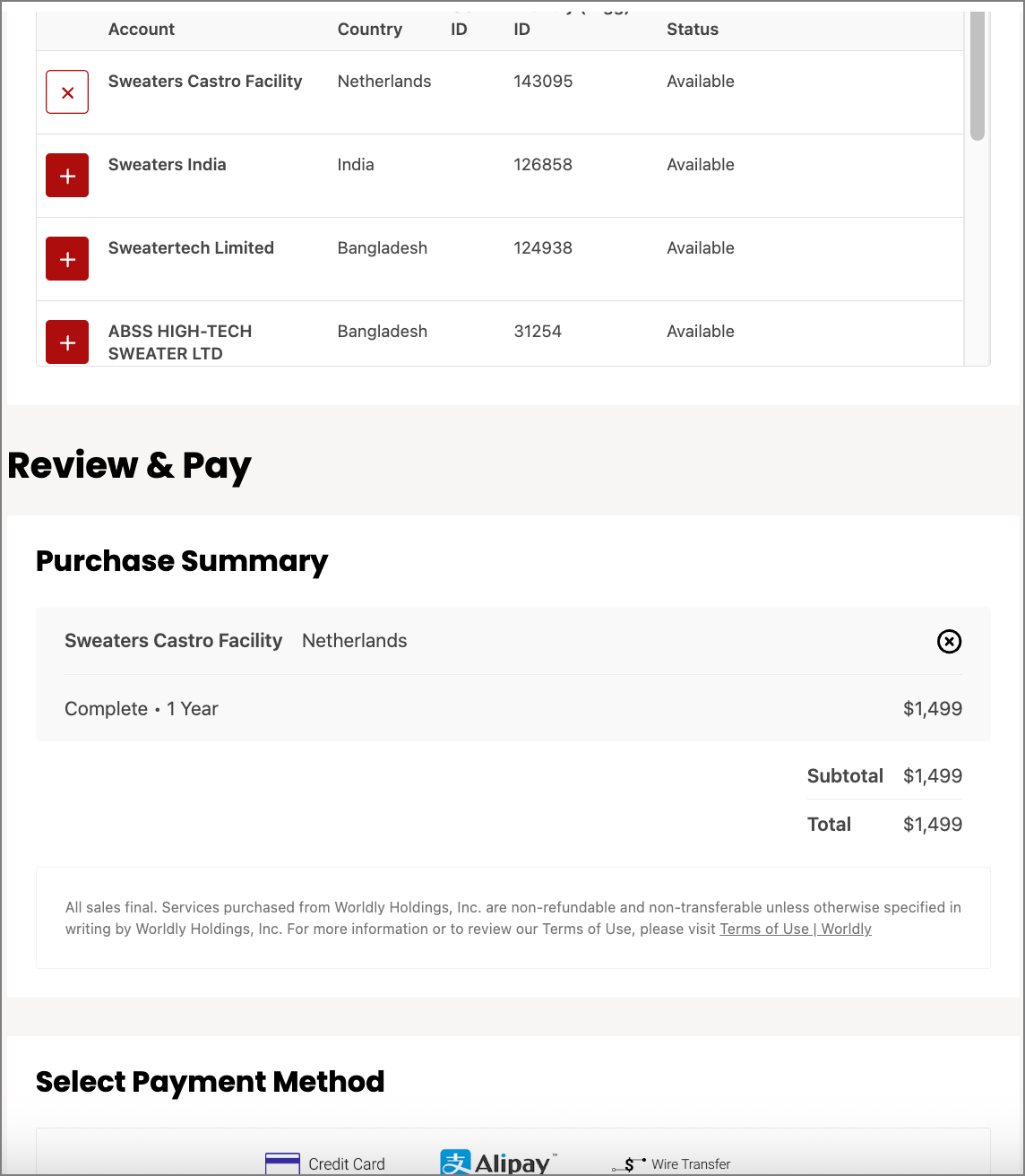
- Click the plus sign, review your purchase summary, and select a payment method. Select multiple accounts if there is more than one account you're purchasing for.
- Click here to read about Worldly's Payment Methods and Terms of Use.
- Click here to read about the wire transfer payment process.
- Once you've submitted your information, you'll know if your payment was accepted if you see a green banner.