- Upgrading a Worldly Subscription as a Facility
- Upgrading a Facility's Worldly Subscription as a Brand
Upgrading a Worldly Subscription as a Facility
Note
Click HERE to learn more about Worldly's 2026 subscription plans.
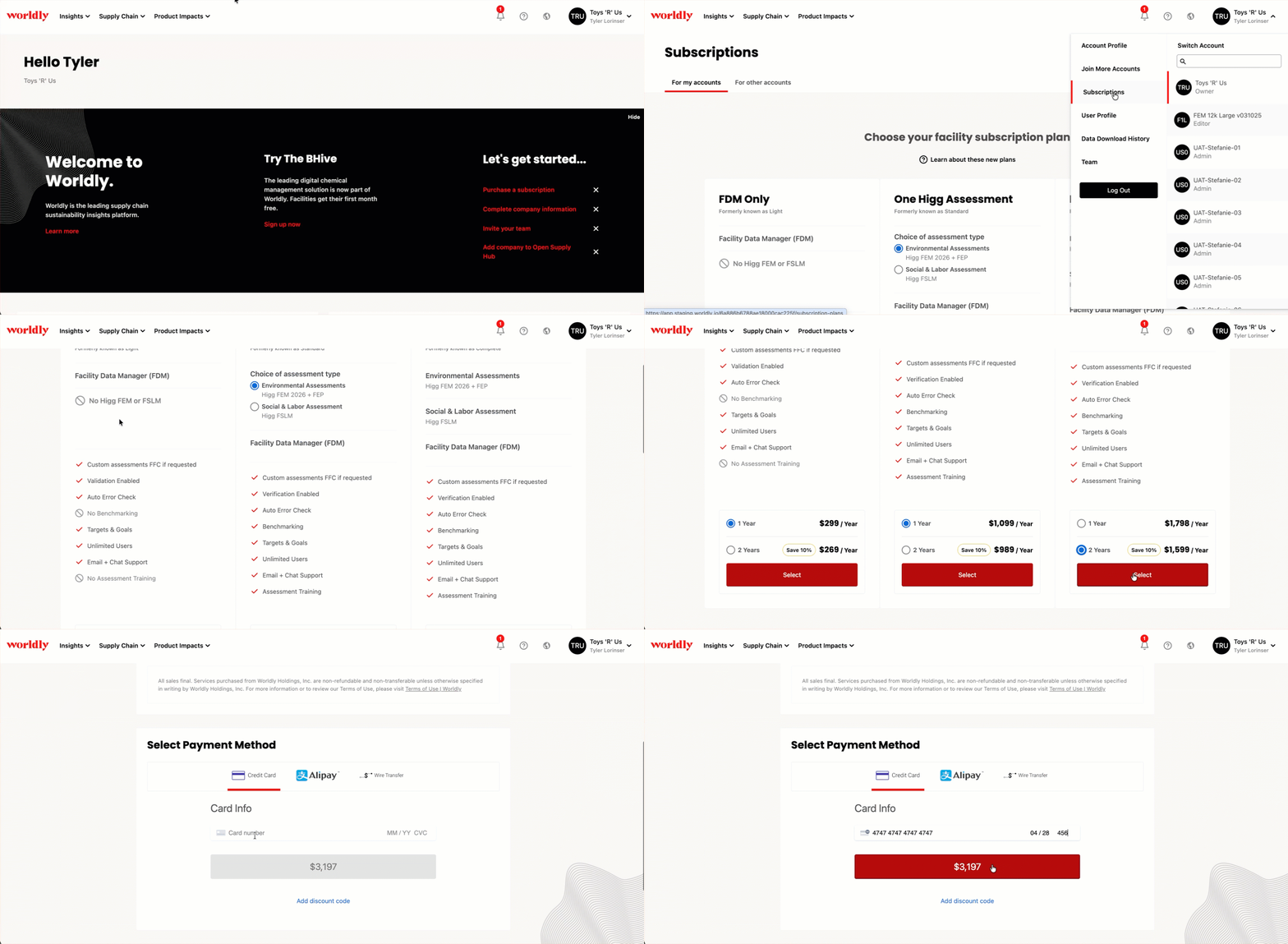
- In the top right corner of the page, click your account name.
- Click Subscriptions.
- Under Subscriptions, click the For my accounts tab.
- Scroll down to choose your facility plans.
- Use the search bar to find the account(s) that should receive the subscription.
- Click the plus icon next to the name of each account(s) to add them to the subscription.
- Note: Please subscribe and pay separately if multiple accounts need different subscription types.
- Under Select Payment Method, choose one of the following payment options:
- Enter your payment information to complete your purchase.
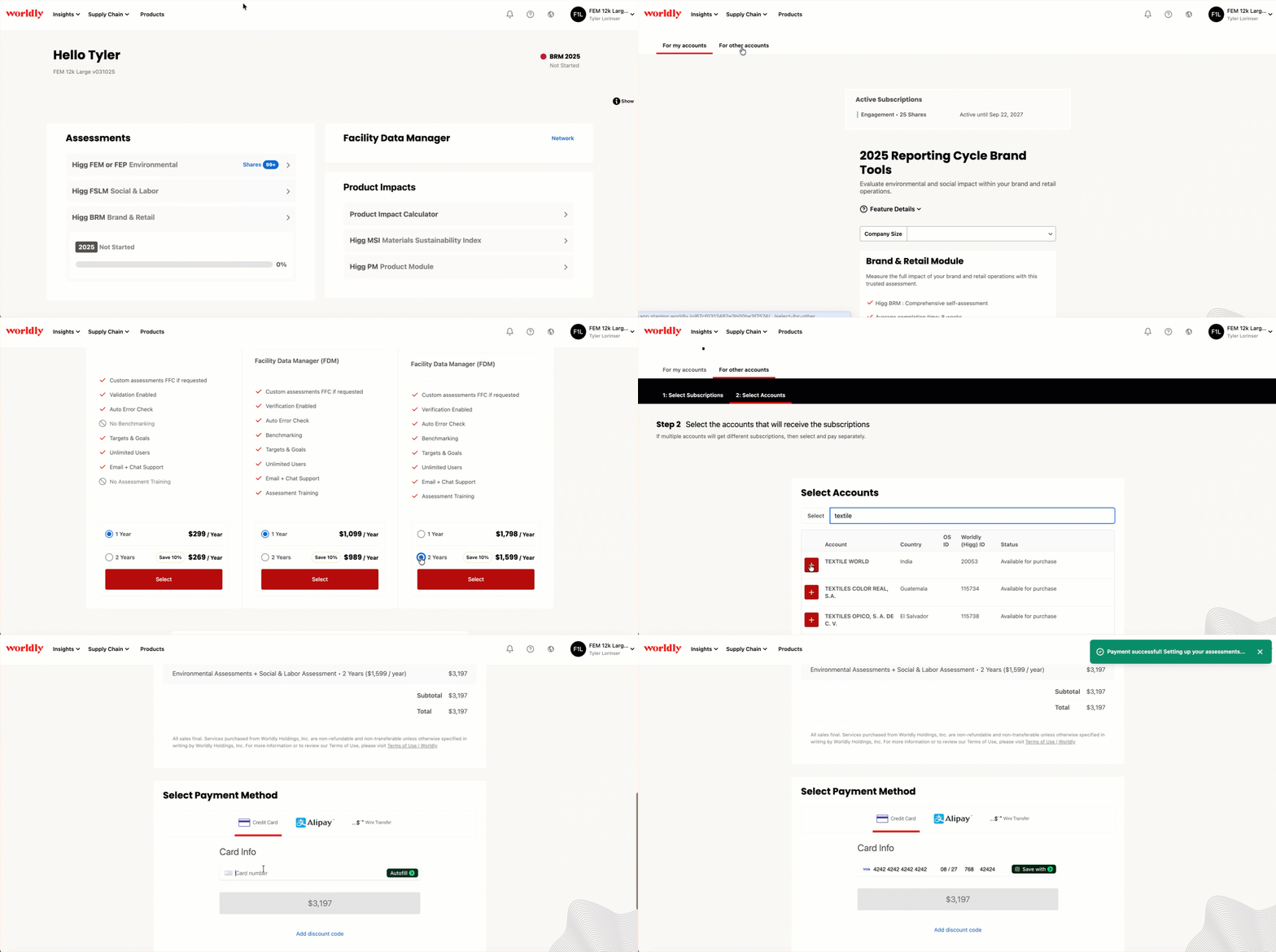
Upgrading a Facility's Worldly Subscription as a Brand
Note
If you are a Brand that is looking to upgrade your own subscription, please reach out to your Account Manager or our Support team at support@worldly.com. Click HERE to learn more about Worldly's 2026 subscription plans.
- In the top right corner of the page, click your account name.
- Click Subscriptions.
- Under Subscriptions, click the For other accounts tab.
- Scroll down to choose your facility plans.
- Use the search bar to find the account(s) that should receive the subscription.
- Click the plus icon next to the name of each account(s) to add them to the subscription.
- Note: Please subscribe and pay separately if multiple accounts need different subscription types.
- Under Select Payment Method, choose one of the following payment options:
- Enter your payment information to complete your purchase.