Skip to content
English
  • There are no suggestions because the search field is empty.

Configuring Assessment Access Control

Table of Contents

The following article applies to system administrators that are responsible for configuring and managing assessment access in the platform.

Learn how to configure assessment access control across three levels:

  • Platform-wide Member Defaults
  • Questionnaire Type Settings
  • Individual Assessment Overrides


Overview of Assessment Access Control

Assessment access control in the platform determines which account types can view and interact with assessments. Access is managed across three hierarchical levels. Each level can be used to broaden or restrict access, with lower levels taking precedence over higher-level defaults.


The Three-Level Hierarchy

Understanding the relationship between the three levels is critical to configuring access correctly. 

Level
Where Configured
What it Controls
Retroactive?
1
Administration > Master Data > Other Master Modules > Assessment Options > Assessment Access
Default access for ALL assessments across the entire platform for factories and separately for organizations.
No - only affects new assessments created after the change.
2
Administration > Master Data > Assessment Instruments > Questionnaire > Share Questionnaire tab
Access for all assessments of a specific questionnaire type, by account type. When set to ON, an access control row is created and the Level 1 default determines whether it starts as Has Access or No Access. When set to OFF, no access control row is created and access cannot be manually overridden at Level 3 regardless of the Level 1 default. Also controls which account types appear in the Assessment Auditor dropdown.
Yes - changes immediately affect all existing assessments using that questionnaire
3
Factory Account > Assessment Related tab (or Choose Assessment) > Shield Icon
Access for a single specific assessment. Overrides the defaults set at Levels 1 and 2 for that assessment only.
N/A - applies only to the individual assessment

NOTE: Once a user has access to an assessment, their user role and permission settings dictate what they can do, rather than by access control alone.


Supported Account Types

The platform supports the following account types for assessment access configuration. Each account type corresponds to a toggle in the Share Questionnaire settings (Level 2) and a row in the assessment Access Control panel (Level 3)

Account Type
Description
Factory (Factory)

Controls access for any user role assigned the Factory account type on associated factory accounts. An account association (factory to factory) must exist for associated factory accounts to have an access control row generated. 


Note: The factory where the assessment is located is controlled by the Current Account toggle, not this one.

External Monitor - Auditor (External Organization)
Controls access for any user role assigned the External Monitor - Auditor account type. An account association between the External Monitor-Auditor organization and the factory must exist for an access control row to be generated.
Internal Account (Internal Organization)
Controls access for any user role assigned the Internal Account account type. An account association with the internal organization must exist in the factory where the assessment is created.
External Organization - SCI (External Organization)
Controls access for any user role assigned the External Organization - SCI account type. An account association with the external organization must exist in the factory.
Current Account
Controls access for any user role assigned to the account where the assessment is located. This is typically the factory account. In rare cases this may be an external organization account if the assessment was created there.


Level 1 - Member Defaults for Assessment Access

Member Defaults establish the platform-wide baseline for assessment access. These settings apply to all new assessments created after the defaults are configured. They do not retroactively update previously created assessments.


Navigation

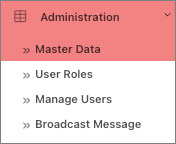
  1. From the left navigation menu, select Administration followed by Master Data
    49530301658779.png
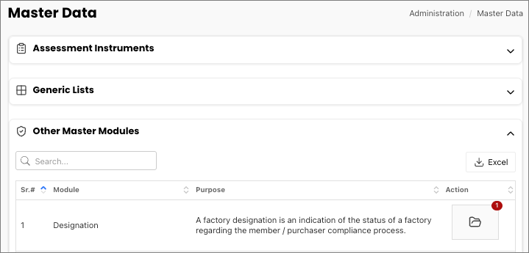
  2. Expand Other Master Modules
    49530268645659.png
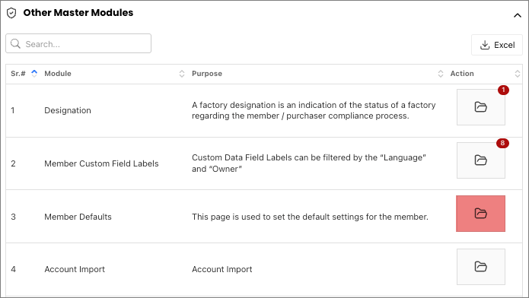
  3. Select Member Defaults folder
    49530301659931.png
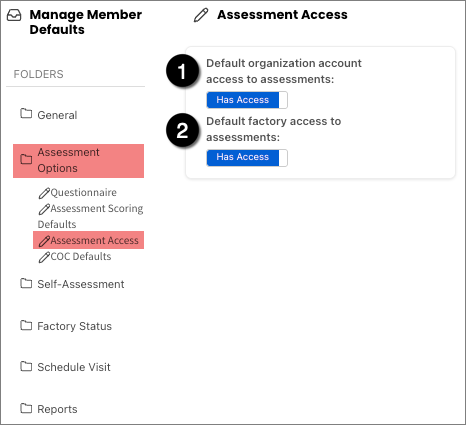
  4. Select Assessment Options, followed by Assessment Access. The Assessment Access panel displays two configurable defaults:49530268648091.png
    1. Default organization account access to assessments
    2. Default factory access to assessments


Configuration Options

Default Setting
Has Access
No Access
Default organization account access to assessments
All newly created assessments will automatically grant access to associated organization accounts (Internal and External organization types).
Newly created assessments will not be visible to organization accounts (Internal and External organization types).
Default factory access to assessments
All newly created assessments will automatically grant access to associated factory accounts.
Newly created assessments will not be visible to associated factory accounts.

NOTE: The ability to manually override access at the individual assessment level (Level 3) depends on the Share Questionnaire toggle (Level 2) being set to ON for the relevant questionnaire type.


Level 2 - Questionnaire Type Access Control

Questionnaire Type settings allow you to control access for all assessments of a specific questionnaire type. This level refines the platform-wide defaults set at Level 1 and is particularly useful when different questionnaire types are visible to different account types.


Navigation

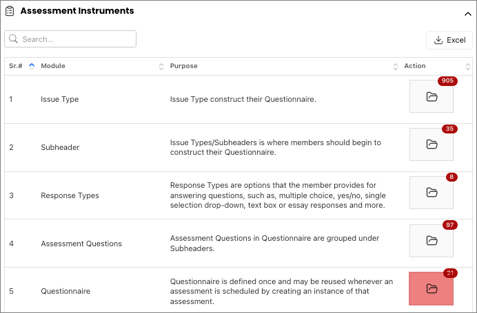
  1. From the left navigation menu, select Administration followed by Master Data
    49530301658779.png
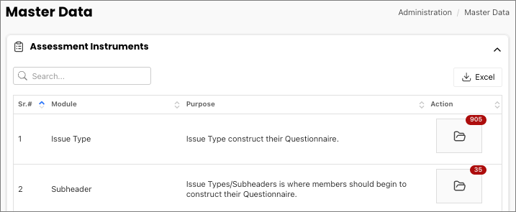
  2. Expand Assessment Instruments
    49530301660955.png
  3. Select Questionnaire folder
    49530268650523.png
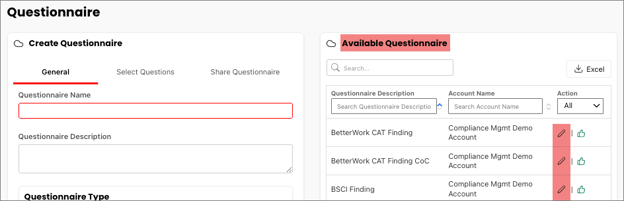
  4. On the Questionnaire page, select the pencil icon next to the questionnaire you want to configure under Available Questionnaires.
    49530268651035.png


Share Questionnaire Toggles

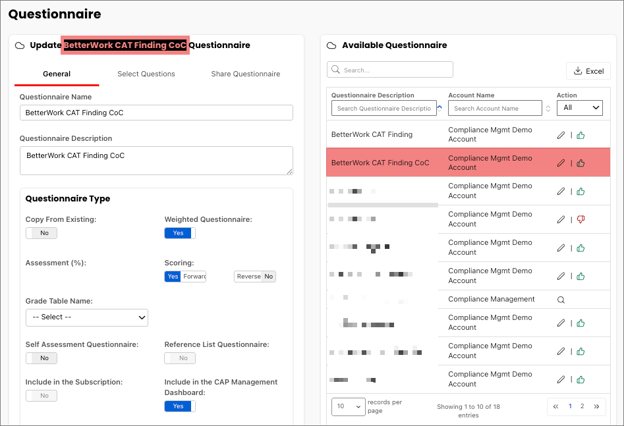
The Update Questionnaire screen on the left updates to show the information from the selected assessment.
49530268652187.png

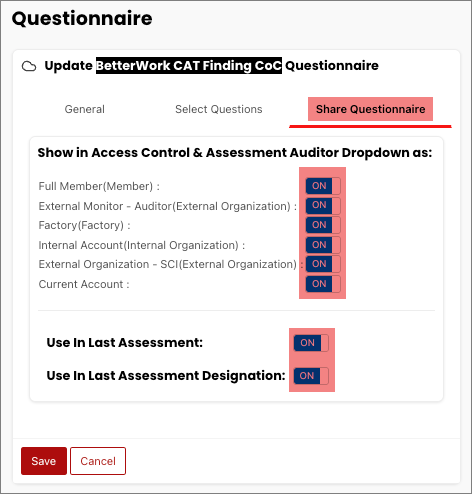
Select Share Questionnaire tab, which displays a toggle for each account type which can be set to ON or OFF.
49530301664027.png

Toggle ON or OFF under Access Control & Assessment Auditor Dropdown as.

Toggle Setting
ON
OFF
Effect on Access Control Rows
An access control row is created for this account type on each assessment using this questionnaire (subject to account associations existing in the factory). The row’s default status (Has Access or No Access) is determined by the Level 1 Member Default.
When set to OFF, no access control row is created for this account type. The Level 1 default applies and cannot be overridden at Level 3.
Effect on Auditor Dropdown
The account type appears as an available option in the Assessment Auditor selection dropdown when creating a new assessment.
The account type does not appear in the Assessment Auditor dropdown.
Effect on Assessment Creation
Users of this account type (with appropriate permissions) can create assessments using this questionnaire.
Users of this account type cannot create assessments using this questionnaire, as it will not appear in their Add New Assessment dropdown.


Account Type Toggle Reference

Use the following reference when configuring Share Questionnaire toggles. Configure each toggle based on who should have access to assessments of this questionnaire type.

Account Type
Recommended Default
Notes
Full Member (Member)
OFF
Should always be OFF. Cross-member sharing is not supported in this release.
External Monitor - Auditor (External Organization)
Configure per questionnaire
Set to ON to grant access to any user role assigned the External Monitor - Auditor account type. Requires an account association in the factory.
Factory (Factory)
Configure per questionnaire
Controls access for any user role assigned the Factory account type on associated factory accounts. The factory account where the assessment resides is controlled by the Current Account toggle, not this one.
Internal Account (Internal Organization)
Configure per questionnaire
Set to ON to grant access to any user role assigned the Internal Account account type. Requires an account association in the factory.
External Organization - SCI (External Organization)
Configure per questionnaire
Set to ON to grant access to any user role assigned the External Organization - SCI account type. Requires an account association in the factory.
Current Account
ON
Controls access for any user role assigned to the parent account where the assessment is created.


Level 3 - Individual Assessment Access Control

Individual Assessment Access Control allows you to override the defaults set at Levels 1 and 2 for a specific assessment. This is the most granular level of control and is used when a particular assessment requires different access than the platform or questionnaire defaults.


Navigation

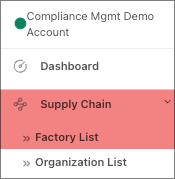
  1. From the left navigation menu, select Supply Chain, followed by Factory List.
    49530268652955.png
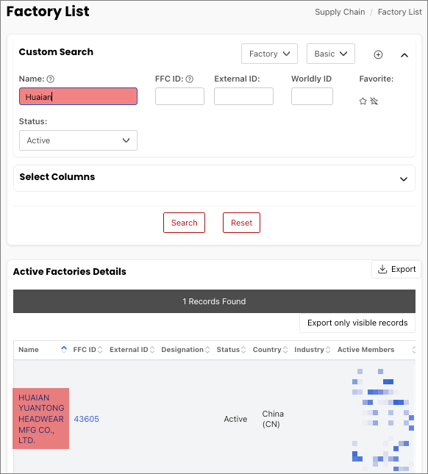
  2. Under Custom Search, enter the factory name or factory ID for the factory related to the assessment. Select the blue hyperlinked Factory Name to open the factory profile.
    49530301665307.png
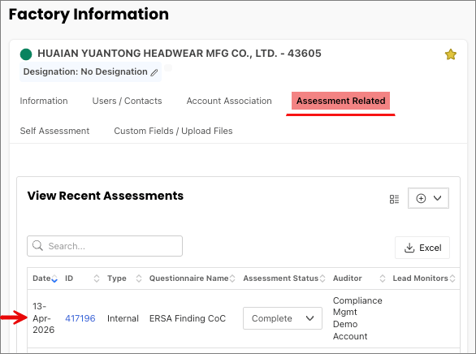
  3. Select the Assessment Related tab and identify the desired assessment under View Recent Assessments.
    49530268655003.png 
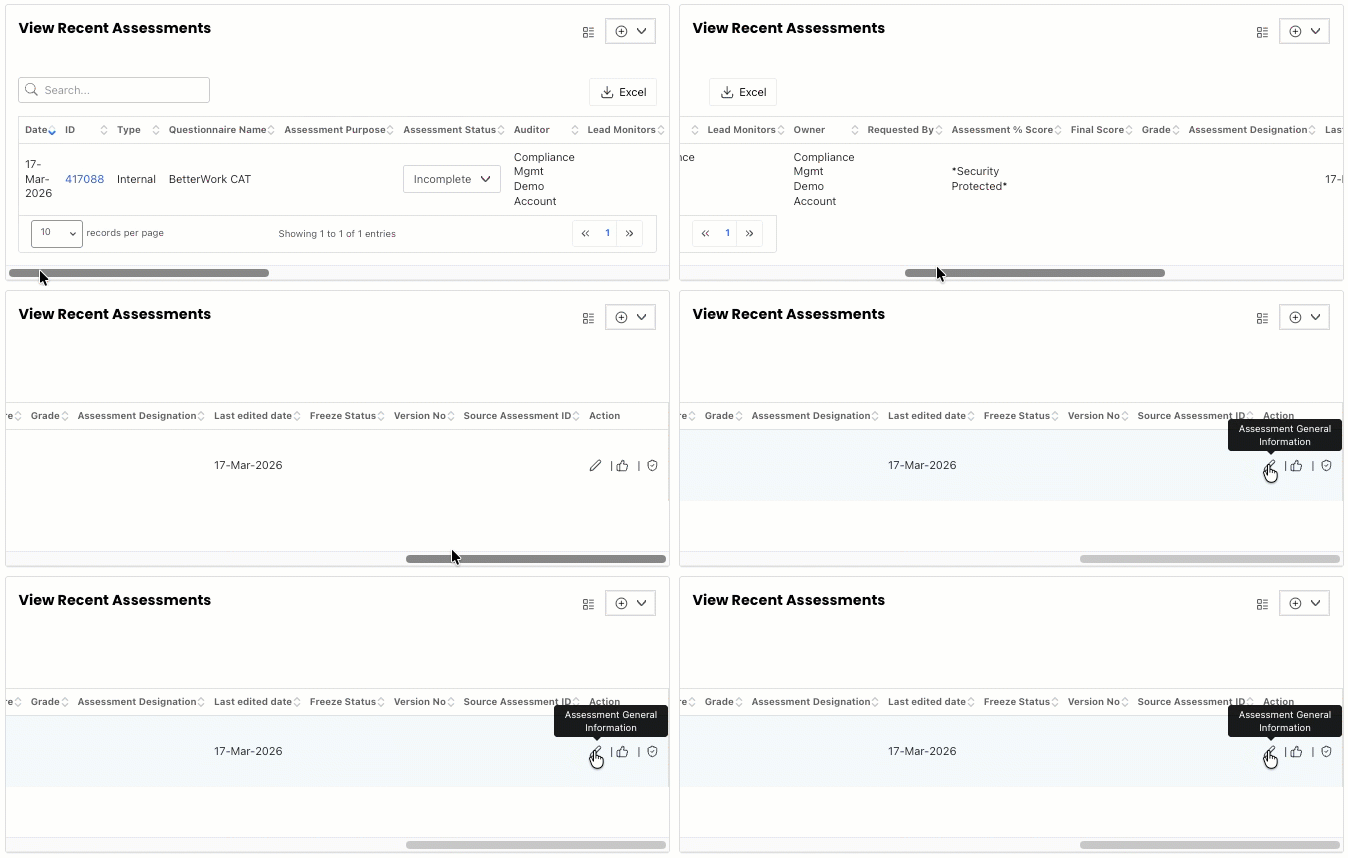
  4. Scroll the table to the right and select the Assessment Access Control shield icon under the Action column.
    49530268655515.gif
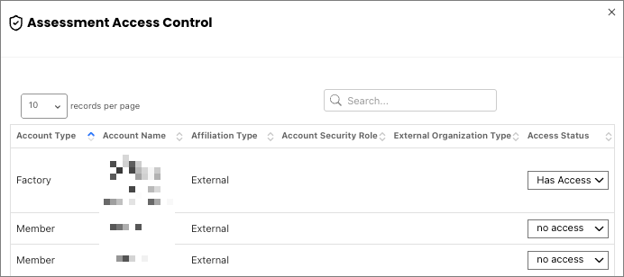
  5. The Assessment Access Control panel appears.
    49530268656283.png


Understanding Access Control Rows

The Assessment Access Control panel displays a row for each account type and associated account that has been granted an access control entry for this assessment. Rows are generated based on:

  • The account associations that exist in the factory account (e.g., which organizations, factories, or external accounts are associated).
  • The Share Questionnaire settings at Level 2 — a row will only appear if the corresponding account type toggle is set to ON for the questionnaire used by this assessment.

Each row displays the following information:

Column
Description
Account Type
The type of account (Factory, Organization)
Account Name
The name of the specific account. Some rows may display as Hidden if the account has restricted visibility.
Account Type
Whether the account is Internal or External to the organization.
Account Security Role
The security role assigned to the account, if applicable.
External Organization Type
The external organization type classification, if applicable.
Access Status
The current access status for this account: Has Access or No Access. This can be changed using the dropdown.


Updating Access Status

To change the access status for a specific account on an individual assessment:

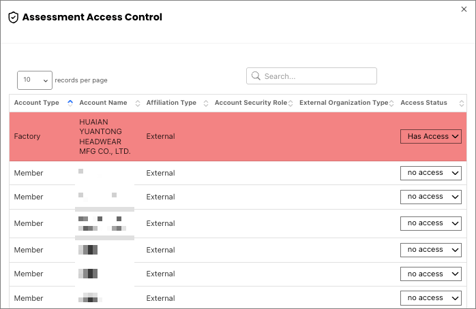
  1. On the Assessment Access Control panel for the assessment, locate the row for the account you want to change access for
    49530301667227.png.
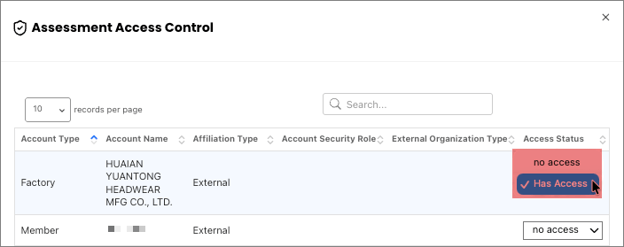
  2. Click the Access Status dropdown for that row and select Has Access or No Access. Once selected, the change is saved automatically.
    49530268658587.png

NOTE:

  • If a row does not appear for an account you expect to see, verify that an account association exists between that account and the factory, and the Share Questionnaire toggle for that account type is set to ON for the questionnaire used by this assessment.
  • If you do not have administrator permissions, you may not be able to view or modify these settings. Contact your system administrator for assistance.
  • Changes at this level affect only the individual assessment. They do not change the Level 1 defaults or Level 2 questionnaire settings.


Quick Reference Summary

Task
Level
Where
Key Notes
Set platform-wide access defaults
Level 1
Administration > Master Data > Other Master Modules > Assessment Options > Assessment Access
Not retroactive. Affects new assessments only.
Control access by questionnaire type
Level 2
Administration > Master Data > Assessment Instruments > Questionnaire > Edit > Share Questionnaire
Retroactive. Off prevents access control rows being populated so the default setting cannot be overwritten at the assessment level. Always set Full Member to OFF.
Override access for one assessment
Level 3
Factory Account > Assessment tab > Shield icon
Affects single assessment only. Requires row to exist (Level 2 toggle must be ON).
Diagnose missing access control row
Levels 2 and 3
Share Questionnaire tab + Account Association tab on factory
Verify toggle is ON at Level 2 and account association exists.