
In the Worldly Learning Center you can receive certificates of completion for the courses you have taken. In some cases you may be required to provide proof that you have completed a course to a partner organization, follow the steps below to access your completion certificates.
Access a certificate through the course
- Login to the Worldly Learning Center (Instructions here: How to access Worldly's E-learning platform)
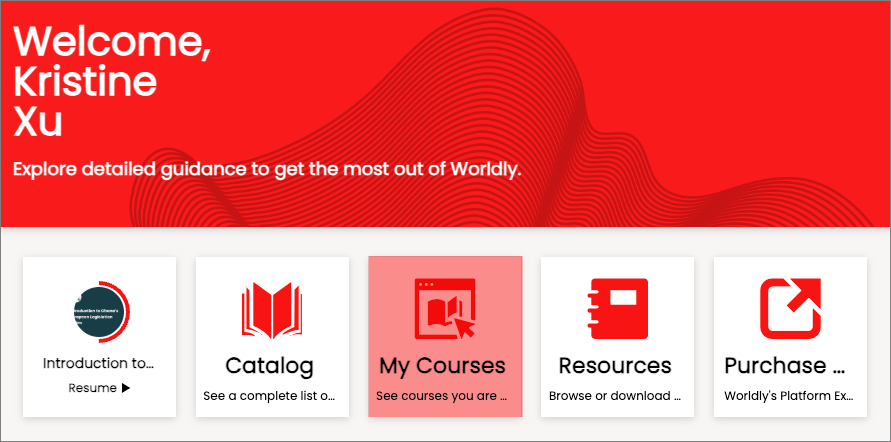
- Click on My Courses:
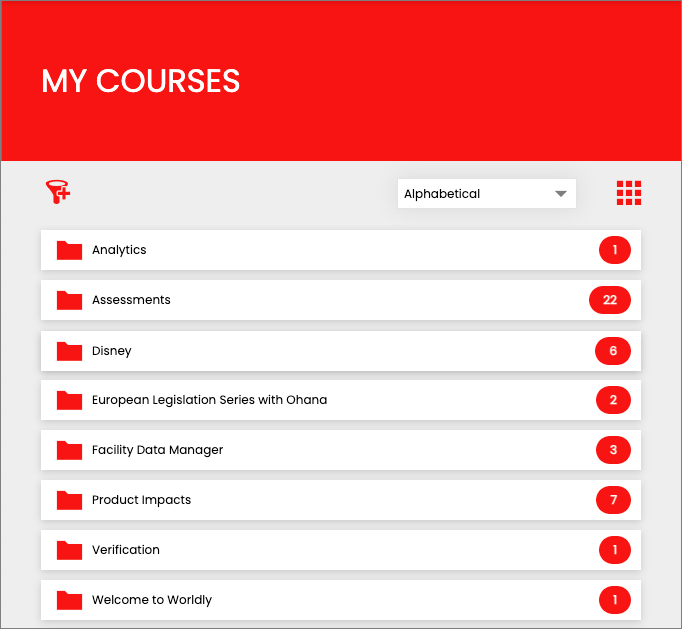
- Select a category.
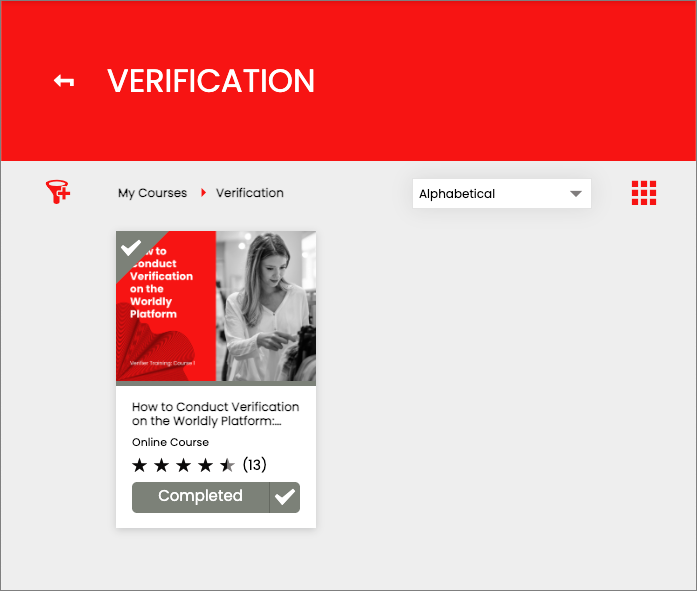
- Locate and click on the completed course, completed courses are grey and indicated with a check mark:
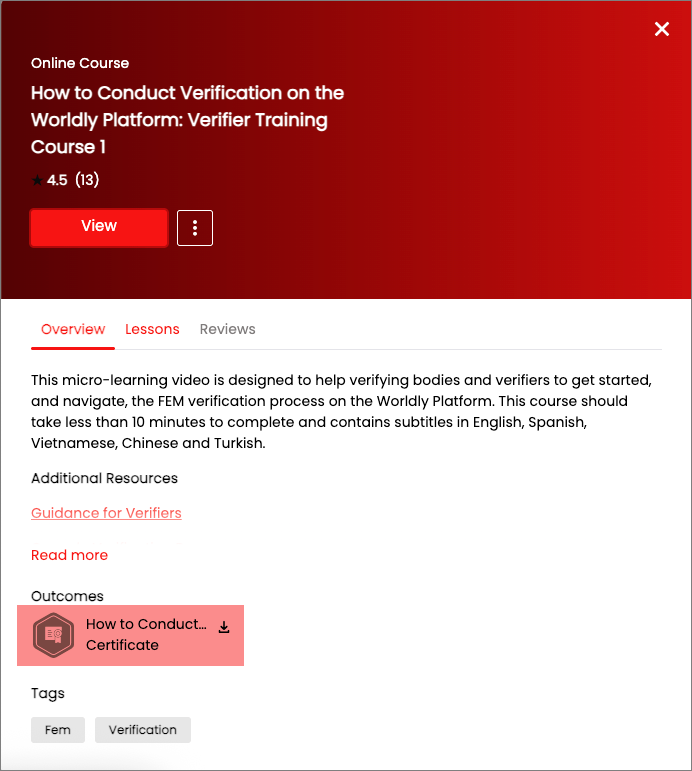
- In the pop up under the Outcomes section click to view or download the certificate:
Access certificate(s) through your Profile
- Login to the Worldly Learning Center (Instructions here: How to access Worldly's E-learning platform)
- Click on the Profile icon in the upper right hand corner of the page:
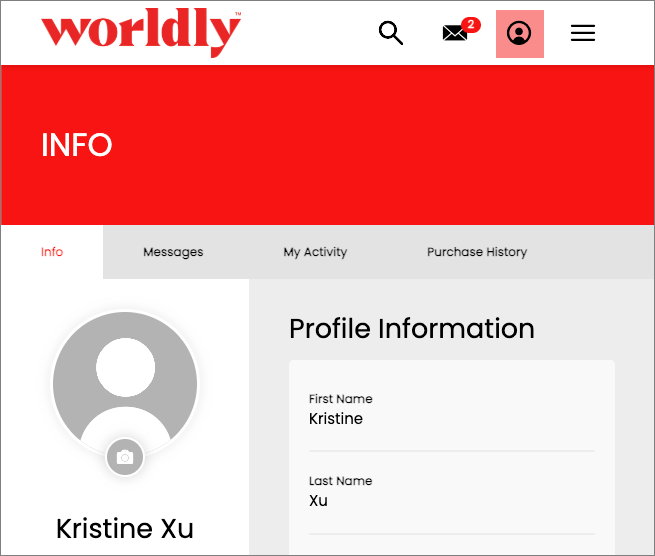
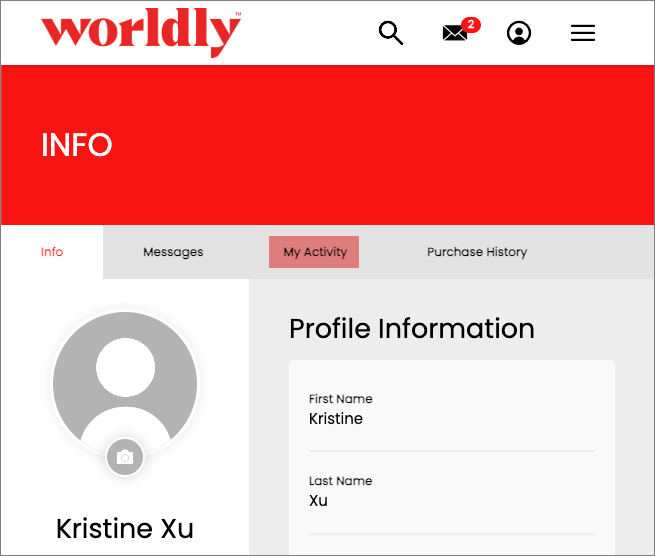
- Click on the My Activity tab:
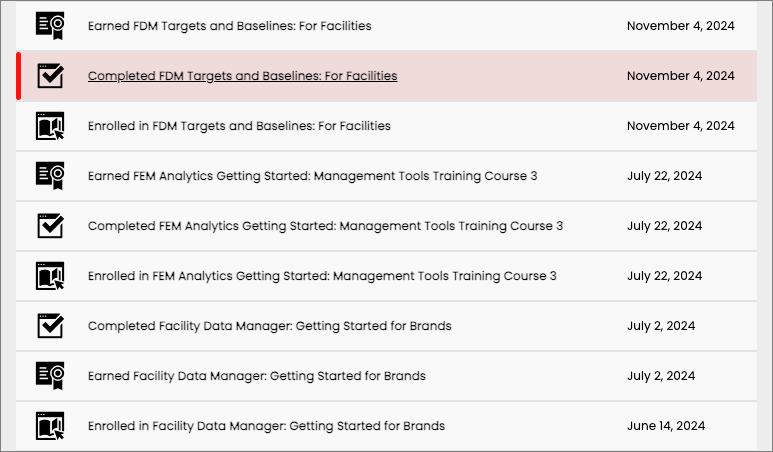
- Locate and click on the completion event in the list for the course:
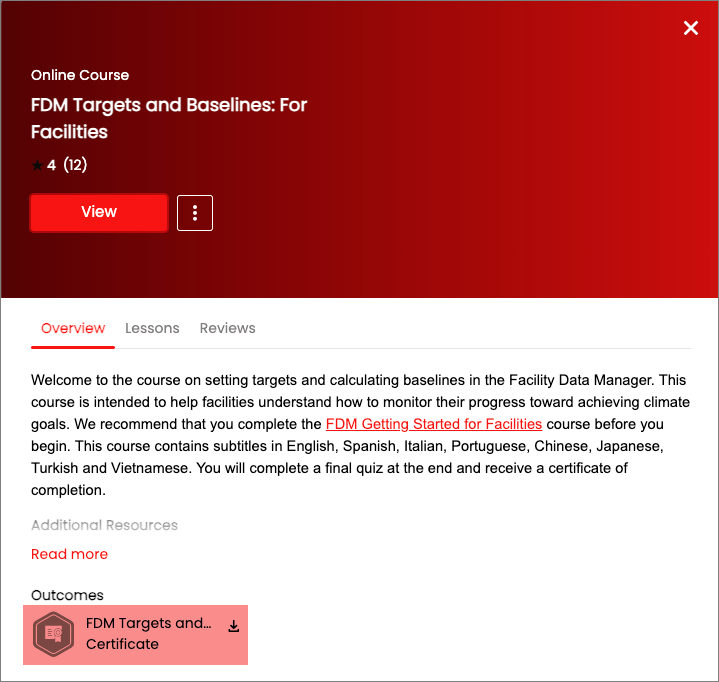
- In the pop up under the Outcomes section click to view or download the certificate:
FAQ