
Table of Contents
Navigation
View related assessments from the Factory List.
- Navigate to Supply Chain from the left-hand navigation menu and select Factory List
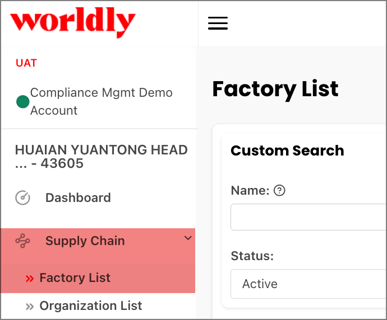
- Under Custom Search, enter the name of the factory or factory ID for the factory related to the assessment. Click here to learn how to search for a factory.
- This reveals the Factory Information page.
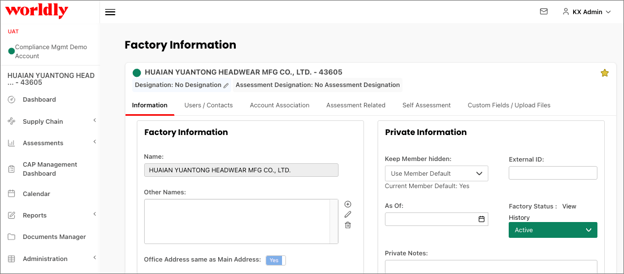
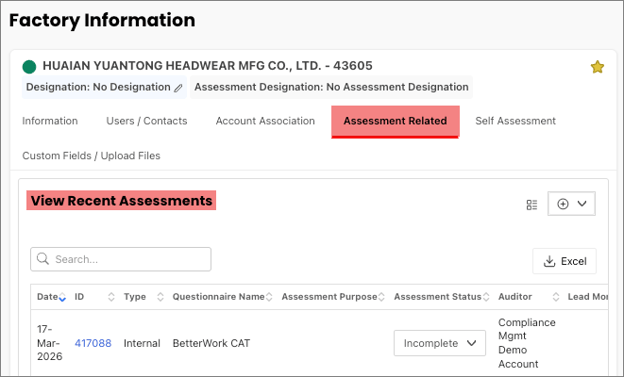
- Select the Assessment Related tab and find the assessment from the View Recent Assessments list.
- Select the Assessment Access Control icon.
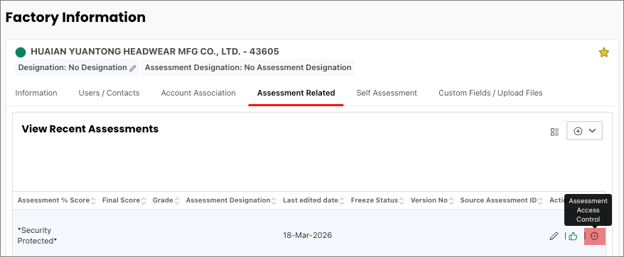
Assessment Access Control
Selecting the Assessment Access Control icon reveals the Assessment Access Control table.
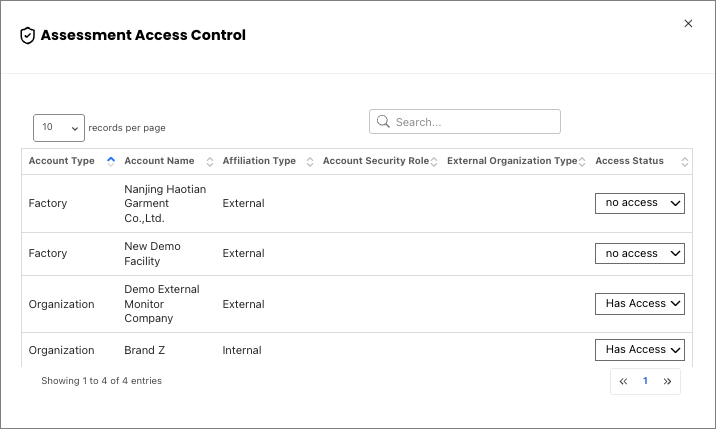
When the assessment was originally created, the access control rows populate for the factory where the assessment is located, any associated factory accounts, and any associated organization account. Each row displays the following information:
Column
Description
Account Type
The type of account (e.g., Factory, Organization).
Account Name
The name of the specific account. Some rows may display as Hidden if the account has restricted visibility.
Affiliation Type
Whether the account is Internal or External to the organization.
Account Security Role
The security role assigned to the account, if applicable.
External Organization Type
The external organization type classification, if applicable.
Access Status
The current access status for this account: Has Access or No Access. This can be changed using the dropdown.
Update Access Control for an Account
NOTE: The ability to adjust assessment access control is dependent on a user's security role and permission settings.
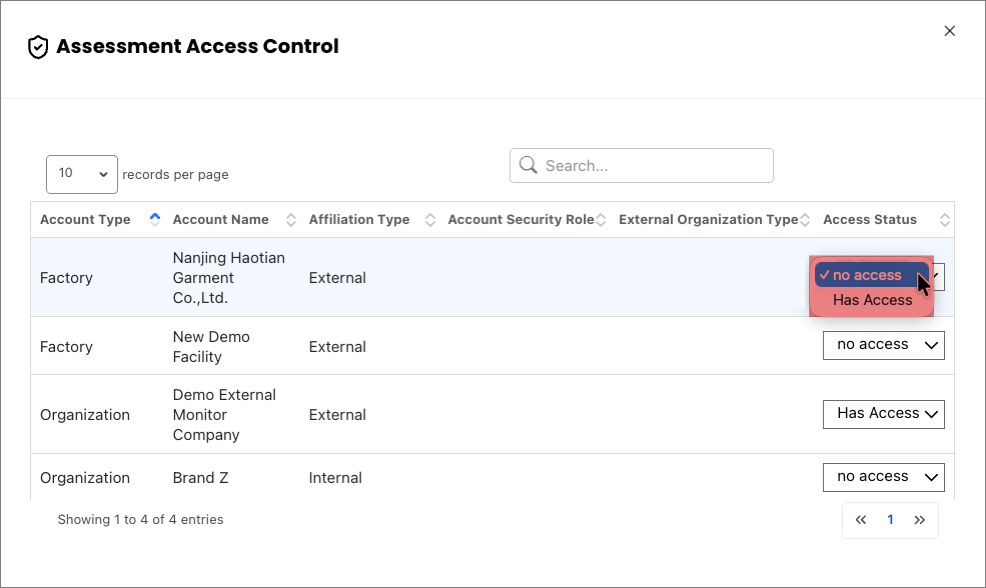
To change the access status for a specific account on an individual assessment:
- Locate the row for the account whose access you want to change.
- Click the Access Status dropdown for that row.
- Select Has Access or No Access as appropriate, which will save the change automatically.
NOTE:
- If a row does not appear for an account you expect to see, you must verify:
- If you do not have administrator permissions, you may not be able to view or modify these settings. Please contact your system administrator for assistance.